

TL;DR: Dashboard → Consent Trends widget. View acceptance rates, rejection rates, and consent patterns over time to understand visitor behavior.
Overview
Consent Analytics tracks how visitors respond to your consent banner. The analytics dashboard shows acceptance rates, rejection rates, partially accepted selections, and trends over time to help you measure compliance and optimize your banner.
Before You Begin
Make sure you have:
Installed your consent banner on your website
Generated visitor consent activity (analytics require at least a few consent interactions)
Time required: 1 minute
How to View Consent Analytics
Step 1: Navigate to your dashboard
Click Dashboard in the top navigation bar.
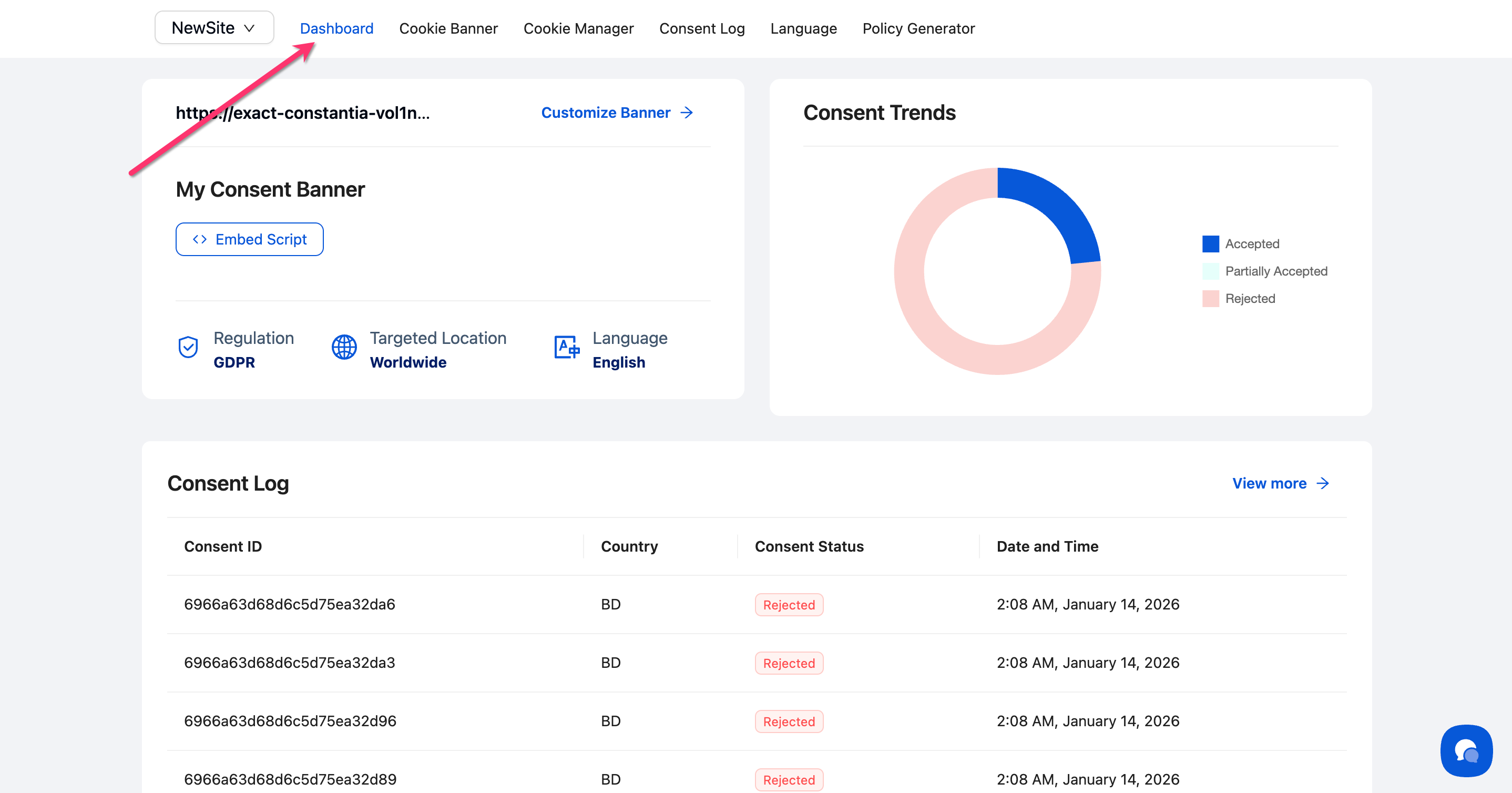
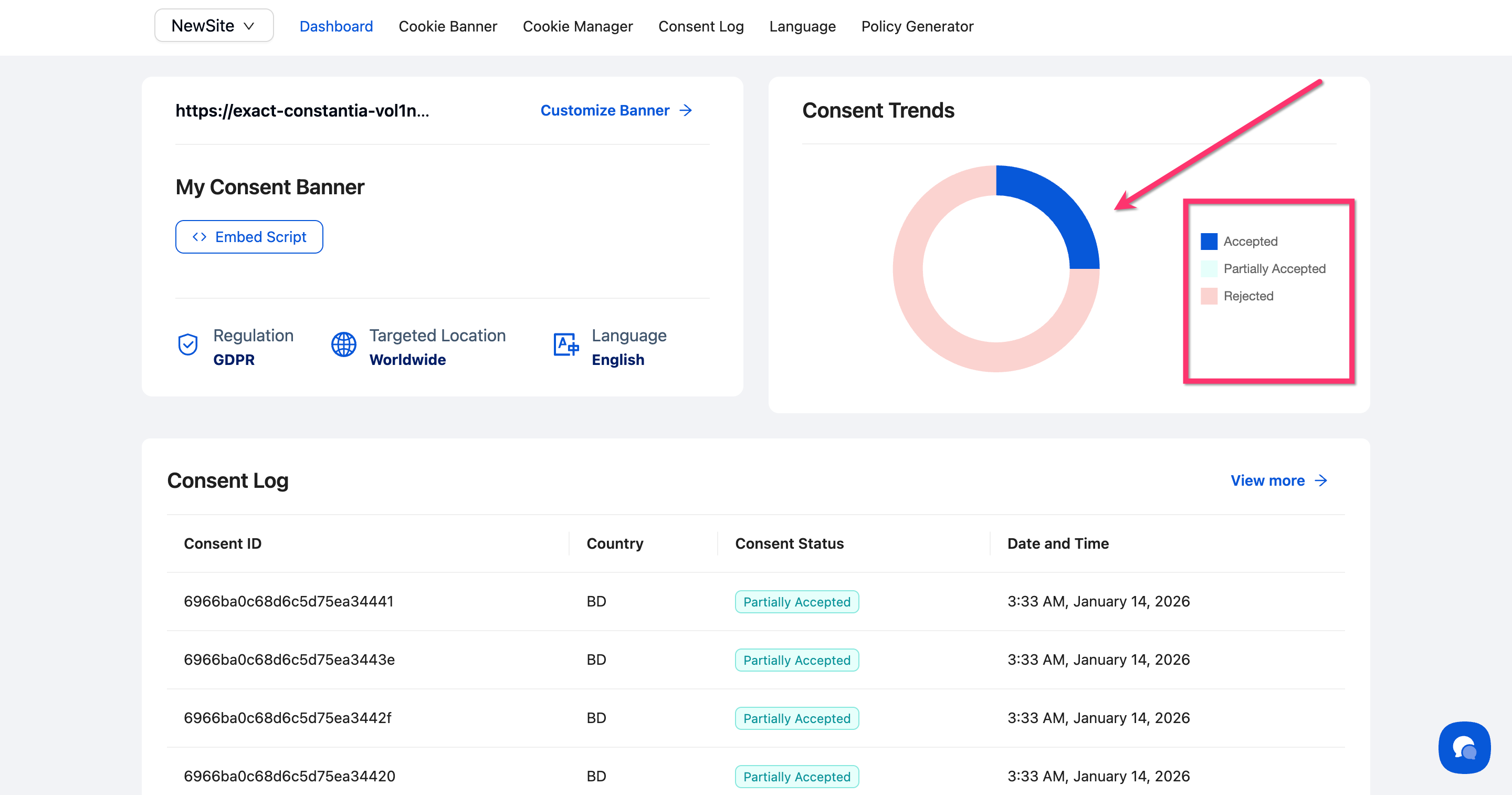
Step 2: Locate the Consent Trends widget
Scroll to the Consent Trends section on the dashboard. This widget displays your consent analytics data.
💡 Tip: If you see "No Consent trends stats found," your banner hasn't collected enough data yet. Check that your banner is installed correctly.
Done!
Your consent analytics are now visible in the Consent Trends widget.
Understanding Your Metrics
Acceptance Rate — Percentage of visitors who clicked Accept All when your banner appeared. A high acceptance rate indicates visitors are comfortable with your cookie usage.
Rejection Rate — Percentage of visitors who clicked Reject All. This shows how many visitors declined non-essential cookies.
Partially Acceptance Rate — Visitors who opened the Preference Center and selected specific cookie categories rather than accepting or rejecting all.
⚠️ Important: Analytics update in near real-time but may take a few minutes to reflect recent consent activity.
What's Next
Now that you understand your consent analytics:
Review your Consent Log for detailed individual consent records
Verify Google Consent Mode integration if you use Google Analytics or Ads
Troubleshooting
The Consent Trends widget is empty
Why this happens: No consent data has been collected yet.
Solution:
Verify your banner is installed by visiting your website and checking if the consent notice appears
Generate test consent by interacting with your banner
Refresh the dashboard after 5 minutes—data should appear
Analytics show very low acceptance rates
Solution: Review your banner content and design. Unclear messaging or aggressive styling can reduce acceptance. Consider testing different banner layouts or simplifying your consent notice text.
Related Pages
Cookie Auto-Blocking — How consent choices affect cookie behavior
IAB TCF Consent Tracking — Advanced consent tracking for programmatic advertising