

TL;DR: Site → Settings → Site Settings → Tracking Code → Paste script in header → Save. The script loads automatically on all pages of your Groove.cm website.
Overview
Groove.cm provides a centralized Tracking Code section where you can add the Consently script once, and it will automatically load on every page of your website. This ensures consistent consent collection across your entire site.
Before You Begin
Make sure you have:
Time required: 2 minutes
How to Install the Consently Script
Step 1: Access your Site settings
In your Groove.cm dashboard, click Manage Site from the menu.
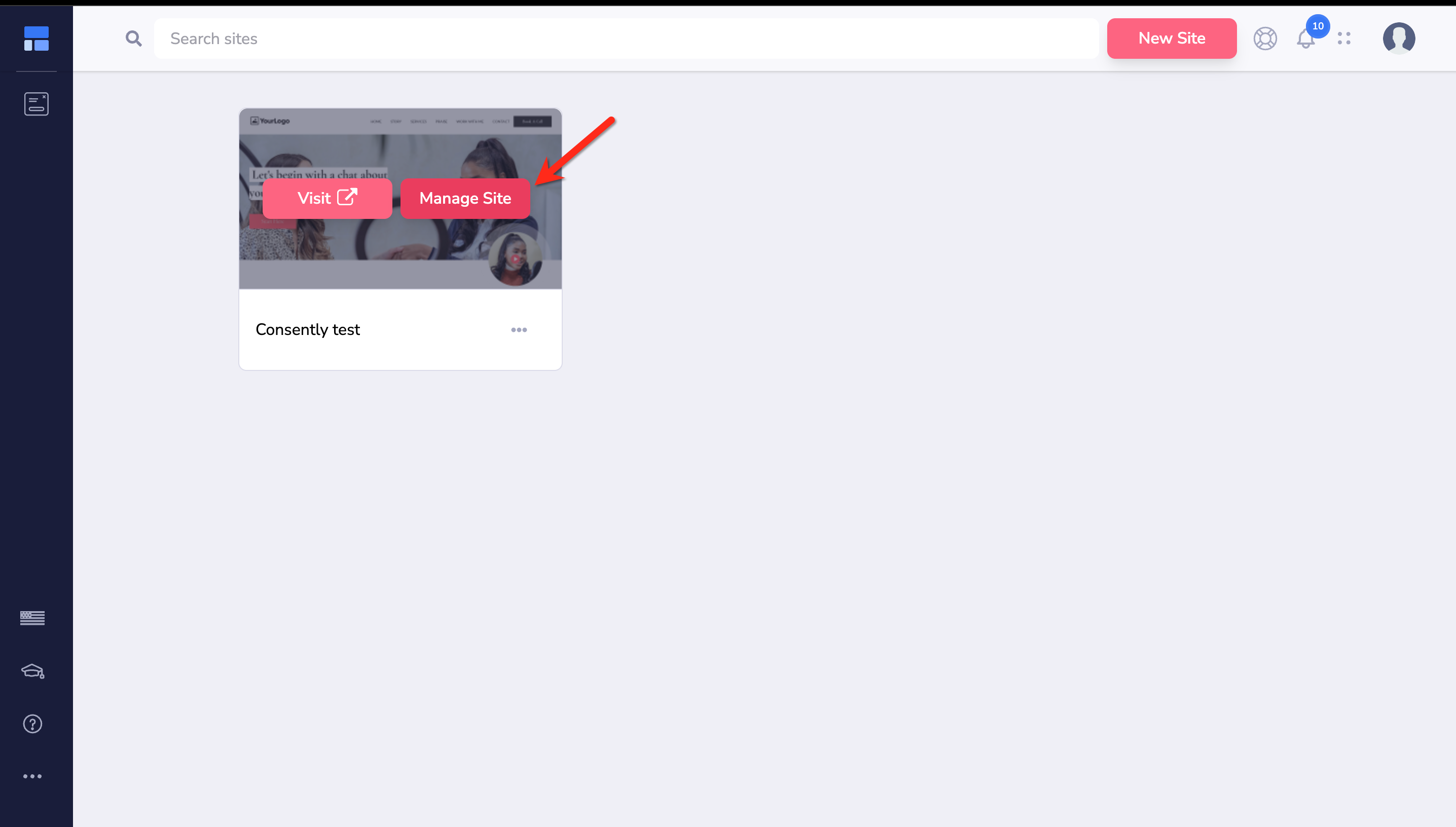
Step 2: Navigate to Site Settings
From the Settings dropdown, click Site Settings.
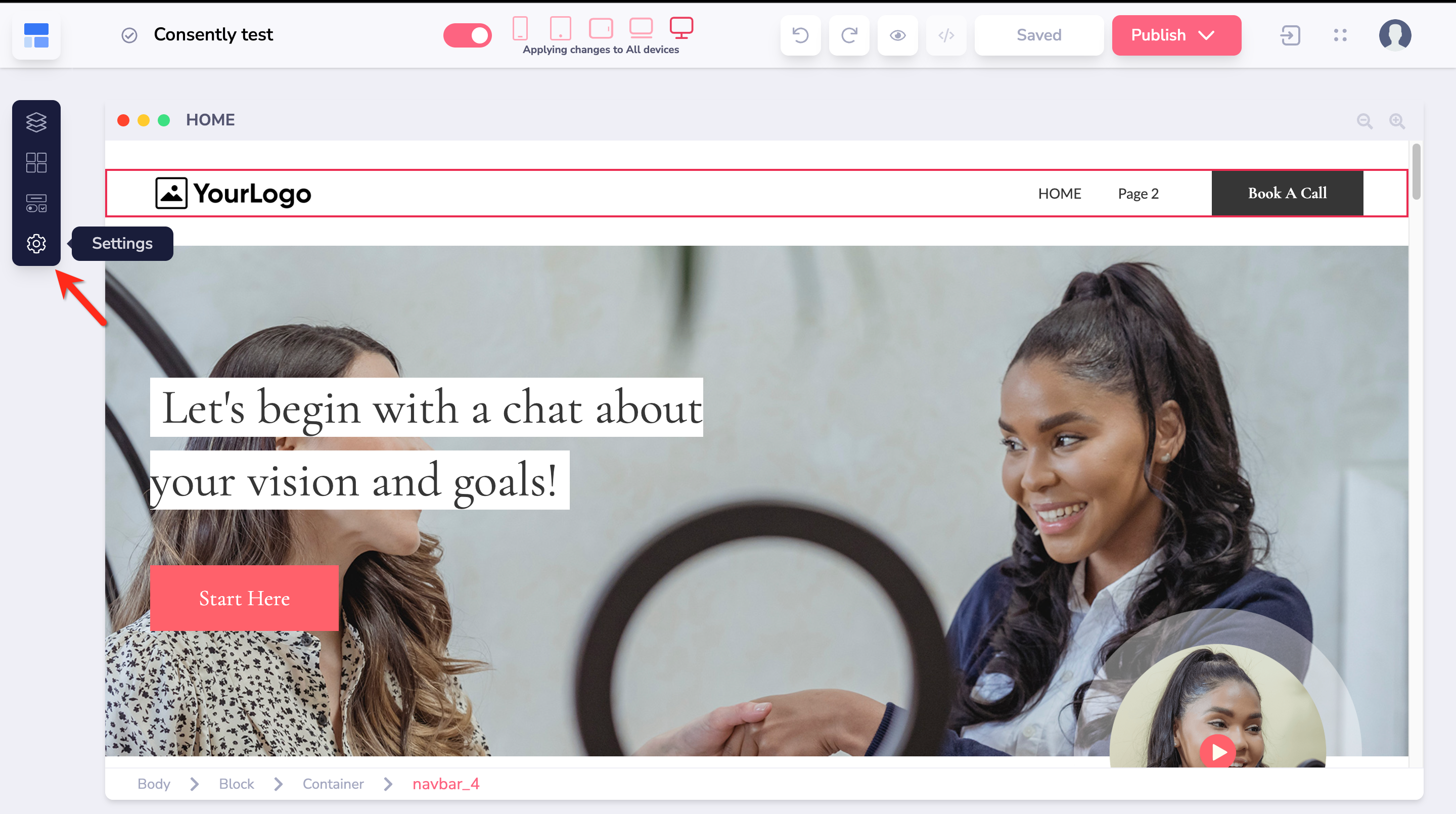
Step 3: Open the Tracking Code section
Scroll down to locate the Tracking Code section on the Site Settings page.
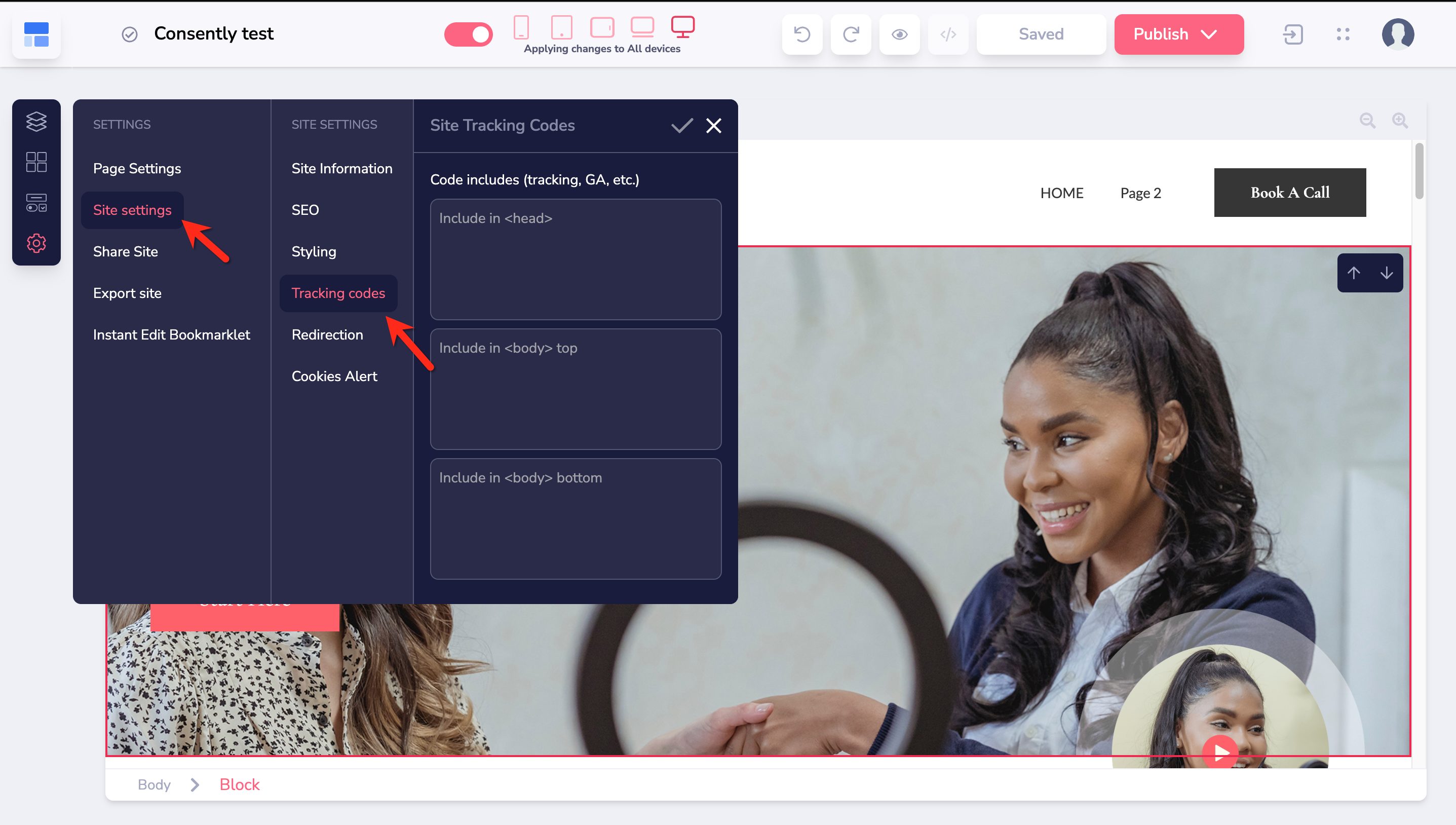
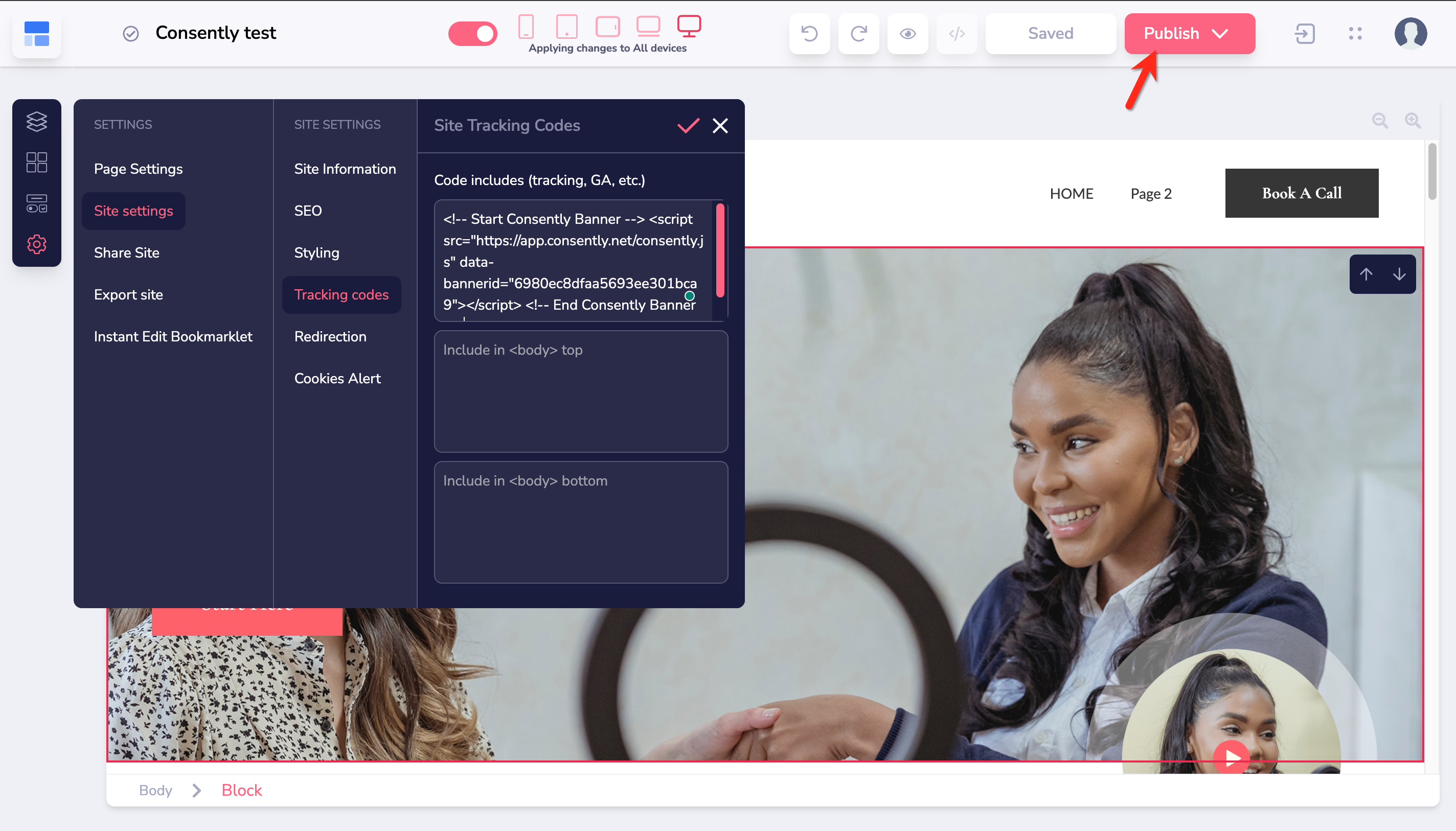
Step 4: Paste your Consently script
Paste your Consently embed script into the Tracking Code field.
💡 Tip: The script should be pasted exactly as copied from your Consently dashboard, including the<!-- Start Consently Banner -->and<!-- End Consently Banner -->comment tags.
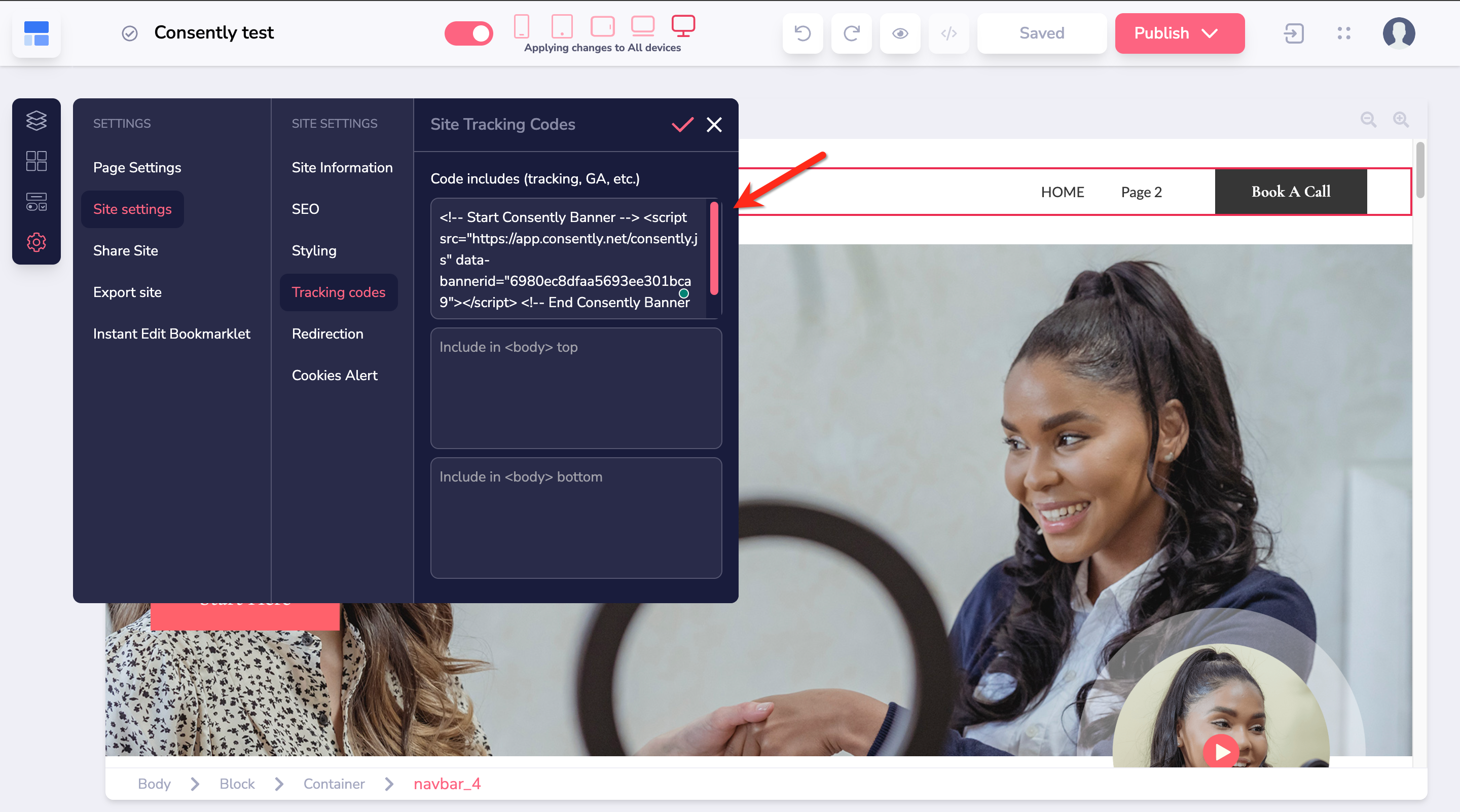
Step 5: Save your changes
Click the Save button at the bottom of the page to apply your changes.
Done!
Your Consently script is now installed and will load on all pages of your Groove.cm website.
✅ Success indicator: Visit any page on your published Groove.cm site to see the consent banner appear.
What's Next
Now that you've installed the script, you should:
Troubleshooting
The banner isn't showing on my website
Why this happens: The site may not be published, or browser caching might be preventing the script from loading.
Solution:
Verify your Groove.cm site is published (not just in draft mode)
Go back to Site Settings → Tracking Code and confirm the script is still there
Click Save again to ensure changes are applied
Clear your browser cache or test in an incognito/private window
Wait a few minutes for changes to propagate across Groove.cm's servers
The script disappeared after I saved it
Why this happens: Some special characters or formatting may have caused the field to reject the script.
Solution:
Copy the embed script again from your Consently dashboard
Use a plain text editor to paste the script first, removing any hidden formatting
Copy from the text editor and paste into the Groove.cm Tracking Code field
Ensure the entire script is visible in the field before clicking Save
The banner appears on some pages but not others
Why this happens: Individual pages may have conflicting settings or custom code that prevents the global script from loading.
Solution:
Check if any individual pages have custom tracking code that might conflict
Verify the Tracking Code is in the Site Settings (not Page Settings) to ensure site-wide installation
Test on multiple pages in different browsers to isolate the issue
If the issue persists on specific pages only, check those pages for custom code or settings
The banner is loading slowly
Solution: The Consently script loads asynchronously and should not significantly impact page speed. If you notice delays:
Verify the script is placed in the Tracking Code section (not in page body content)
Test your overall site speed using tools like Google PageSpeed Insights
Check if other third-party scripts are causing delays
Ensure your Groove.cm site is on a stable hosting plan
Related Pages
Direct HTML Installation — Understanding the core script installation method
Platform Compatibility — Overview of installation across different platforms
Testing Your Installation — Verify your banner is working correctly