

TL;DR: Cookies & Scanning → Cookies & Tracker List → Embeds / Iframes → Default Embed Blocking → Click platform → Toggle "Should Block" → Save. iFrames from selected platforms won't load until visitors consent to the appropriate cookie categories.
Overview
The iframe embed blocking feature prevents embedded content (like YouTube videos, Google Maps, social media feeds) from loading on your website until visitors provide consent. This ensures third-party platforms can't set cookies or track visitors without permission, helping you maintain GDPR and privacy law compliance.
Before You Begin
Make sure you have:
Configured your cookie categories and assigned embedded content to the appropriate categories
The embedded contents are loading via an
<iframe>
Time required: 3 minutes
How to Block Embedded Platforms
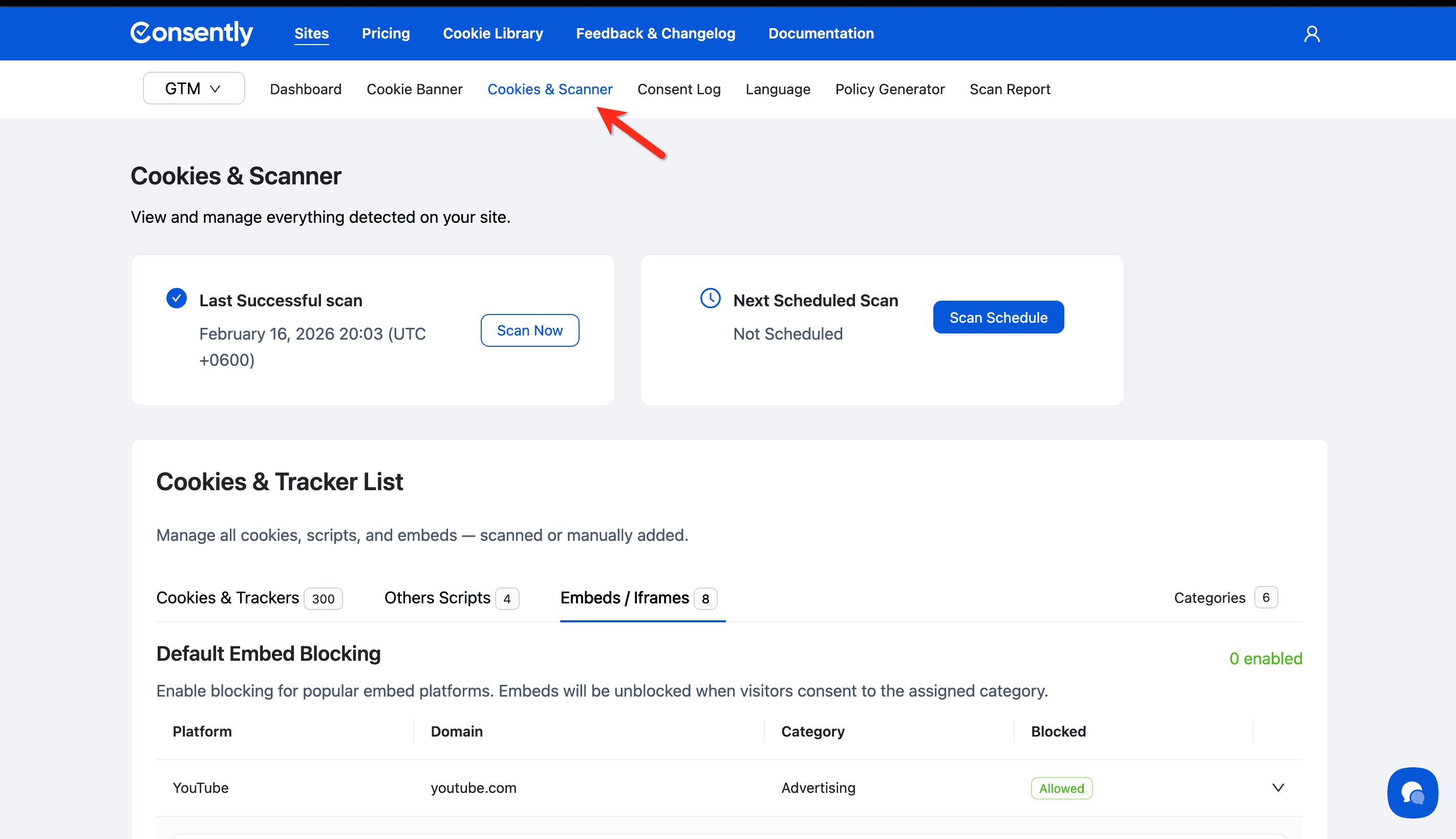
Step 1: Navigate to Cookies & Scanner
Click Cookies & Scanner in the top navigation bar.
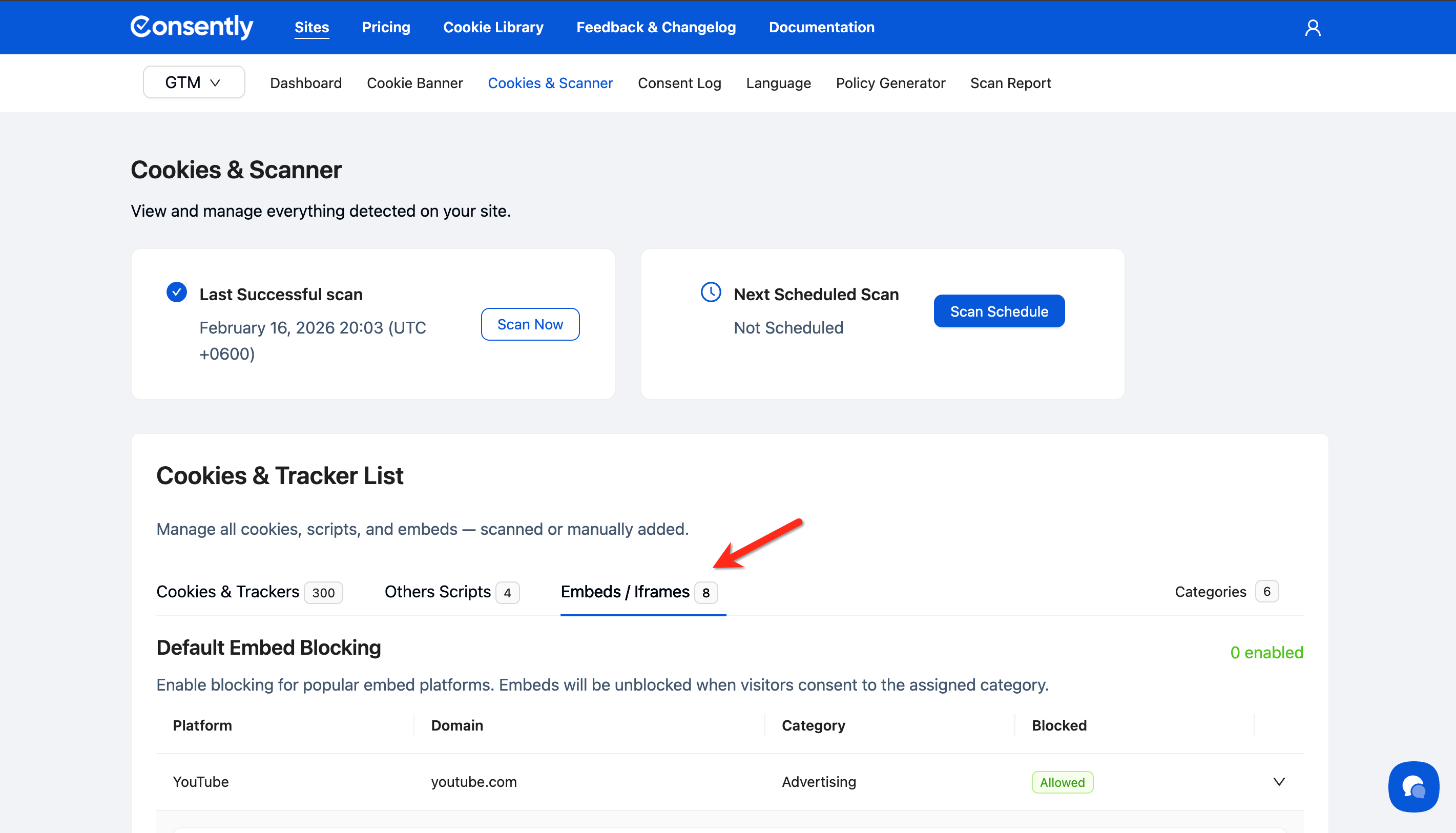
Step 2: Access Embeds / Iframes tab
In the Cookies & Tracker List section, click the Embeds / Iframes tab.
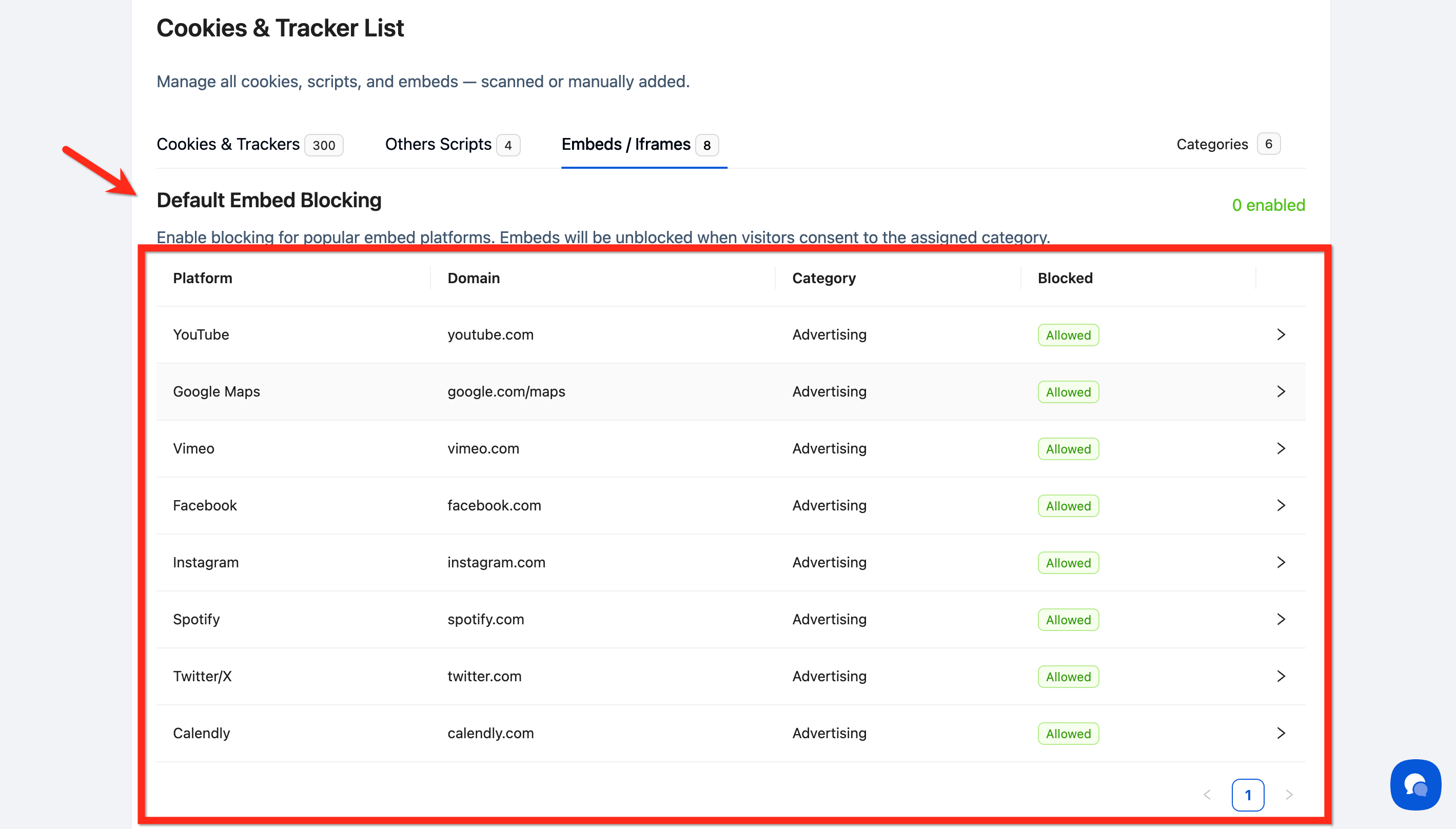
Step 3: View Default Embed Blocking section
Scroll to the Default Embed Blocking section to see all detected embedded platforms.
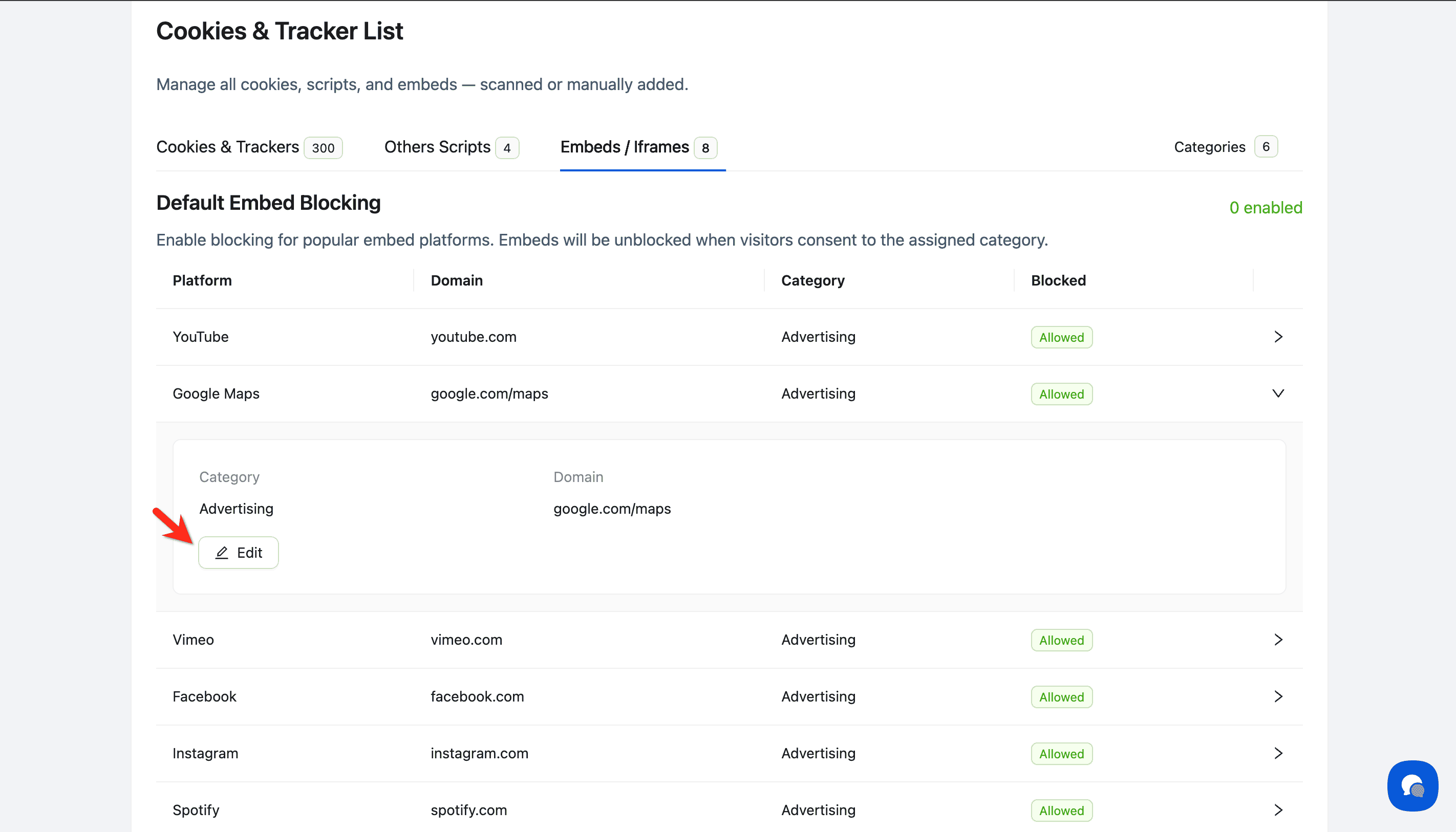
Step 4: Select a platform to configure
Click on any platform row (or the arrow icon) to expand its settings.
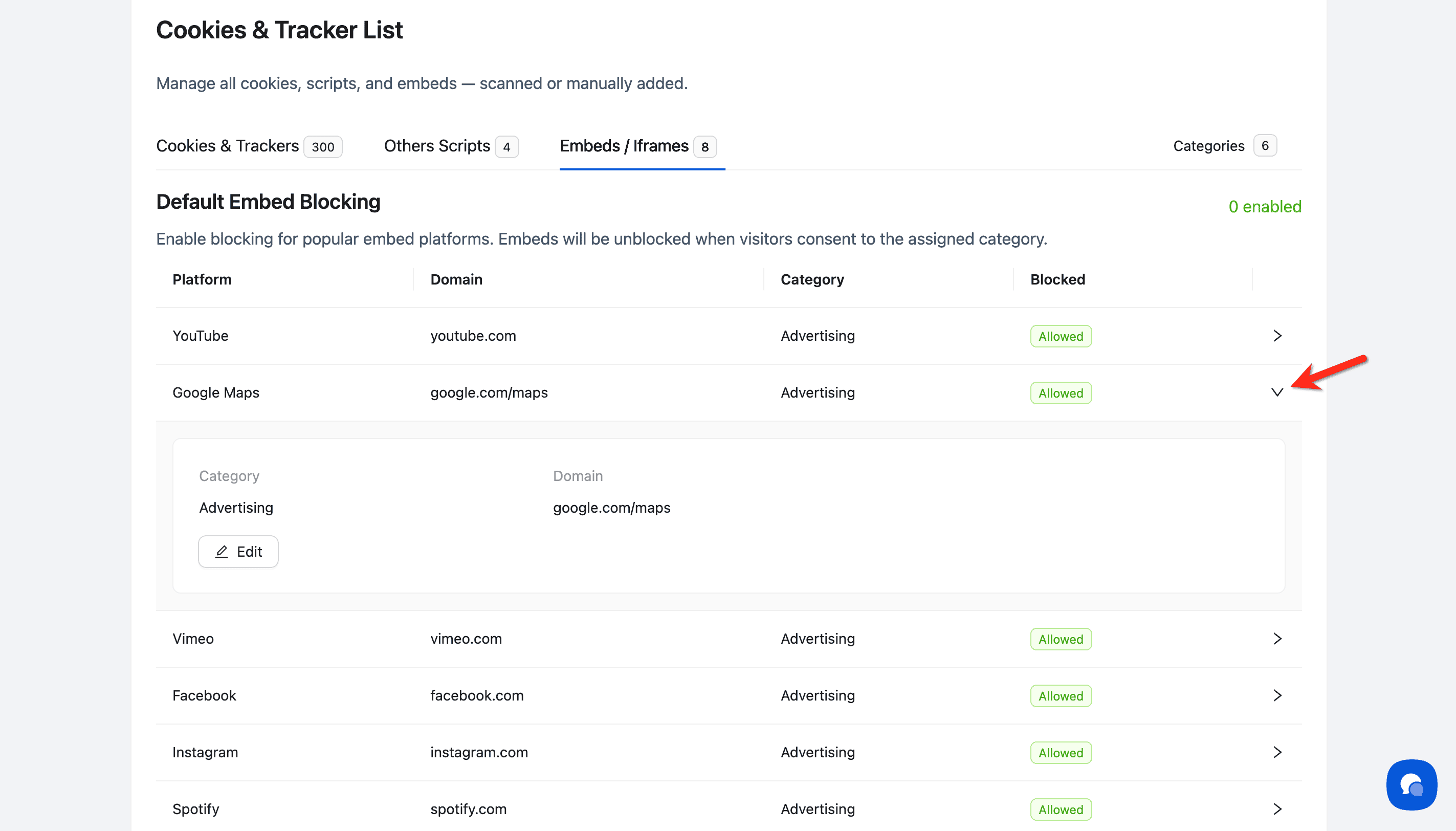
Step 5: Enable blocking for the platform
Click the Edit button to open the Update Embed modal.
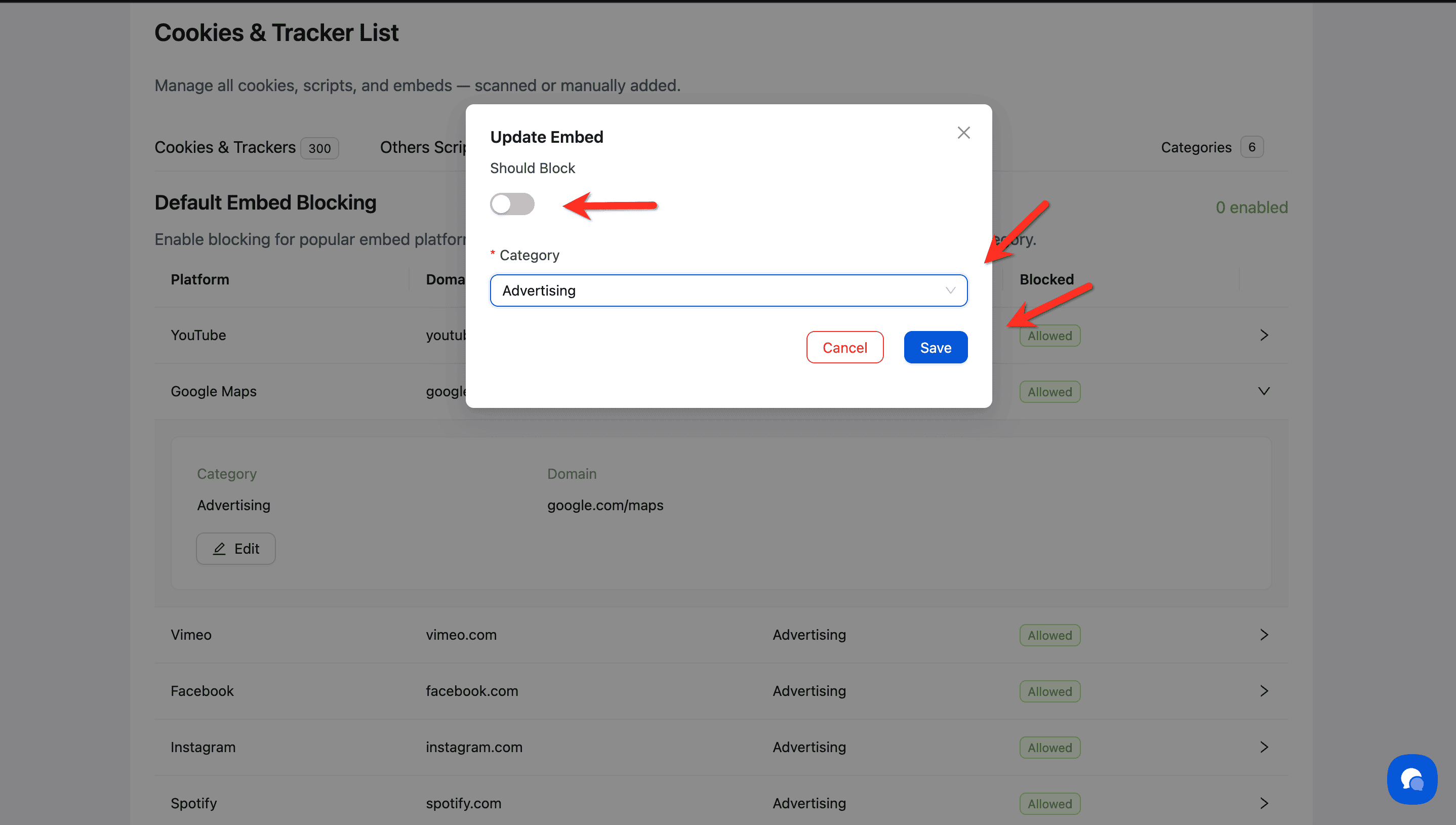
Step 6: Toggle blocking and set category
Turn on the Should Block toggle
Verify or change the Category assignment (Analytics, Essential, Advertising, Performance, Social, or Unclassified)
Click Save
💡 Tip: Most embedded platforms should be assigned to the Advertising or Social categories and blocked by default to comply with GDPR requirements.
Done!
Embedded content from selected platforms now requires visitor consent before loading.
✅ Success indicator: The platform's status changes from "Allowed" to "Blocked" in the Default Embed Blocking table. Selected iframes display a placeholder on your website instead of loading automatically.
Adding Custom Iframes
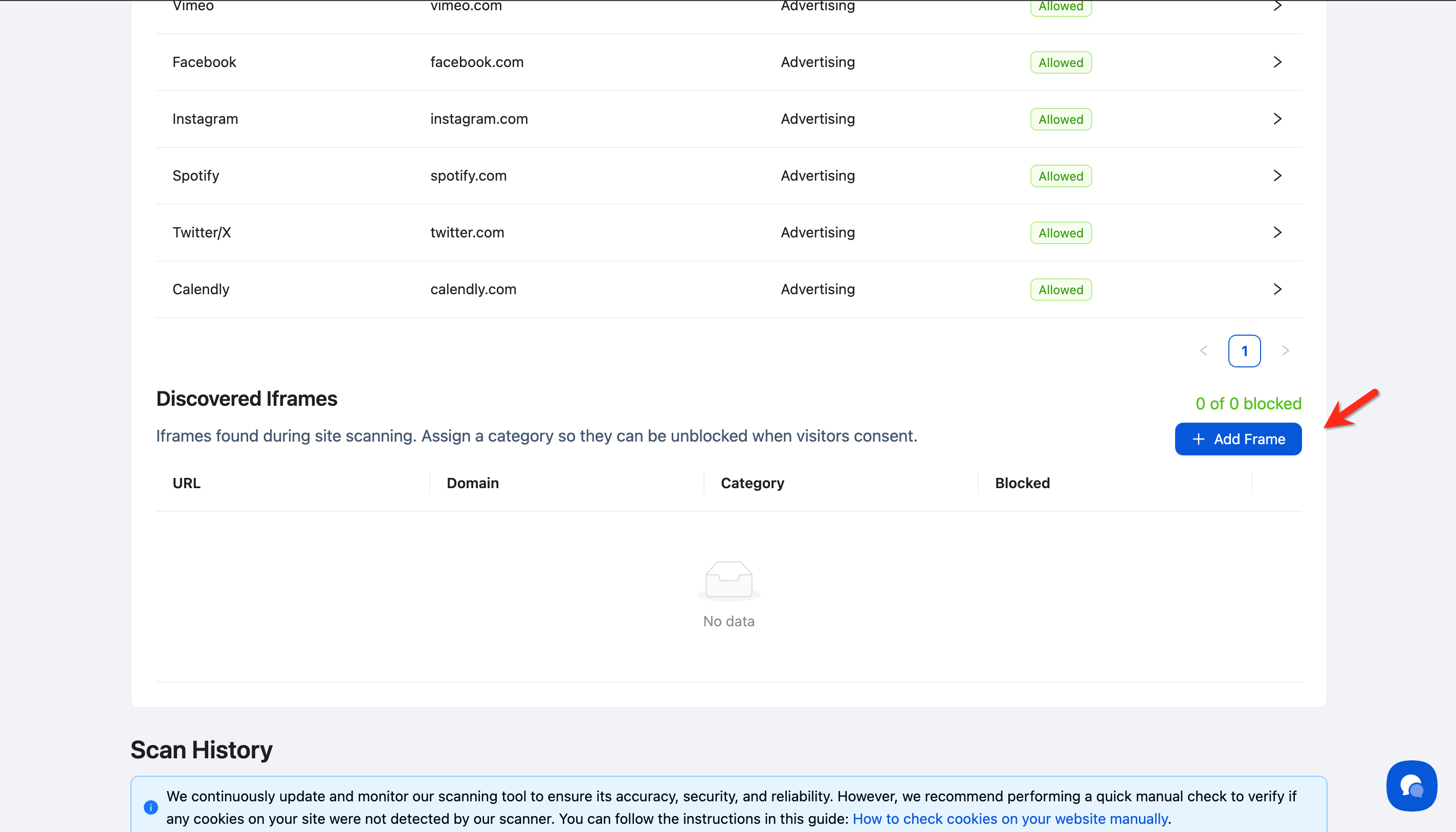
If Consently's automatic scanning didn't detect an iframe, or you want to manually add a custom embed, use the Discovered Iframes section.
Step 1: Open Add Frame modal
Scroll to the Discovered Iframes section and click the + Add Frame button.
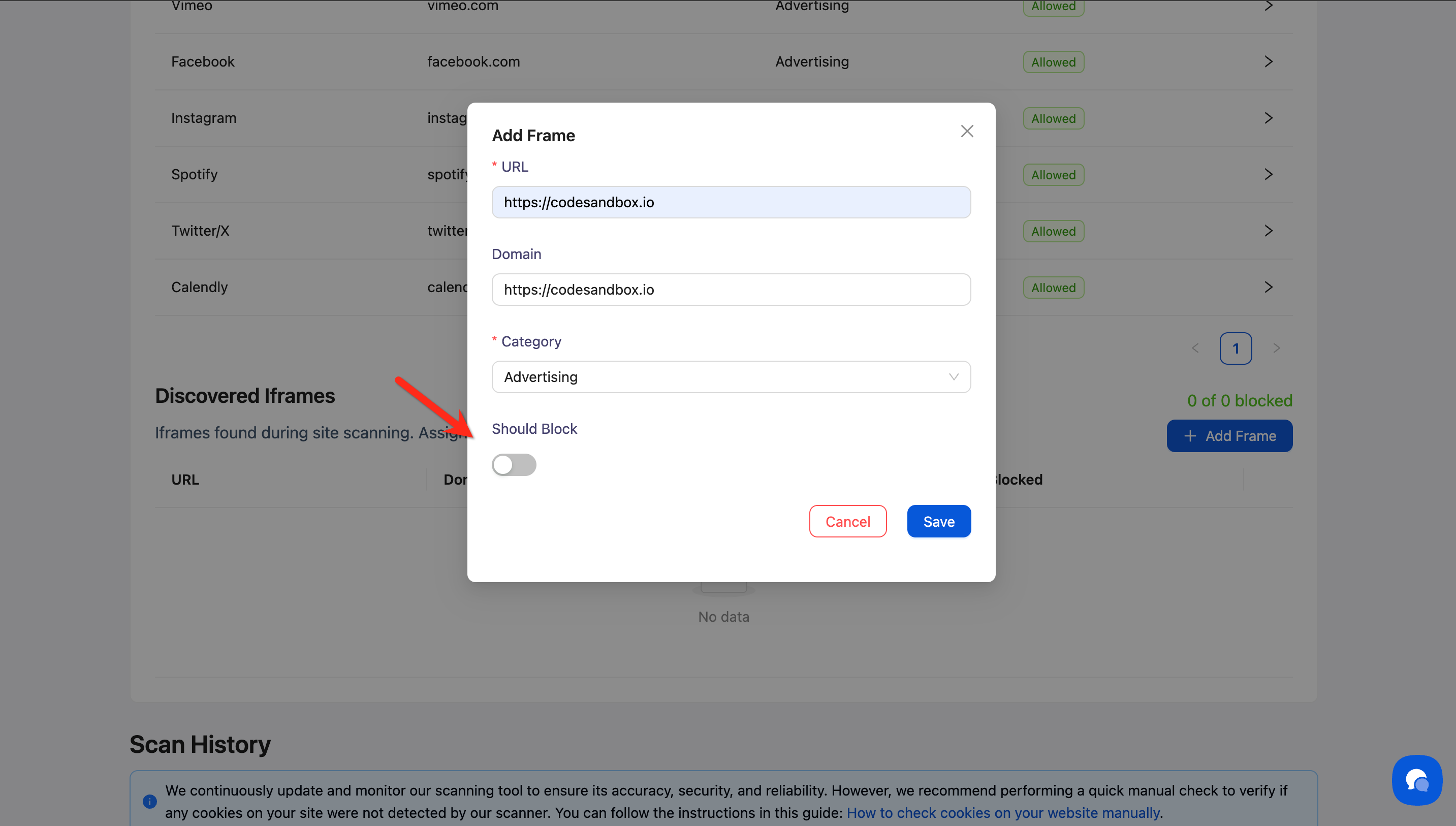
Step 2: Enter iframe details
In the Add Frame modal, fill in the following:
URL (required): The full URL of the iframe source (e.g.,
https://example.com/widget)Domain: The domain will auto-populate from the URL (e.g.,
example.com)Category: Select the appropriate cookie category from the dropdown
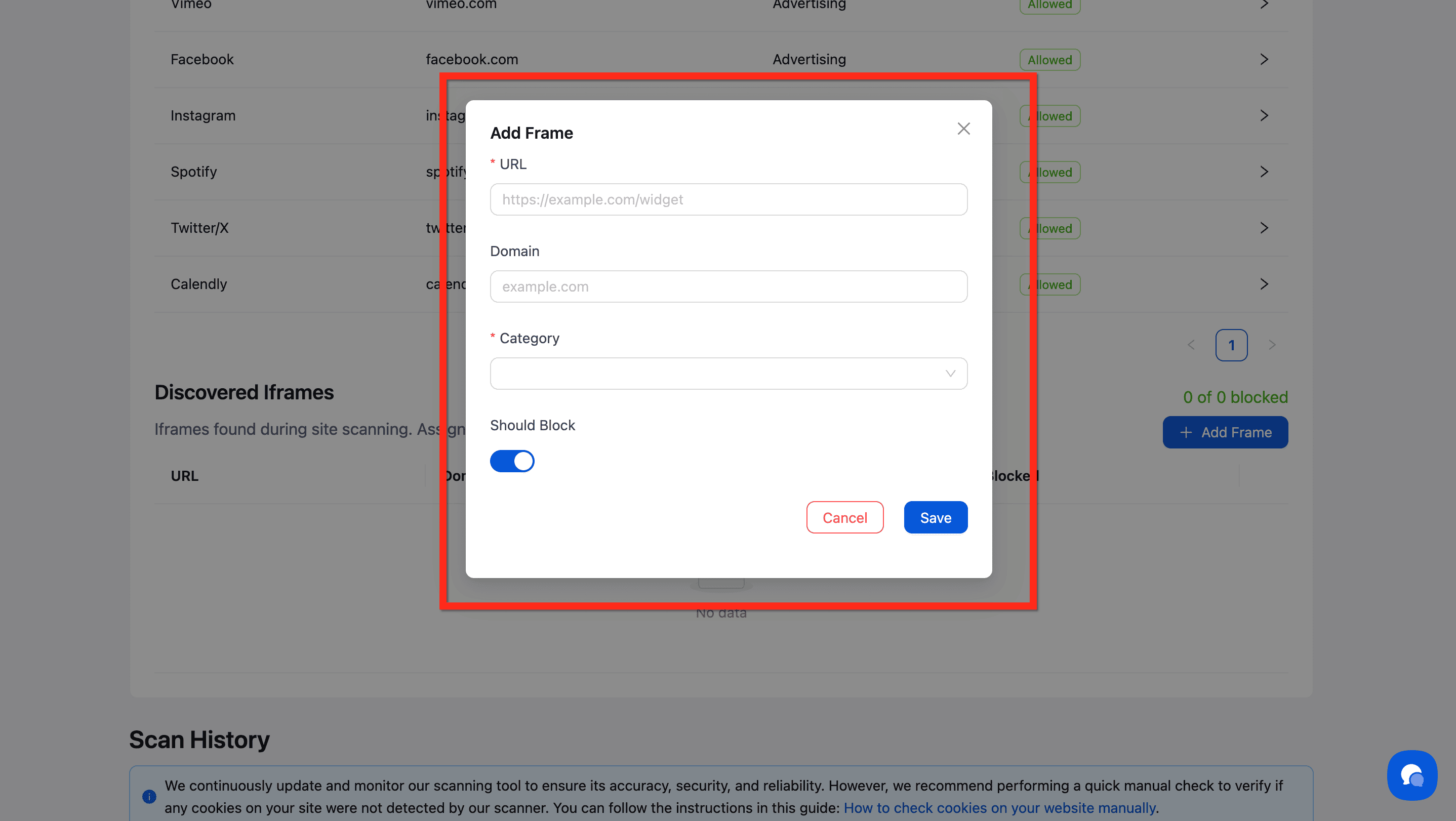
Step 3: Enable blocking
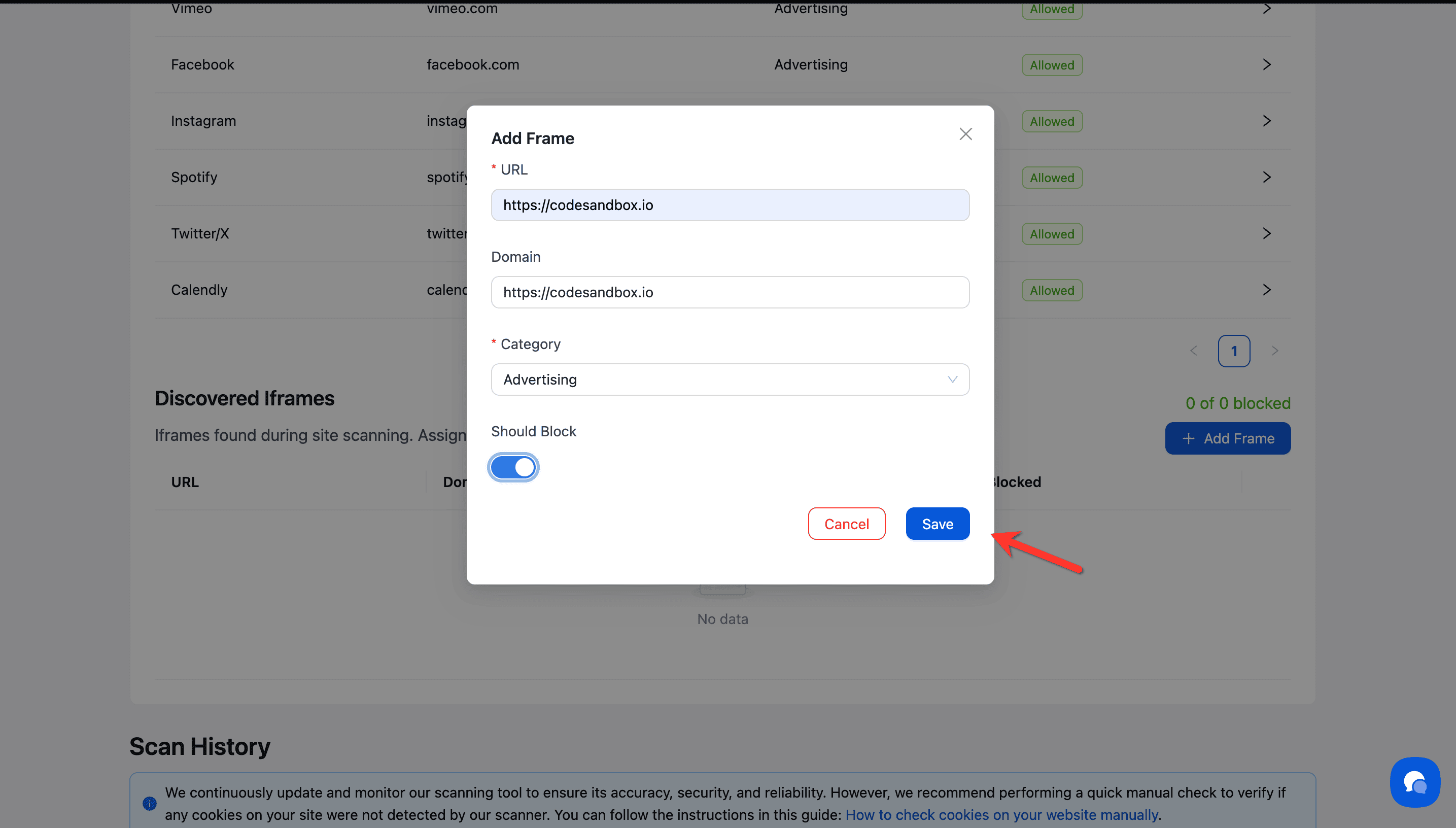
Toggle Should Block on to block this iframe until consent is granted.
Step 4: Save the custom iframe
Click Save to add the iframe to your blocking list.
💡 Tip: Use this feature for custom embeds that aren't from the default platforms, such as proprietary widgets, third-party booking systems, or specialized content players.
How It Works
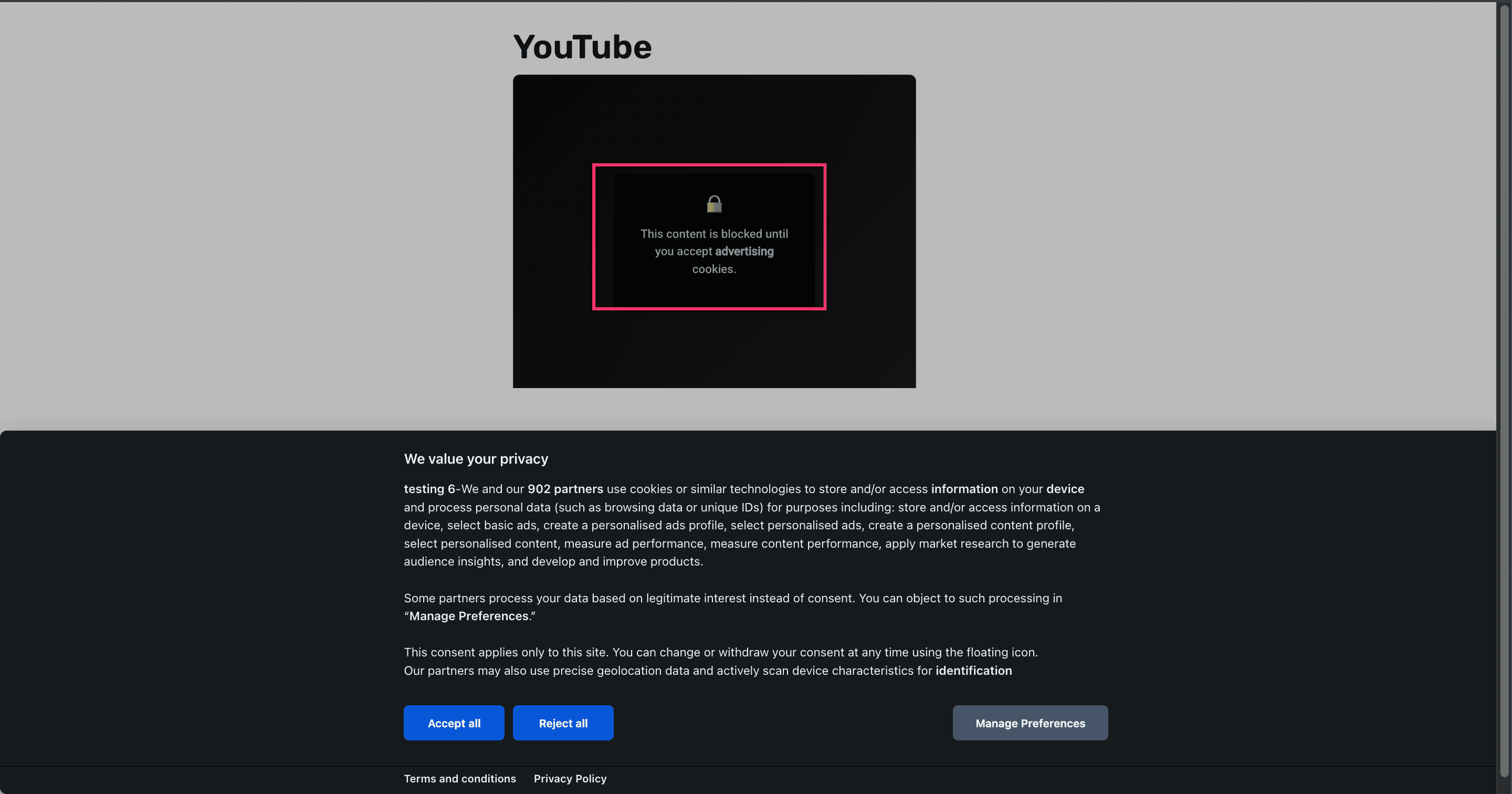
When you block an embedded platform:
Before consent: Visitors see a placeholder instead of the embedded content
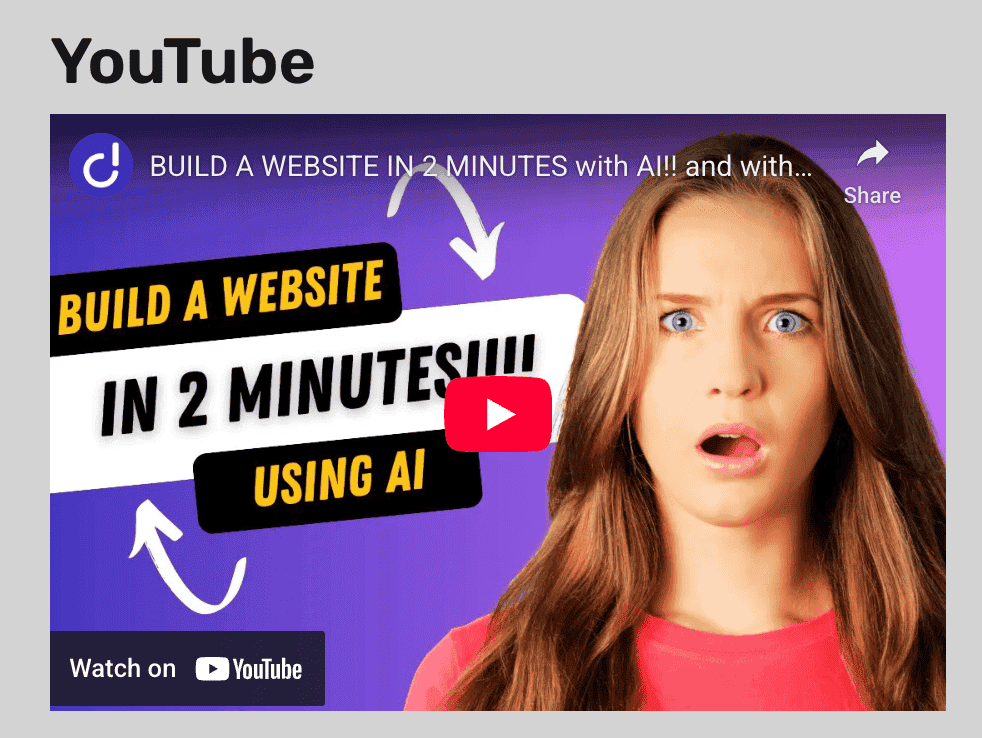
After consent: Once visitors accept the relevant cookie category (typically Analytics, Advertising, or Social), the iframe loads automatically
Customizing the Placeholder Text
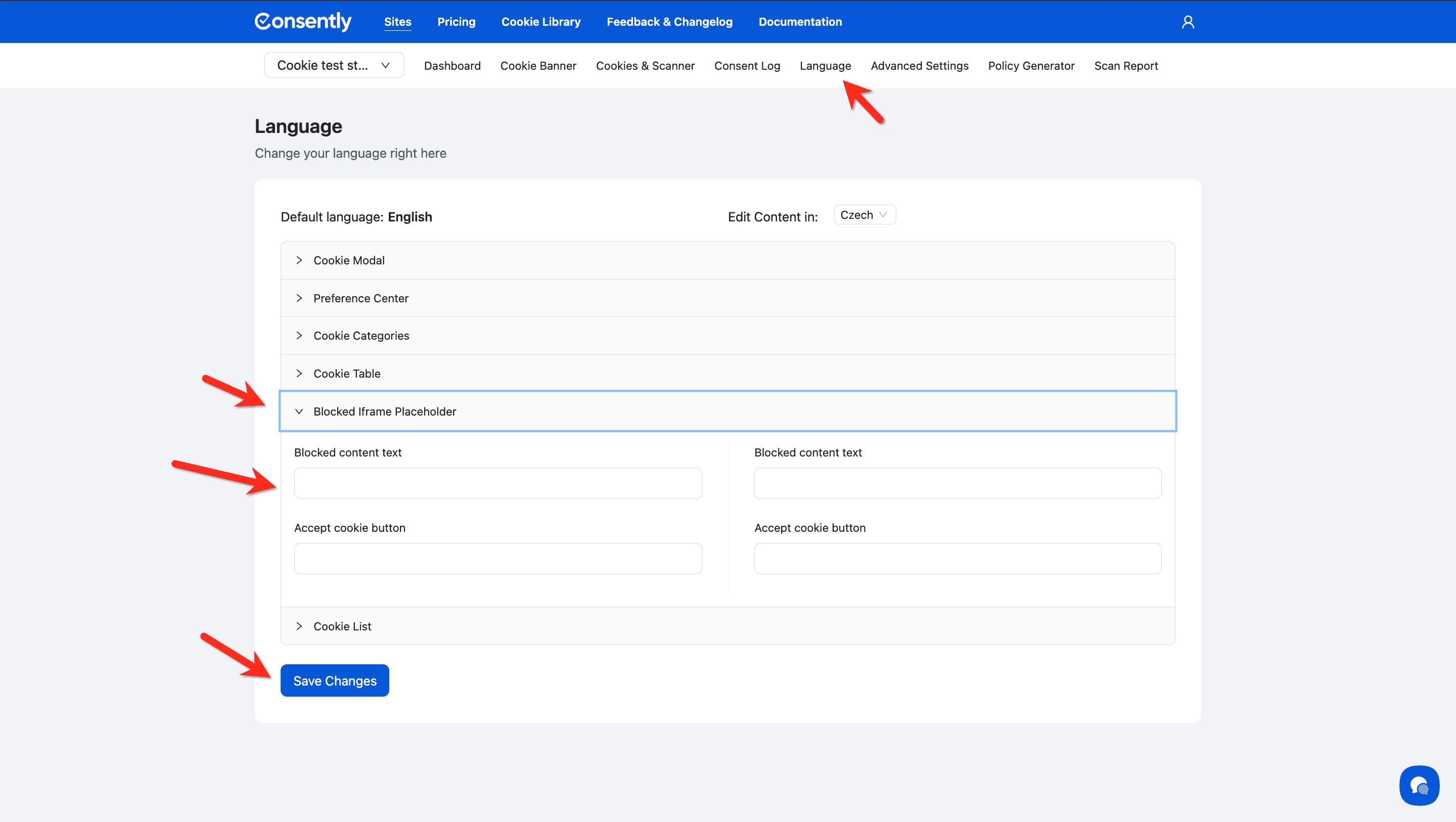
The blocked content message and Accept cookie button text are editable. You can also translate them into every language your site supports.
To update the placeholder text, go to Language → Edit Content for your default language, then expand the Blocked Iframe Placeholder section. For step-by-step translation instructions, see Editing Language Content.
What's Next
Now that you've configured iframe blocking:
Test your banner to verify iframes are blocked correctly
Review cookie auto-blocking settings to ensure platforms map to the right consent types
Troubleshooting
Embedded content still loads without consent
Why this happens: The platform might use a different embedding method, or the Consently script may not have loaded properly.
Solution:
Clear your browser cache and reload the page
Verify the Consently script is in your site's
<head>sectionCheck that the iframe src URL matches the platform you selected (for example, YouTube iframes should contain "youtube.com")
Make sure the contents are loading via an iframe; some platforms may not use an iframe to embed content
Confirm the "Should Block" toggle is enabled for that platform in the Default Embed Blocking settings
Some iframes are blocked, but others aren't
Why this happens: Each platform must be individually configured with the "Should Block" toggle enabled.
Solution: Go through each platform in the Default Embed Blocking table and enable the "Should Block" toggle for all platforms you want to block. For custom iframes not in the default list, manually add them using the Discovered Iframes section.
The placeholder doesn't show proper styling
Why this happens: Your site's CSS may be conflicting with Consently's placeholder styles.
Solution: The placeholder uses minimal default styling to match most sites. If you need custom styling, you can manually add CSS styling on your site by targeting the placeholder.
Embedded content still loads without consent or displays a blank space
Why this happens: Sometimes, placeholders for blocked widgets may not appear if the widget provider is not included in our default provider list or if the integration is a custom development.
Solution:
This can be resolved easily by adding the following attributes to your widget’s script to prevent the initial API trigger and display the placeholder instead:
type="text/plain"
data-consently-show-placeholder
Custom iframe not detected by automatic scanning
Solution: Use the + Add Frame button in the Discovered Iframes section to manually add the iframe. Make sure to enter the complete iframe source URL and assign it to the correct category.
Related Pages
Cookie Categories — Understanding which category each platform belongs to
GDPR Compliance — Why iframe blocking helps with GDPR compliance