

TL;DR: Copy your embed script from Consently → Open Framer project → Settings → Custom Code → Paste in "Start of <head> tag" section → Publish. Your consent banner will appear on all pages of your Framer site.Overview
Framer's Custom Code feature lets you add the Consently script to your entire site from one location. This method is ideal for Framer sites because it automatically applies the consent banner to every page without requiring edits to individual page code.
Before You Begin
Make sure you have:
A Framer account with an active site project
Publishing access to your Framer site
Time required: 3 minutes
How to Install Consently on Framer
Step 1: Copy your embed script from Consently
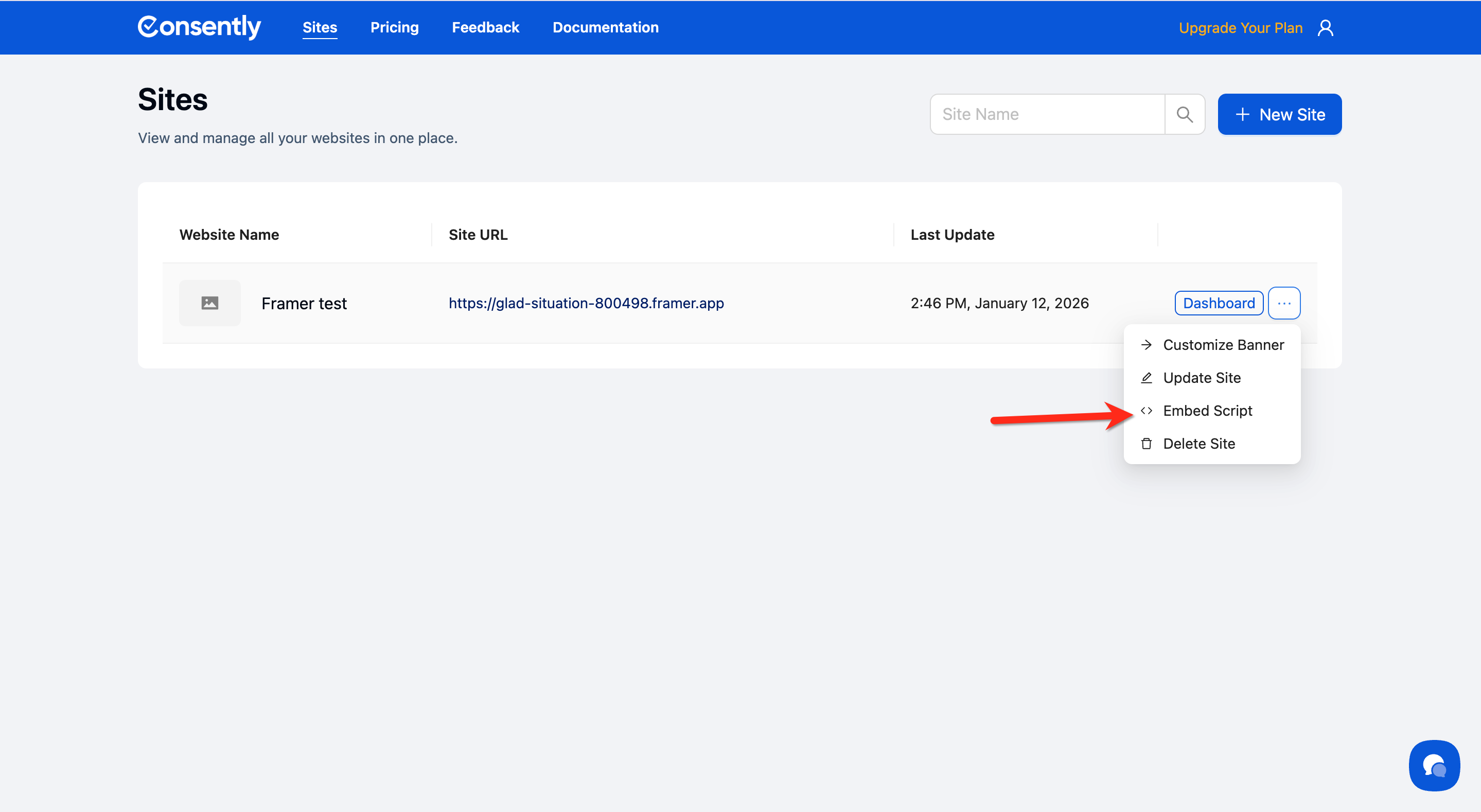
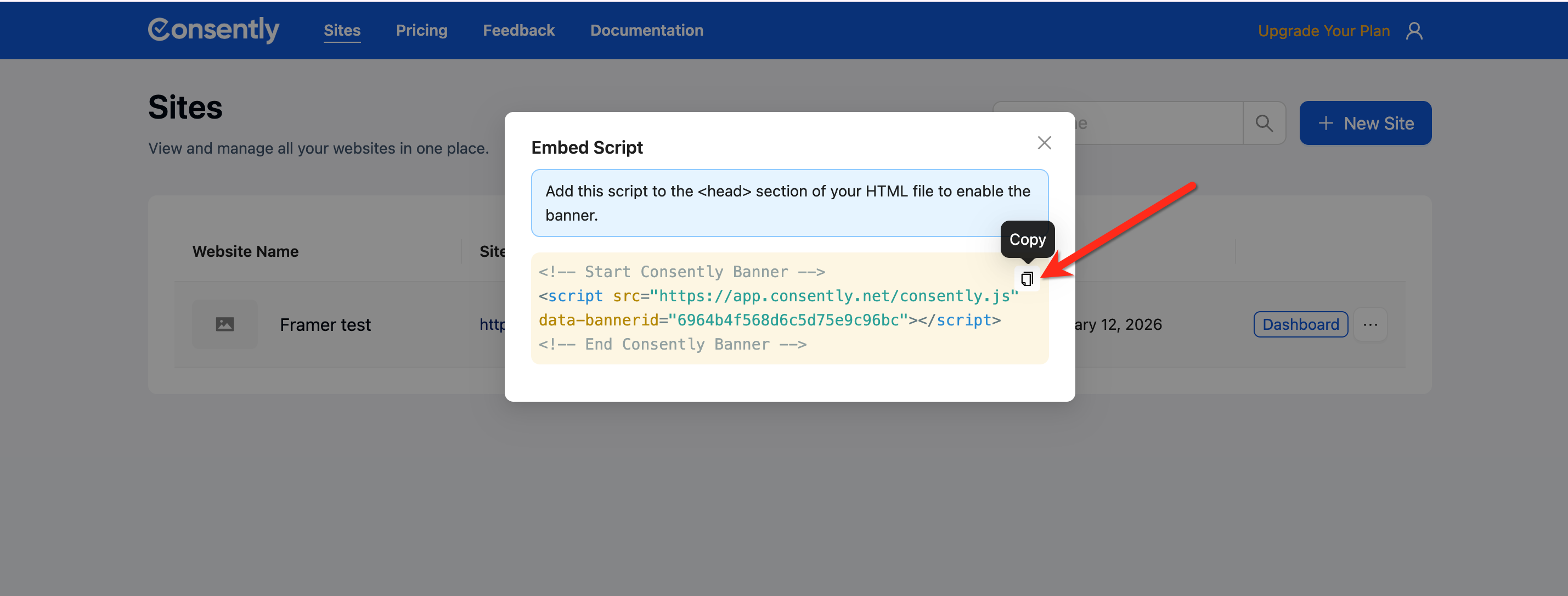
In Consently, navigate to Sites, click the ⋮ menu next to your site, select Embed Script, and click Copy.
Step 2: Open your Framer project
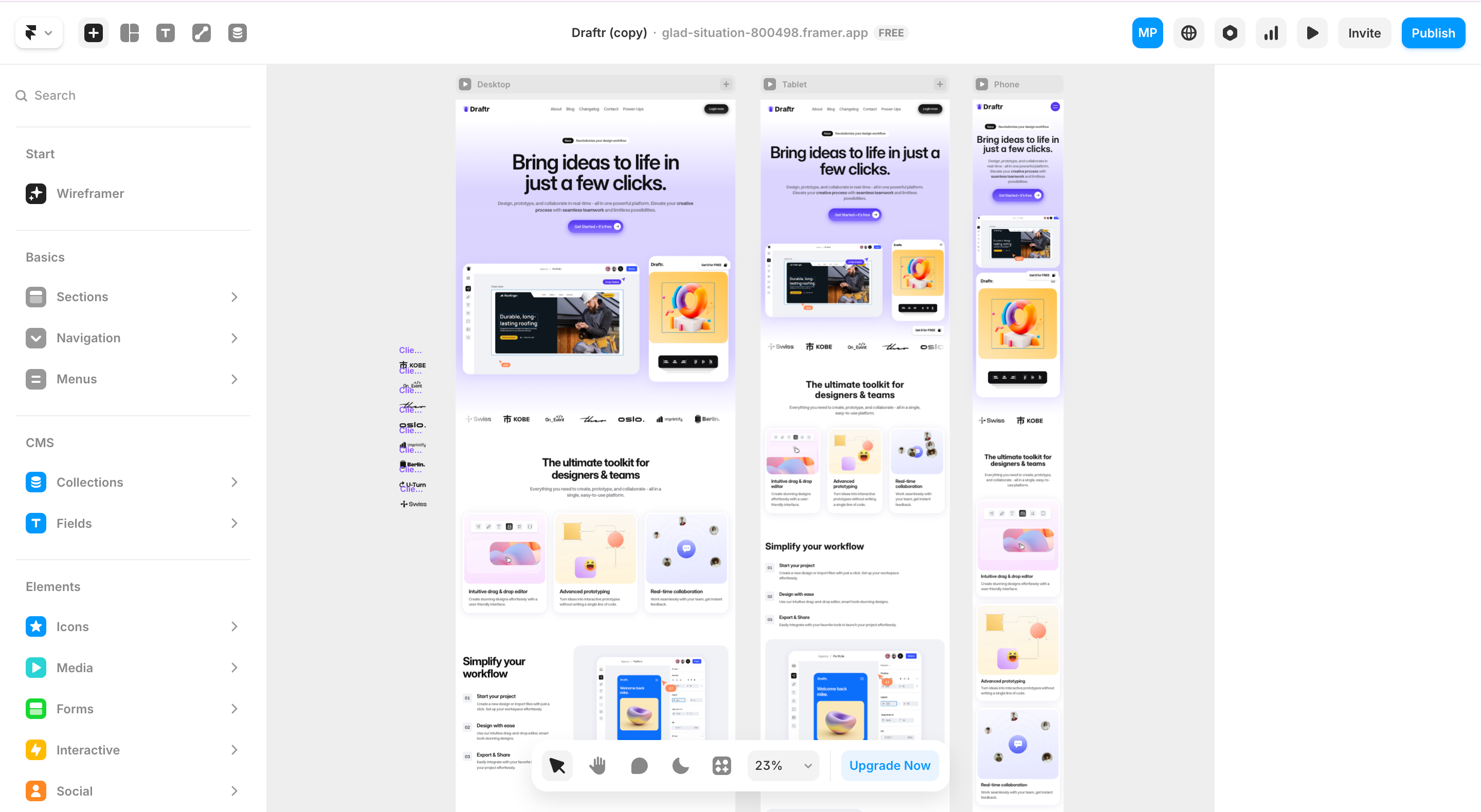
Log in to Framer and open the site project where you want to add the consent banner.
Step 3: Access Custom Code Settings
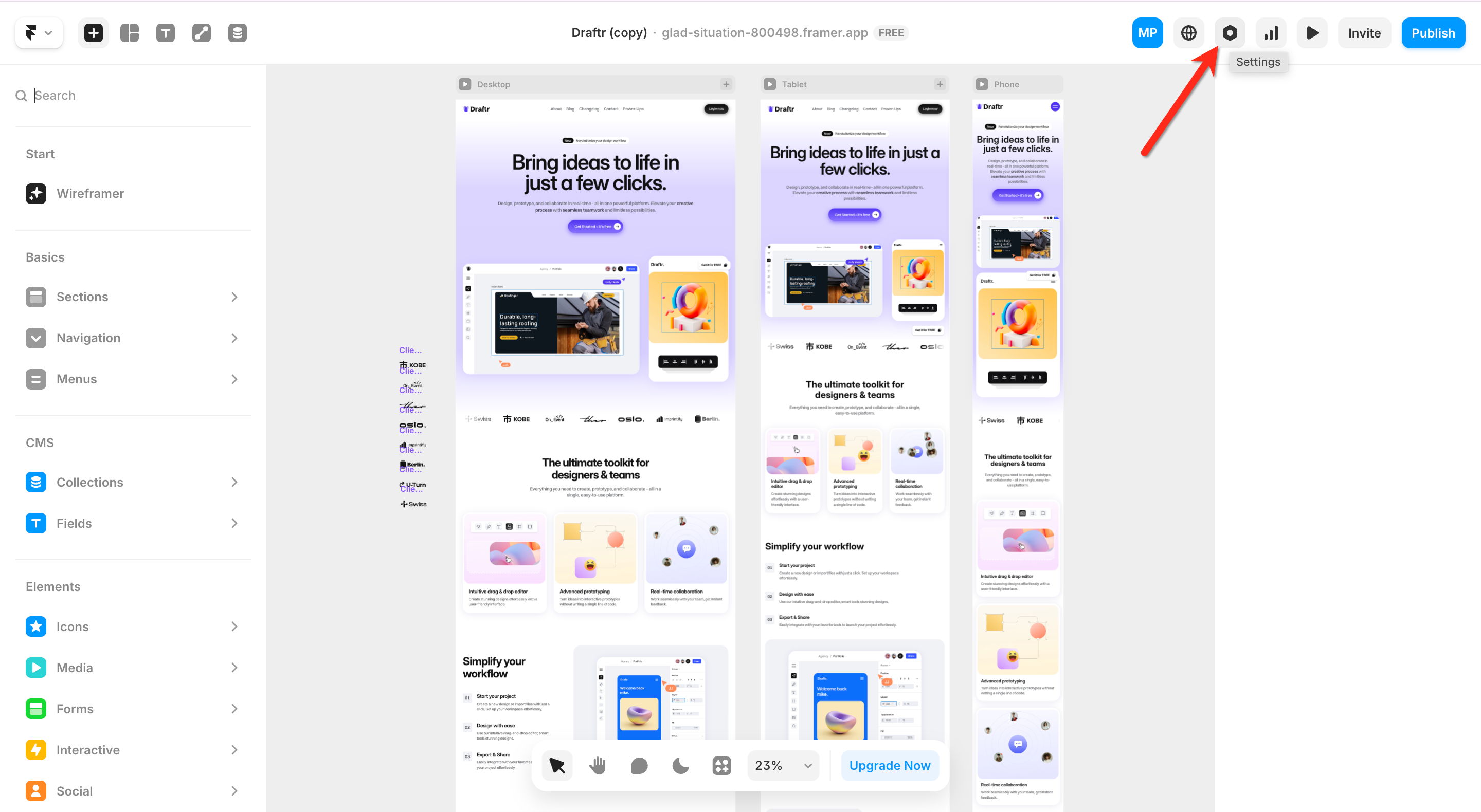
Click the Settings icon (gear icon) in the top-right corner.
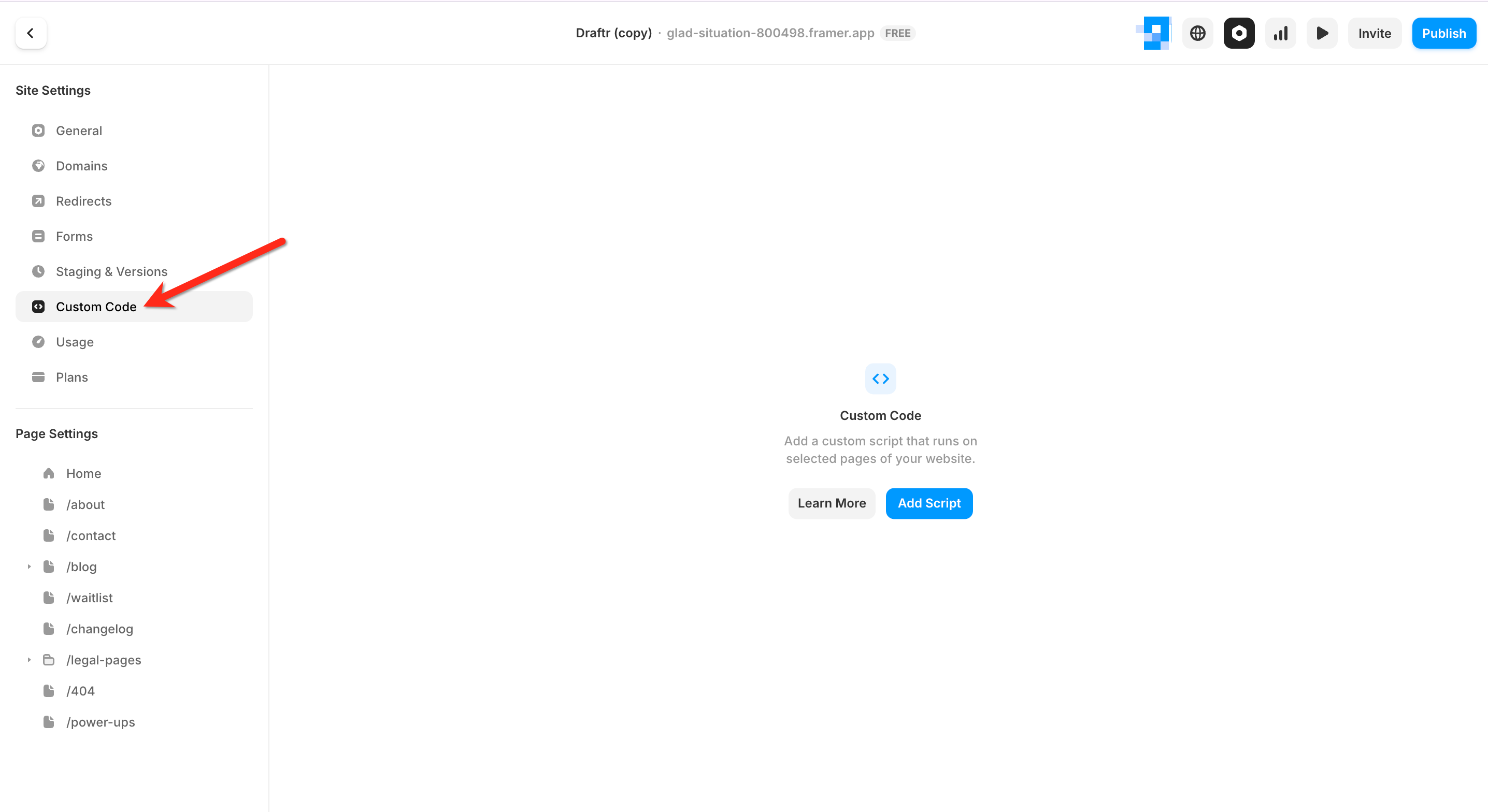
Step 4: Locate the Custom Code section
Scroll down to the Custom Code section.
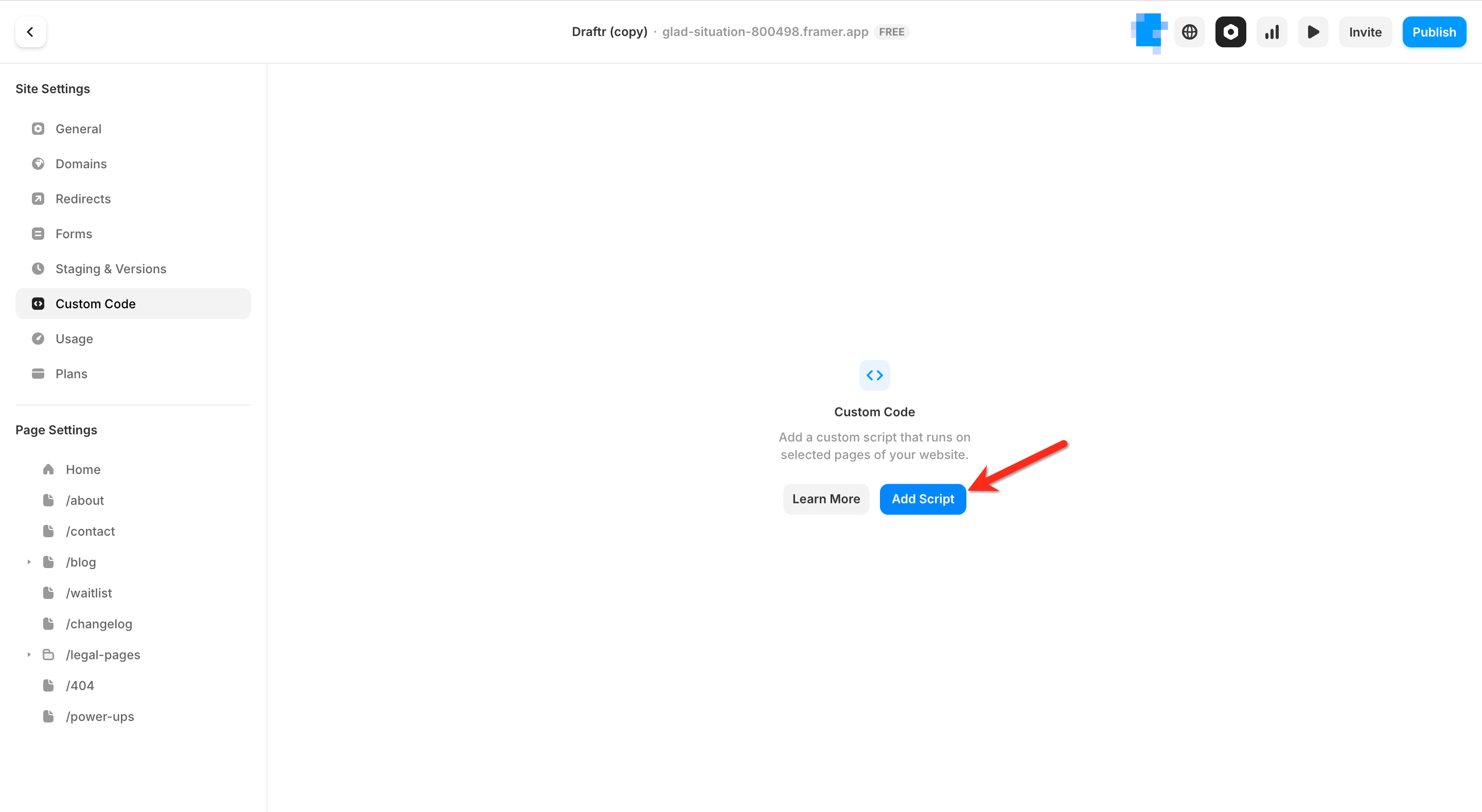
Then, click the Add Script button in the middle of the page.
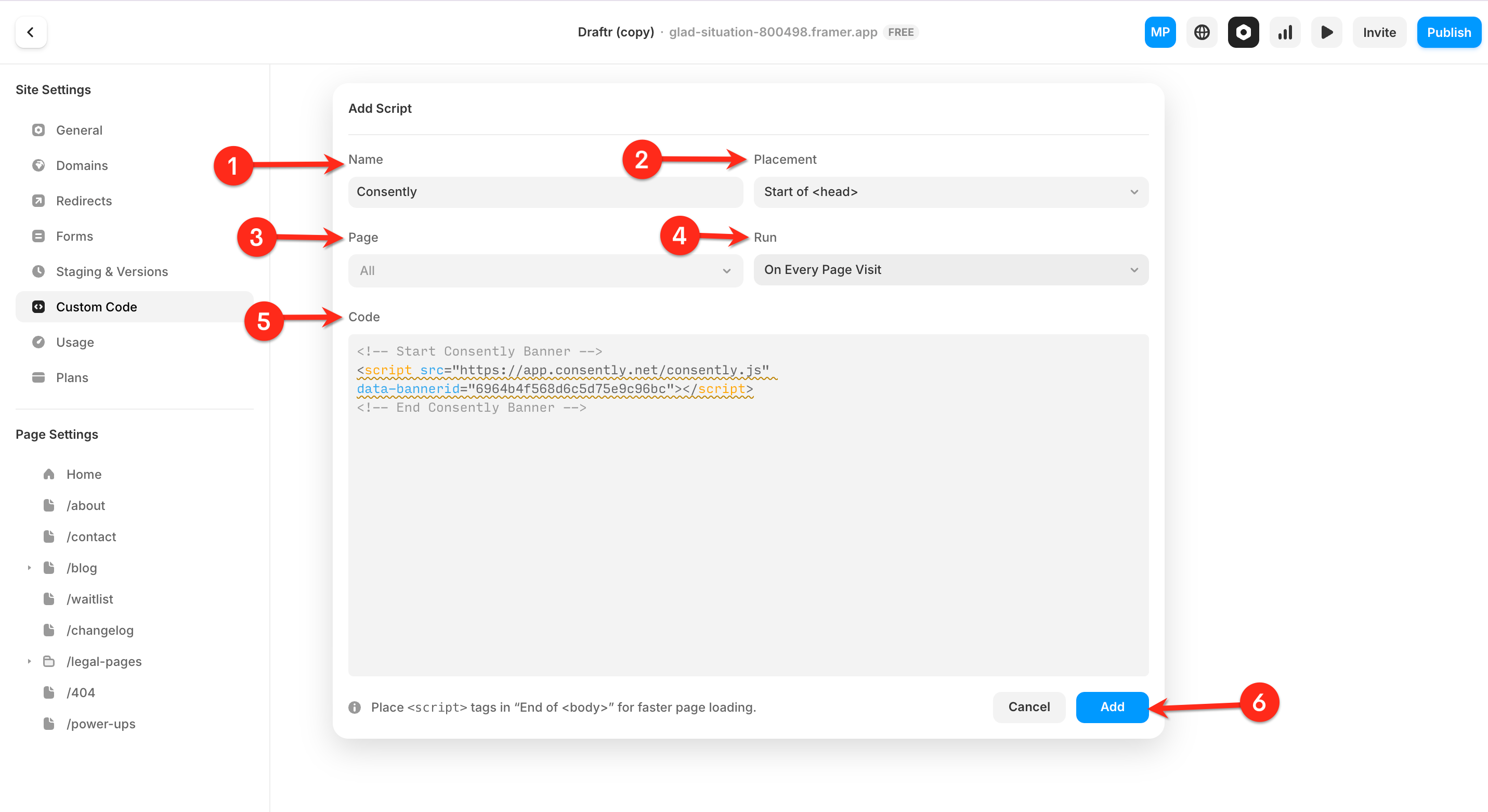
Step 5: Paste the script into the head section
Enter the name of the code and set Placement to “Start of <head>” OR "End of head "
Best practice 👉 Use "End of head"Leave the Page field unchanged so the script applies to all pages of your site.
Then, select the Run field and paste your Consently embed script into the Code field using Ctrl+V (or Cmd+V on Mac).
After completing all fields, click Add to save the code.
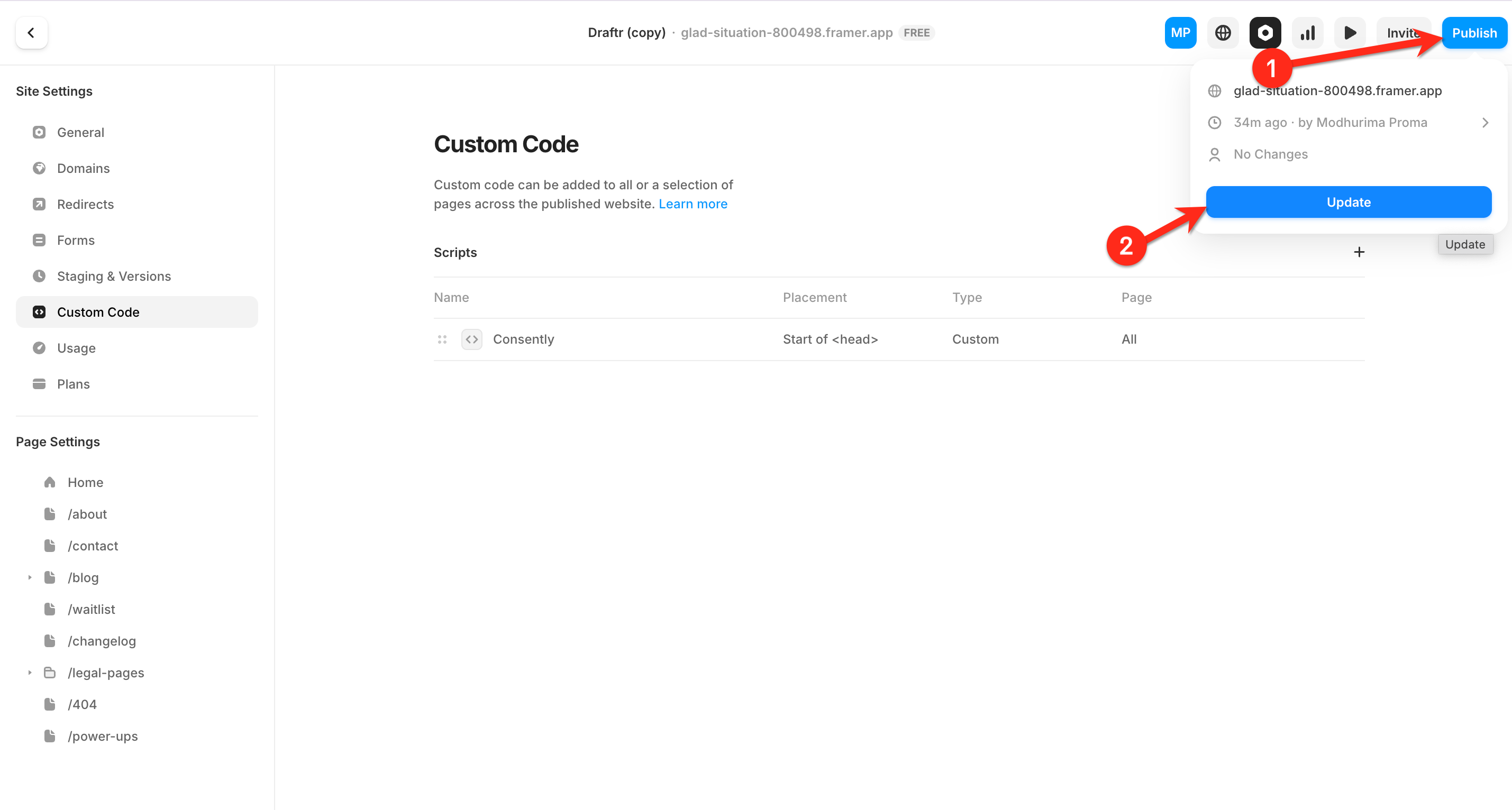
Step 6: Save and publish your site
Click Save to preserve your changes, then click Publish & Update in the top-right corner to make your consent banner live on your site.
Done!
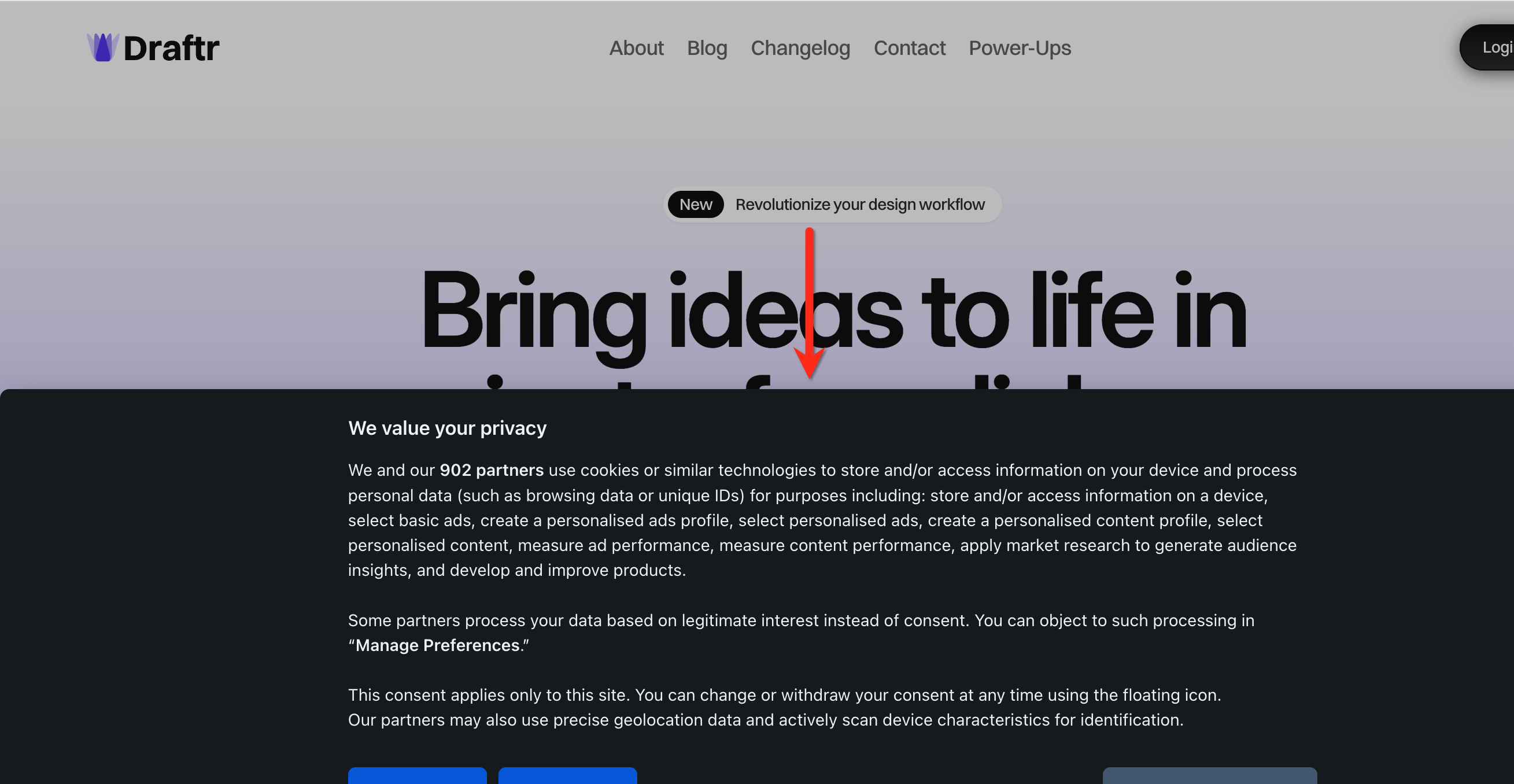
Your Consently consent banner is now active on all pages of your Framer site.
✅ Success indicator: Visit your published Framer site in a new browser window—the consent banner should appear immediately.
What's Next
Now that you've installed the script, you should:
Verify the banner appears correctly across devices
Troubleshooting
The banner doesn't appear after publishing
Why this happens: Framer's publish process can take a few moments to deploy code changes, or the browser cache may be showing an older version.
Solution:
Wait 2-3 minutes after publishing and refresh your site
Hard refresh your browser:
Ctrl+Shift+R(orCmd+Shift+Ron Mac)Try opening your site in a private/incognito browser window
Verify the script was pasted in the "Start of
<head>tag" section, not the "End of<body>tag" section
I see an error in the Custom Code field
Why this happens: The script may have been corrupted during copying, or extra characters may have been accidentally added.
Solution:
Delete all content in the Custom Code field
Return to Consently and copy the embed script again using the Copy button
Paste the fresh script into Framer's Custom Code field
Ensure no extra spaces or characters appear before or after the script
Save and publish again
The banner appears on some pages but not others
Why this happens: The Custom Code in Framer applies site-wide, but individual page overrides or CMS collections may interfere.
Solution:
Check if you've added any custom code to individual pages that might conflict
Verify the script is still present in Settings → General → Custom Code
Make sure you won't choose specific pages in the
Pagefield.Re-publish your entire site (not just individual pages)
If you're using Framer CMS, ensure the script isn't being overridden in collection templates
Related Pages
Platform Compatibility — Installation approaches for different platforms
Direct HTML Installation — Understanding the core script structure