

TL;DR: Policy Generator → Generate policy → Edit content → Save as Draft → Publish Policy.
Your generated policy is ready to add to your website.
Overview
After generating a policy, you can edit the content using the built-in rich text editor before publishing. Consently gives you the flexibility to save drafts for later or publish immediately to make the policy live.
Before You Begin
Make sure you have:
Generated at least one policy (Cookie, Privacy, or Terms & Conditions)
Time required: About 5-10 minutes
How to Edit Your Generated Policy
Step 1: Review the generated content
After completing the policy generator questions, Consently displays your generated policy in the editor.
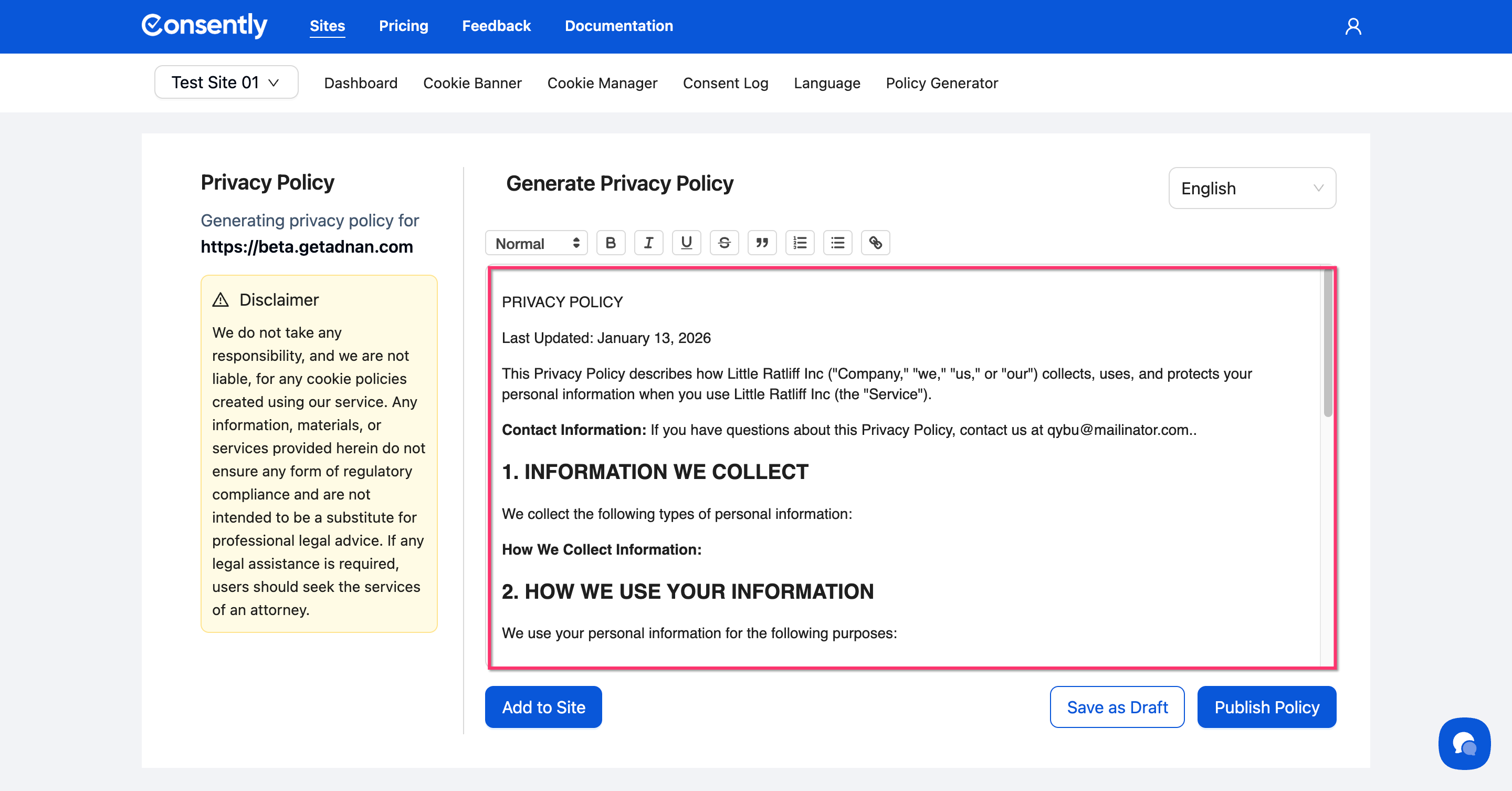
💡 Tip: The policy is automatically structured with numbered sections and includes all information from your answers.
Step 2: Make your edits
Use the rich text editor toolbar to format and modify the policy text:
Normal text, Heading 1-3
B (Bold), I (Italic), U (Underline), S (Strikethrough)
Quote blocks, bulleted lists, numbered lists
Add hyperlinks with the link button

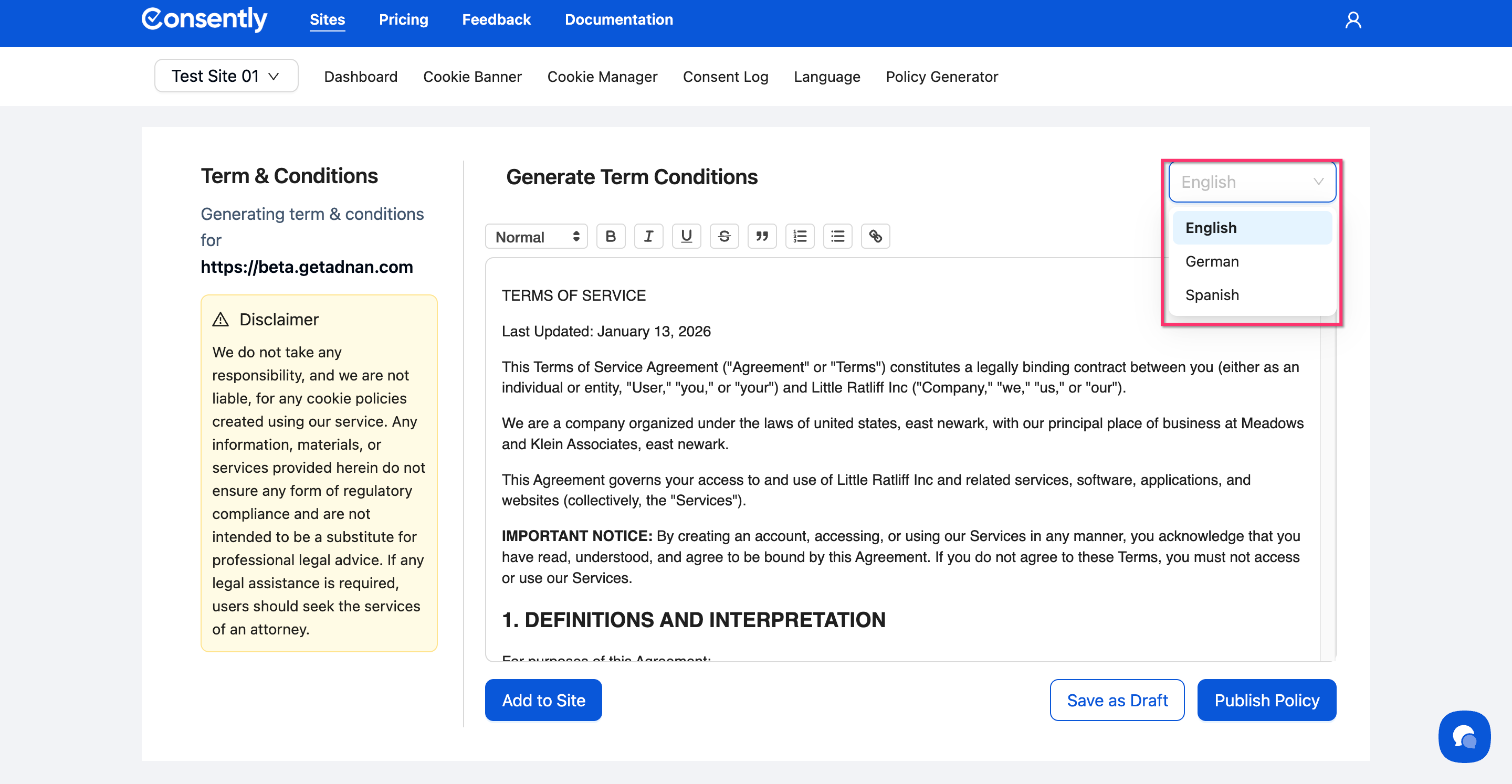
Step 3: Switch languages (if applicable)
If you enabled multi-language generation, use the language dropdown in the top-right to view and edit each language version.
Done!
Your policy is now ready to save or publish.
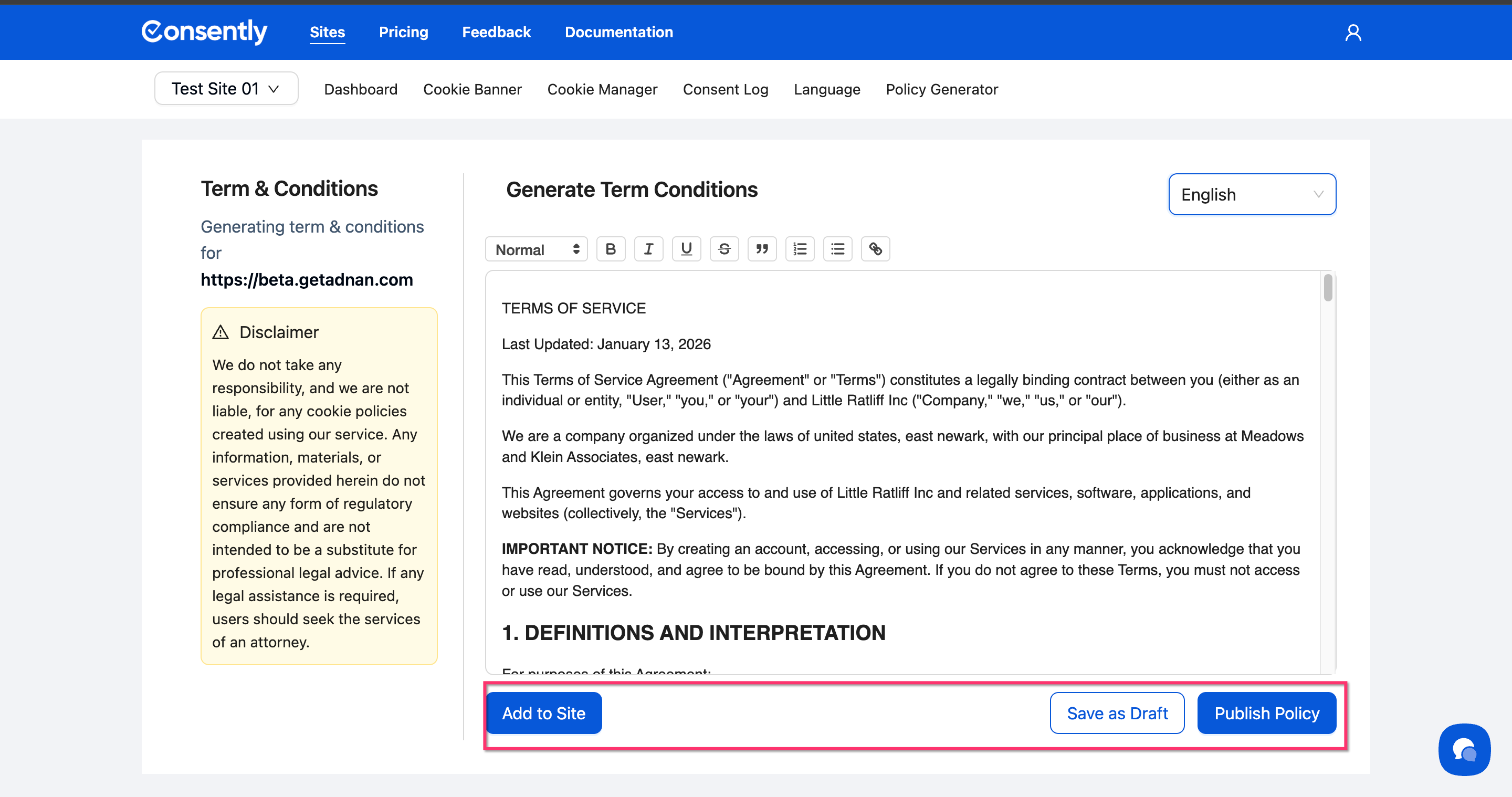
⚠️ You have to click Save as Draft button first to enable Add to Site and Publish Policy button. This applies for first time only.
Understanding Your Publishing Options
Add to Site
The Add to Site button provides instructions for hosting your policy on your website. This doesn't publish the policy—it generates the content for you to add manually to your site.
Save as Draft
Click Save as Draft to save your current edits without publishing. You can return later to continue editing or publish the policy.
💡 Tip: Drafts are saved per policy type and language. Each policy (Cookie, Privacy, Terms) maintains its own draft state.
Publish Policy
Click Publish Policy to finalize and activate your policy. Once published, the policy version is locked and available for linking from your consent banner.
Legal Disclaimer
⚠️ Important: Every policy page displays a disclaimer reminding you that Consently's generated policies are not a substitute for professional legal advice. For specific legal requirements, consult an attorney in your jurisdiction.
Hosting and Linking Your Policies
After publishing, you should:
Host the policy on your website by copying the generated content to a page on your domain (e.g.,
https://yoursite.com/privacy-policy) or use the Add to Site button to embed the script snippet directly into your website's HTML body.Link from your banner by adding the policy URL in Customizing Banner Content
💡 Tip: Policy URLs should match what you entered in Company Information Setup during the policy generator.
What's Next
Now that you've published your policy, you should:
Copy the policy content to your website
Troubleshooting
My edits aren't saving
Solution: Make sure to click either Save as Draft or Publish Policy before navigating away from the page. Unsaved changes are lost if you leave the editor.
Can I unpublish a policy after publishing?
Solution: Published policies cannot be unpublished, but you can edit and republish a new version. The latest published version is what users see.
The formatting looks different on my website
Why this happens: The policy generator creates plain-formatted text. Your website's CSS may override some formatting.
Solution: Adjust your website's CSS to match the desired policy appearance, or use the rich text editor to modify formatting before publishing.
Related Pages
Multi-Language Policy Generation — Creating policies in multiple languages