

TL;DR: Consently automatically blocks non-essential cookies until visitors give consent. Essential cookies load immediately; all others wait for visitor approval through your banner.
Overview
Cookie auto-blocking enforces consent by preventing non-essential cookies from loading until visitors explicitly allow them. This automatic blocking ensures compliance with regulations like GDPR without requiring manual code changes on your website.
How Cookie Auto-Blocking Works
Step 1: Understand the blocking rules
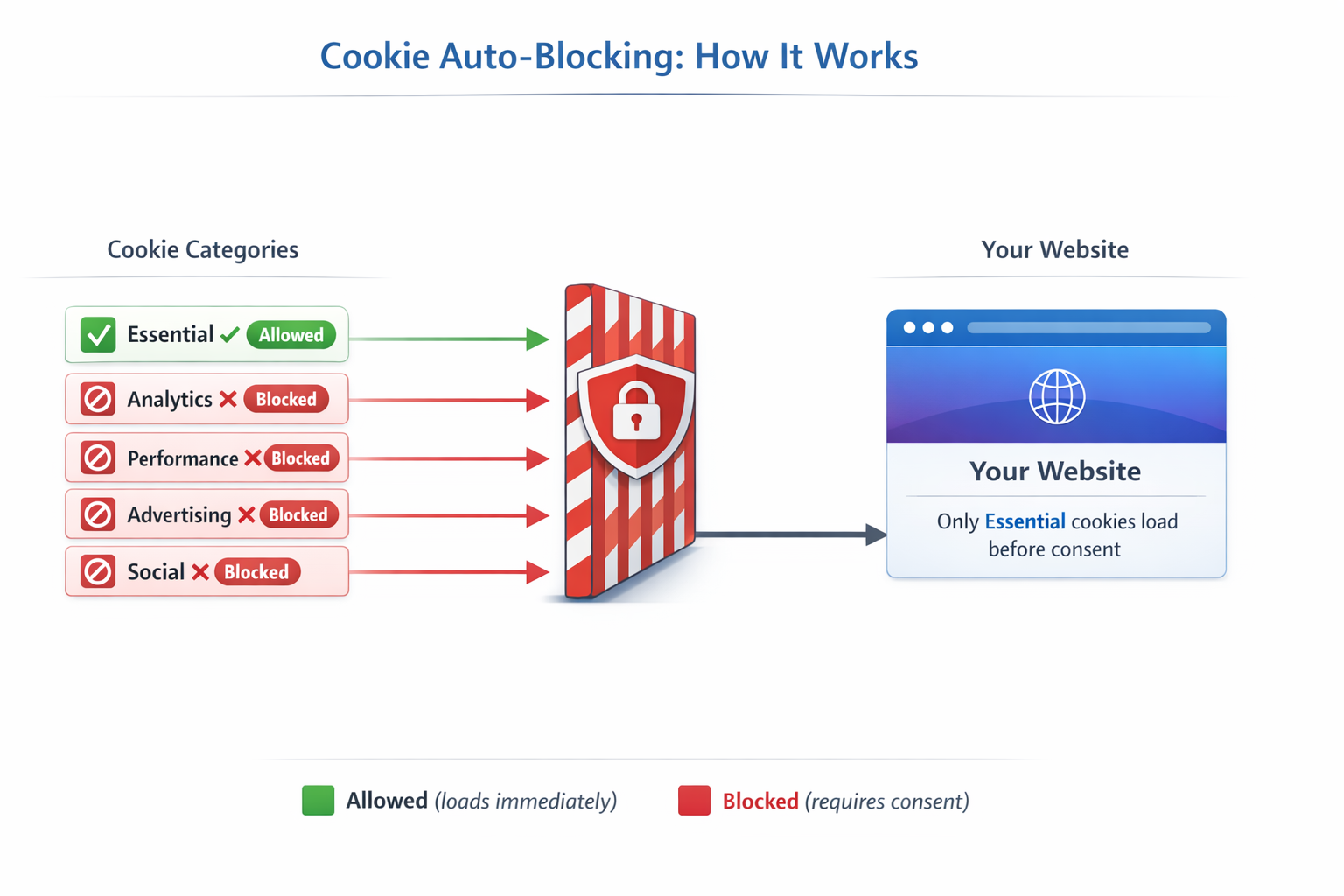
Consently applies different rules based on cookie categories:
Essential Cookies — Always allowed. These cookies enable core website functionality like security, network management, and accessibility. They load immediately without requiring consent.
Non-Essential Cookies — Blocked by default. Analytics, Performance, Advertising, and Social cookies remain blocked until visitors consent through your banner.
Step 2: Categorize your cookies
Auto-blocking enforcement depends on accurate cookie categorization. Consently automatically assigns cookies to categories during scanning, but you should verify the assignments.
Navigate to Cookie Manager to review your cookie categories and ensure each cookie is properly classified.
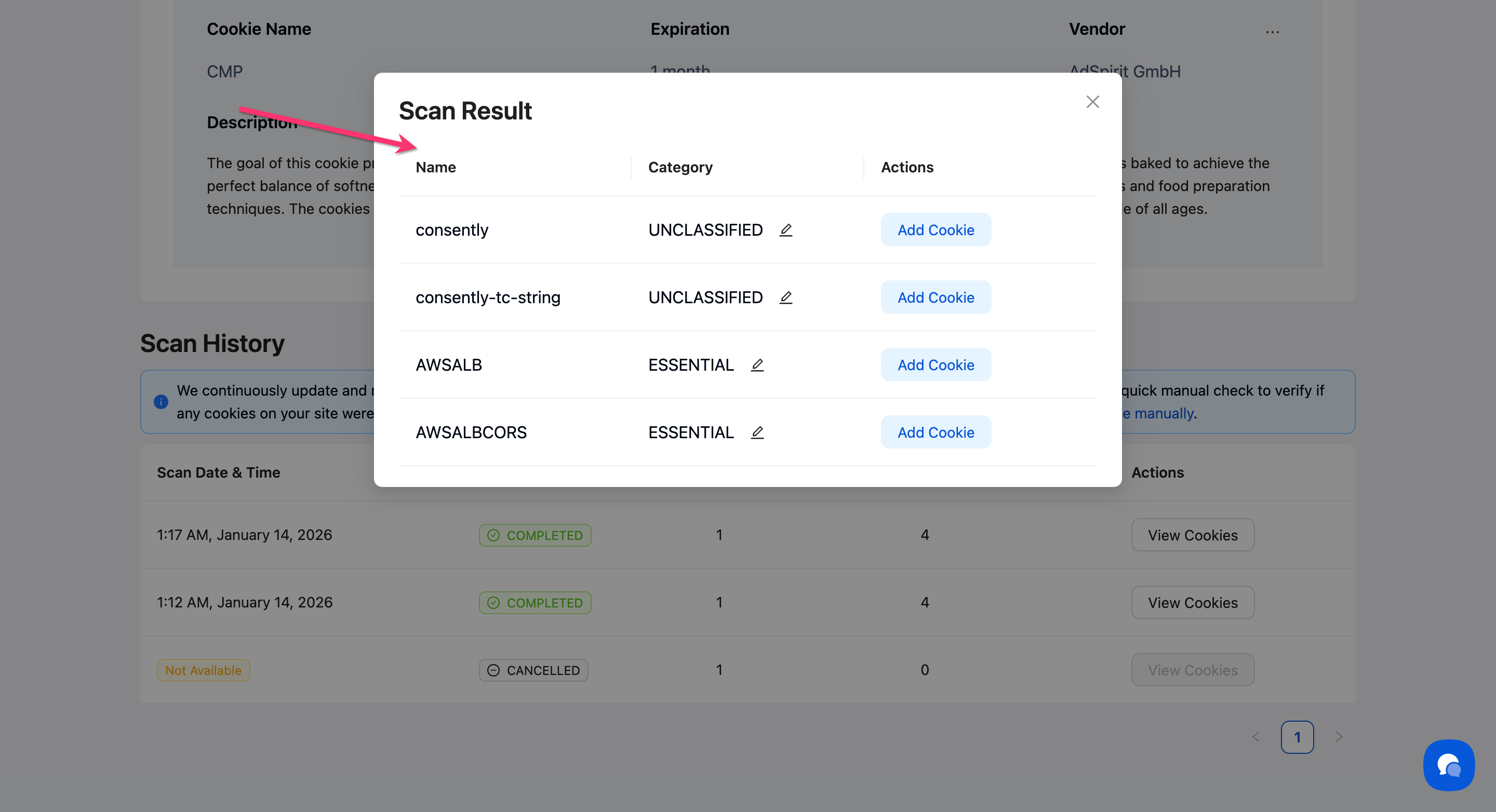
💡 Tip: If a cookie is miscategorized, visitors may experience broken functionality or miss important consent requirements.
Step 3: Test consent-triggered activation
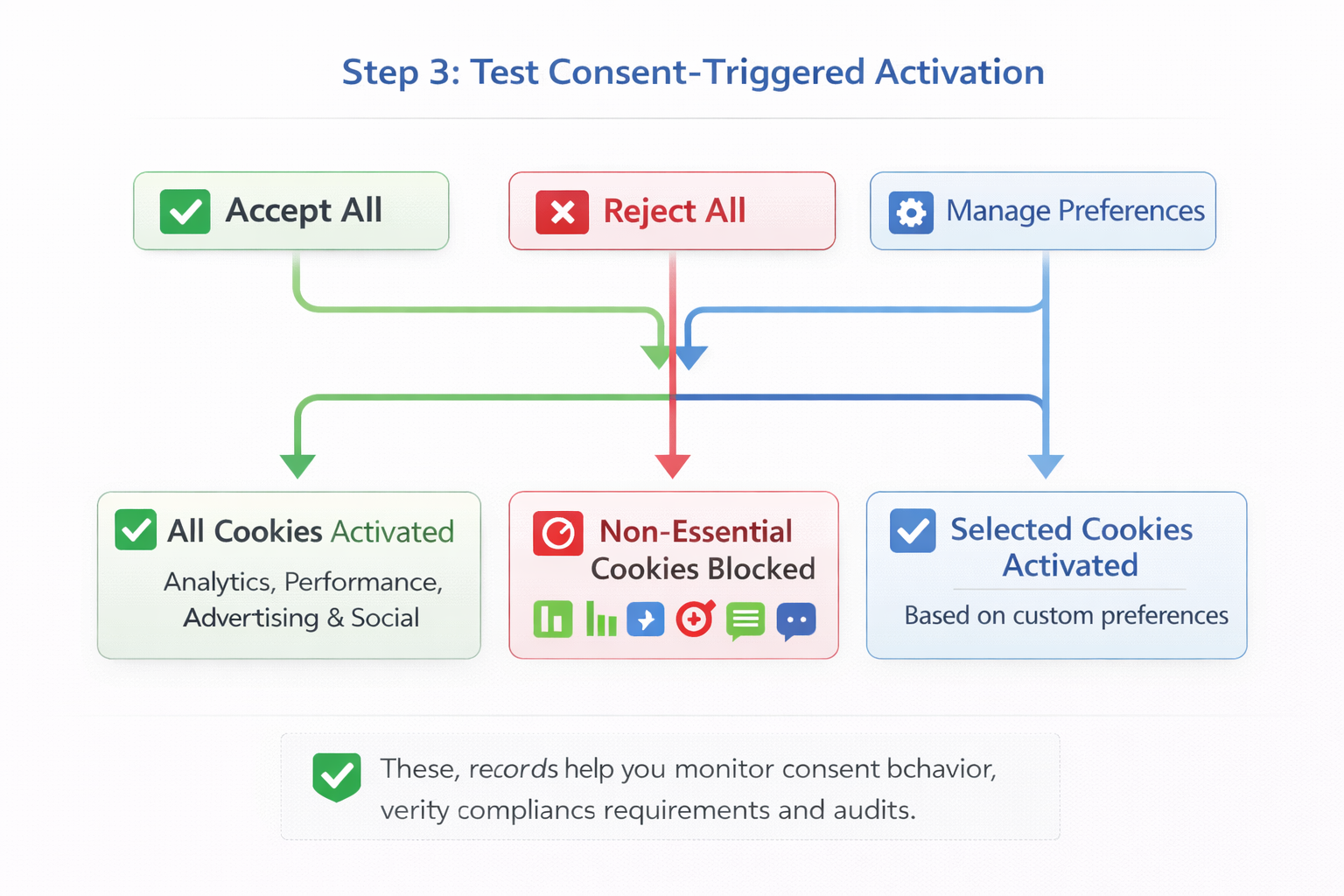
When visitors interact with your banner, Consently immediately activates or blocks cookies based on their choices:
Accept All — Activates all cookie categories
Reject All — Blocks all non-essential cookies
Manage Preferences — Activates only selected categories
Done!
Auto-blocking works automatically once your banner is installed and cookies are categorized.
✅ Success indicator: Non-essential cookies should not appear in your browser's developer tools until you grant consent through the banner.
How to Test Auto-Blocking
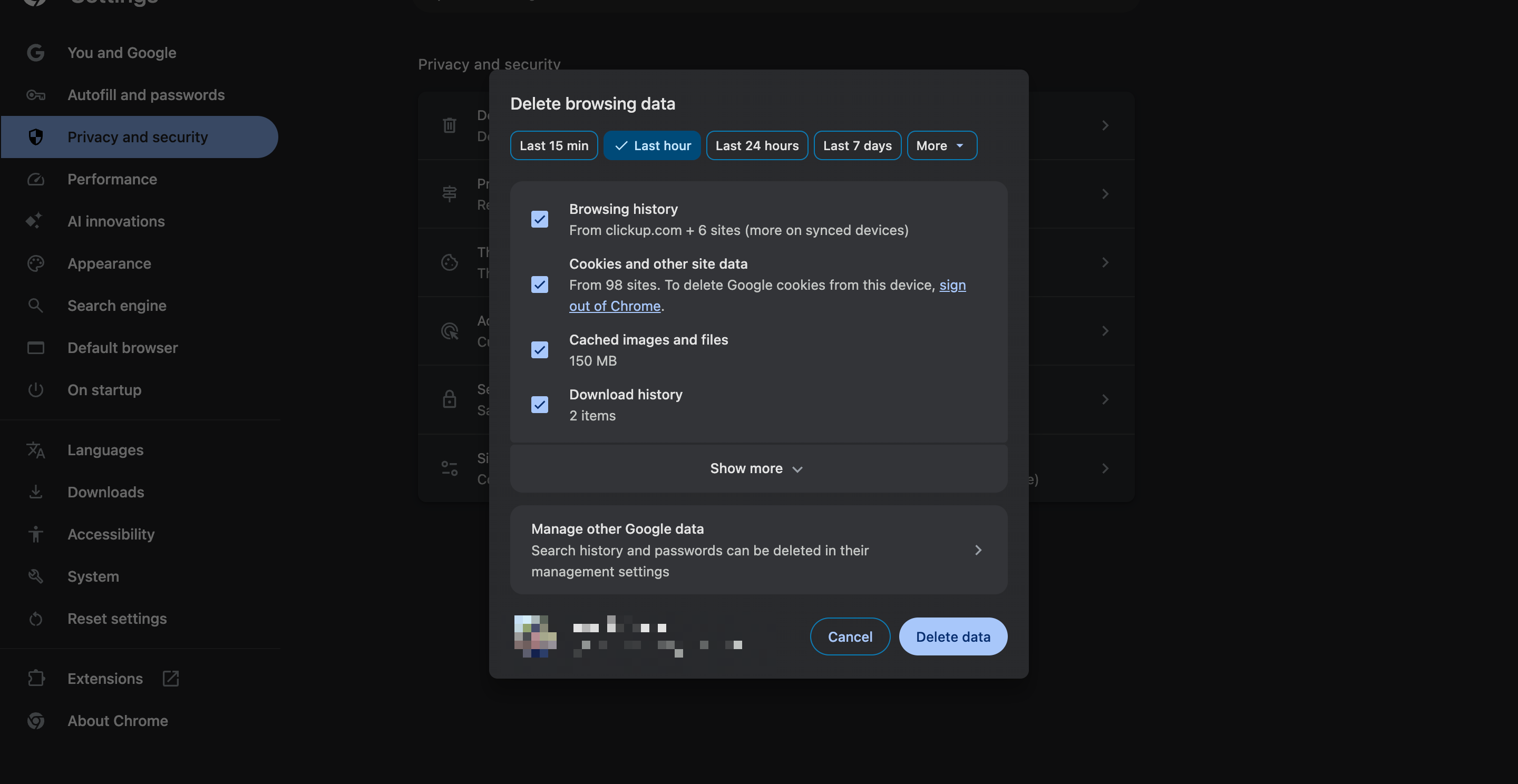
Step 1: Clear your browser data
Open your browser settings and clear all cookies and site data for your website. This ensures you see the banner as a first-time visitor.
Step 2: Open developer tools
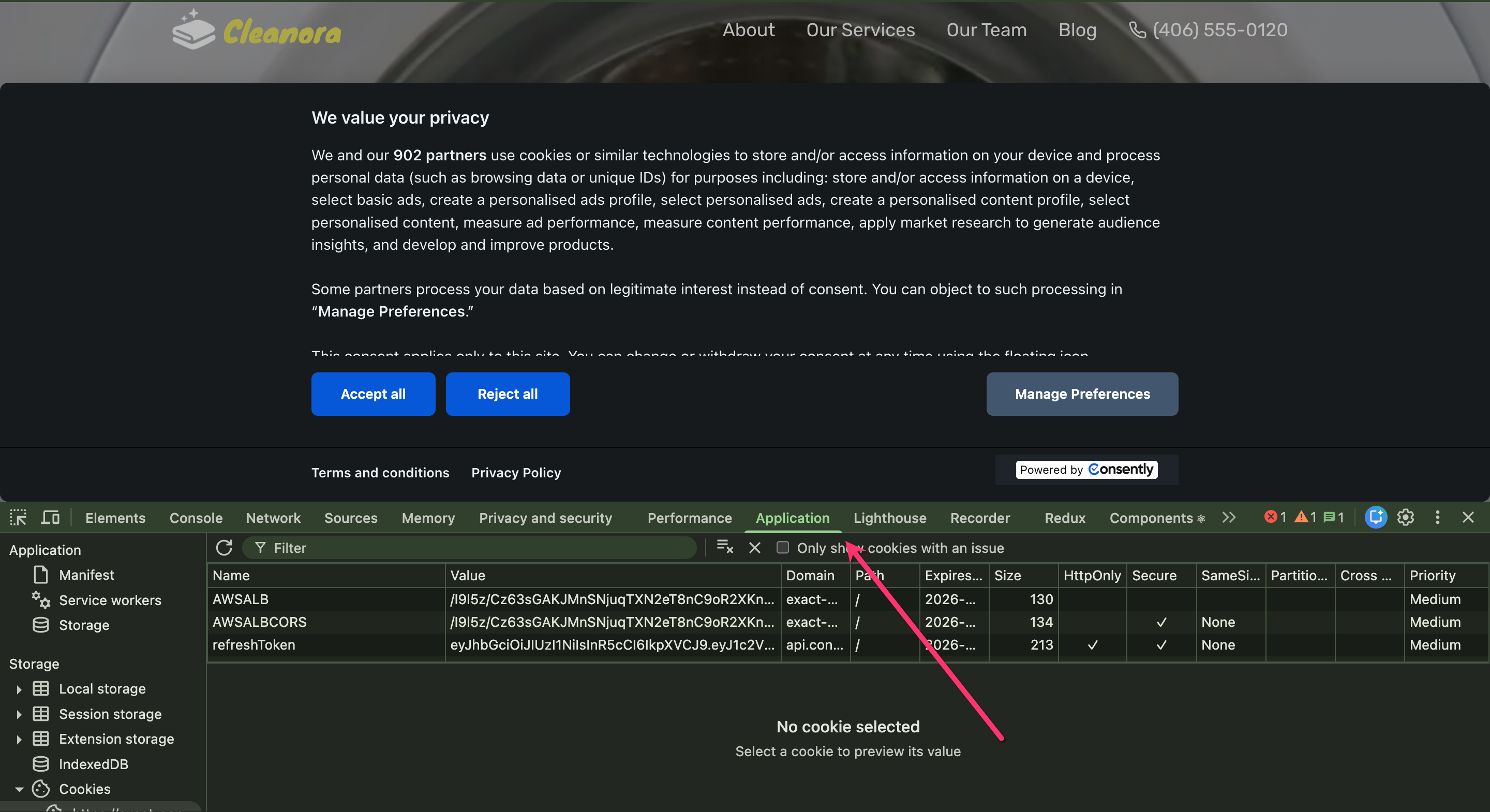
Before visiting your website, open your browser's developer tools and navigate to the Application or Storage tab to view cookies.
Step 3: Visit your website
Load your website and observe the banner. Check the cookies panel in developer tools — only Essential cookies should be present before you interact with the banner.

Step 4: Test consent scenarios
Accept all cookies through the banner, then check developer tools again. All cookie categories you accepted should now appear in the cookies list.
💡 Tip: Test both "Accept All" and "Reject All" to verify blocking works correctly in both scenarios.
What's Next
Now that you understand cookie auto-blocking, you should:
Troubleshooting
Cookies are loading before consent
Why this happens: The cookie may be miscategorized as Essential, or the script creating the cookie may be loading before Consently's script.
Solution:
Navigate to Cookie Manager and verify the cookie is not in the Essential category
Check that the Consently script is placed in the
<head>section BEFORE other third-party scriptsIf using Google Tag Manager, ensure consent initialization happens before other tags fire
Clear your browser cache and test again
Essential cookies are being blocked
Why this happens: Essential cookies should never be blocked, indicating a categorization error.
Solution:
Navigate to Cookie Manager → Essential category
Verify the cookie appears in the Essential list
If a cookie belongs to a different category, please delete it and recreate it under the appropriate category.
Save changes and test again
Consent choices are not persisting
Why this happens: The consent cookie itself may be blocked by browser settings or privacy extensions.
Solution:
Check if browser settings block third-party cookies (Consently's consent cookie is first-party)
Disable privacy extensions temporarily to test
Verify the consent cookie (
consently_consent) appears in your browser's cookie storage after making a choiceIf the issue persists, check your website's cookie policy settings
Related Pages
Managing Cookies — Add, edit, and organize cookies in the Cookie Manager