

TL;DR: Dashboard → Policy Generator → Privacy Policy → Configure settings → Next through sections → Preview → Publish Policy.
Your customized privacy policy is generated based on your business practices and data handling.
Overview
The Privacy Policy generator creates comprehensive, regulation-compliant privacy policies by asking questions about your data collection and usage practices. The tool covers data types, sharing practices, user rights, and compliance requirements across multiple jurisdictions.
⚠️ Disclaimer: We do not take any responsibility, and we are not liable, for any cookie policies created using our service. Any information, materials, or services provided herein do not ensure any form of regulatory compliance and are not intended to be a substitute for professional legal advice. If any legal assistance is required, users should seek the services of an attorney.
Before You Begin
Make sure you have:
Completed your Company Information Setup
A clear understanding of what personal data your website collects
Knowledge of your data retention and sharing practices
Time required: About 10-15 minutes
How to Generate Your Privacy Policy
Step 1: Access the Privacy Policy generator
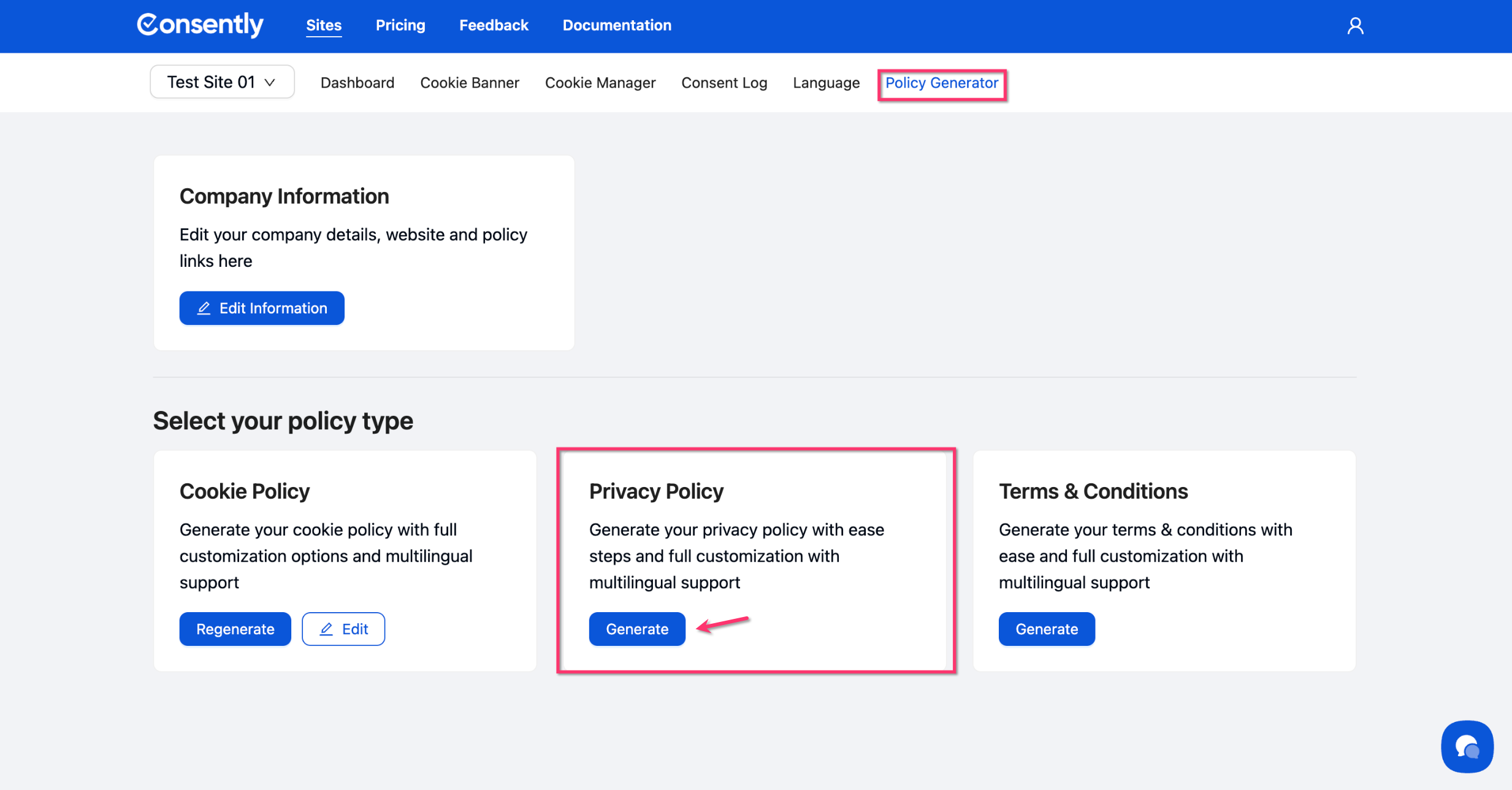
Navigate to Policy Generator from the top menu, then click the Generate button under Privacy Policy.
Step 2: Select language settings
Choose your primary language from the dropdown (English, French, German, Spanish, Polish or Dutch). Toggle "Generate policy in multiple languages" if you need translations.
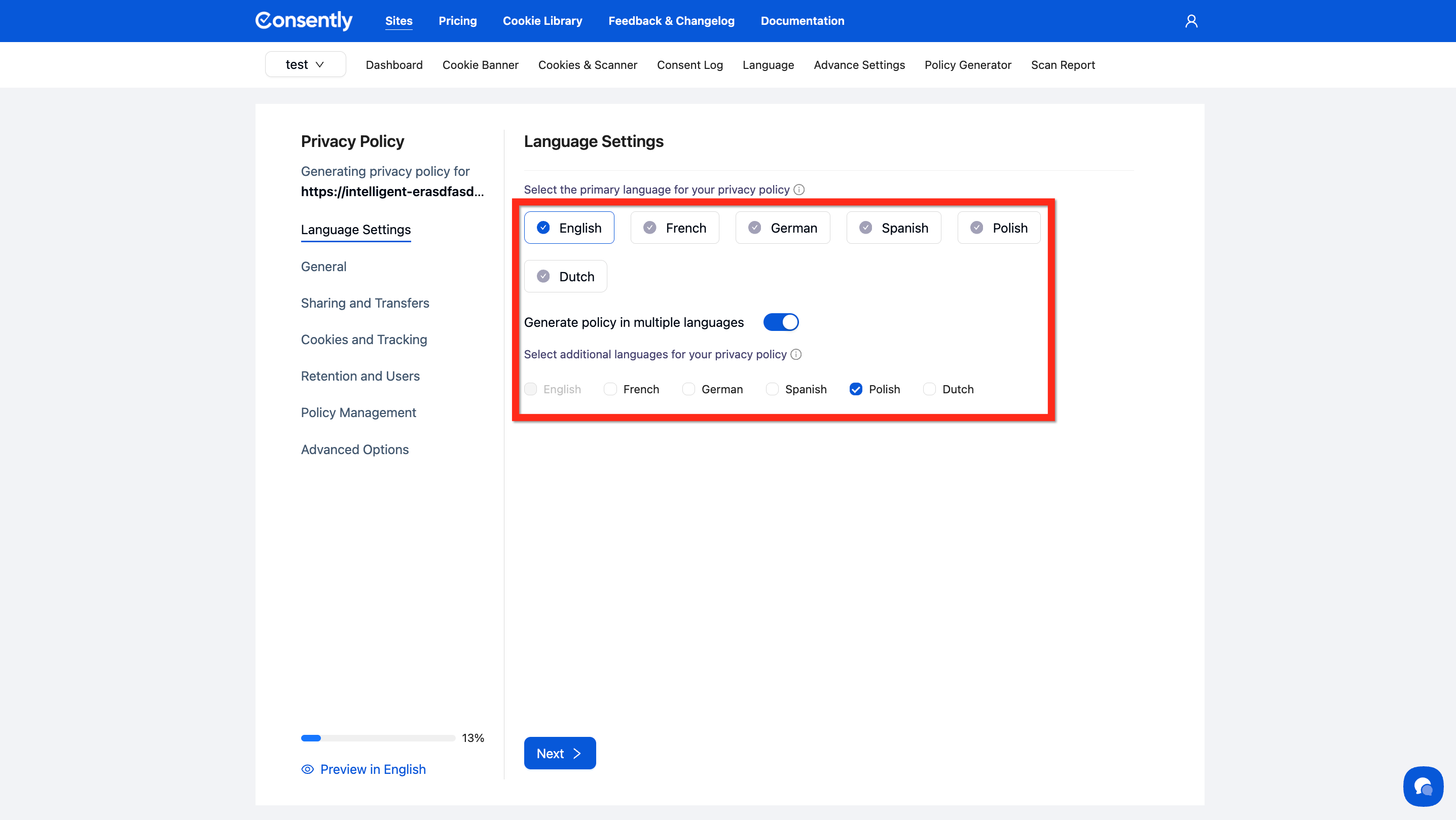
💡 Tip: Multi-language generation creates separate policy versions automatically. Learn more in Multi-Language Policy Generation.
Step 3: Configure General settings
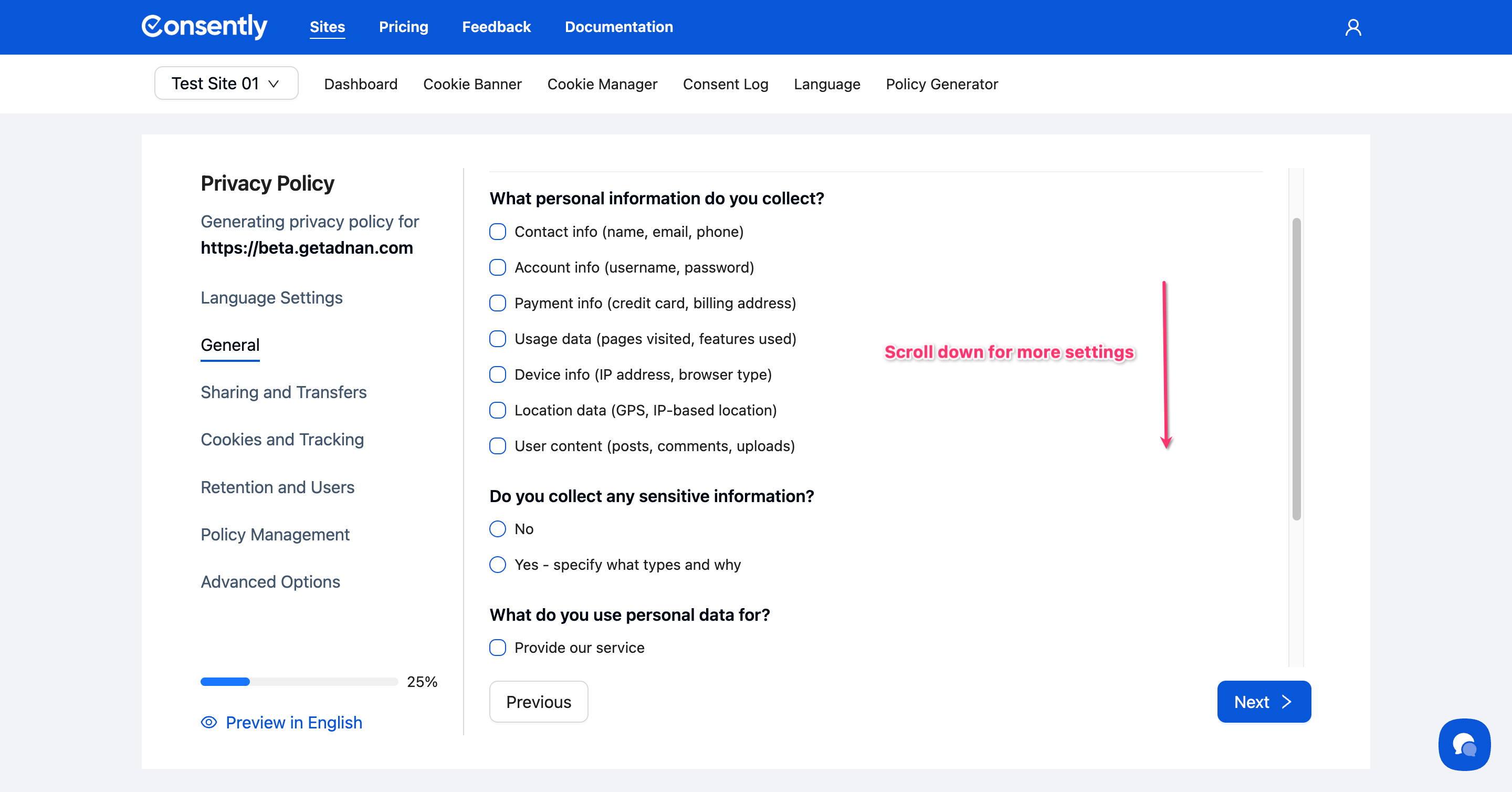
Specify what personal information you collect by checking the relevant options:
Contact info (name, email, phone)
Account info (username, password)
Payment info (credit card, billing address)
Usage data (pages visited, features used)
Device info (IP address, browser type)
Location data (GPS, IP-based location)
User content (posts, comments, uploads)
Answer whether you collect sensitive information and select how you use personal data.
Step 4: Configure Sharing and Transfers
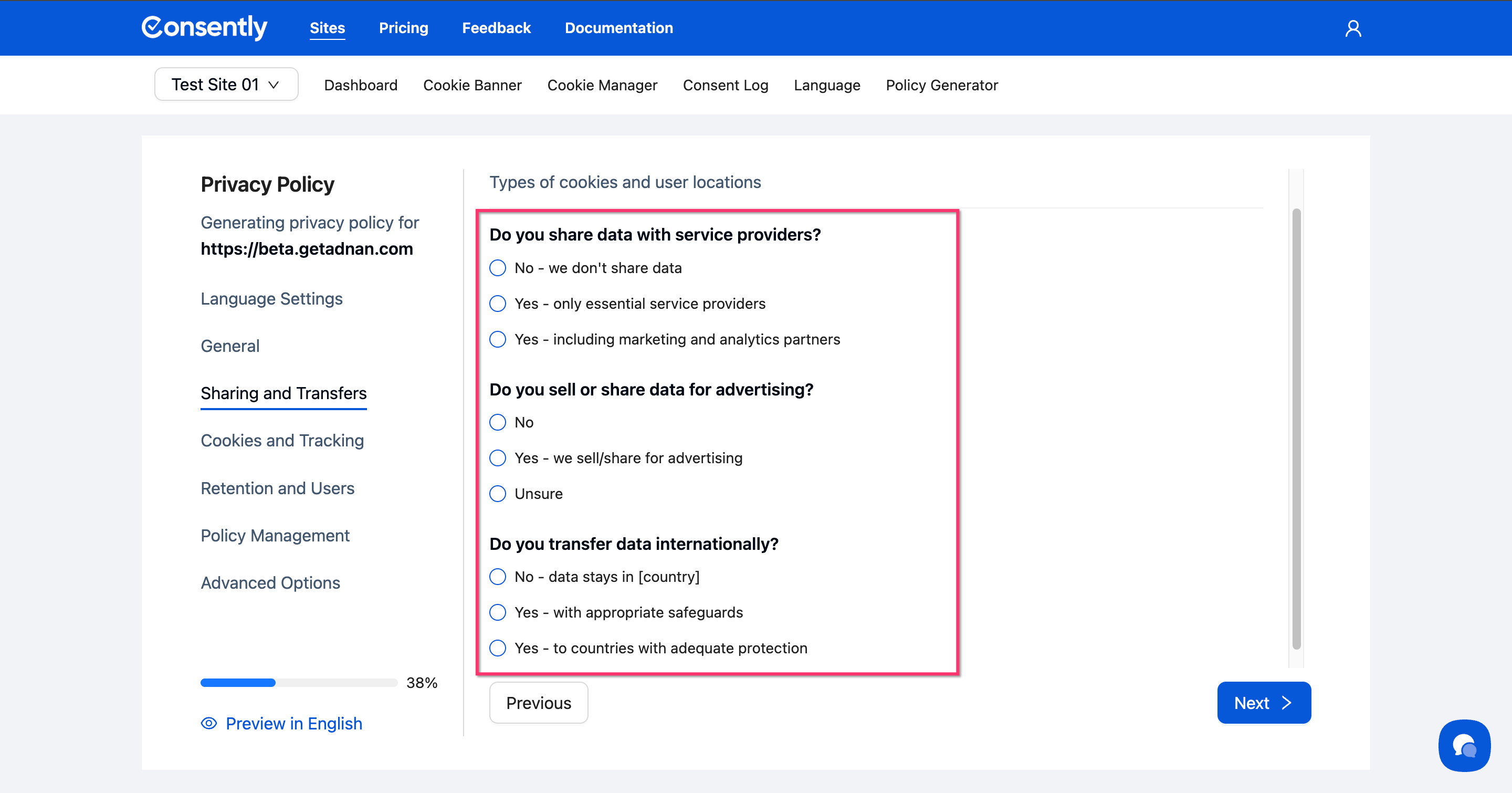
Indicate your data sharing practices:
Select whether you share data with service providers
Specify if you sell or share data for advertising purposes
Choose your international data transfer approach
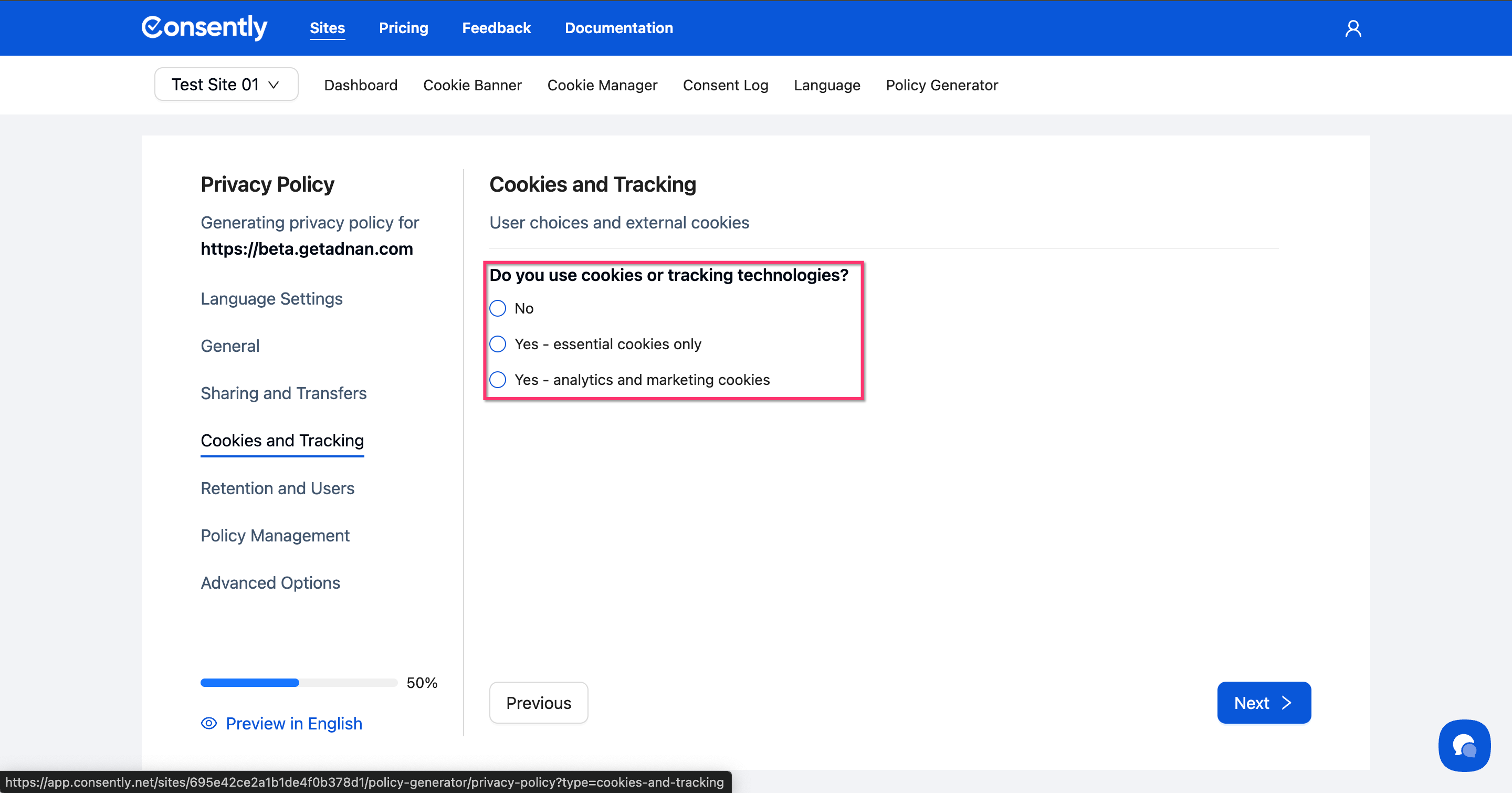
Step 5: Configure Cookies and Tracking
Select whether you use cookies or tracking technologies. This determines how the policy addresses tracking methods.
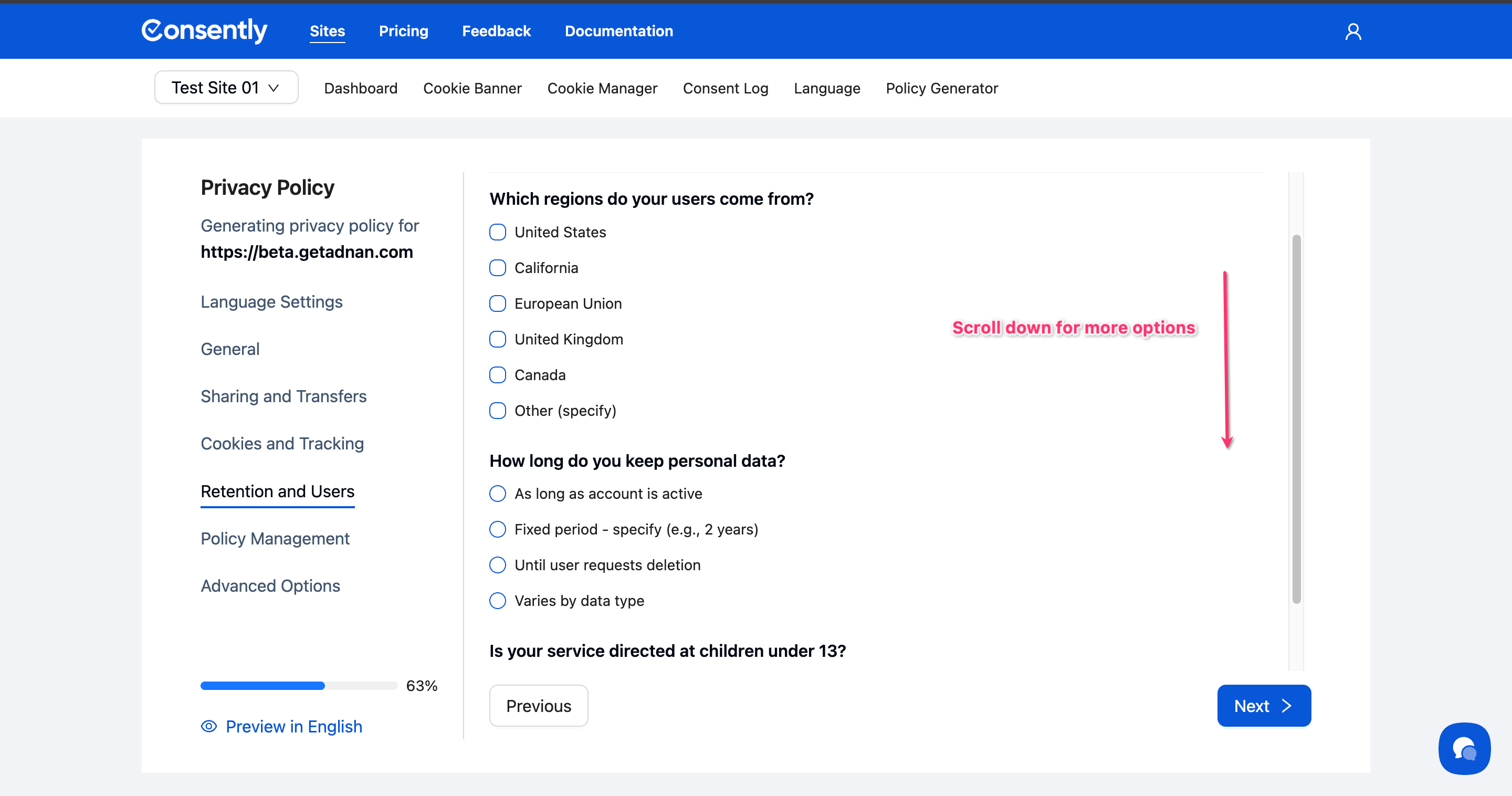
Step 6: Configure Retention and Users
Select which regions your users come from (United States, California, European Union, United Kingdom, Canada, or Other). Choose your data retention period and indicate if your service is directed at children under 13.
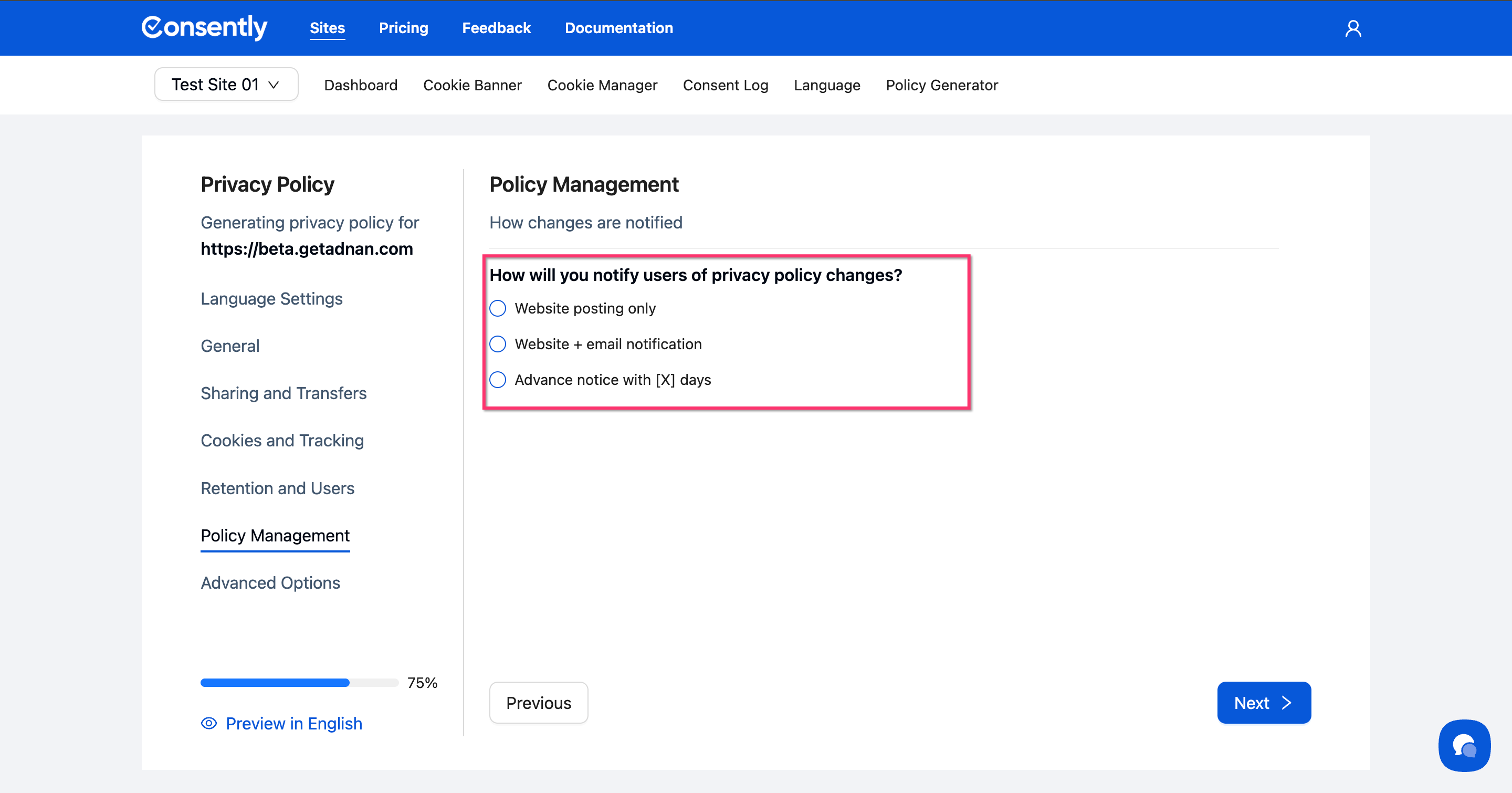
Step 7: Configure Policy Management
Select how you'll notify users of privacy policy changes (website posting only, website + email, or advance notice).
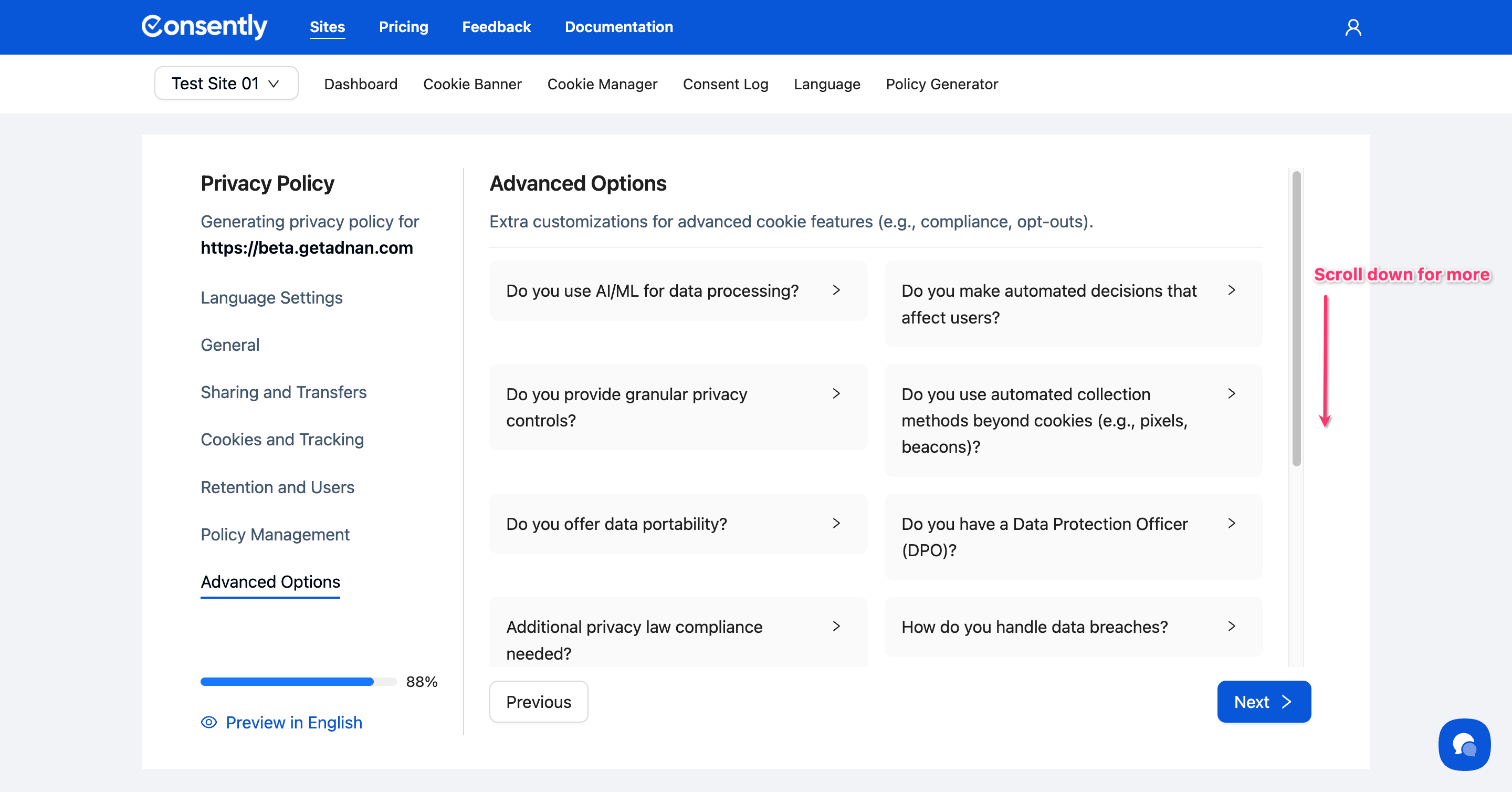
Step 8: Review Advanced Options (Optional)
Click through Advanced Options to configure additional settings like AI/ML usage, automated decisions, data portability, and specific compliance requirements. Most businesses can skip this section.
Step 9: Generate and preview
Click Next to generate your policy. The editor displays your completed privacy policy with standard sections including Information Collection, Data Usage, Sharing Practices, Cookie Disclosure, User Rights, Security, and Contact Information.
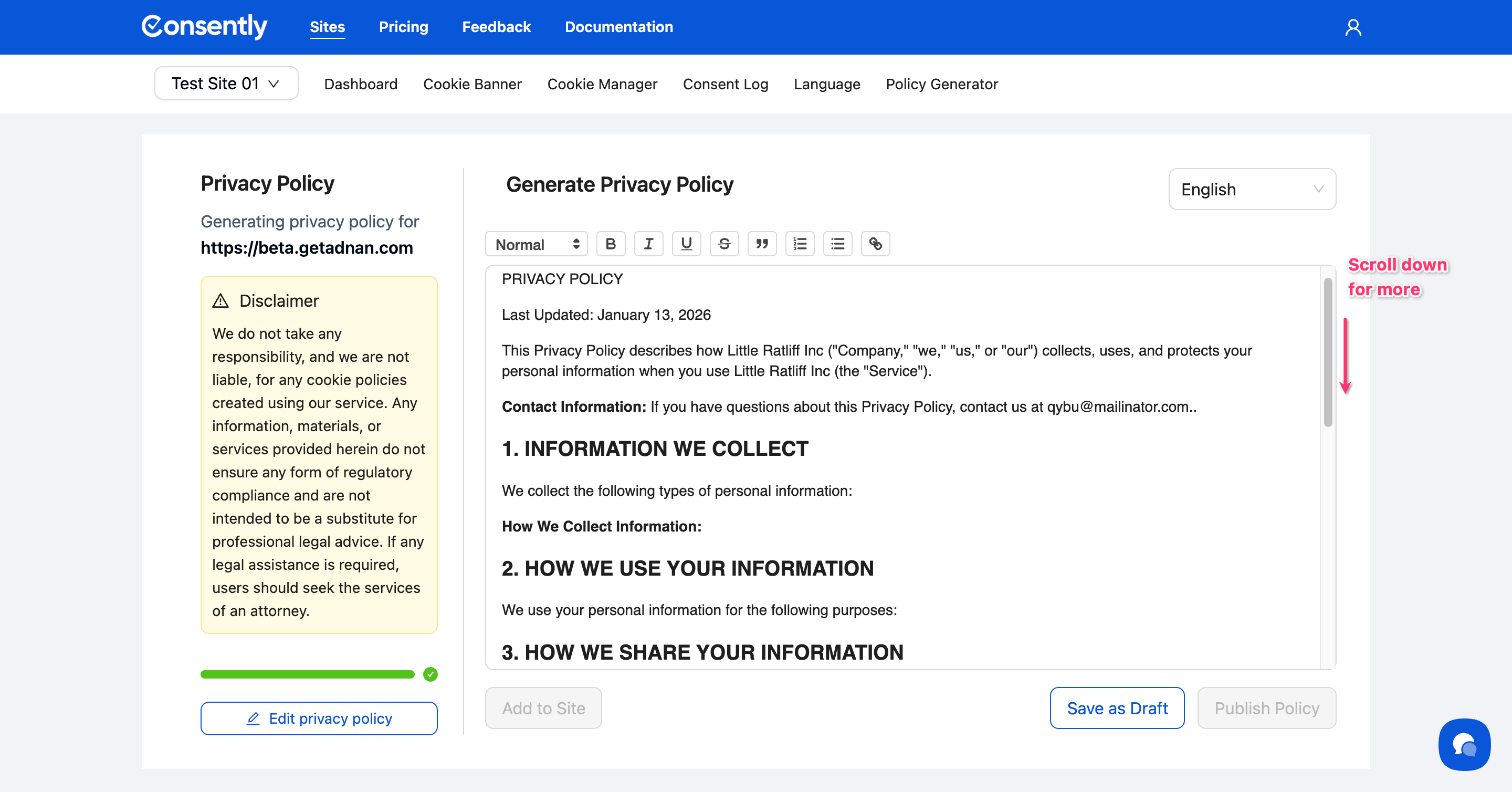
⚠️ You have to click Save as Draft button first to enable Add to Site and Publish Policy button.
Done!
Your privacy policy is generated and ready to edit or publish.
✅ Success indicator: You'll see the full policy text in the editor with a language selector and action buttons.
What's Next
Now that you've generated your privacy policy, you should:
Review and publish your policy
Generate other required policies (Cookie Policy, Terms & Conditions)
Troubleshooting
The generator won't advance to the next section
Why this happens: Required fields are incomplete.
Solution: Scroll up to check for any questions with red asterisks (*) that haven't been answered. All required fields must be completed before proceeding.
The generated policy doesn't mention my specific data practices
Solution: Return to the relevant section (General, Sharing, or Advanced Options) and ensure you've selected all applicable options. Click Preview in [Language] to regenerate the policy with updated selections.
Related Pages
Multi-Language Overview — Understand how language detection and management work across Consently