

TL;DR: Sites → New Site → Cookie Banner → Customize → Embed Script → Install the script → Test. Get your consent banner live in under 10 minutes.
Overview
This guide walks you through setting up Consently for the first time. You'll add your website, configure a basic consent banner, install the script, and verify everything works correctly.
Before You Begin
Make sure you have:
A Consently account (sign up for a 14-day free trial)
Access to your website's HTML or content management system
Time required: 10 minutes
How to Get Started with Consently
Step 1: Add your website
Click Sites in the top navigation. Enter your website name and URL, then click Save.
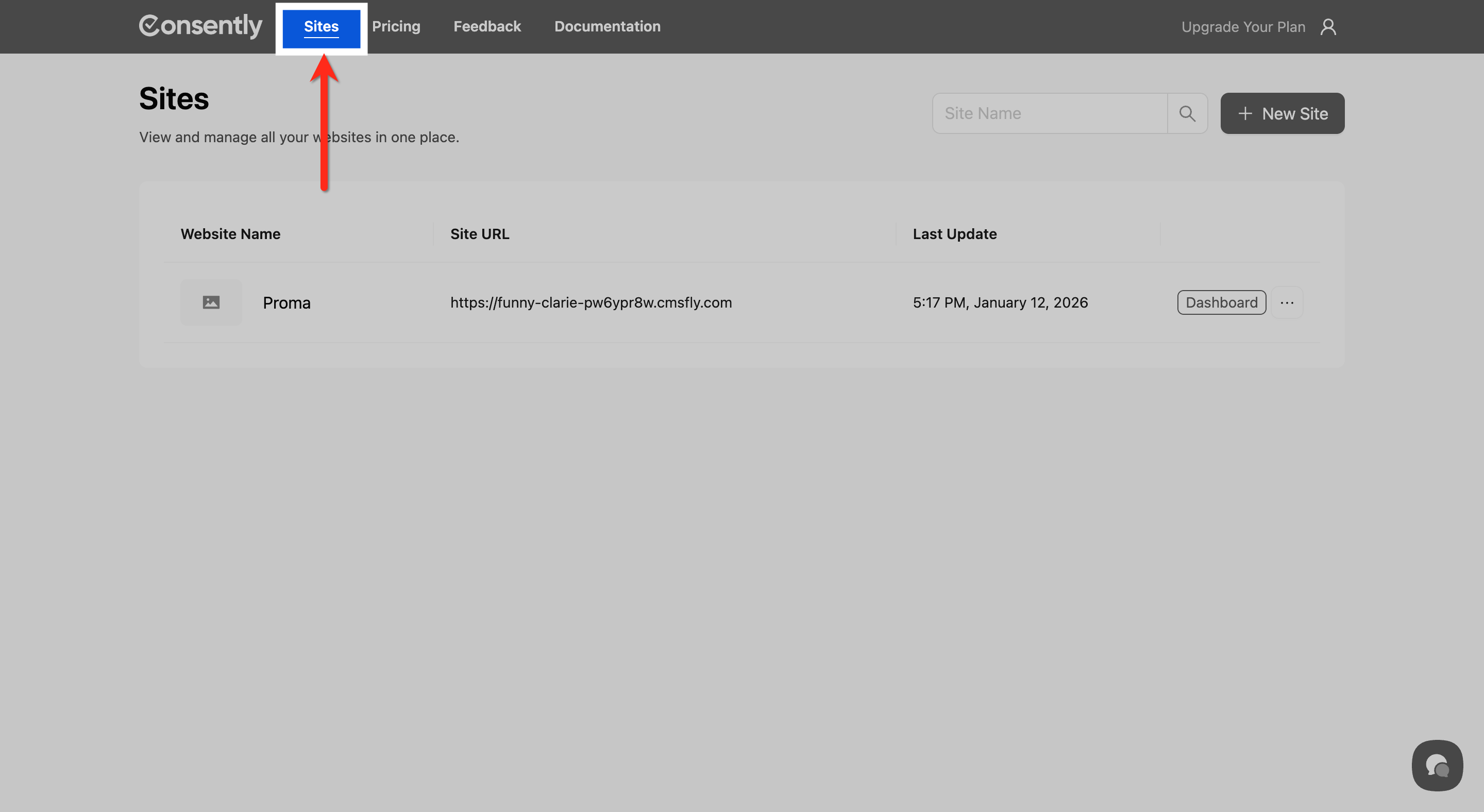
Then click + New Site.
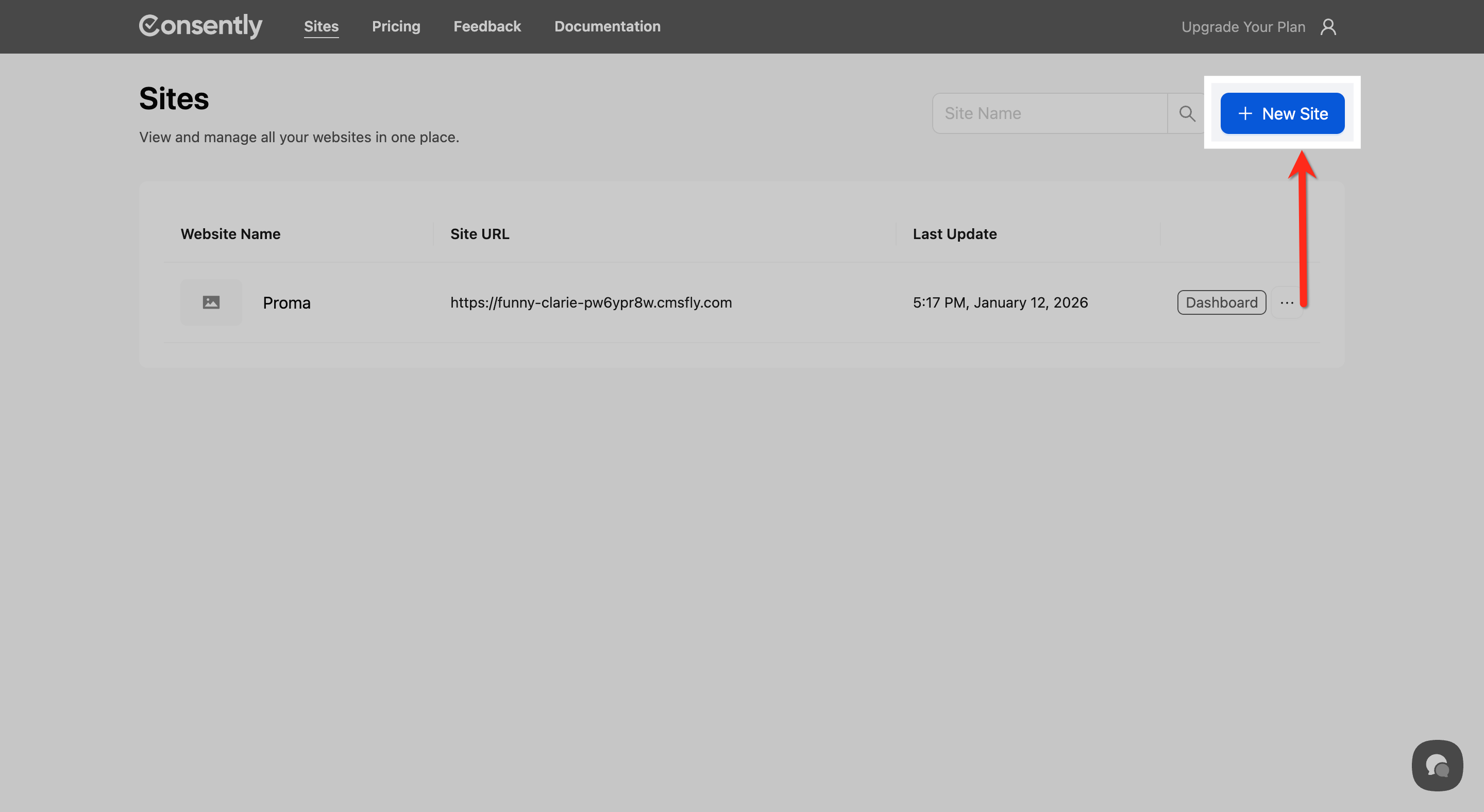
Enter your website name and URL, then click Save.
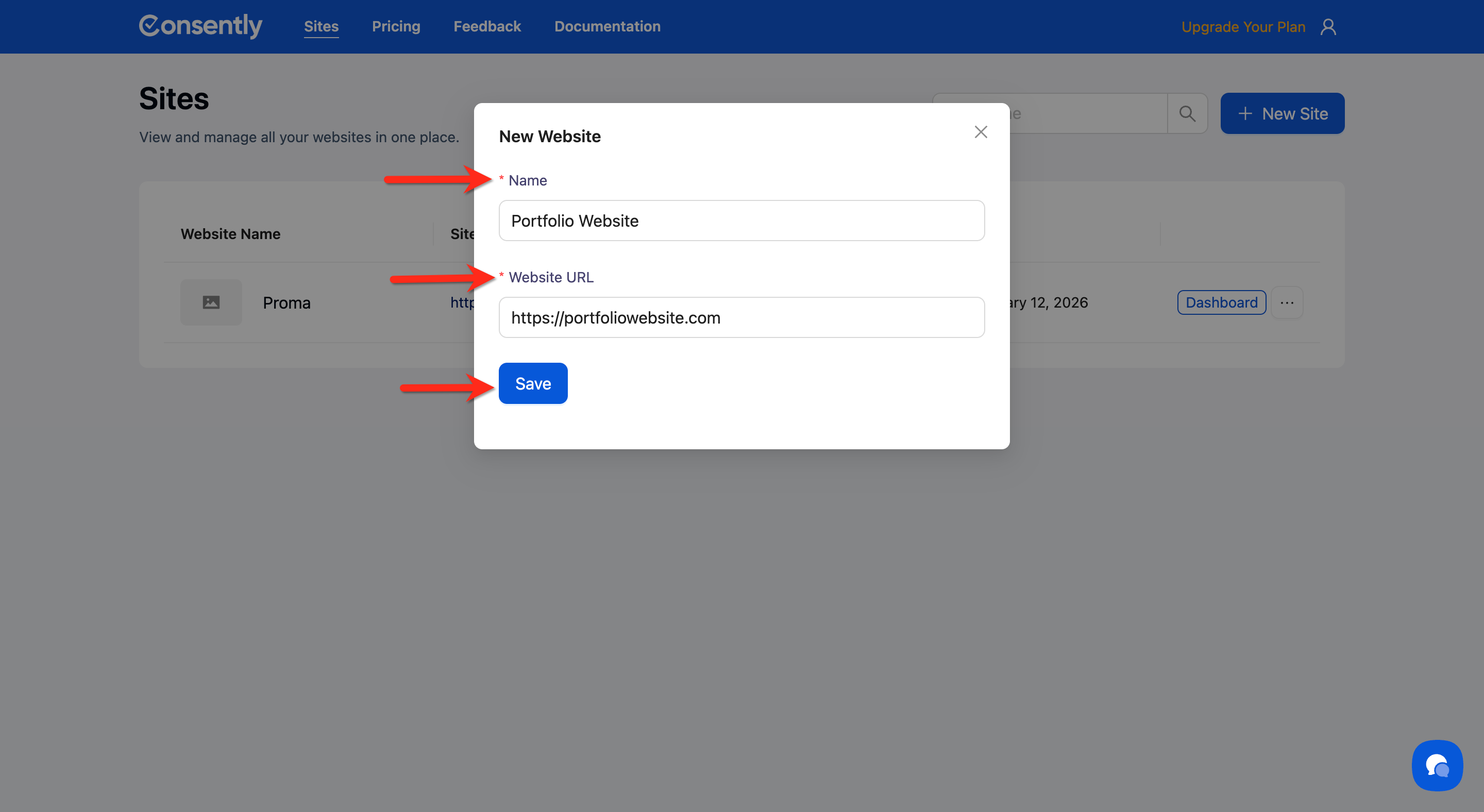
💡 Tip: Use a descriptive name if you manage multiple sites—it makes switching between them easier later.
For detailed instructions on managing sites, see Managing Sites.
Step 2: Choose your consent template
Navigate to the Cookie Banner tab. Select either the GDPR template (for EU/UK visitors) or US State Laws template (for US visitors) based on your audience location.
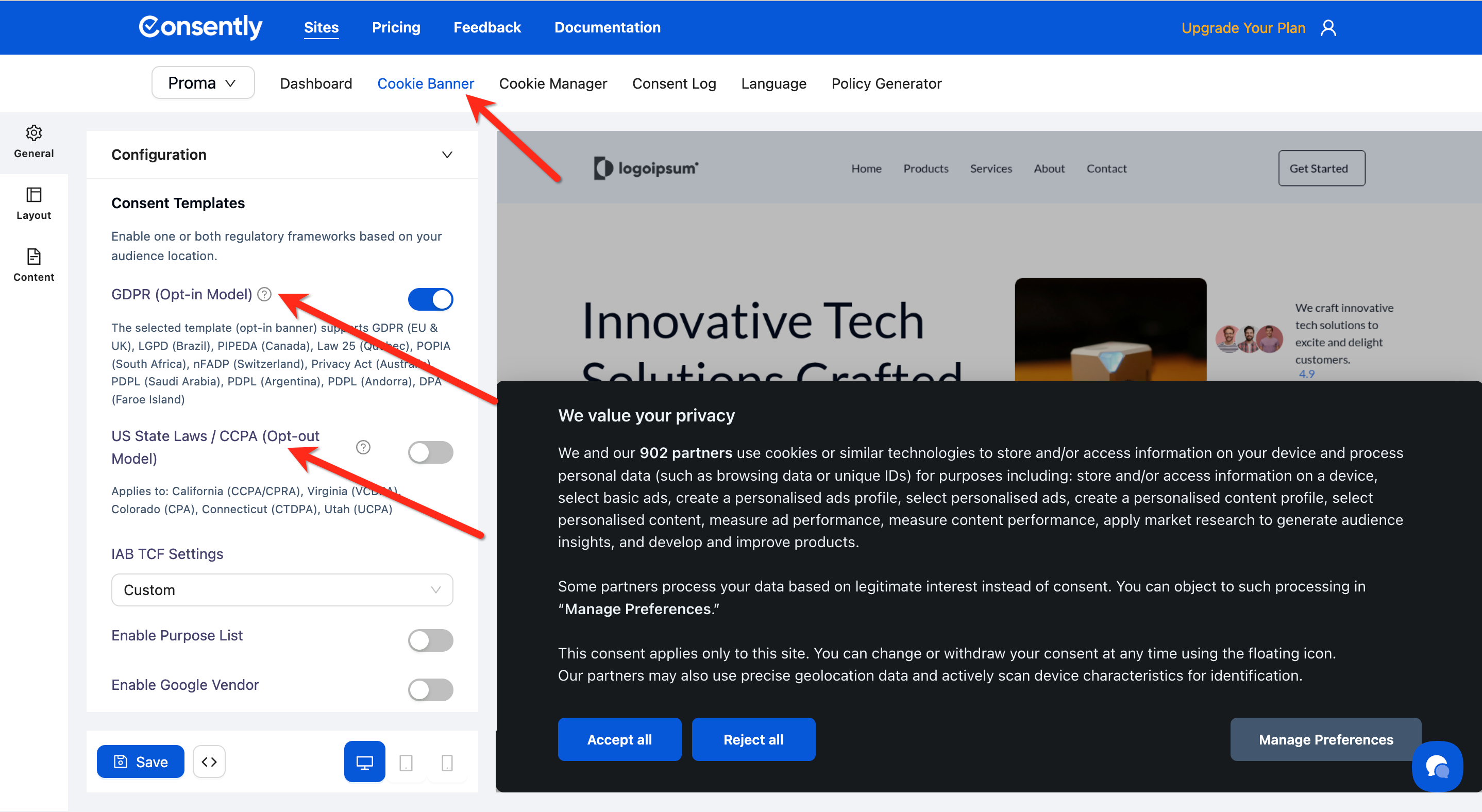
💡 Tip: If you have a global audience, you can enable both templates—Consently automatically shows the right one based on visitor location.
Learn more about templates in Choosing Consent Templates.
Step 3: Get your embed script
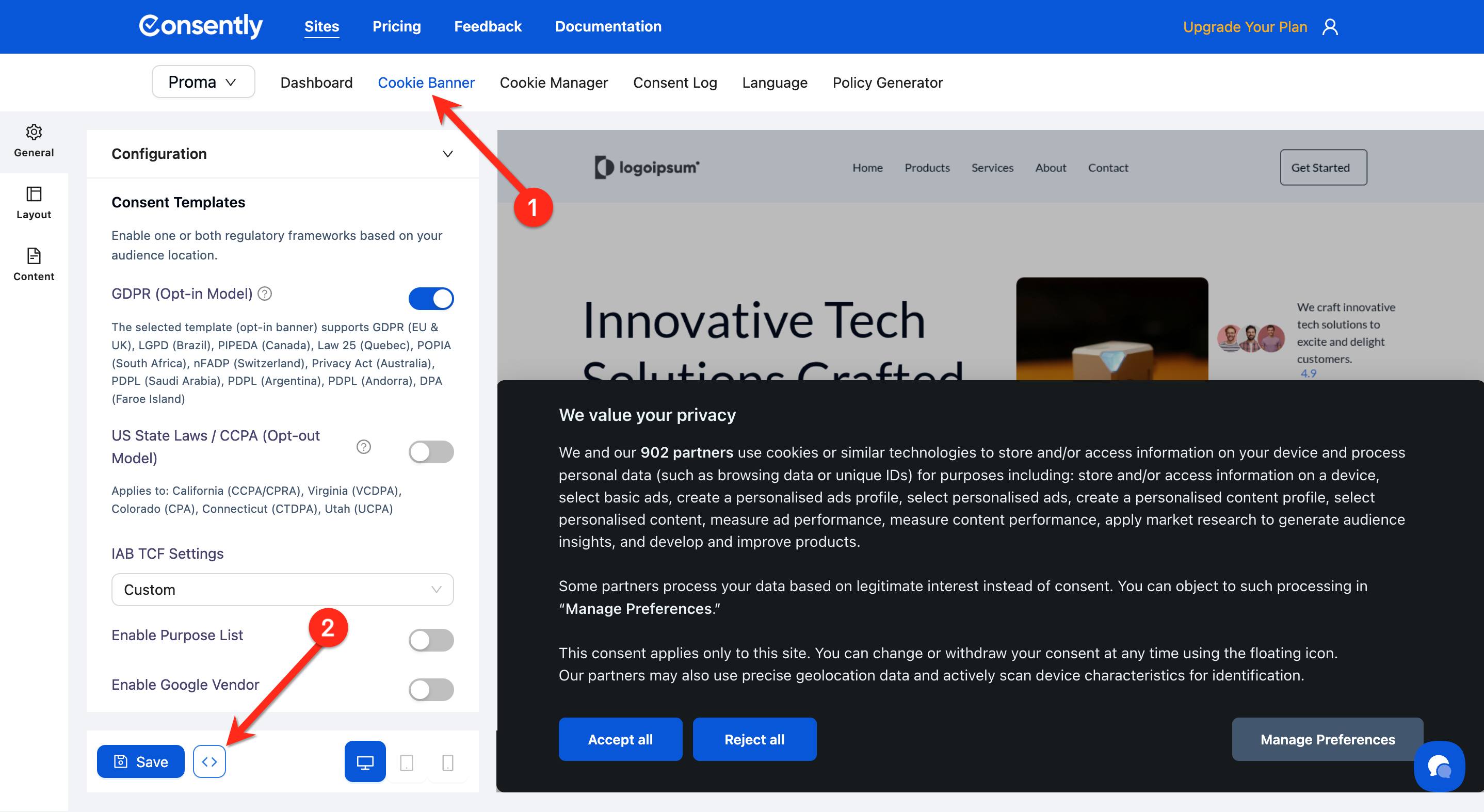
From the Cookie Banner tab of your site, click the <> icon in the bottom-left corner to open the Embed Script option.
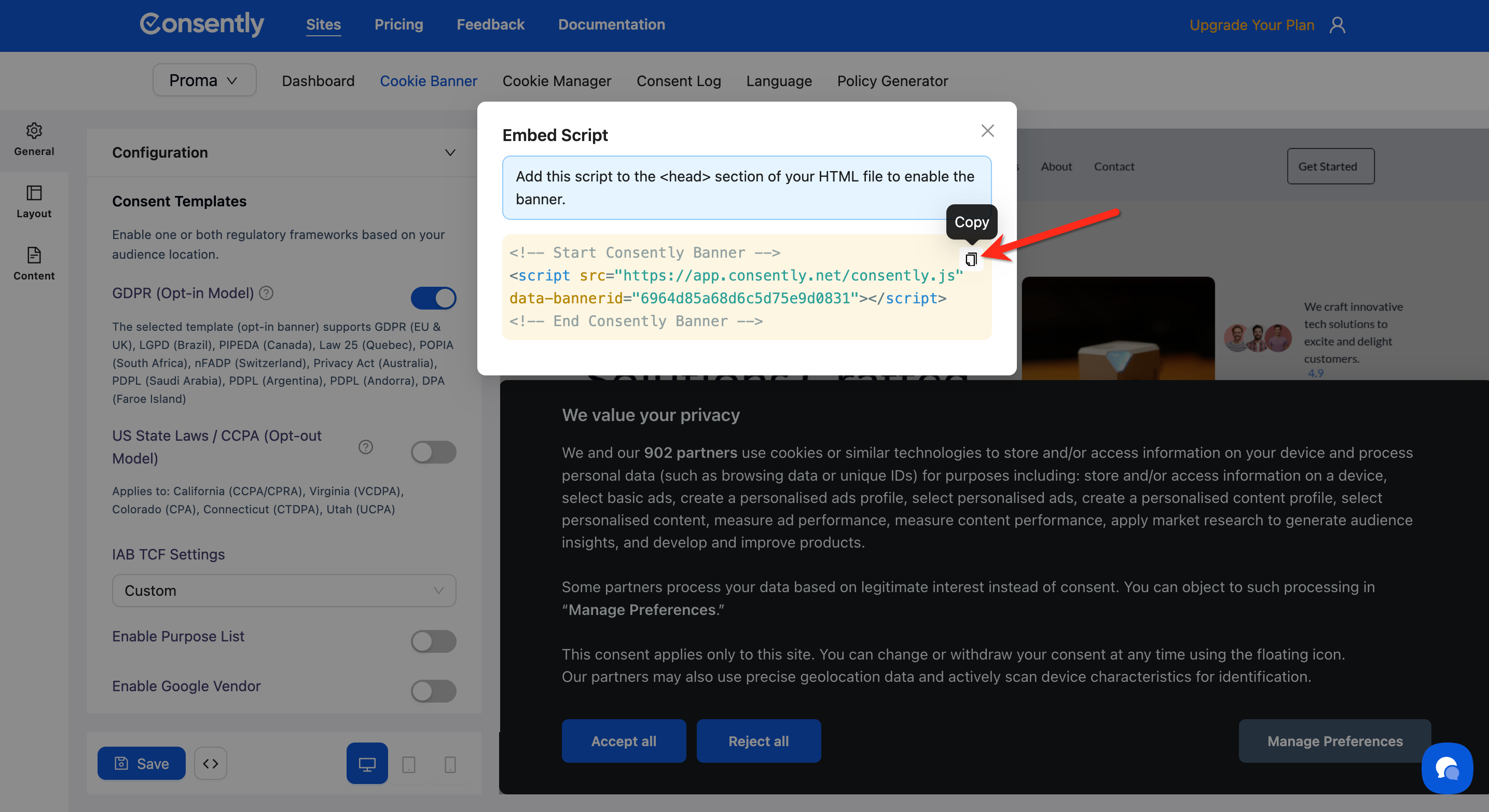
Then, click the Copy button to copy the script to your clipboard.
Alternatively:
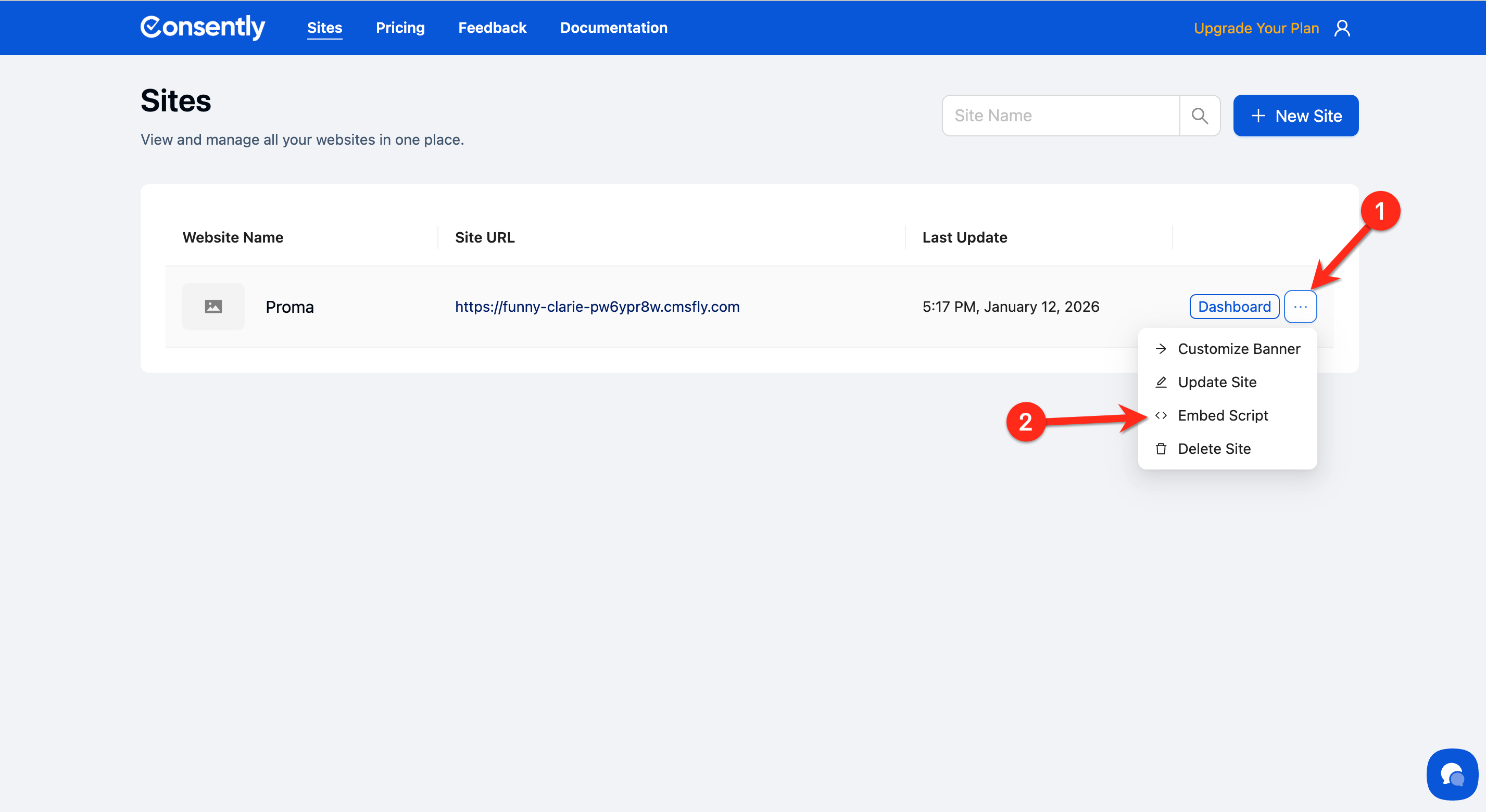
From the Sites page, click the ... (three-dot menu) next to your website and select Embed Script.
Click the Copy button to copy the script to your clipboard.
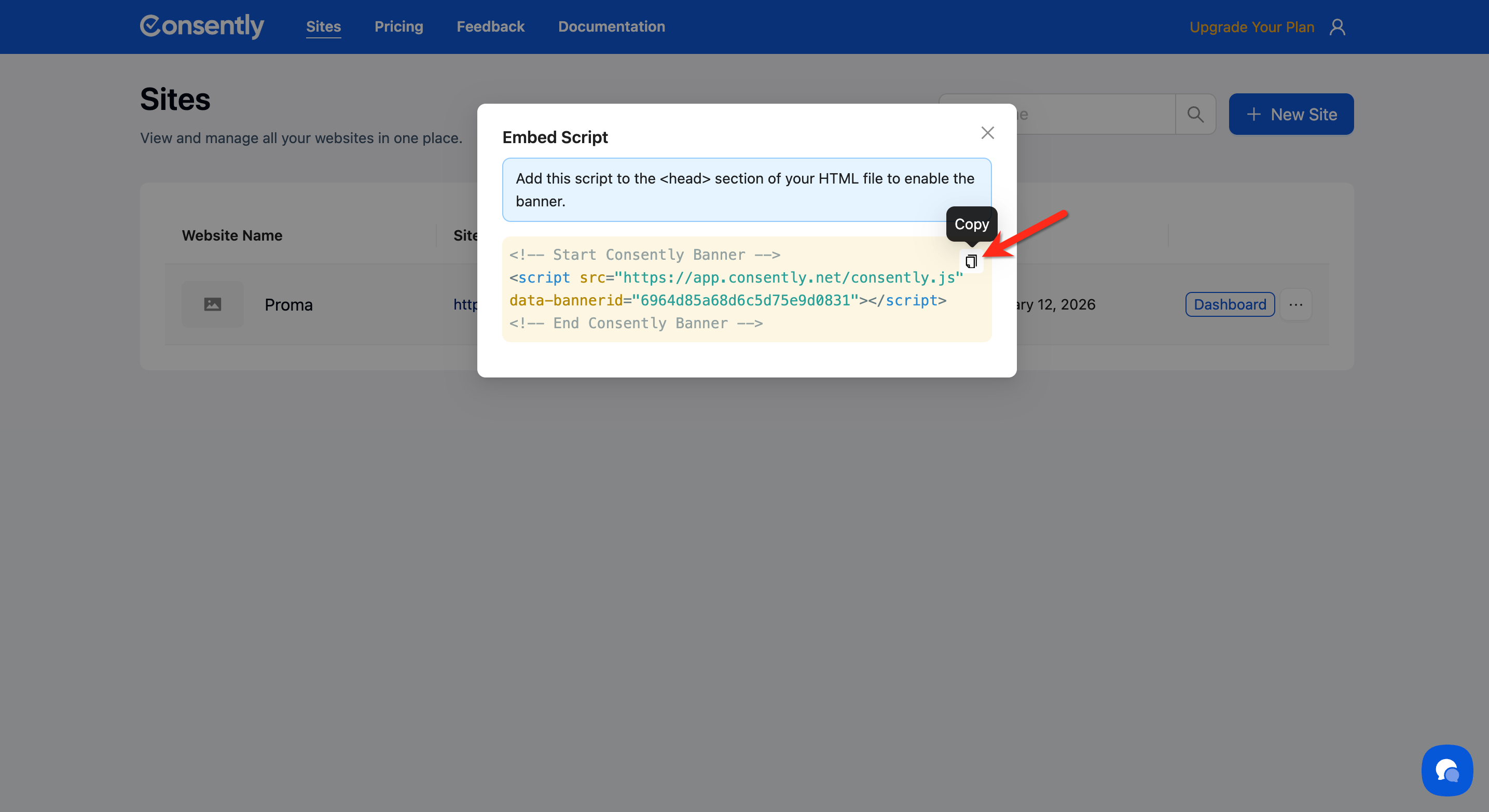
The script looks like this:
<script src="https://app.consently.net/consently.js"
data-bannerid="YOUR_BANNER_ID"></script>
For more details, see Embedding the Banner Script.
Step 4: Install the script on your website
Paste the embed script into the <head> section of your website's HTML. The exact location depends on your platform.
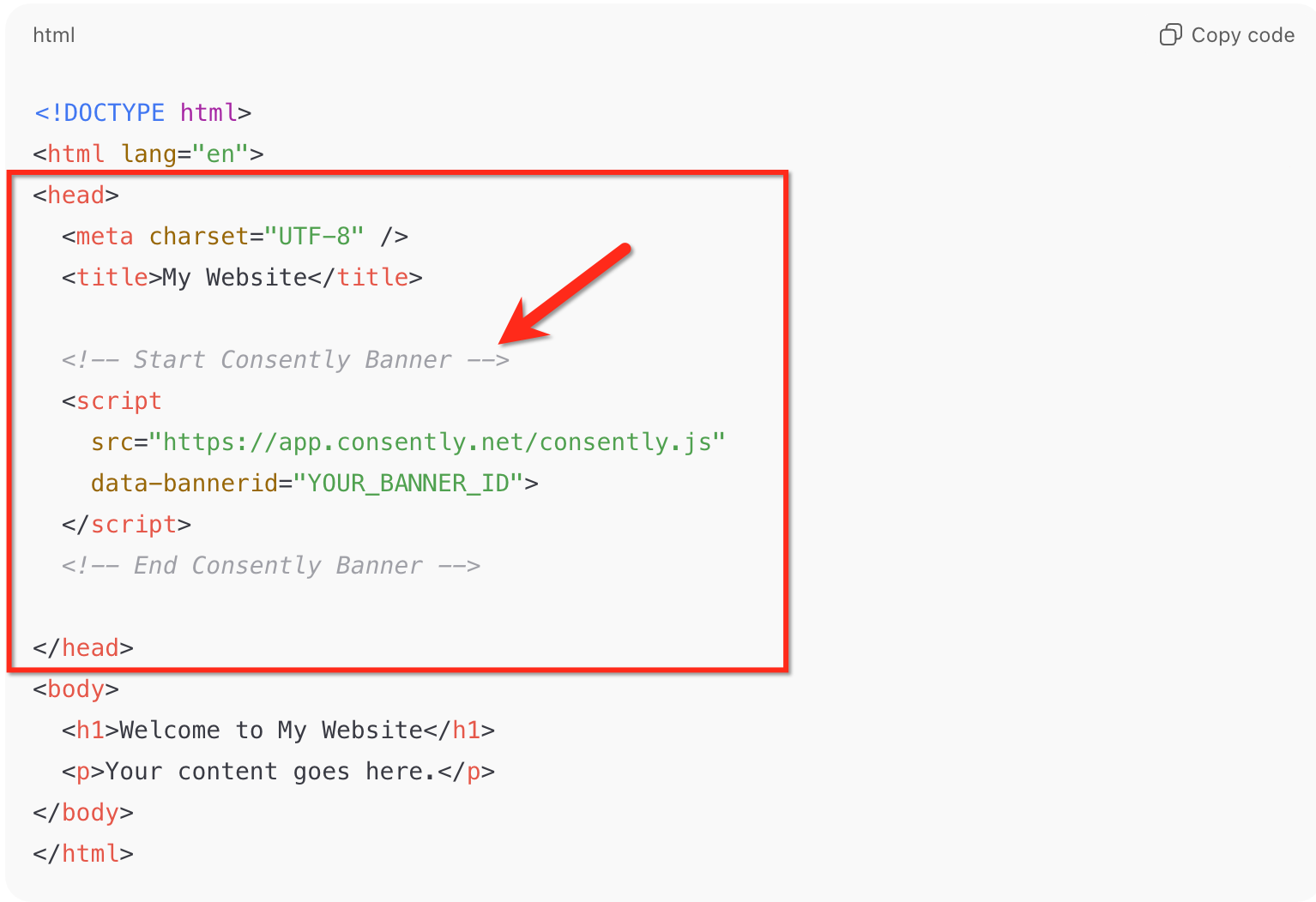
⚠️ Important: The script must be placed in the <head> section to work correctly. Placing it elsewhere may prevent the banner from loading.See Direct HTML Installation for detailed installation instructions.
Step 5: Test your installation
Visit your website in a new browser window or incognito mode. The consent banner should appear immediately.
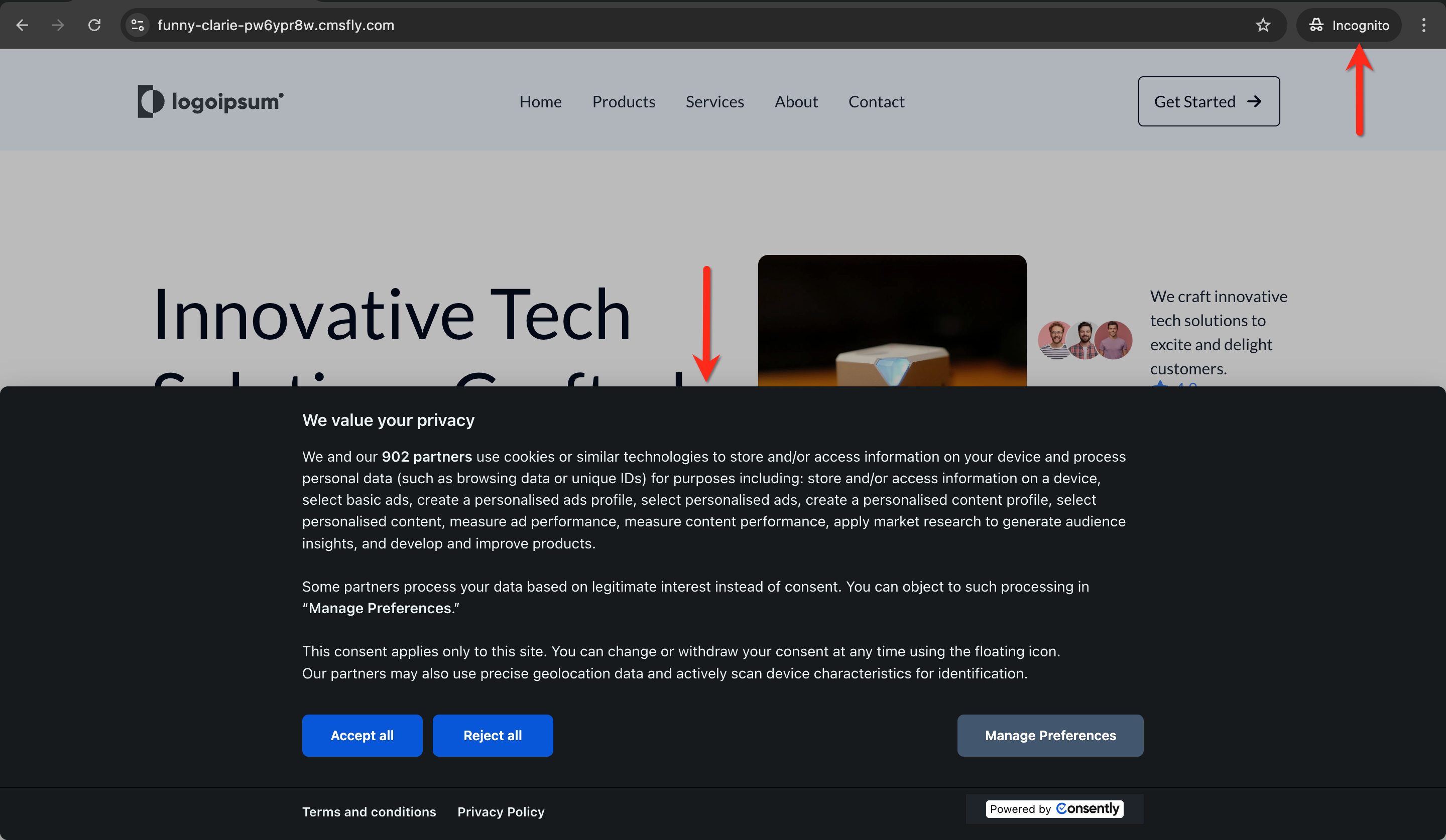
✅ Success indicator: You should see your consent banner appear at the bottom, top, or center of your website (depending on your configuration).
For thorough testing procedures, see Testing Your Installation.
Done!
Your consent banner is now live and collecting visitor consent. Consently automatically logs all consent decisions and enforces cookie blocking based on user preferences.
What's Next
Now that your banner is live, you should:
Explore your dashboard to monitor consent trends and view consent logs
Customize your banner design to match your brand colors and style
Related Pages
Understanding Consent Frameworks — Learn about GDPR vs CCPA consent models
Installation Overview — Explore alternative installation methods for different platforms