

TL;DR: Policy Generator → Edit Information → Fill in company details → Update. Enter your business information once to use across all policy generators.
Overview
Company information serves as the foundation for all policies generated in Consently. You'll enter your business details once, and they'll automatically populate your Cookie Policy, Privacy Policy, and Terms & Conditions.
Before You Begin
Make sure you have:
Your company's legal information ready
Your main office address
Contact details (email and phone)
Time required: 3 minutes
How to Enter Company Information
Step 1: Open the Policy Generator
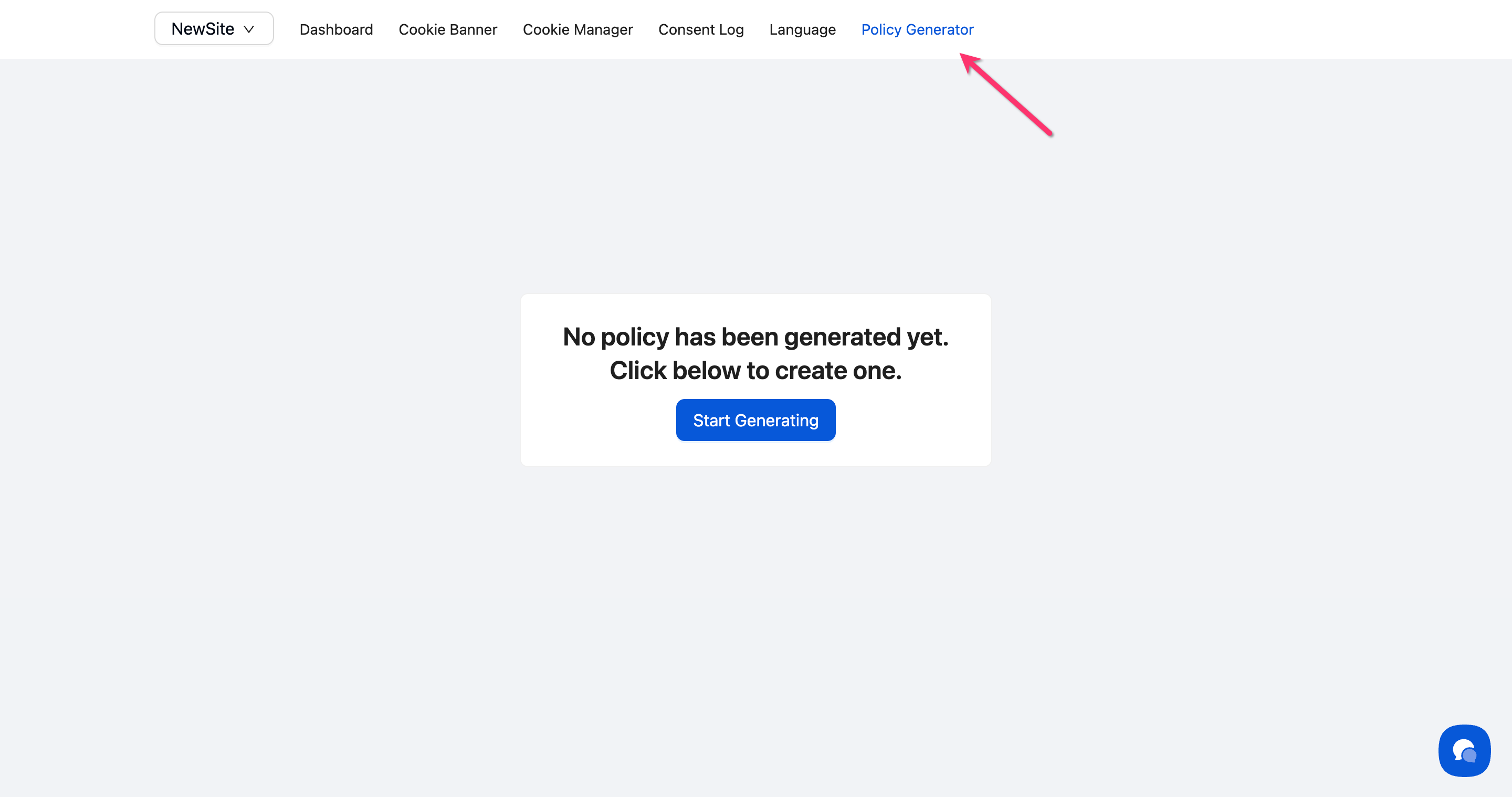
Click Policy Generator in the top navigation bar.
Step 2: Access company information
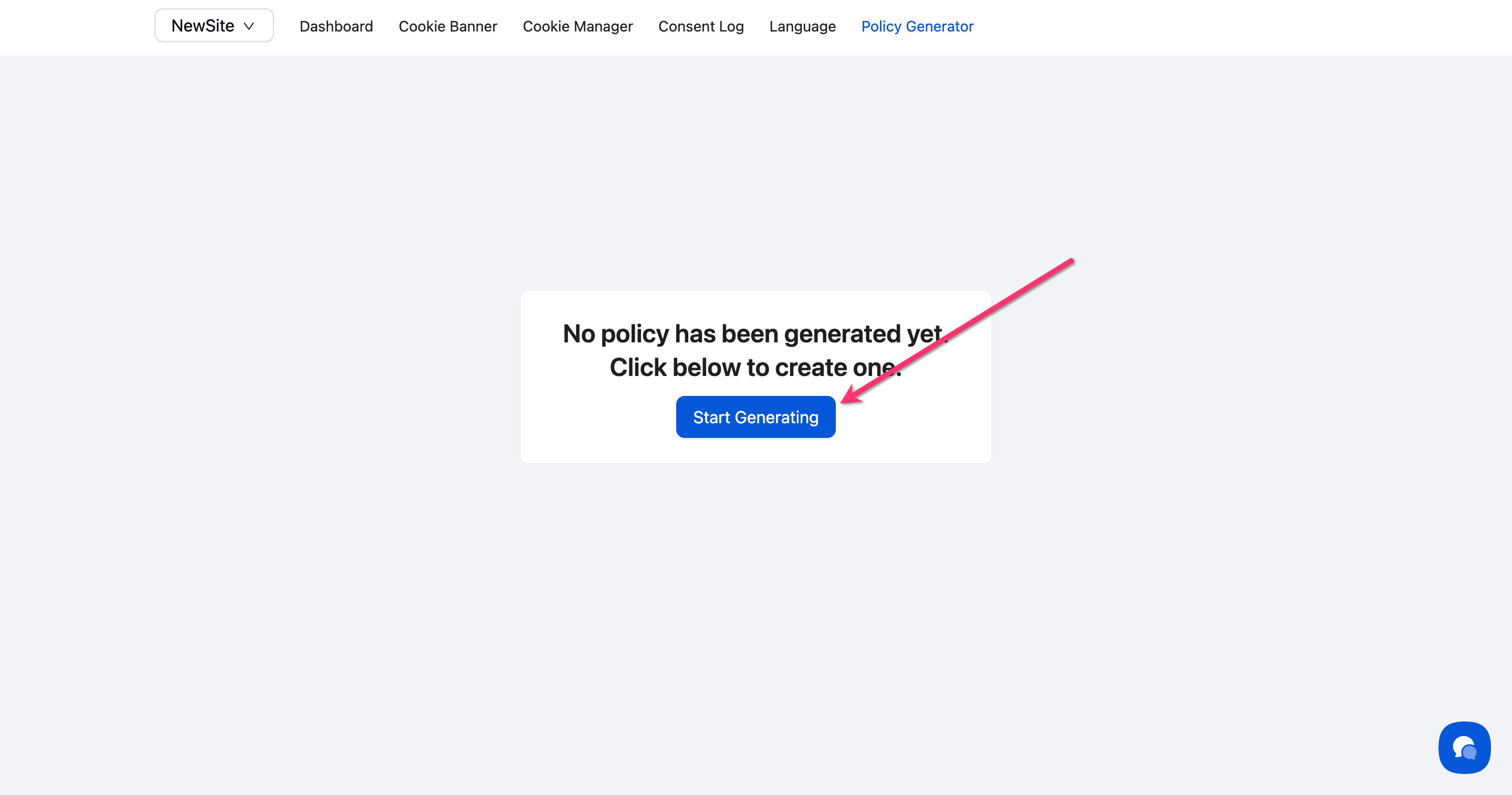
Click the Start Generating button at the center of this page.
Step 3: Enter your company's legal name
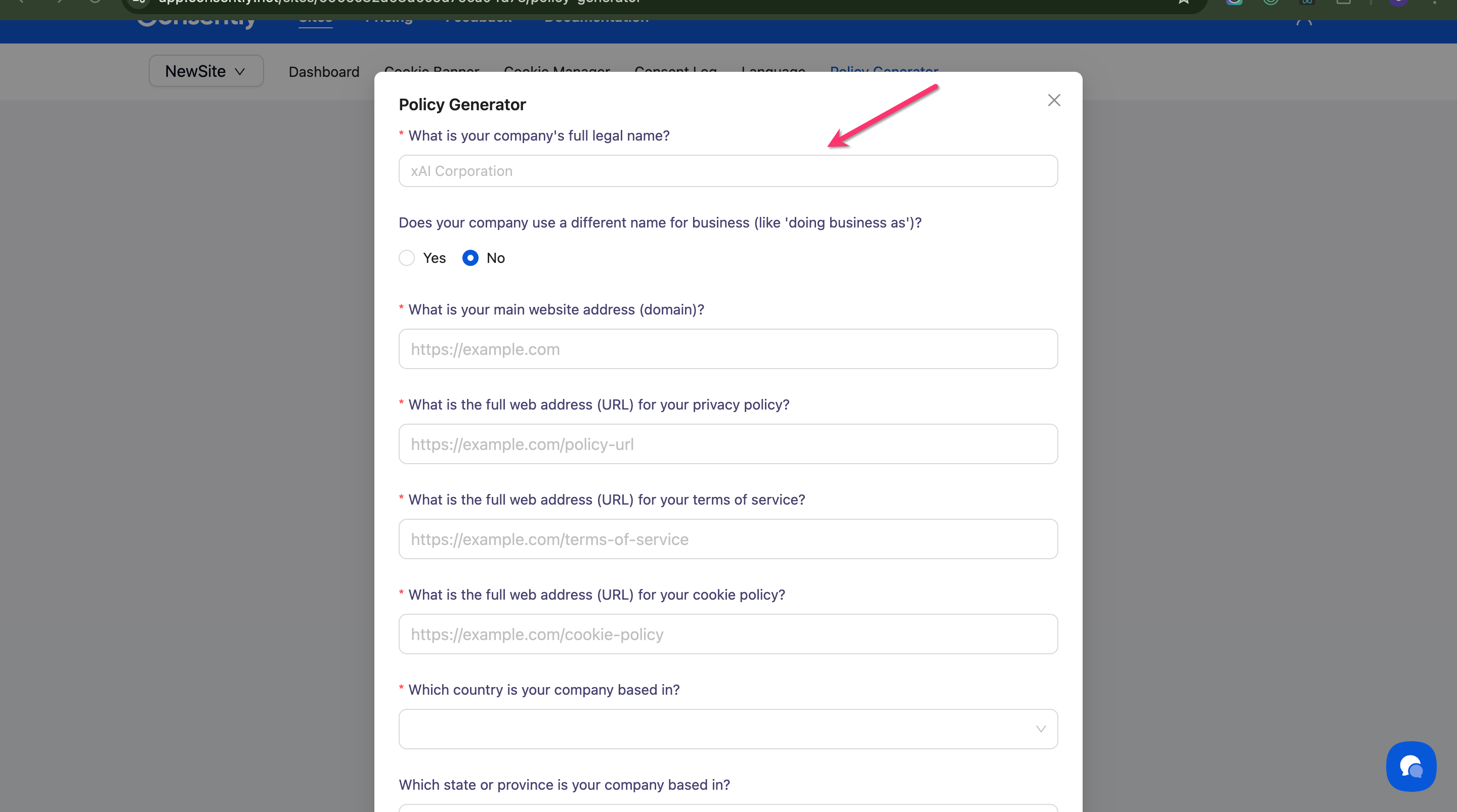
Type your company's full legal name in the Company's full legal name field.
Step 4: Add business name (if applicable)
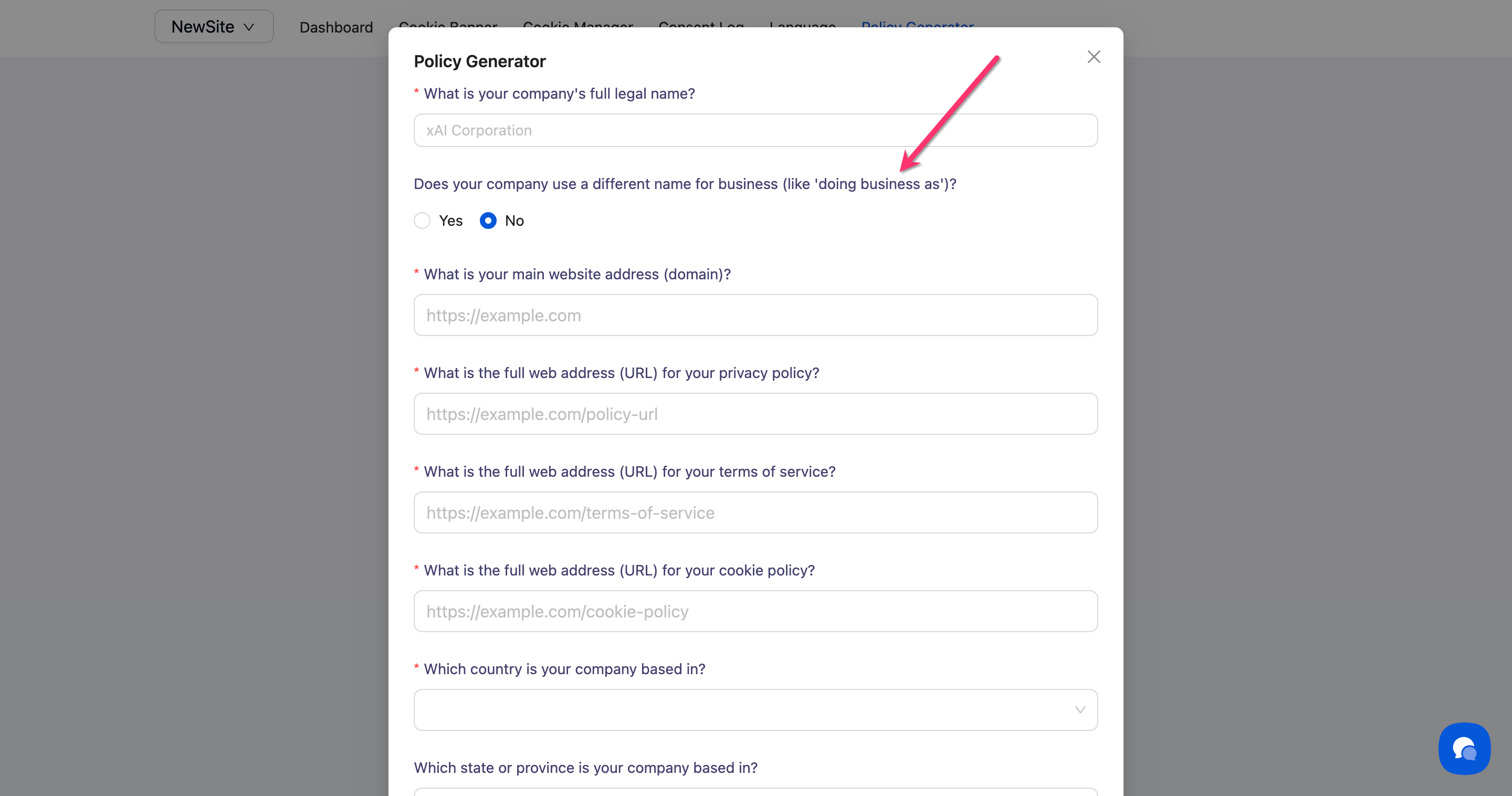
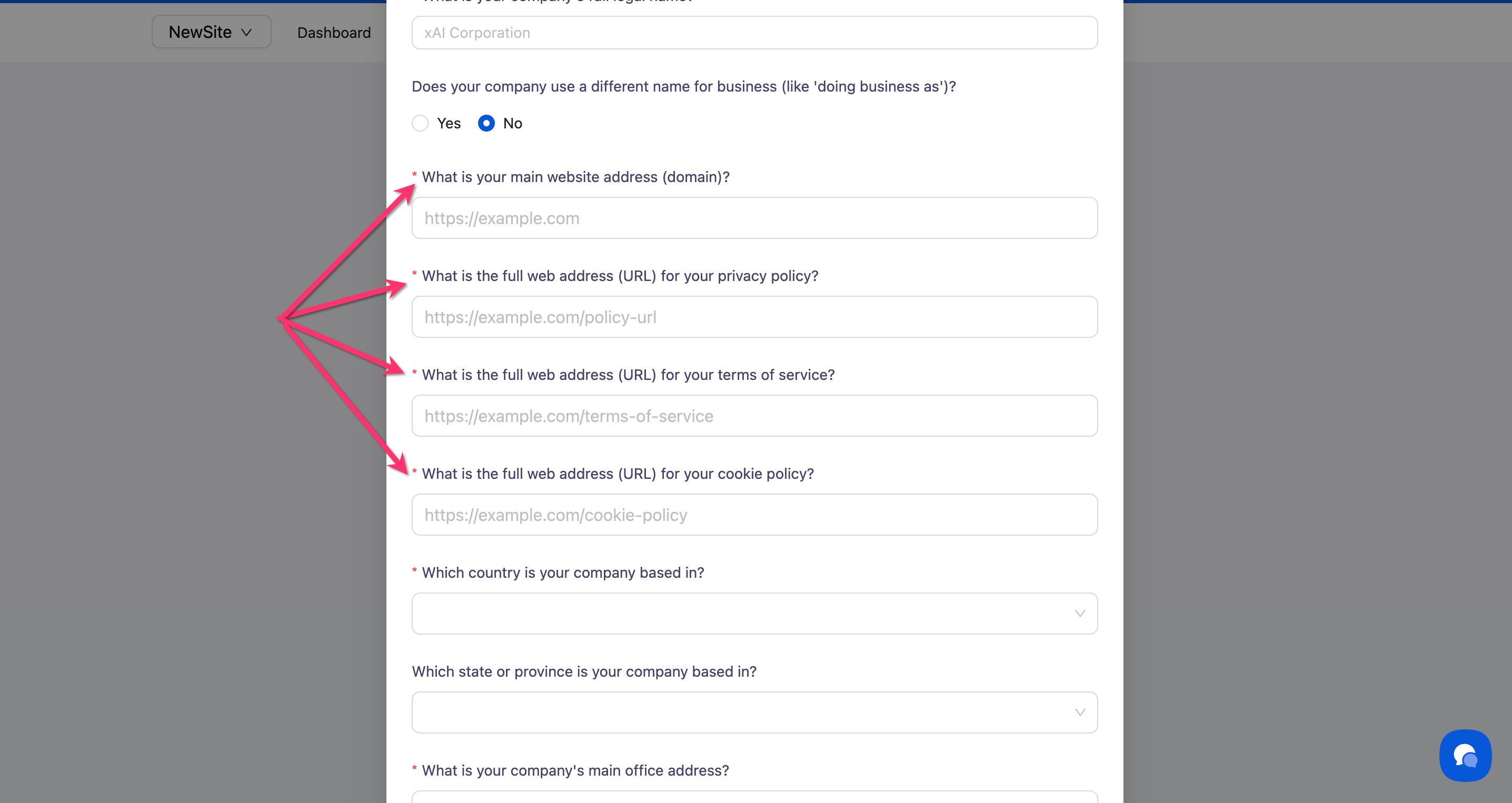
If your company operates under a different name (DBA), select Yes for "Does your company use a different name for business" and enter it.
💡 Tip: Most businesses can select "No" here unless they have a registered "Doing Business As" name.
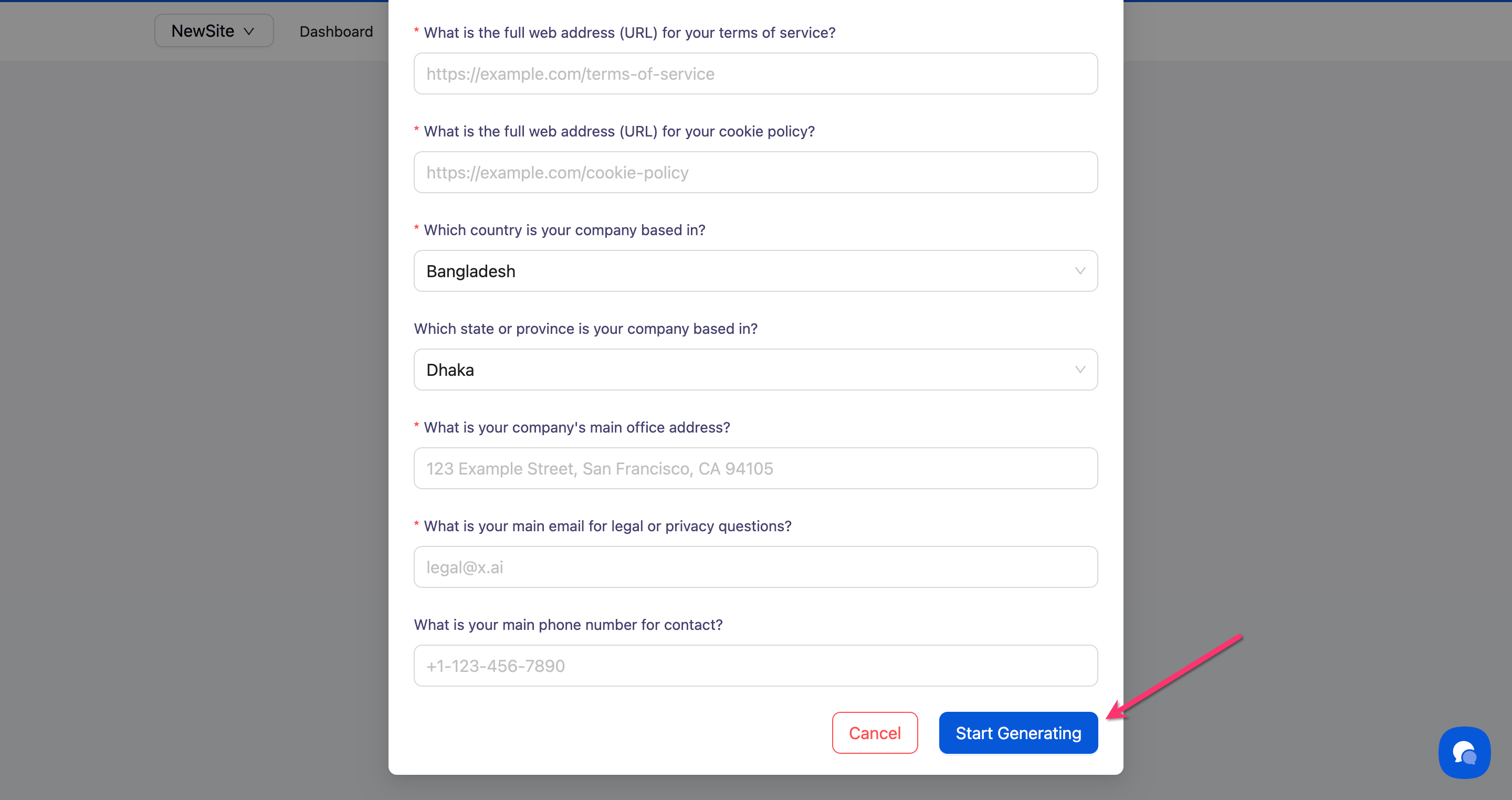
Step 5: Enter website and policy URLs
Fill in the following website addresses:
Main website address (e.g., https://example.com)
Privacy Policy URL (where you'll host your privacy policy)
Terms of Service URL (where you'll host your terms)
Cookie Policy URL (where you'll host your cookie policy)
💡 Tip: You don't need these pages live yet—just enter where you plan to host them. You can update these URLs anytime.
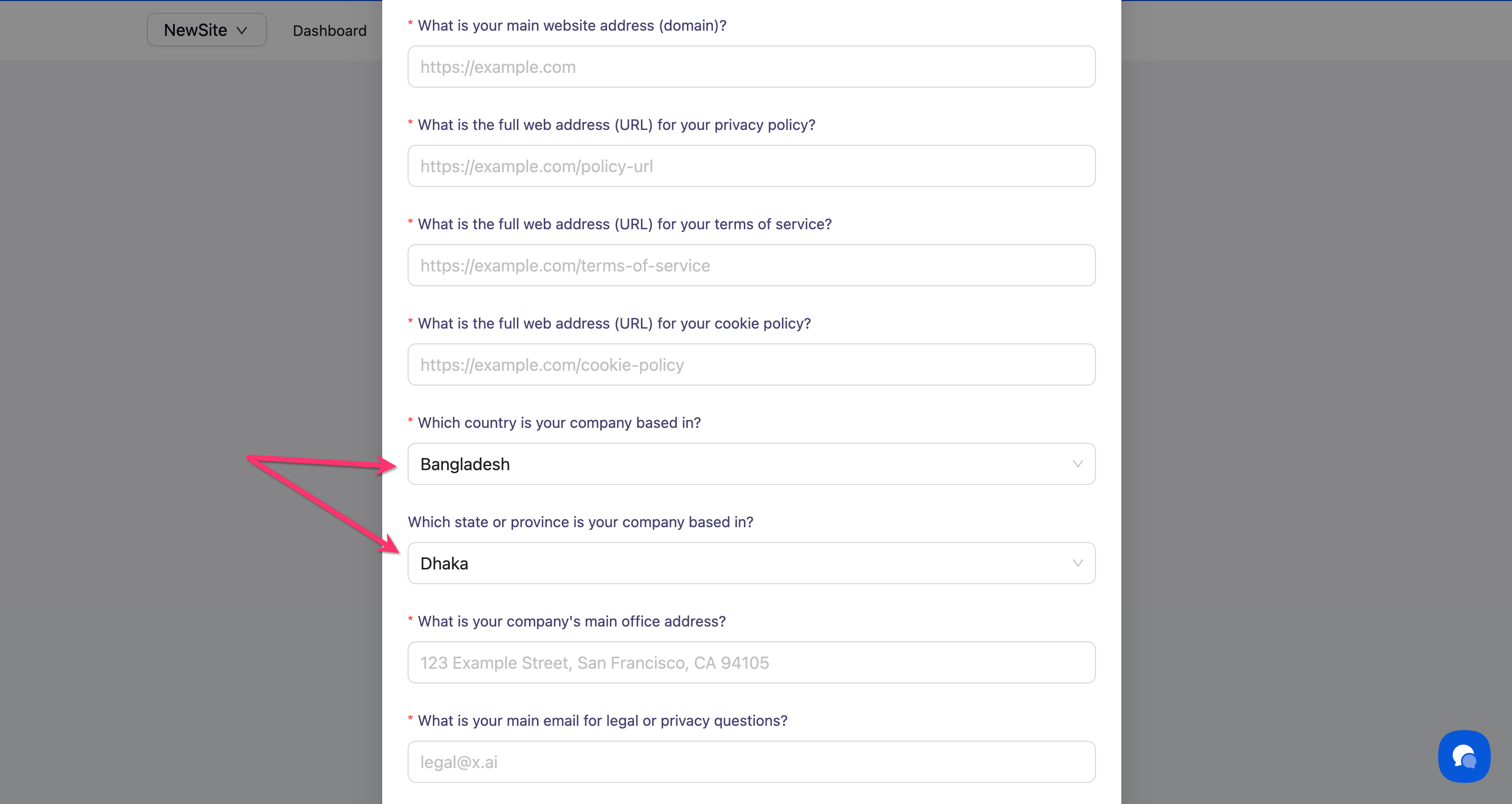
Step 6: Select your company location
Choose your Company country from the dropdown, then select your State or province if applicable.
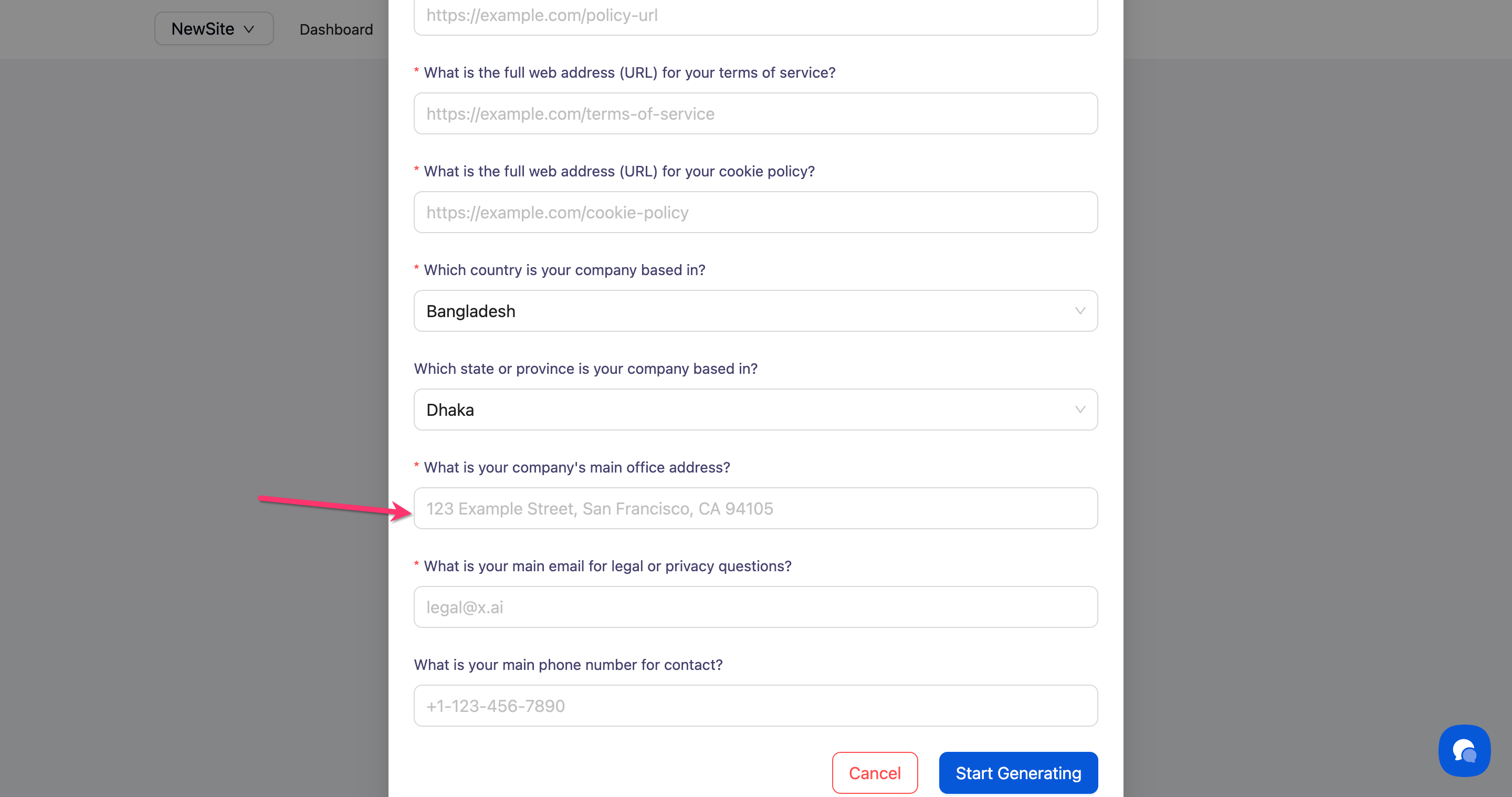
Step 7: Add office address
Enter your Main office address in the text field.
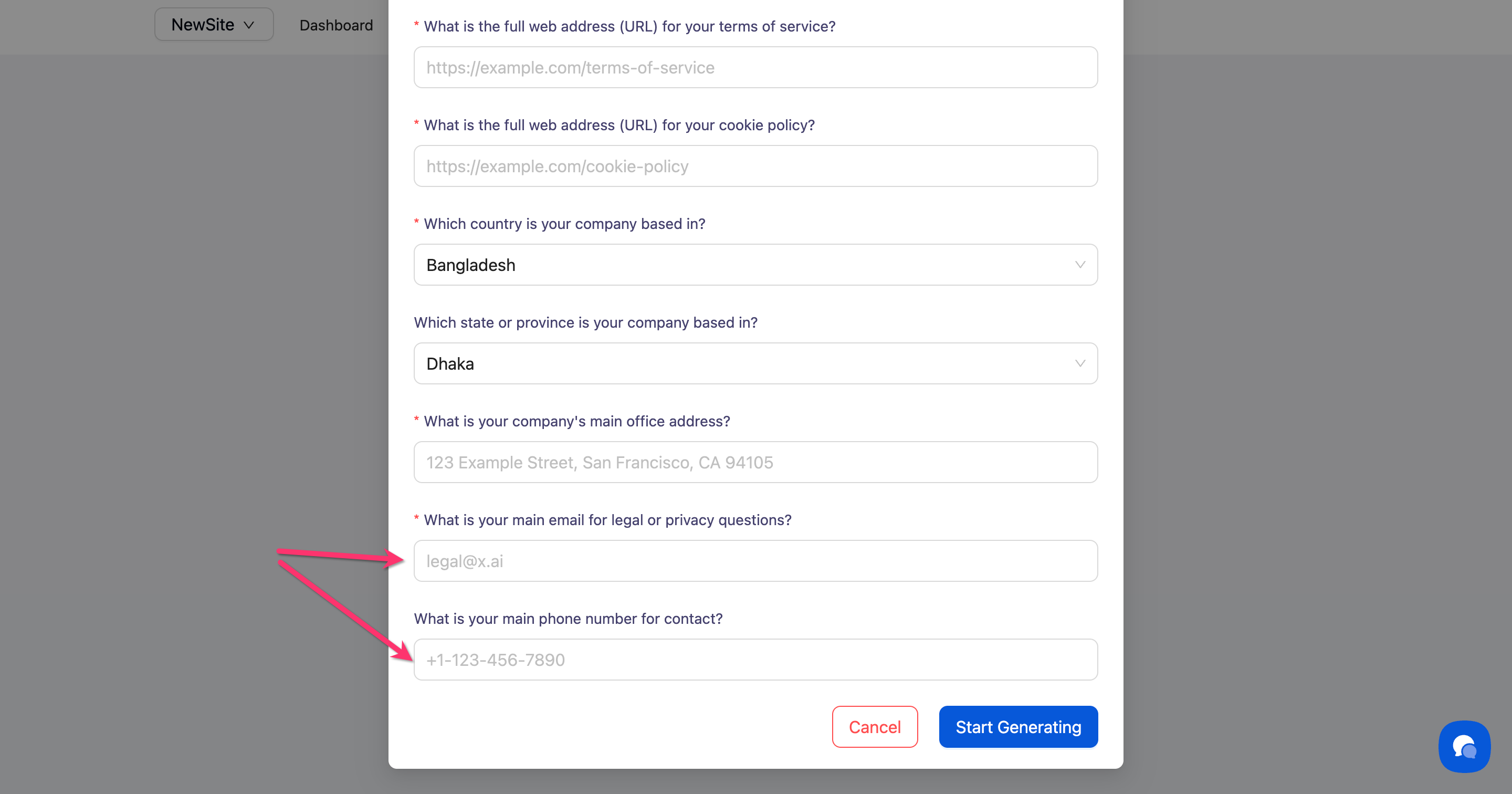
Step 8: Provide contact information
Add:
Main email for legal or privacy questions (required)
Main phone number for contact (optional)
Step 9: Save your information
Click Start Generating to save your company information.
Done!
Your company information is now saved and ready to use in all policy generators.
✅ Success indicator: The modal closes and your company information is stored for policy generation.
What's Next
Now that your company information is set up, you can:
Troubleshooting
The Update button is grayed out
Why this happens: Required fields are missing.
Solution:
Scroll through the form and look for fields marked with a red asterisk (*)
Fill in all required fields—typically company name, website address, and email
The Update button will become active once all required fields are complete
I can't find my state/province in the dropdown
Solution: If your country doesn't have states or provinces, this field won't appear. The state/province dropdown only shows when you select a country that uses regional divisions like the United States, Canada, or India.
Policy URLs aren't working yet
Solution: You don't need to have these pages live yet—just enter the URLs where you plan to host your policies. After you generate your policies in Consently, you'll publish them to these URLs. You can always update these URLs later by clicking Edit Information again.