

TL;DR: Site Dashboard → Advanced Settings → Enable debug mode → reload your site. A panel appears showing whether your consent defaults reached Google before your Google tags fired.
Overview
Google Consent Mode only works if your consent defaults are registered before the first Google tag sends data. Consently sets these defaults for you — there is nothing to add to your page beyond the standard embed script. Debug mode lets you confirm it is working on your own site, without reading network requests by hand.
Debug mode is available on every plan and can be switched on and off per site.
Enabling Debug Mode
Step 1: Open your site dashboard
Go to Sites and select the site you want to check.
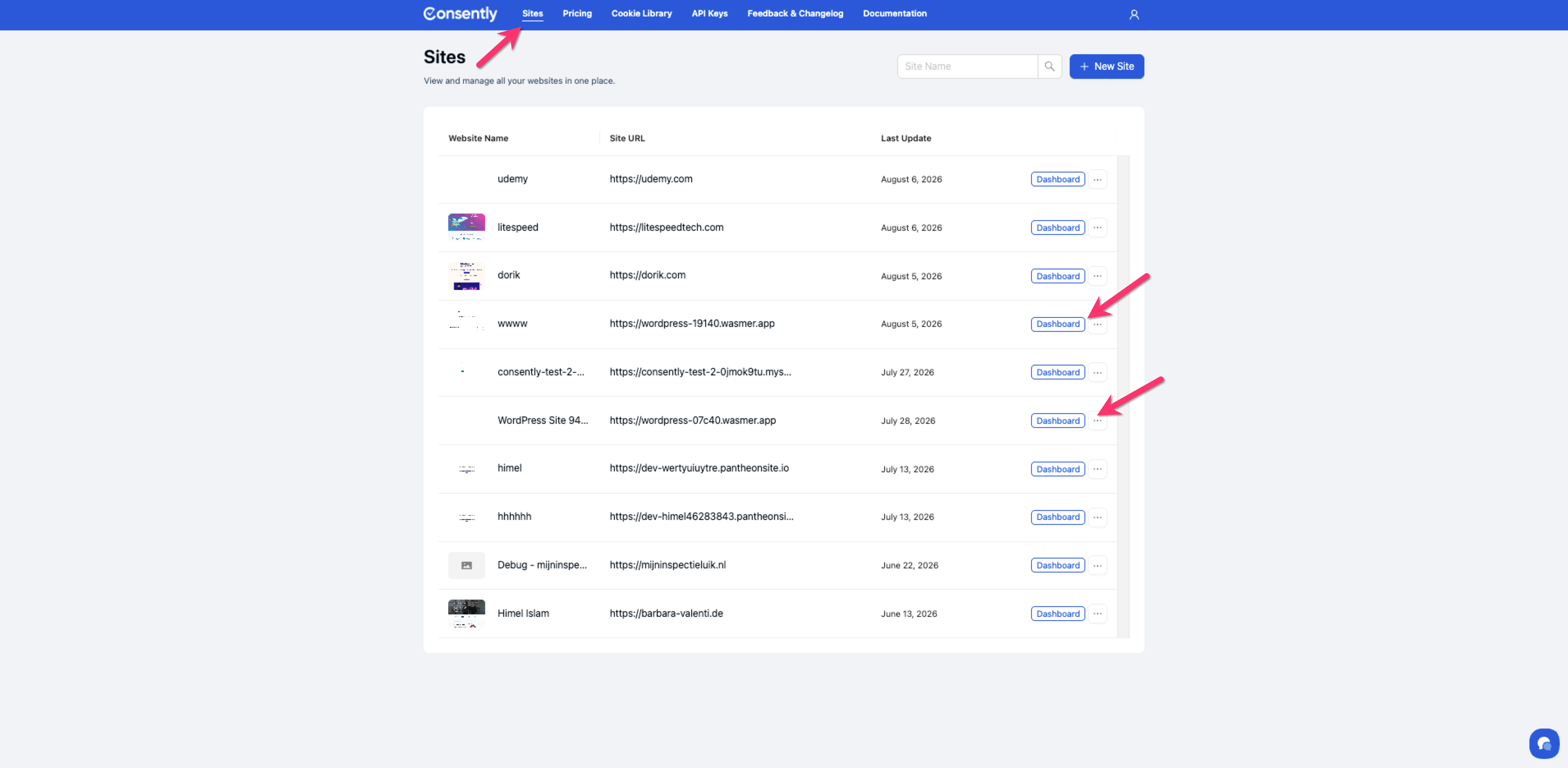
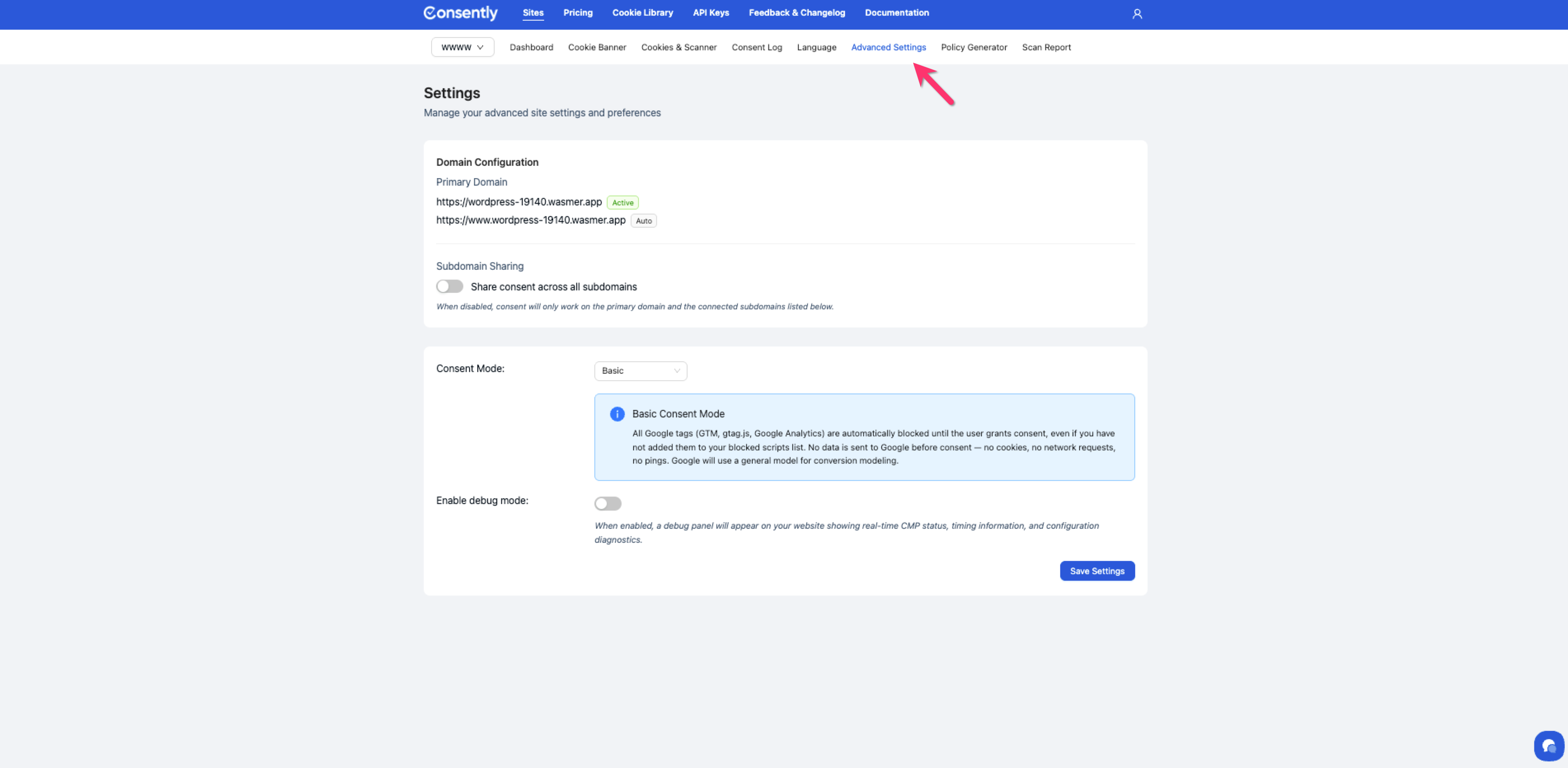
Step 2: Navigate to Advanced Settings
Open the Advanced Settings tab.
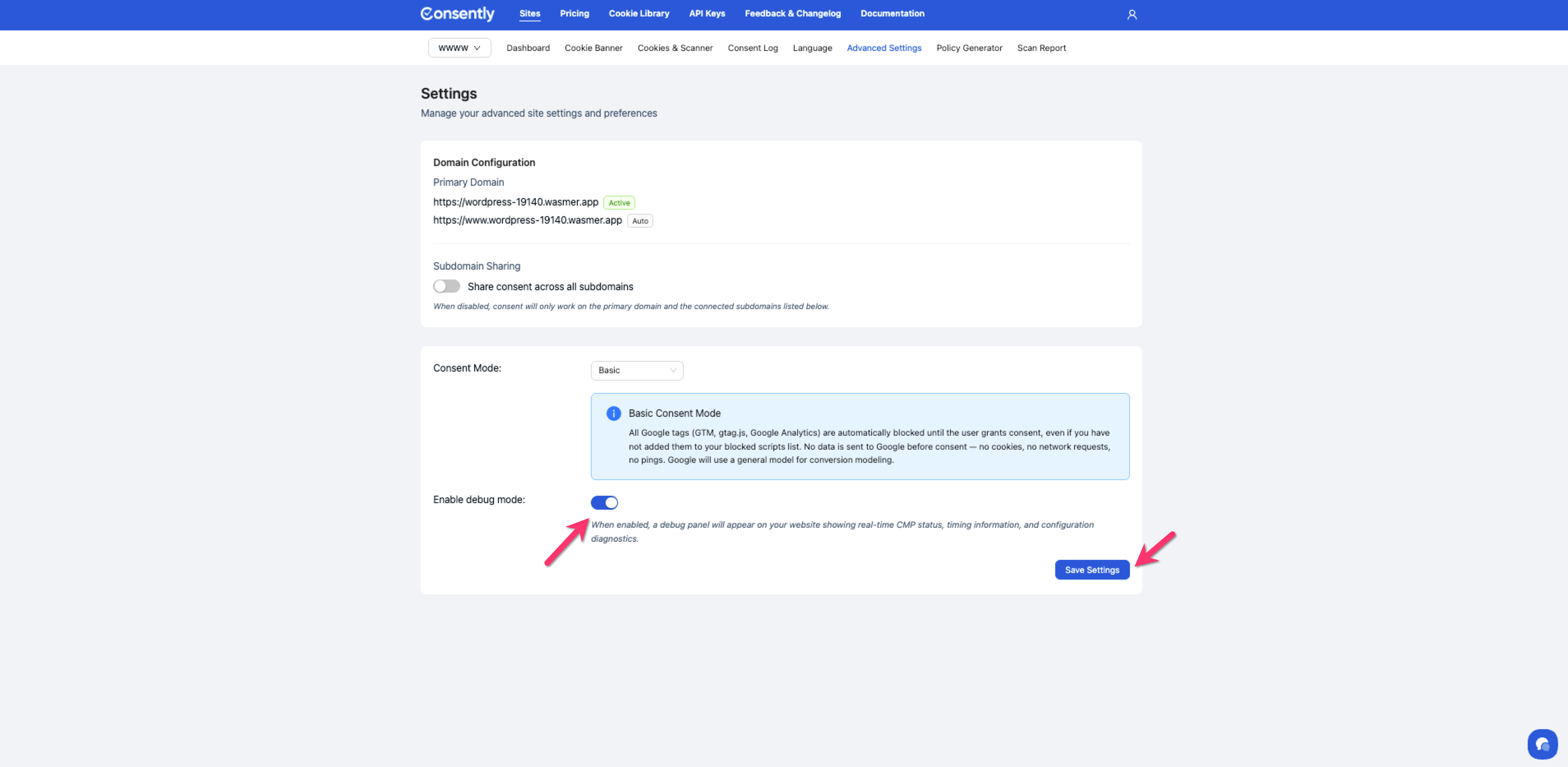
Step 3: Turn on Enable debug mode
Switch Enable debug mode on, then click Save Settings.
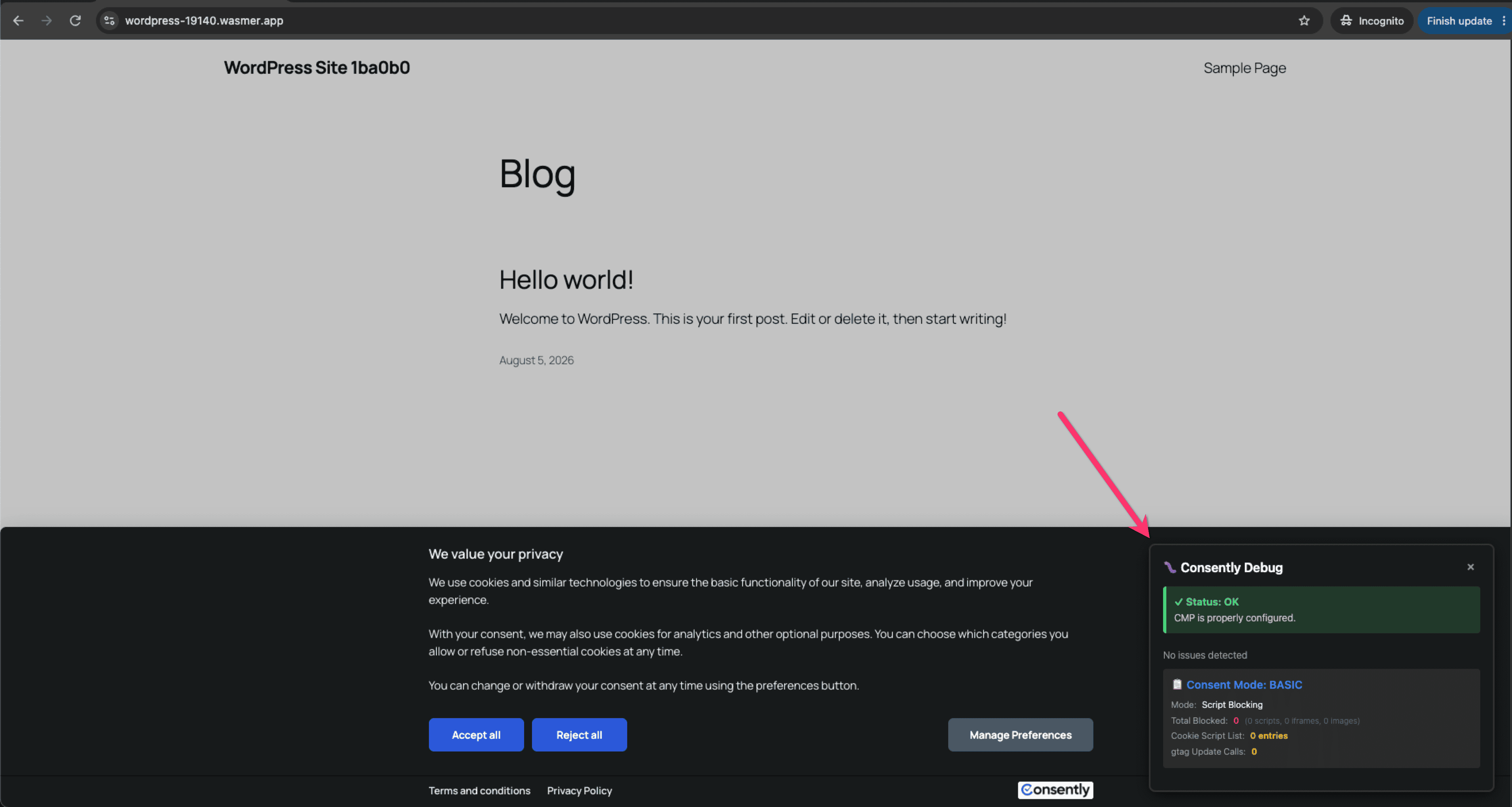
Step 4: Reload your website
Visit your site in a normal browser tab. A dark 🐛 Consently Debug panel appears in the bottom-right corner and refreshes every two seconds.
Done!
⚠️ Important: Turn debug mode off when you have finished. While it is on, the panel is visible to every visitor.
✅ Success indicator: A dark 🐛 Consently Debug panel appears in the bottom-right corner of your site and refreshes every two seconds.
Reading the Panel
The panel opens with an overall status — OK, WARNING or ERROR — followed by individual checks. Each check shows how long after the Consently script loaded it was recorded.
A healthy Advanced Mode installation shows:
✓ Consent defaults set correctly — Google Consent Mode defaults were set before any Google tags loaded
✓ Developer ID set — the CMP developer ID has been registered with Google tags
📋 Consent Mode: ADVANCED with gtag Default Calls: 1 or more
If TCF is enabled for the site, you will also see ✓ TCF stub loaded.
Where a fix is available, a How to fix this → link appears beneath the check.
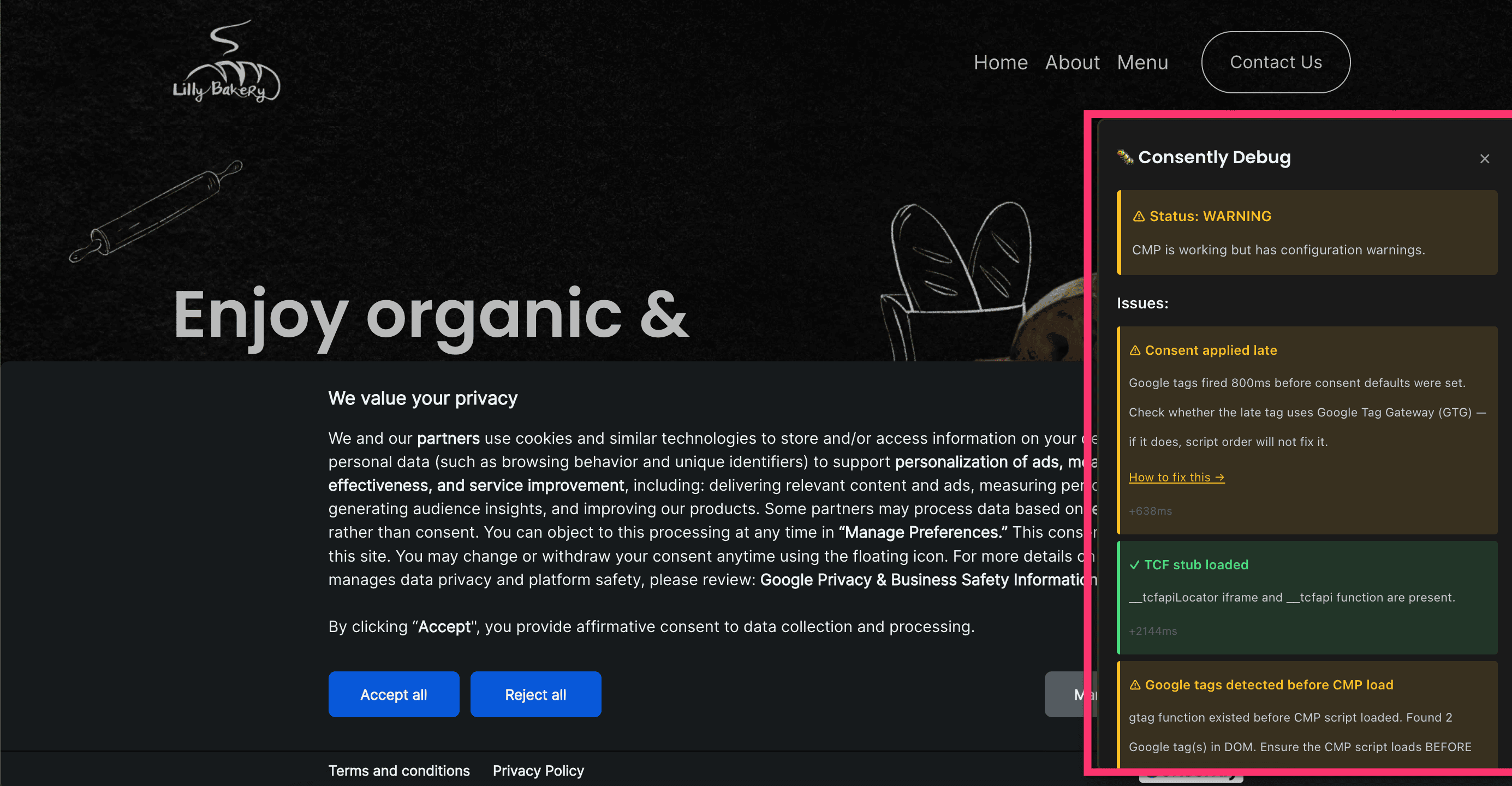
The late consent warning
If a Google tag sent data before your consent defaults were registered, the panel shows:
⚠ Consent applied late Google tags fired 500ms before consent defaults were set. Check whether the late tag uses Google Tag Gateway (GTG) — if it does, script order will not fix it. How to fix this →
Follow that link, or the steps under Fixing a Genuine Timing Problem below.
💡 Tip: A separate ⚠ Google tags detected before CMP load notice is informational. It reports that a Google tag was present when Consently started, which can happen even on a correctly ordered page because gtag.js loads asynchronously. If ✓ Consent defaults set correctly also appears, your setup is fine.Confirming Consent Timing Yourself
The definitive check is the gcs parameter Google receives.
Open DevTools → Network, filter for collect, clear cookies, and reload. Look at the first request:
| Meaning |
|---|---|
| Defaults applied, all denied — correct before consent |
| Consent granted for ad and analytics storage |
(missing) | Consent defaults had not been registered when this request was sent |
A correctly installed Advanced Mode site shows G100 on the first request, then G111 after the visitor accepts.
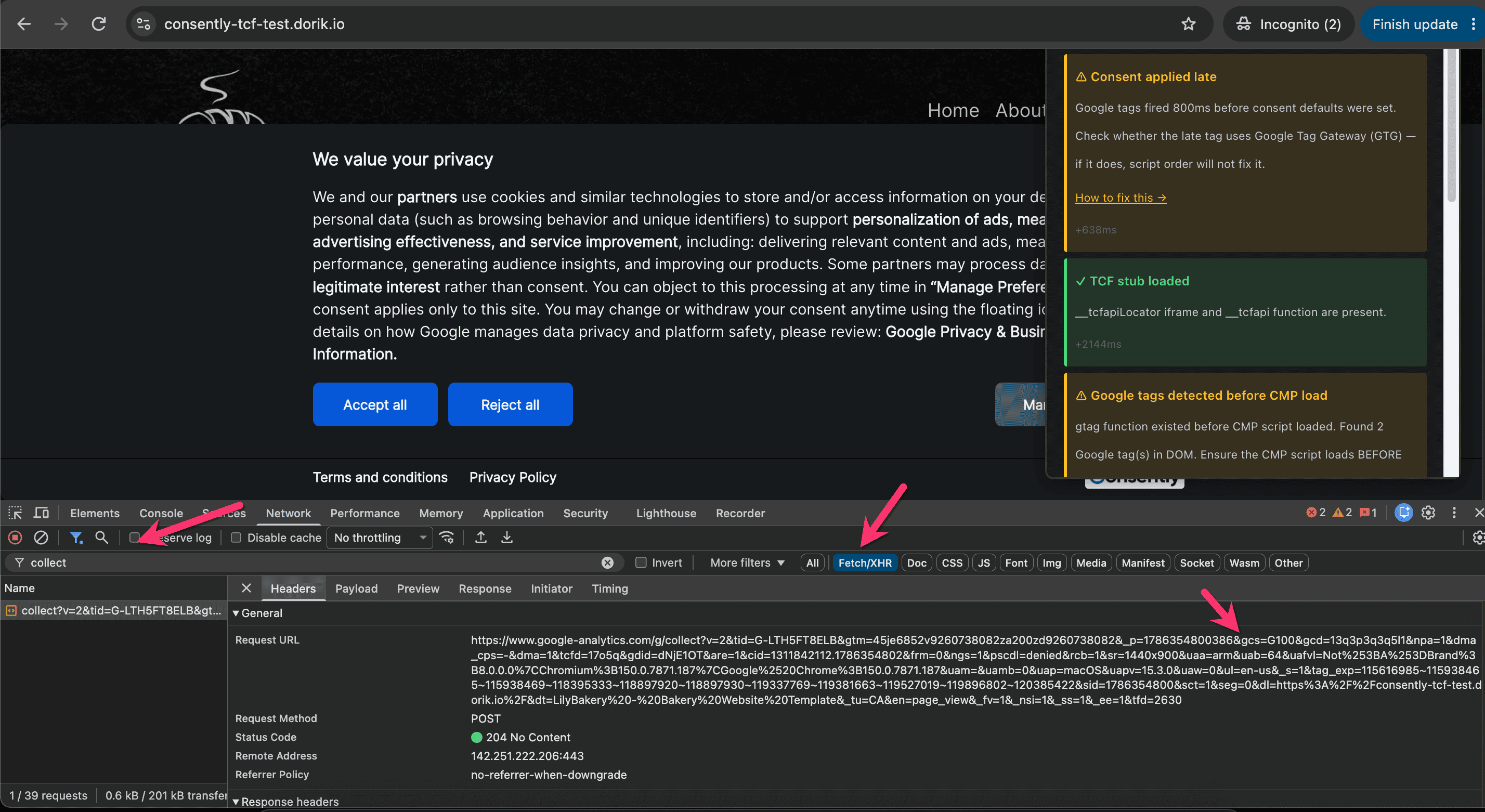
💡 Tip: If the panel shows a timing warning but your first request already carries G100, your defaults are reaching Google correctly.Checking with the Compliance Check Tool
Consently also provides a public scan you can run against any URL, without signing in:
app.consently.net/compliance-check
Enter your site address and select Check my site. The scan loads your page the way a first-time visitor sees it — before any consent is given — and reports:
A Compliance Health Score and grade
Whether a consent banner (CMP) is detected
Top issues, including anything that loaded before consent was given
Whether measurement began before your consent defaults were set, with a link to the fix
A full list of trackers firing before consent, by vendor and category, after you unlock the report with your email address
A copy of the report is emailed to the address you enter. If a late consent signal was found, the email also carries the Google tag gateway check and links to this article.
💡 Tip: A finding such as "4 tracking technologies loaded before any consent was given" means those trackers ran before the visitor made a choice. In Advanced consent mode this can be expected — Google tags load immediately with denied defaults. Confirm with thegcsvalue above: if the first request carriesG100, consent was signalled correctly even though the tag loaded.
⚠️ Important: If the scan reports trackers loading before consent and your first request has no gcs value, follow the steps below — but check 4.9 Google Tag Gateway (GTG) first if your Google tag is served from your own domain.Fixing a Genuine Timing Problem
If the first request has no gcs value, a Google tag is running before Consently.
Step 1: Check your script placement
The Consently embed script must sit in <head>, before every other third-party script — including Google Tag Manager and gtag.js. This is the placement described in 8.2 Direct HTML Installation.
<!-- Start Consently Banner -->
<script src="https://app.consently.net/consently.js" data-bannerid="YOUR_BANNER_ID"></script>
<!-- End Consently Banner -->
⚠️ Important: Do not add your own gtag('consent', 'default', …) call. Consently issues the consent defaults for you, and a hand-written call can conflict with your banner's regional settings.Step 2: Check what your platform adds automatically
Site builders, themes and marketing plugins often inject their own Google tag near the top of <head>, above your Consently script. Search your published page source for a second gtag.js or Google Tag Manager snippet.
Where your platform offers a built-in Google Analytics integration, disable it and add the tag manually below the Consently script.
Step 3: If you use Google Tag Manager
Do not load Consently from a tag that fires on All Pages. Use the Consently CMP template on the Consent Initialization – All Pages trigger, which Google Tag Manager runs before every other tag in the container.
See 8.3 Google Tag Manager Installation.
Step 4: Check for Google Tag Gateway
If your Google tag is served from your own domain rather than googletagmanager.com, script order will not control when it runs. See 4.9 Google Tag Gateway (GTG).
Step 5: Re-check
Reload with cookies cleared and confirm the first collect request now carries gcs=G100.
Done!
Turn debug mode off again in Advanced Settings.
✅ Success indicator: The firstcollectrequest carriesgcs=G100before consent, and the panel shows ✓ Consent defaults set correctly.
What's Next
Google Consent Mode v2 — Which signals Consently sends to Google Analytics and Google Ads
Testing Your Installation — The full end-to-end installation checklist
Basic vs. Advanced Google Consent Mode — Choosing the right mode for your site
Troubleshooting
The debug panel does not appear
Why this happens: Debug mode is stored per site, and the page may be serving a cached banner configuration.
Solution:
Confirm Enable debug mode is on for the correct site and that you clicked Save Settings
Hard-reload the page to clear the cached configuration
Check the browser Console for
[Consently]errors — if the script did not load, the panel cannot render
The panel says "Google tags detected before CMP load" but nothing else looks wrong
Why this happens: That notice reports a Google tag was present when Consently started. Because gtag.js loads asynchronously and is smaller than the Consently script, it can finish first even on a correctly ordered page. It is informational, not a fault.
Solution: Check whether ✓ Consent defaults set correctly also appears — if it does, your setup is fine. The warning that requires action is ⚠ Consent applied late. You can confirm either way with the gcs value: G100 on the first request means consent was signalled before measurement.
The panel says "Consent Mode not configured"
Why this happens: No consent mode has been selected for the site.
Solution: Set Consent Mode to Basic or Advanced in Advanced Settings. See 4.7 Basic vs. Advanced Google Consent Mode.
Related Pages
Basic vs. Advanced Google Consent Mode — How each mode behaves before and after consent
Google Consent Mode v2 — Consent signals passed to Google
Direct HTML Installation — Where the embed script belongs
Google Tag Manager Installation — Installing via the Consent Initialization trigger