

TL;DR: Webflow Site Settings → Custom Code → Add script to Head Code → Save.
Your consent banner activates across all pages automatically.
Overview
Webflow supports custom code injection in site headers, allowing you to install the Consently script without editing individual pages. The script loads on every page of your site once you publish it.
Before You Begin
Make sure you have:
A Webflow account with a site ready for custom code
Access to your site's settings (requires site ownership or appropriate permissions)
Time required: About 3 minutes
How to Install Consently on Webflow
Step 1: Open Site Settings
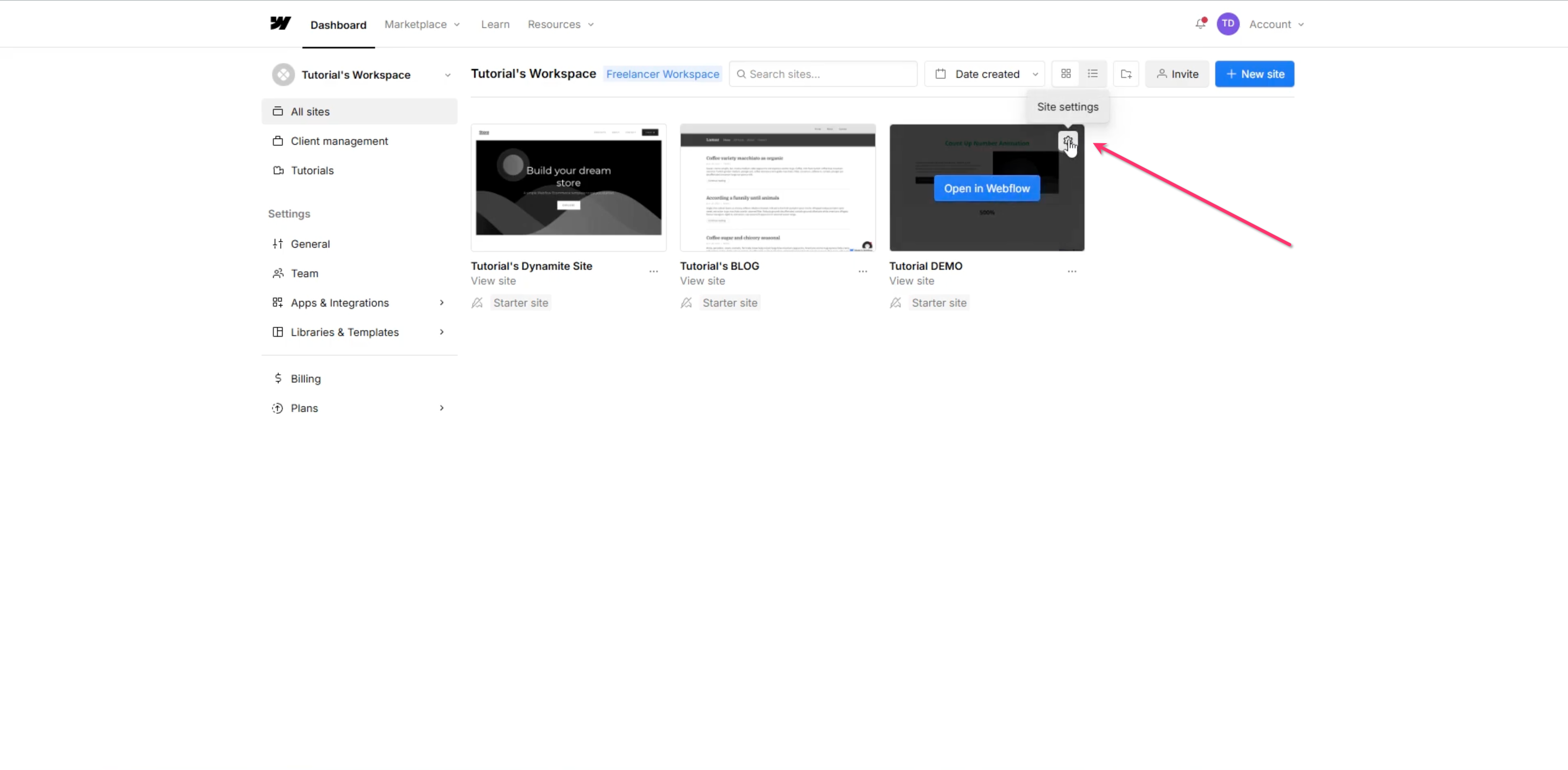
In your Webflow dashboard, select your site and click the Settings icon in the left sidebar.
Step 2: Navigate to Custom Code
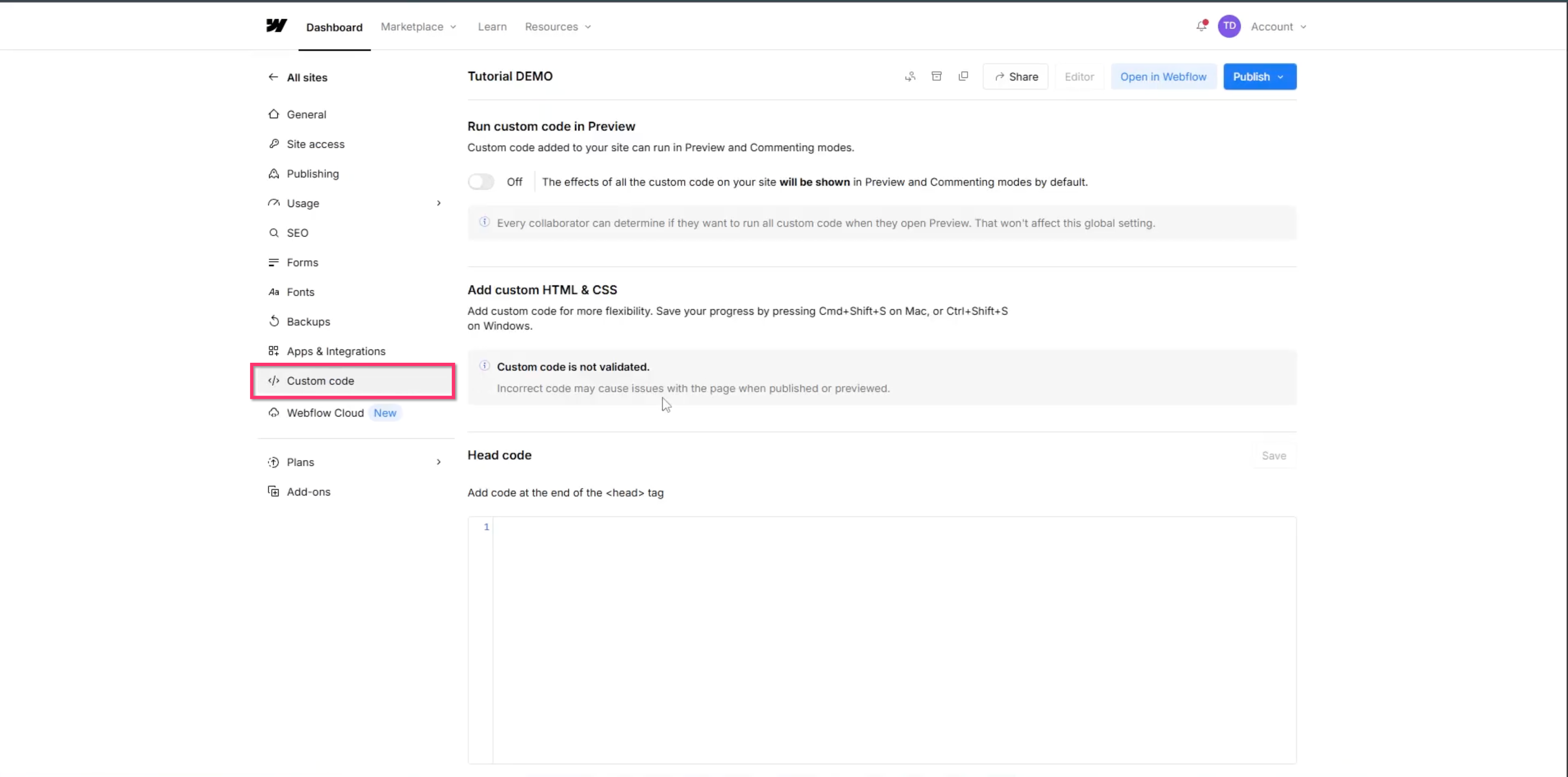
Click Custom Code in the settings menu.
Step 3: Add script to Head Code
Scroll to the Head Code section and paste your Consently embed script into the text field.
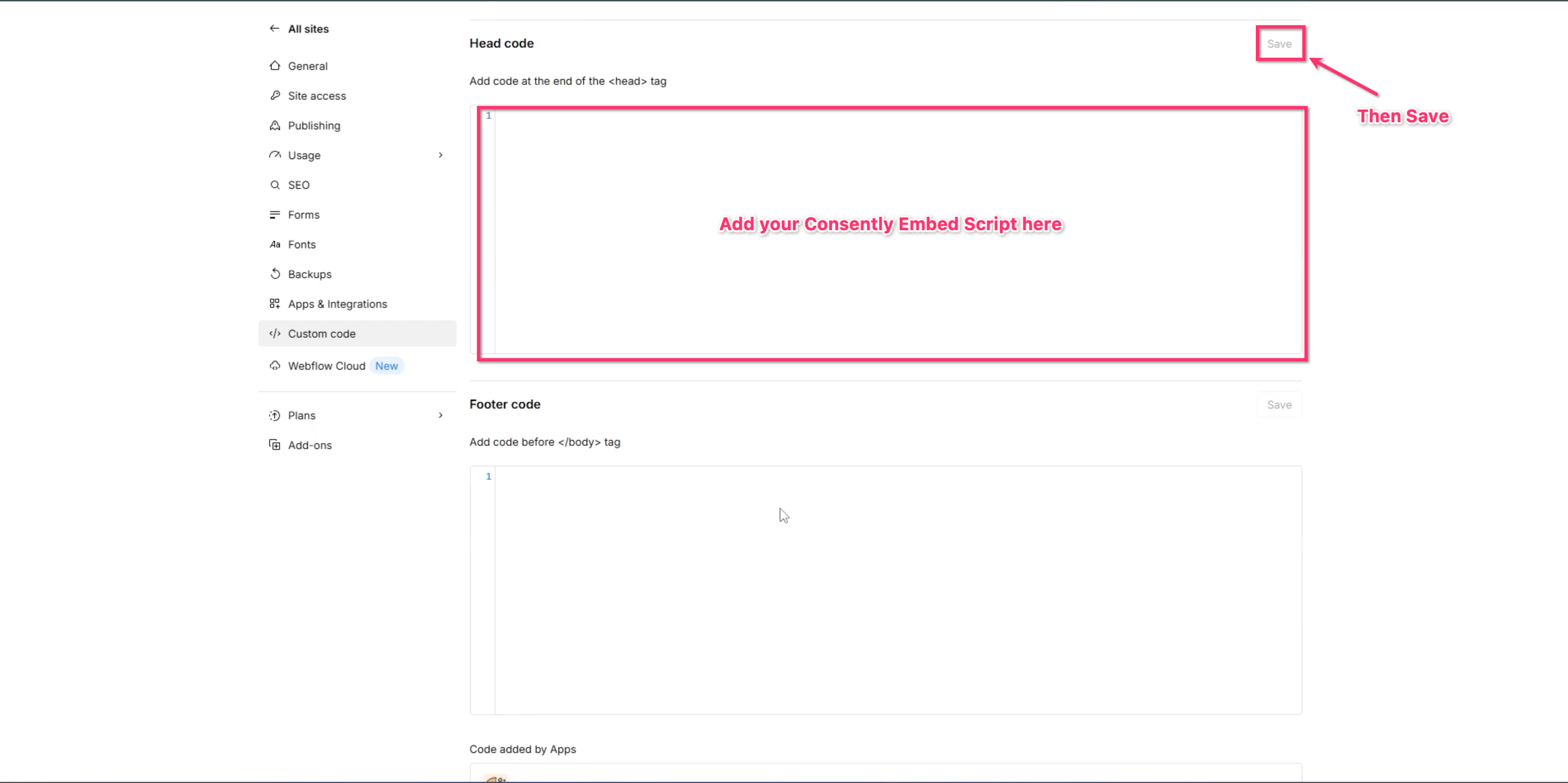
💡 Tip: The Head Code section ensures your banner loads before the page content, preventing any visible delay.
Step 4: Publish your site
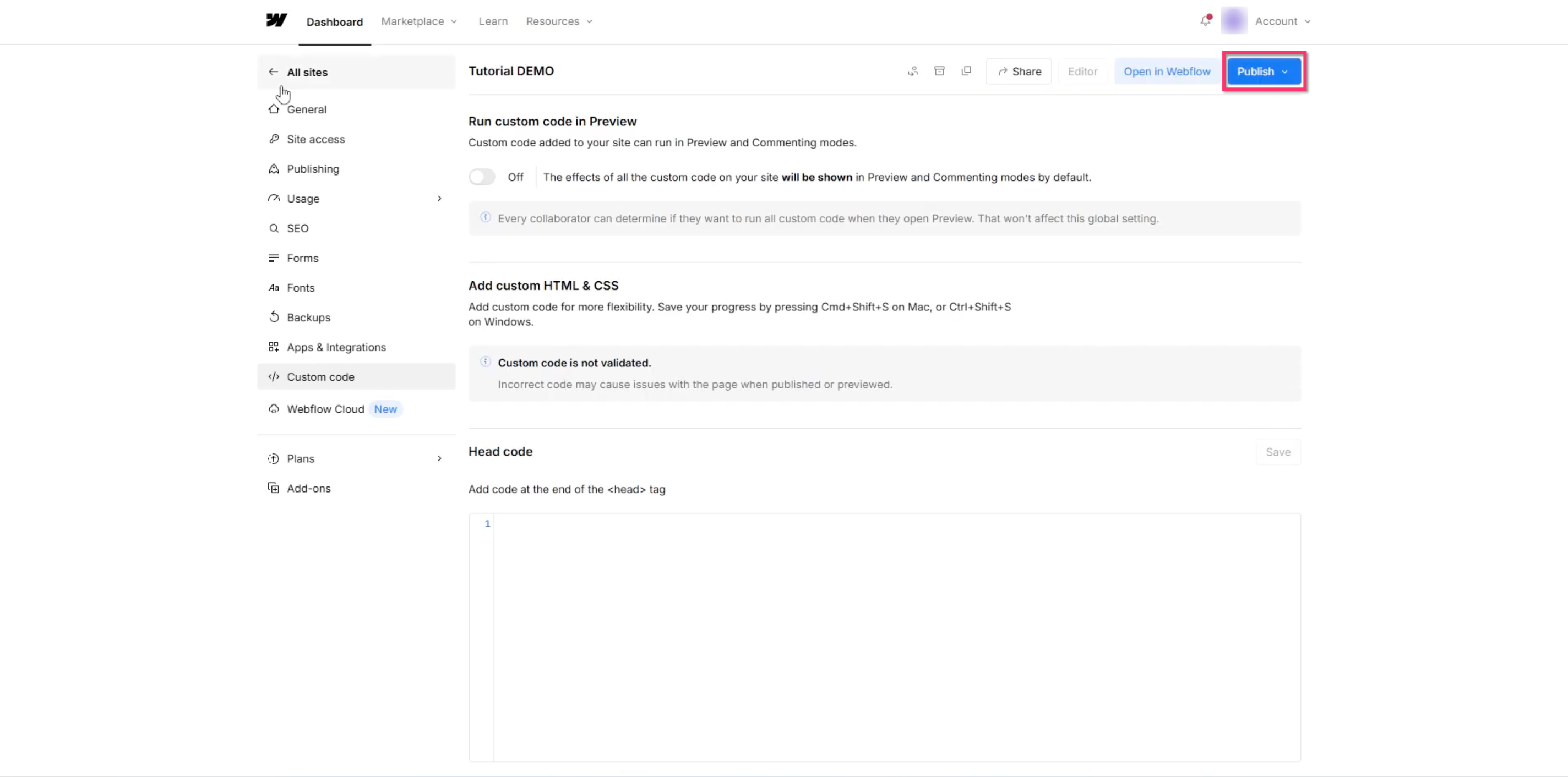
Click Publish in the top-right corner of your Webflow editor to publish the banner.
Done!
Your consent banner is now active on all pages of your Webflow site.
✅ Success indicator: Visit your published site and you'll see the consent banner appear immediately.
What's Next
Now that you've installed the script, you should:
Test your installation to confirm the banner works correctly
Customize your banner design to match your site's branding
Troubleshooting
The banner doesn't appear after publishing
Why this happens: Webflow caches sites aggressively for performance.
Solution:
Clear your browser cache and reload the page
Try opening your site in an incognito/private window
Check that you clicked Publish, not just saved a draft
Verify the script is in the Head Code section, not the Footer Code
The banner appears on some pages but not others
Solution: Head Code in Webflow applies site-wide automatically. If you see inconsistent behavior, check for page-specific custom code that might be interfering. Remove any duplicate scripts from individual page settings.
Script conflicts with other Webflow integrations
Why this happens: Multiple scripts competing for page load priority can cause conflicts.
Solution:
Ensure the Consently script is placed before other third-party scripts in the Header Code
Check for JavaScript errors in your browser's developer console (press F12)
If conflicts persist, contact support with details about your other integrations
Related Pages
Platform Compatibility — Overview of supported platforms and considerations