

TL;DR: When IAB TCF is enabled in your banner settings, Consently automatically generates TC Strings and tracks vendor and purpose consents for programmatic advertising compliance.
Overview
IAB TCF (Transparency & Consent Framework) consent tracking captures detailed consent signals required for programmatic advertising. When enabled, Consently generates standardized TC Strings that communicate visitor consent choices to advertising partners compliant with IAB TCF 2.3 specifications.
Before You Begin
Make sure you have:
Published your banner to your live website
Time required: 5 minutes to verify tracking
What IAB TCF Tracking Captures
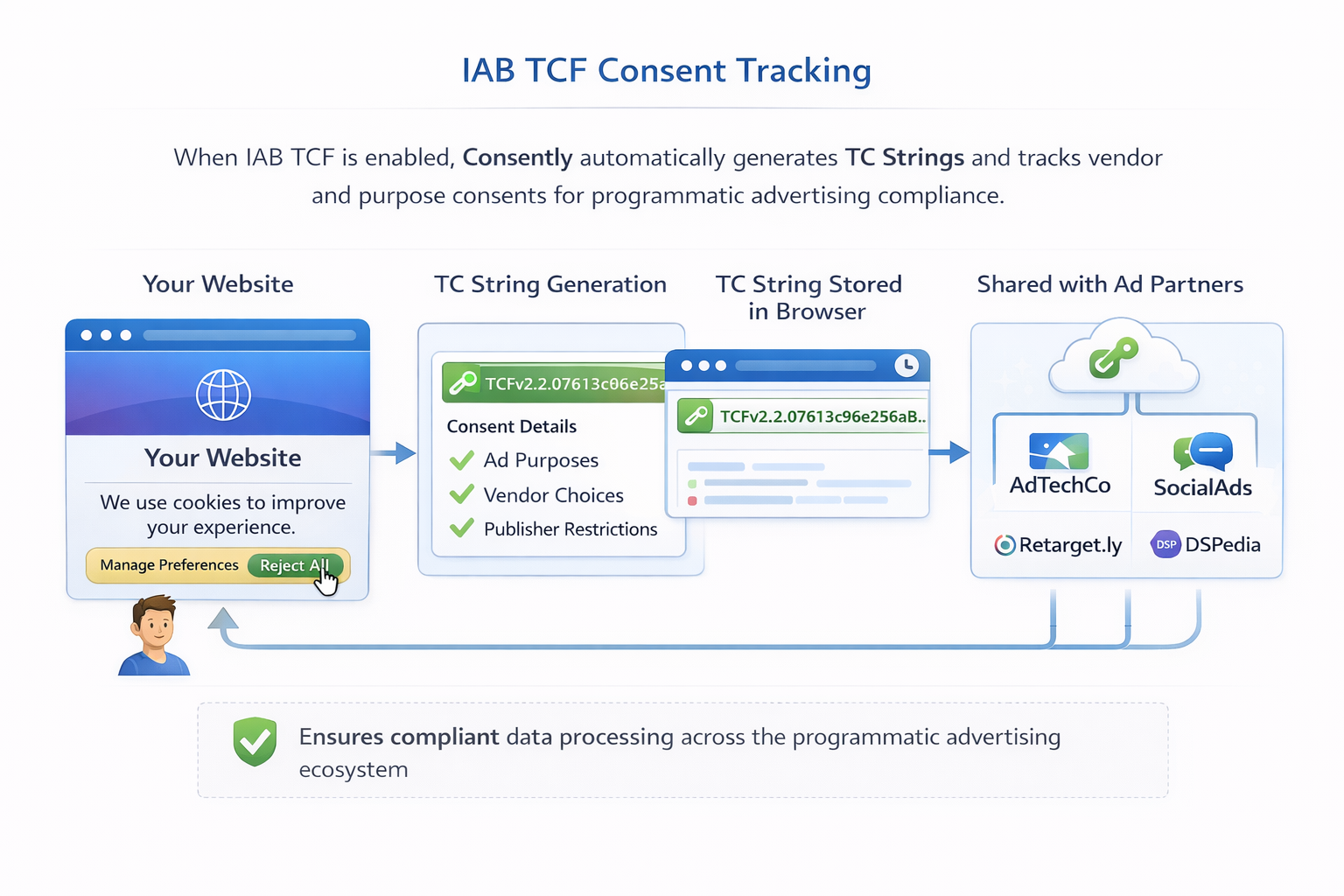
TC String Generation
Consently automatically generates a Transparency & Consent (TC) String each time a visitor makes a consent choice. This encoded string contains:
Visitor's consent decisions for each advertising purpose
Vendor consent choices (which ad-tech companies can process data)
Publisher restrictions you've configured
Consent timestamp and version information
The TC String is stored in the visitor's browser and shared with IAB-compliant advertising partners to ensure proper consent enforcement across the programmatic advertising ecosystem.
Vendor Consent Management
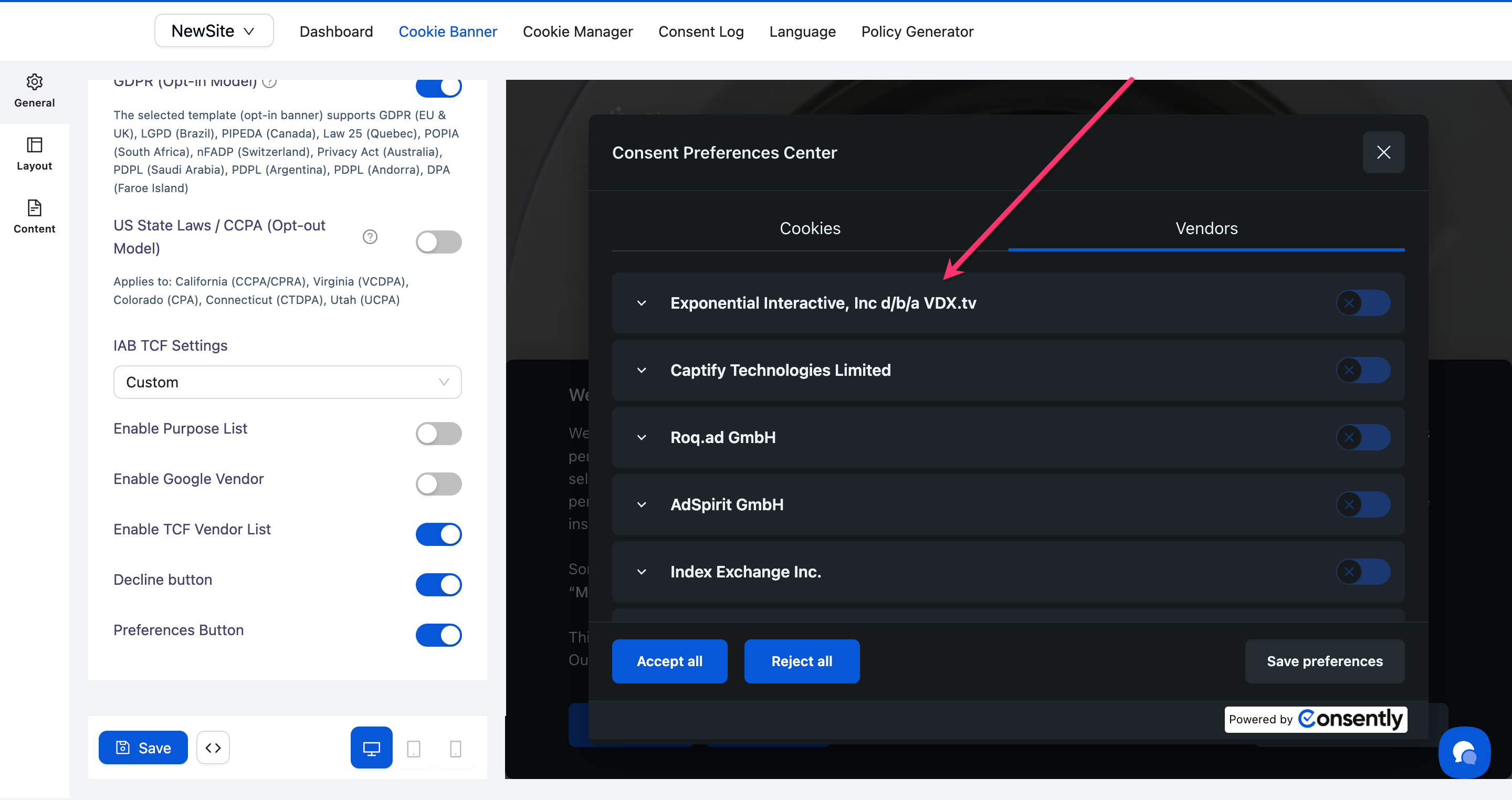
When visitors interact with your banner, Consently tracks consent for specific advertising vendors from the IAB's Global Vendor List. This includes:
Approved vendors: Ad-tech companies that the visitor has consented to
Rejected vendors: Companies the visitor has opted out of
Default vendor status: Vendors not yet presented to the visitor
Vendor consent is communicated through the TC String to ensure only approved partners can process visitor data for advertising purposes.
💡 Tip: Enable the TCF Vendor List in your IAB settings to give visitors granular control over individual advertising partners.
Purpose Consent Management
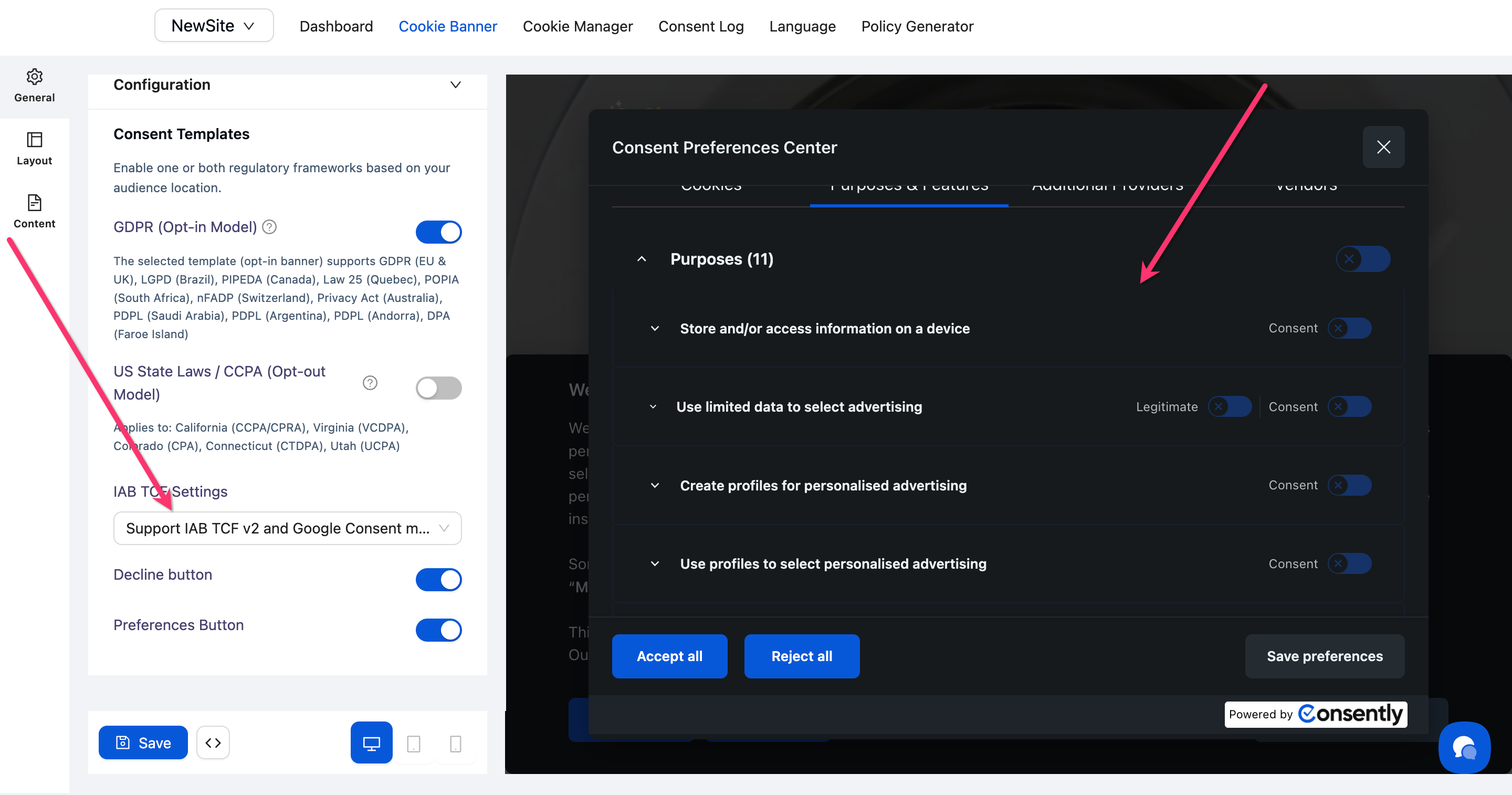
IAB TCF defines 10 standardized advertising purposes that require consent. Consently tracks visitor consent for each purpose:
Store and/or access information on a device
Select basic ads
Create a personalized ad profile
Select personalized ads
Create a personalized content profile
Select personalized content
Measure ad performance
Measure content performance
Apply market research to generate audience insights
Develop and improve products
Each purpose consent is encoded in the TC String and enforced across the advertising supply chain.
Publisher Restrictions
Consently honors any publisher-level restrictions you configure in your IAB settings. These restrictions override visitor consent choices when you need to:
Block specific vendors from processing data on your site
Restrict certain advertising purposes regardless of visitor consent
Enforce stricter privacy controls than visitor choices allow
Publisher restrictions are included in the TC String to ensure all advertising partners respect your site-specific rules.
Consent Records
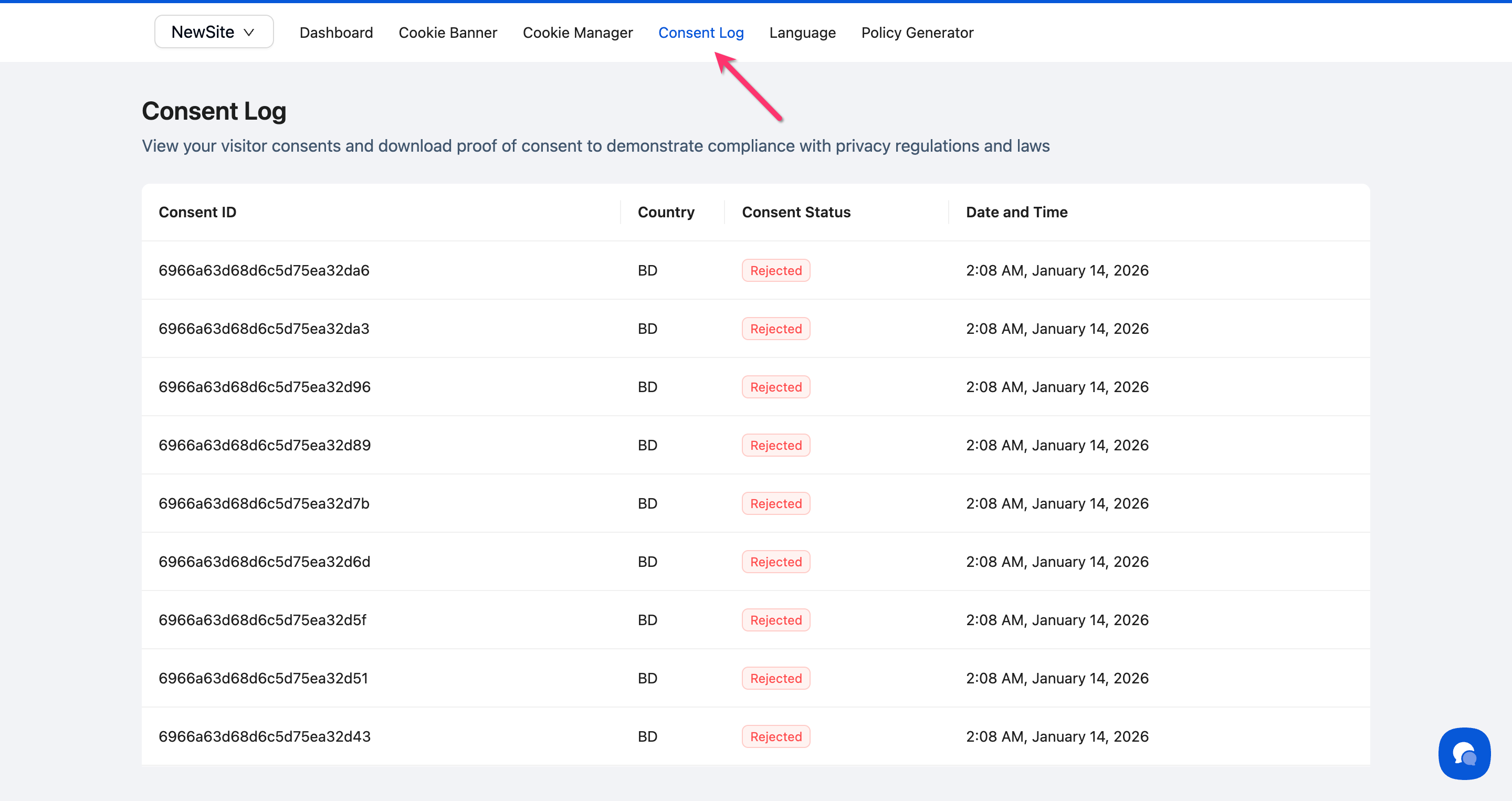
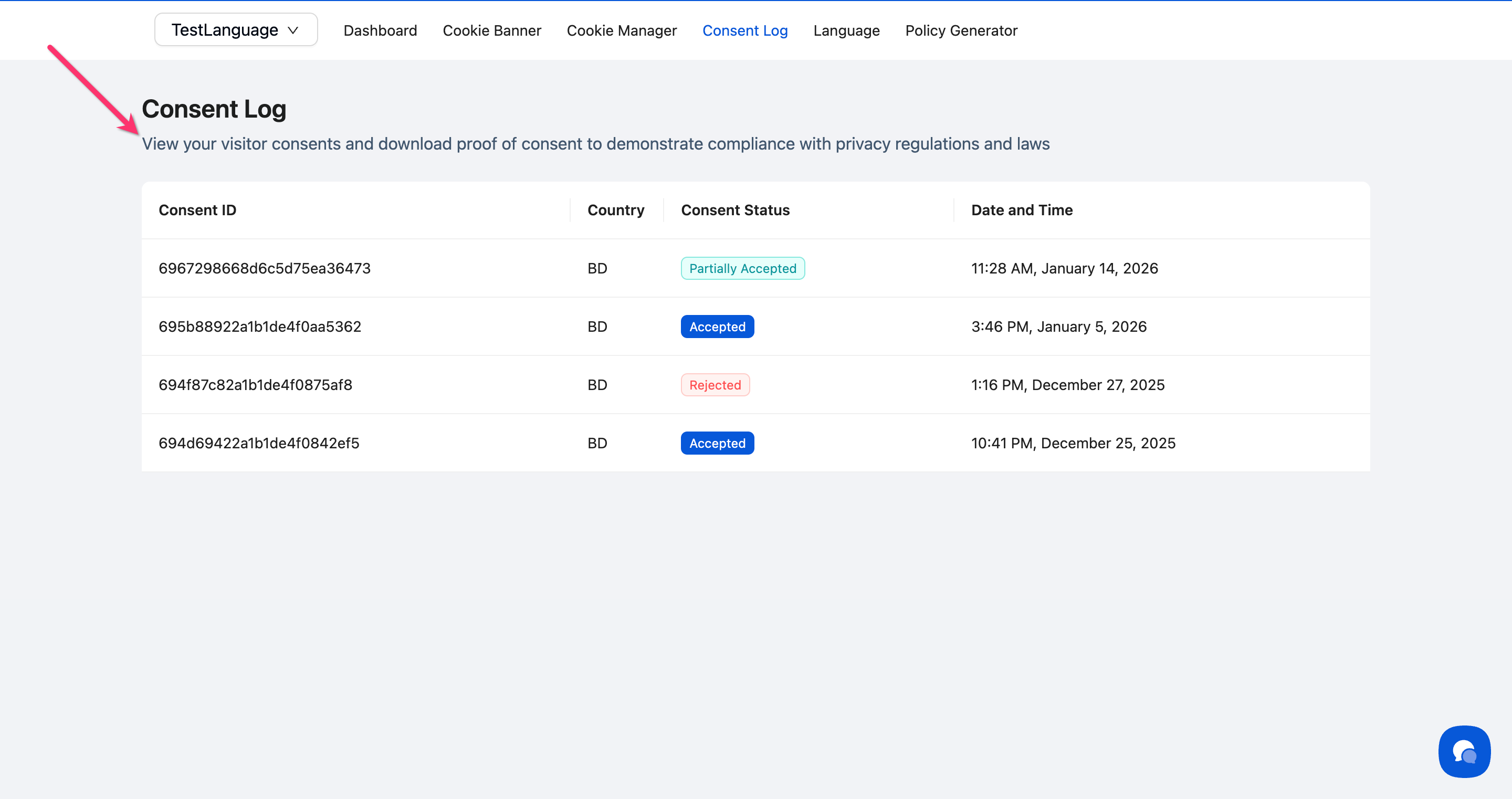
All consent interactions are recorded in the Consent Log, providing a clear and auditable history of visitor consent activity. Each record includes:
Unique Consent ID for tracking and audit purposes
Visitor country where the consent was given
Consent status (Accepted, Partially Accepted, or Rejected)
Date and time when the consent action occurred
How to Verify IAB Tracking
Step 1: Check for the TC String
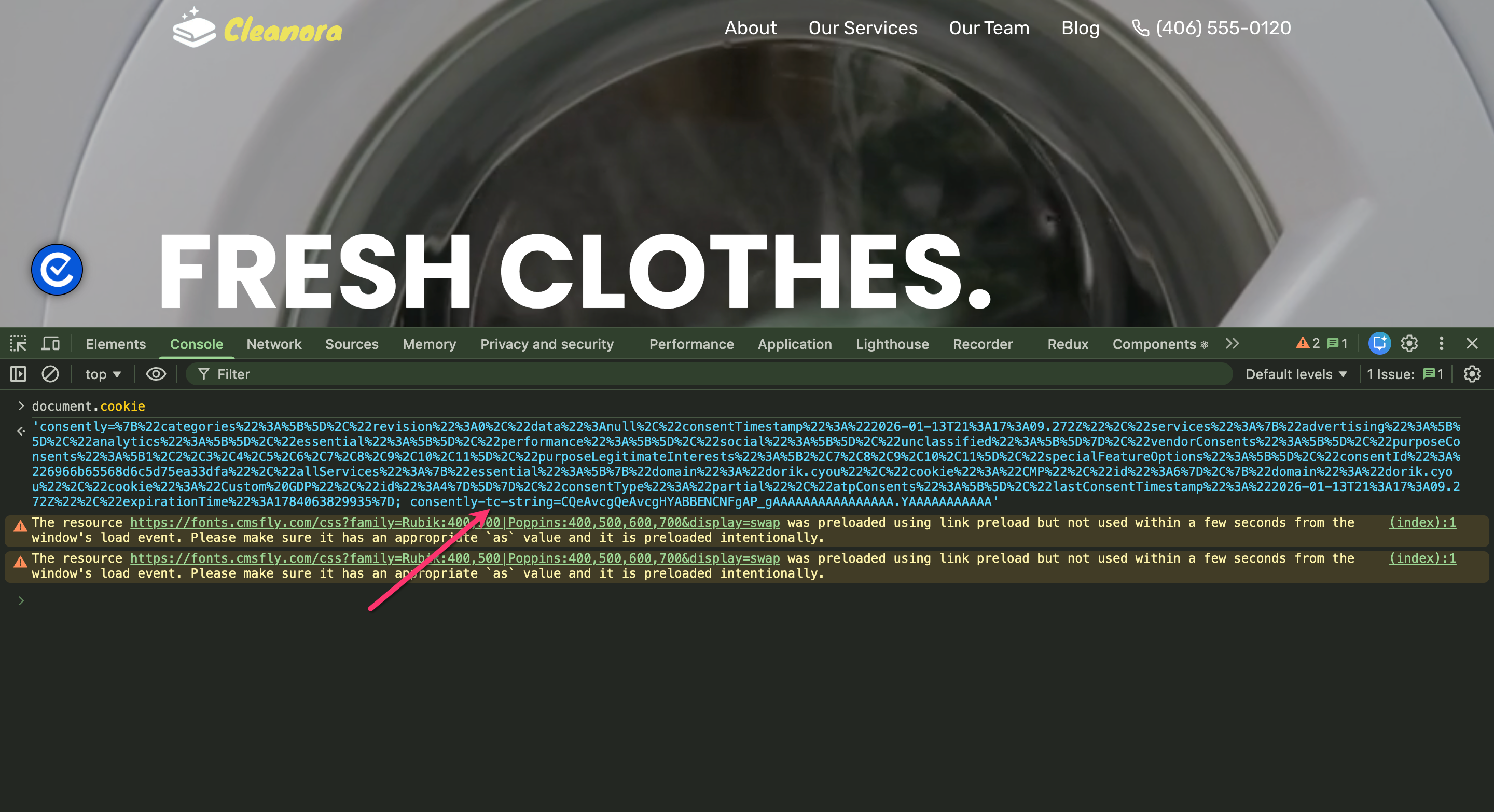
Open your website in a browser and interact with your consent banner. Then open your browser's developer console (F12 or Cmd+Option+I) and type in the Console :
document.cookieLook for a cookie named euconsent-v2 or usprivacy—this contains your TC String.
Step 2: Verify consent signals
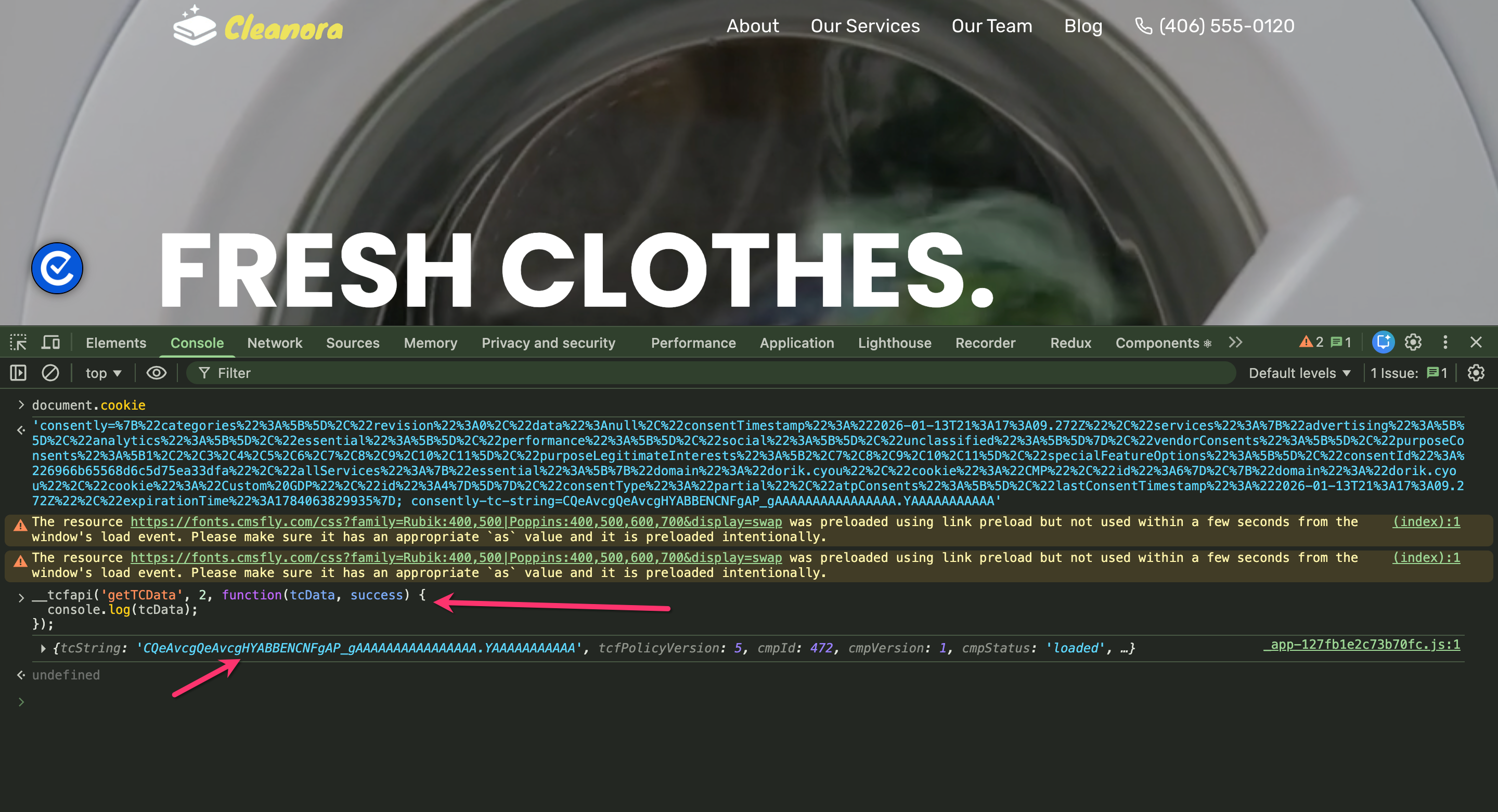
In the same console, check that the TCF API is available:
__tcfapi('getTCData', 2, function(tcData, success) {
  console.log(tcData);
});
The output shows your current consent state, including approved purposes and vendors.
⚠️ Important: The TCF API only works on pages where your Consently script is installed and IAB TCF is enabled.
Step 3: Review Consent Logs
Go to the Consent Log section in your Consently dashboard. Recent consent records will display:
A unique Consent ID for every consent event
Consent Status such as Accepted, Partially Accepted, or Rejected
The country where the consent was recorded
Date and time of each consent action
Done!
Your IAB TCF consent tracking is working correctly.
✅ Success indicator: TC Strings appear in browser cookies and consent records show IAB-specific data.
What's Next
Now that you understand IAB TCF tracking:
Troubleshooting
TC String is not being generated
Why this happens: IAB TCF may not be enabled in your banner configuration.
Solution:
Go to Cookie Banner → Configuration
Verify IAB TCF Settings is set to "Support IAB TCF v2 and Google Consent mode"
Ensure Enable Purpose List is toggled on
Click Save and republish your banner
TC String appears, but vendor consent isn't working
Why this happens: The TCF Vendor List may not be enabled.
Solution:
Go to Cookie Banner → Configuration → IAB TCF Settings in your dashboard.
From the IAB TCF Settings dropdown, select Custom.
Turn Enable TCF Vendor List ON.
Click Save and republish your cookie banner.
Clear your browser cache and test the banner again.
Consent log shows no IAB data
Solution: Ensure you've interacted with the banner on your live site (not preview mode). IAB data only appears for real consent events captured after TCF is enabled.