

TL;DR: Dashboard → Policy Generator → Terms & Conditions → Generate → Answer questions → Publish.
Creates legally sound terms tailored to your service type and business model.
Overview
The Terms & Conditions generator creates comprehensive legal agreements that define the rules for using your website or service. Answer a series of questions about your business model, payment structure, and legal jurisdiction, and Consently generates a customized document with numbered sections covering service use, liability, disputes, and more.
⚠️ Disclaimer: We do not take any responsibility, and we are not liable, for any cookie policies created using our service. Any information, materials, or services provided herein do not ensure any form of regulatory compliance and are not intended to be a substitute for professional legal advice. If any legal assistance is required, users should seek the services of an attorney.
Before You Begin
Make sure you have:
Accurate details about your service type and payment model
Knowledge of your governing law jurisdiction
Time required: About 10-15 minutes
How to Generate Terms & Conditions
Step 1: Open the Policy Generator
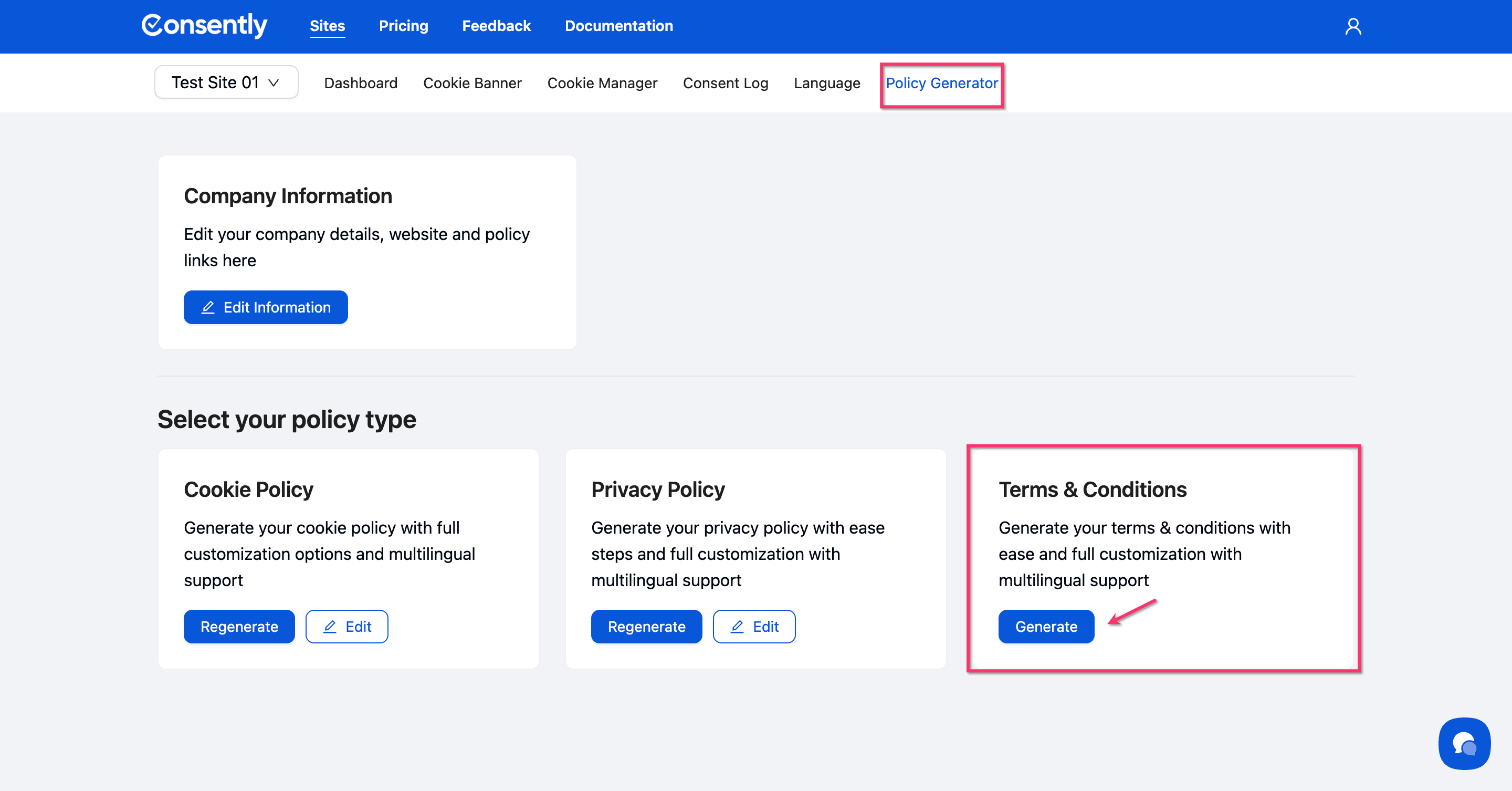
Navigate to Policy Generator in the top menu, then click Generate under Terms & Conditions.
Step 2: Select your language settings
Choose your primary language from the dropdown (English, French, German, Spanish, Polish, or Dutch). Toggle "Generate policy in multiple languages" if you need translations.
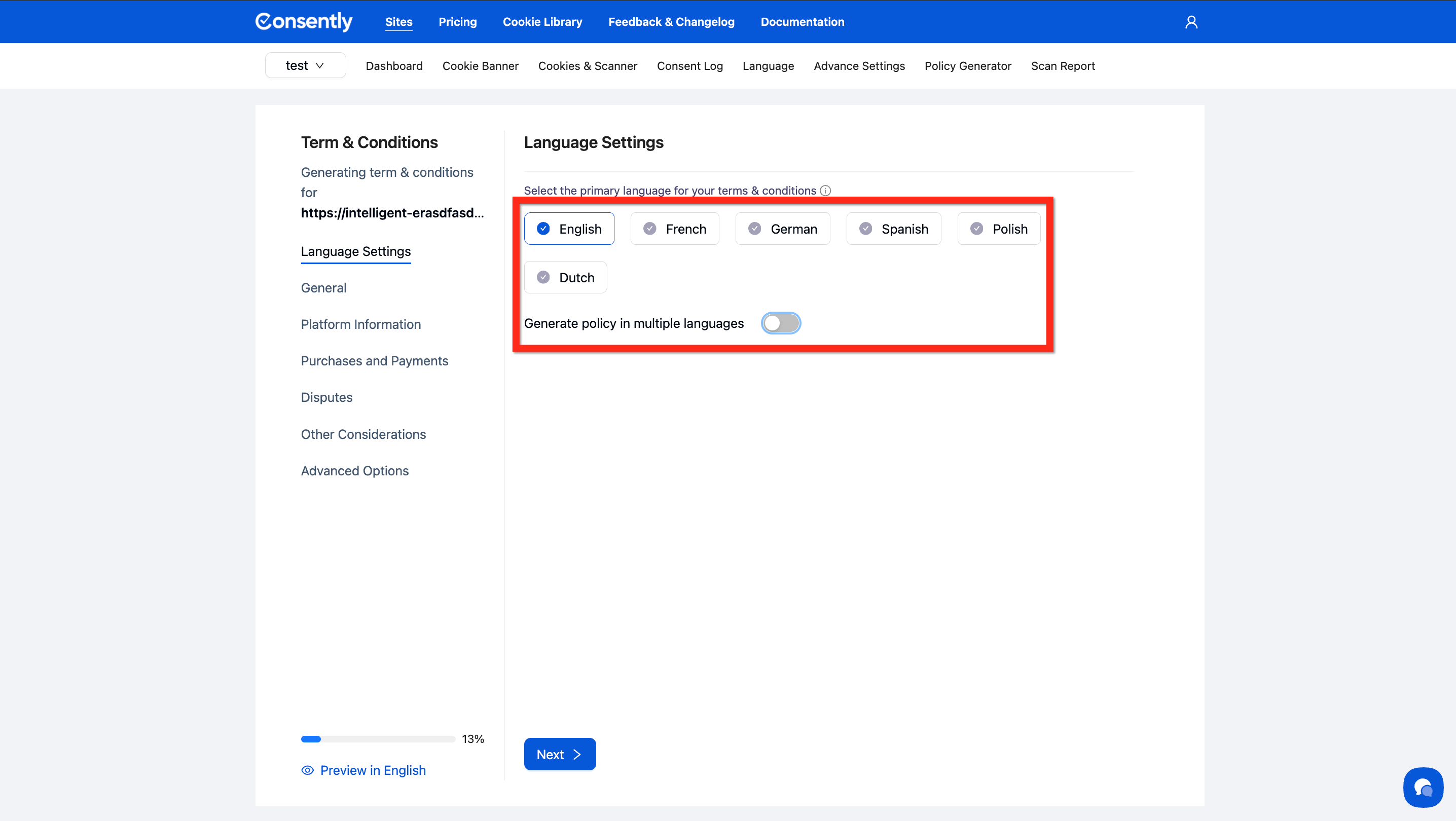
💡 Tip: Enable multi-language generation to create terms in all supported languages at once. Learn more in Multi-Language Policy Generation.
Step 3: Describe your service
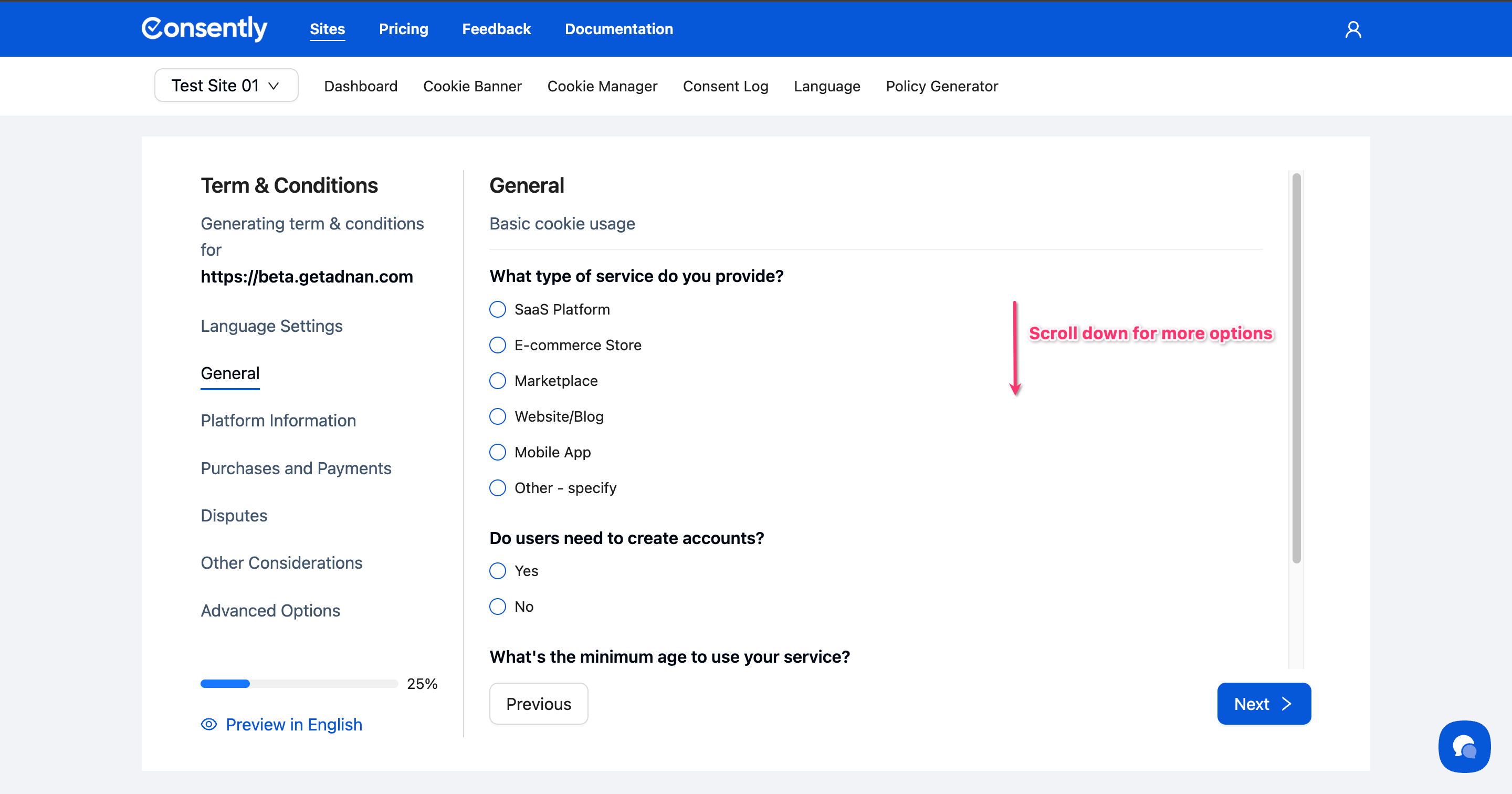
Select your Service Type (SaaS Platform, E-commerce Store, Marketplace, Website/Blog, Mobile App, or Other), then answer whether users need accounts and the minimum age requirement (13+, 16+, or 18+).
Step 4: Define platform permissions
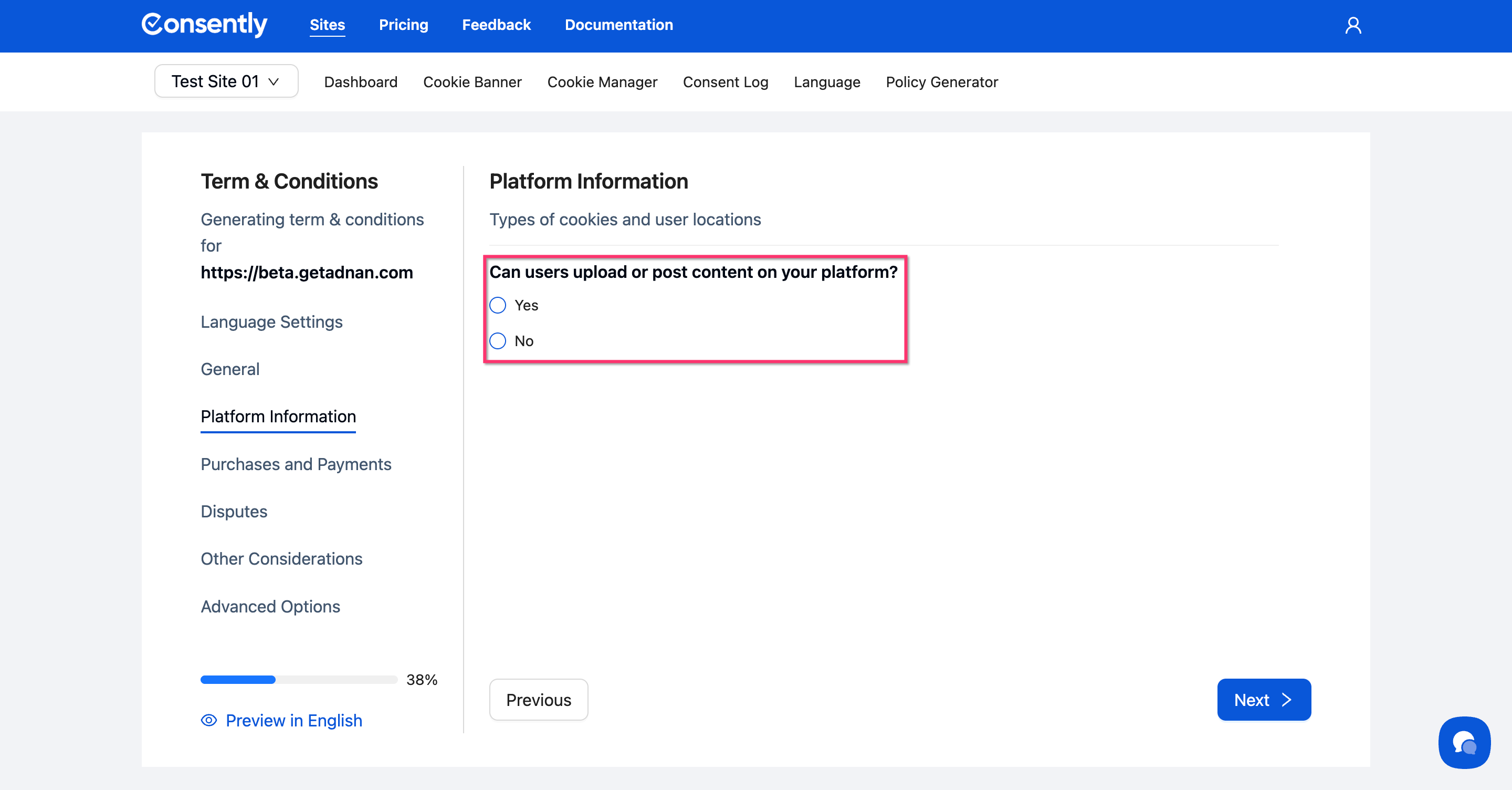
Indicate whether users can upload or post content on your platform by selecting Yes or No under Platform Information.
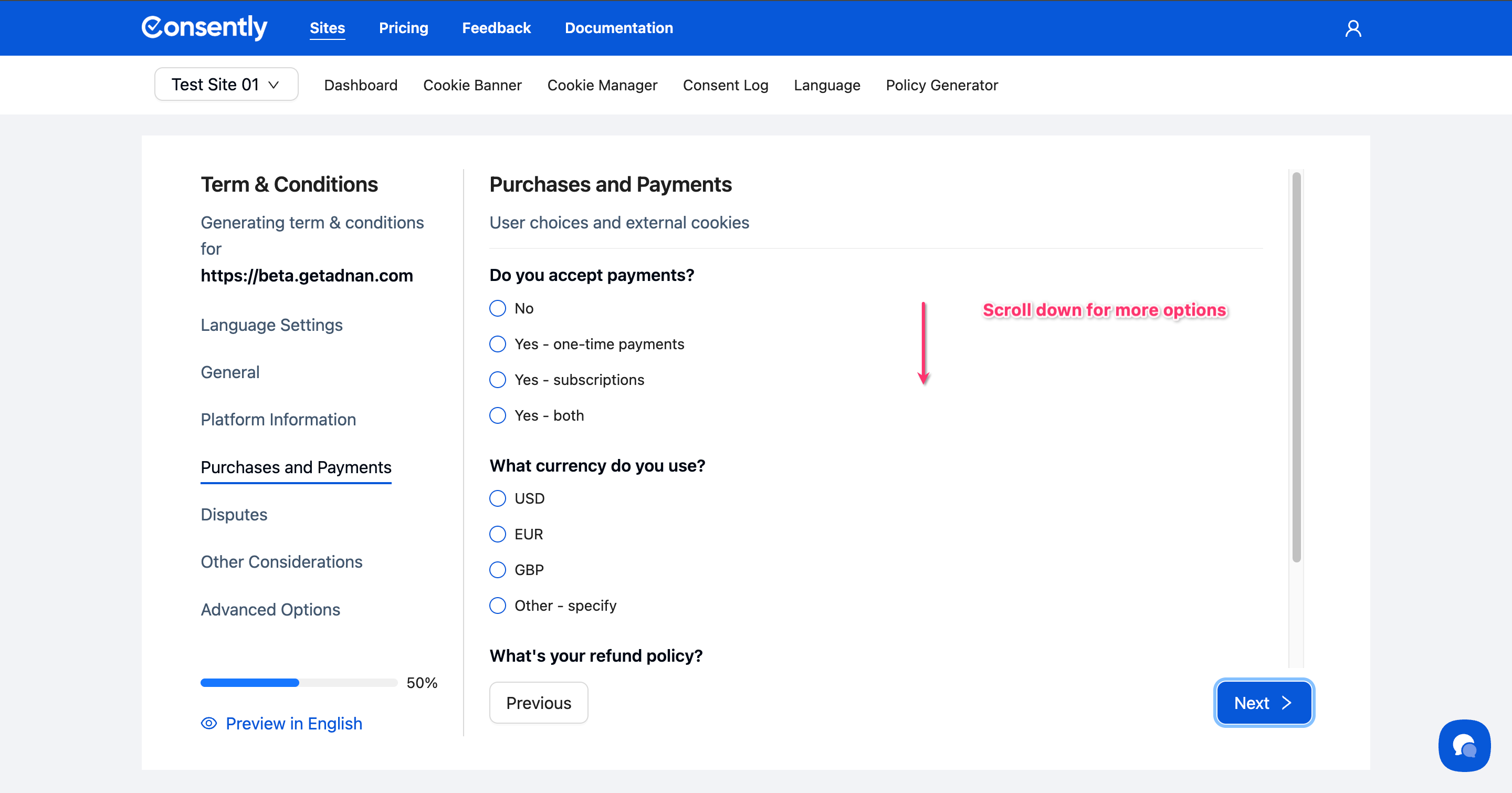
Step 5: Configure payment terms
Under Purchases and Payments, specify if you accept payments (one-time, subscriptions, or both), select your currency, and define your refund policy.
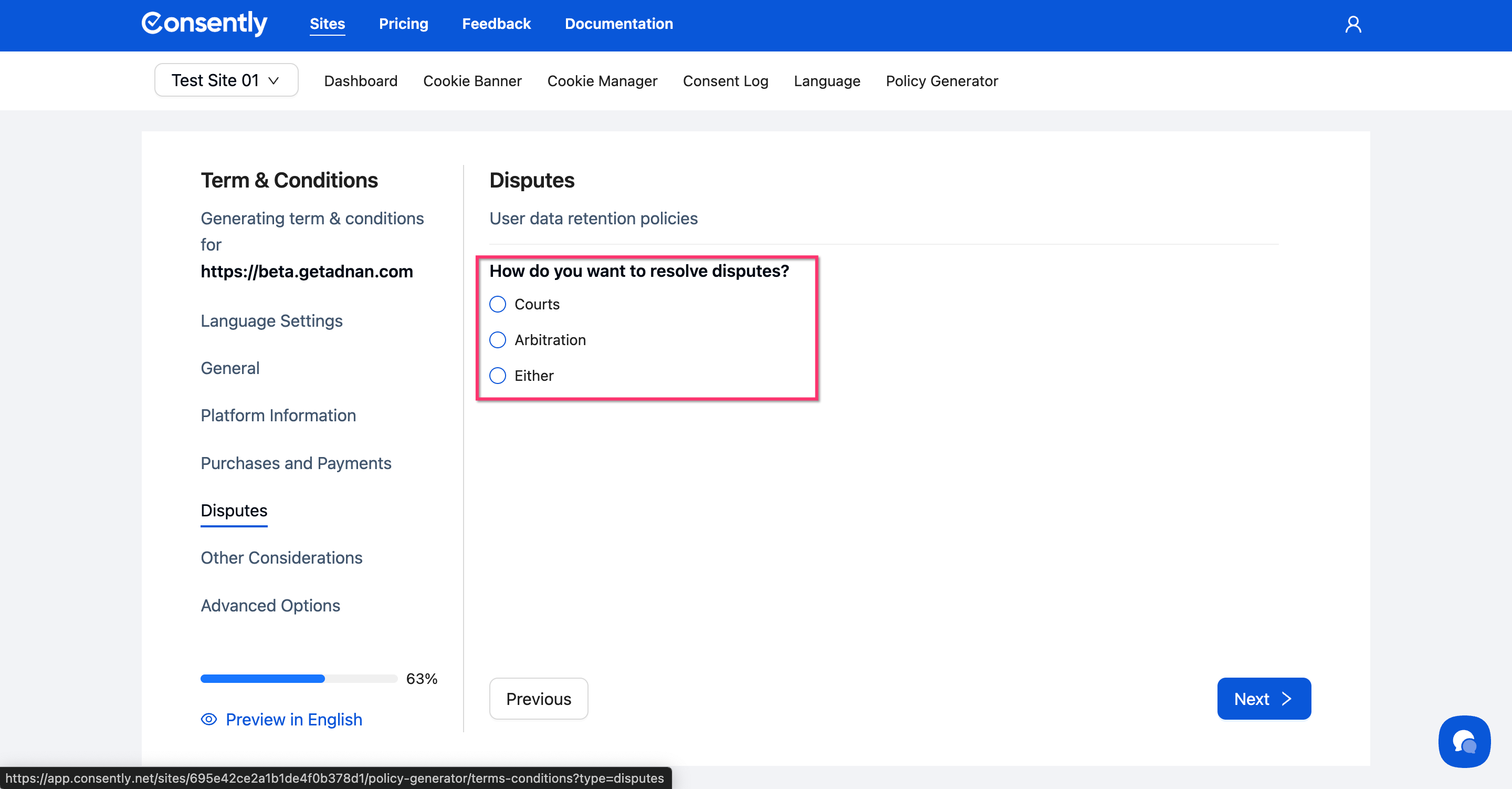
Step 6: Set dispute resolution
Choose how disputes will be resolved: Courts, Arbitration, or Either method.
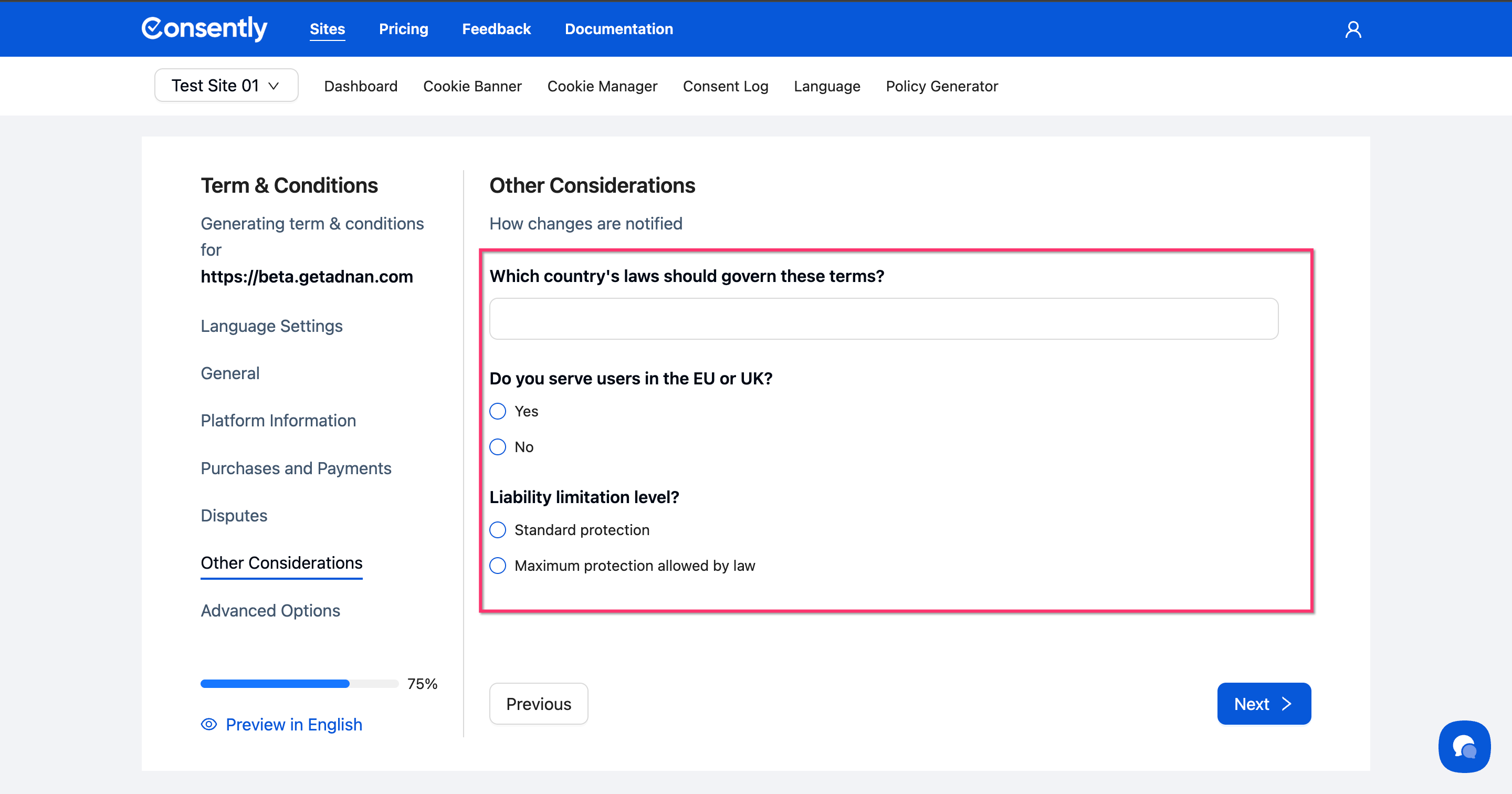
Step 7: Specify legal jurisdiction
Enter the Governing Law Country, indicate whether you serve users in the EU or UK, and select your Liability Limitation Level (Standard or Maximum protection).
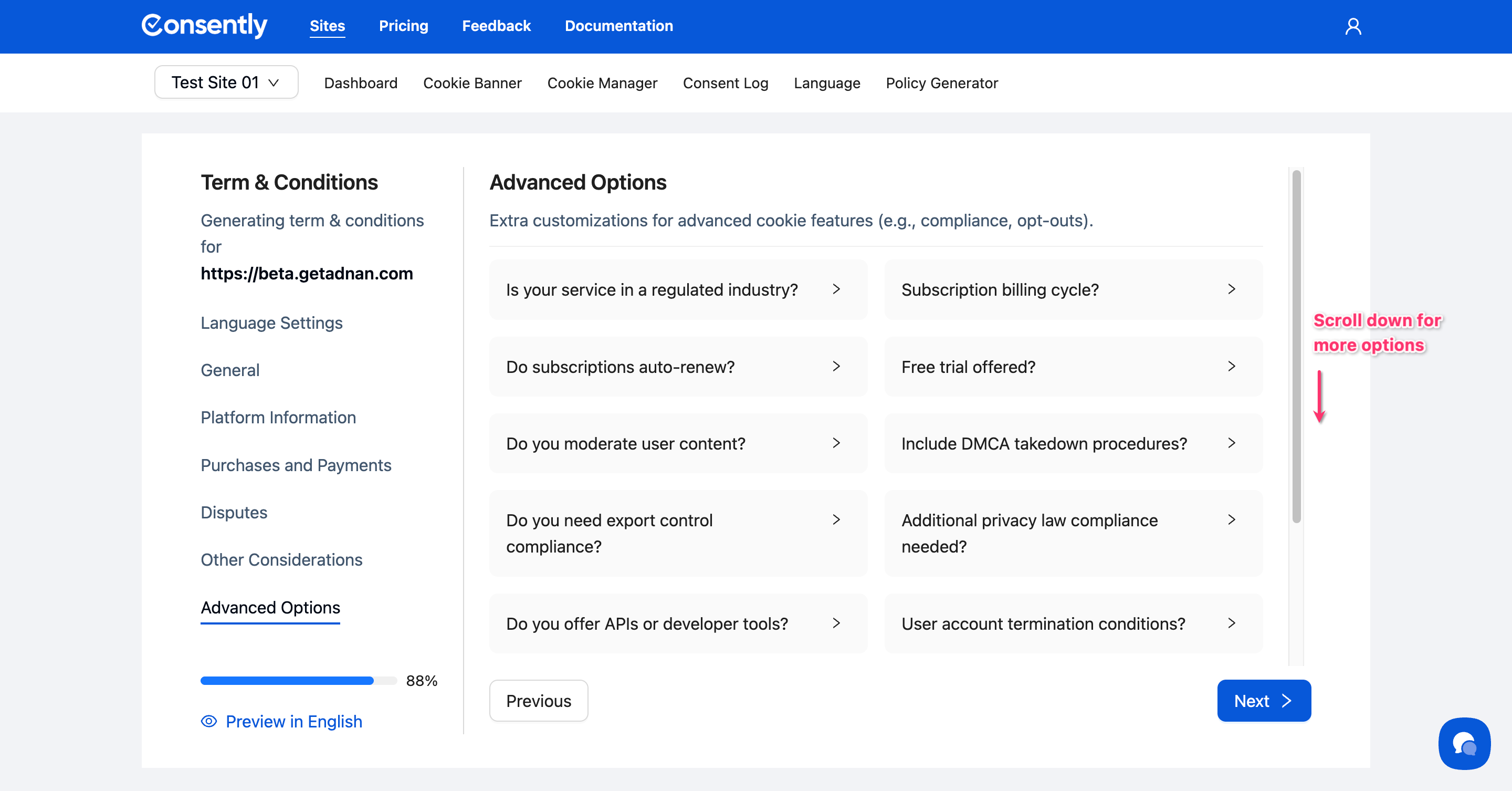
Step 8: Configure advanced options (optional)
Expand Advanced Options to specify details such as regulated industry, subscription billing cycles, content moderation policies, DMCA procedures, and service-level commitments. Leave these at the default if they don't apply.
Step 9: Generate the policy
Click Next at the bottom to generate your terms and conditions. The system creates a document with numbered sections covering all aspects of service use.
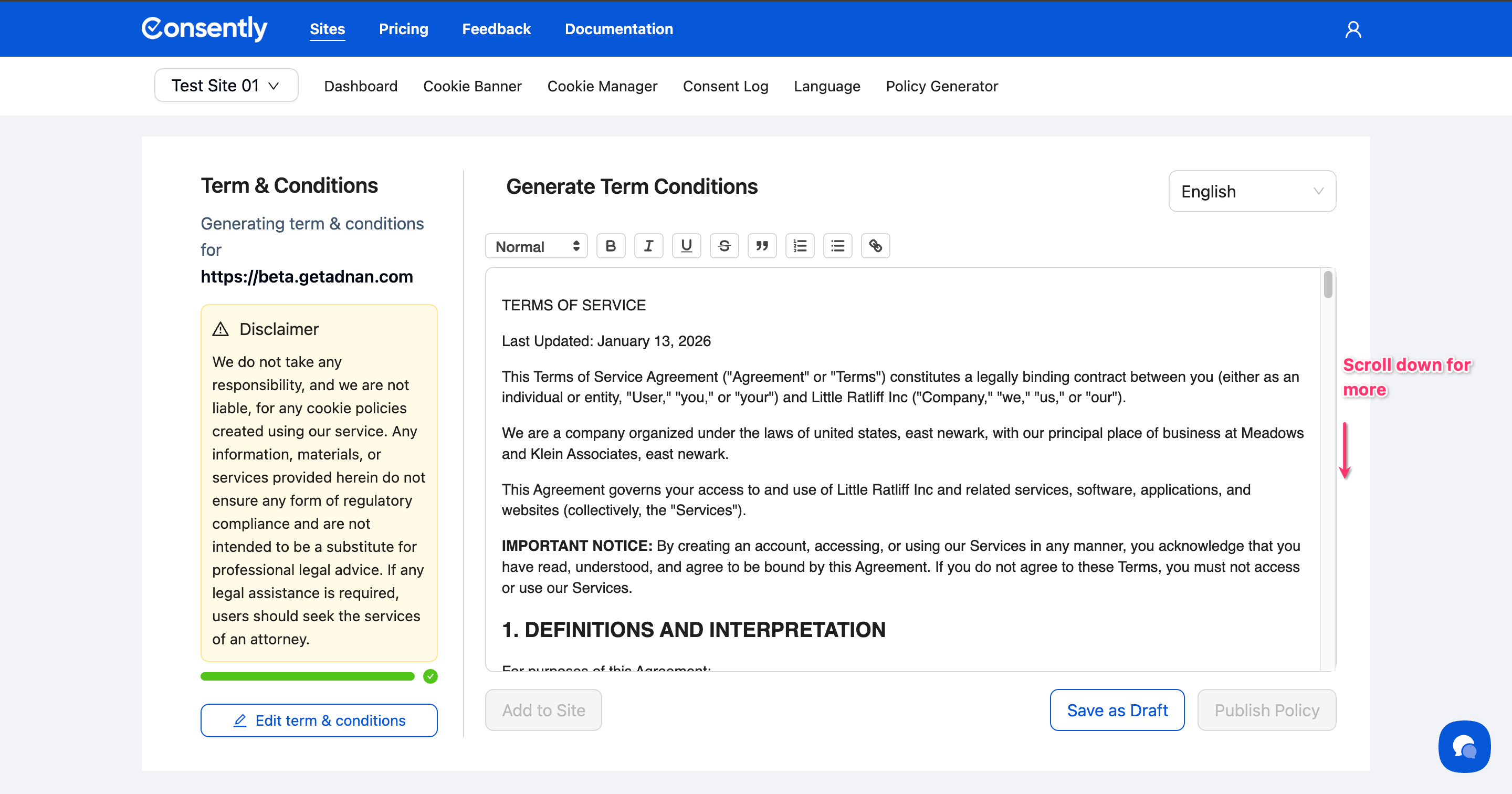
Done!
Your terms and conditions are generated and displayed in the editor.
⚠️ You have to click Save as Draft button first to enable Add to Site and Publish Policy button.
✅ Success indicator: You'll see the full terms document with numbered sections and the option to preview in different languages.
What's Next
Now that you've generated your terms and conditions, you should:
Review and publish your policy
Link the terms from your website footer and consent banner
Troubleshooting
The generated terms don't match my business model
Solution: Click Edit Terms & Conditions to return to the questionnaire and adjust your answers. Common mismatches occur when service type or payment structure selections don't reflect your actual business operations.
I need terms for multiple services
Solution: Consently generates one comprehensive terms document per site. If you operate distinct services requiring separate terms, create additional sites in Consently and generate unique terms for each.
Related Pages
Policy Generator Overview — Understanding all policy types available
Generating Privacy Policies — Create complementary privacy documentation