

TL;DR: Dashboard → Upgrade your Plan → Select Tier → Upgrade Now. Your account upgrades immediately with pro-rated billing for the remaining period.
Overview
Upgrading your plan gives you access to more websites and higher pageview limits. All plans include the same features—you only pay for the capacity you need.
When to Upgrade
Consider upgrading when you:
Approach domain limits: Basic (1 site) → Premium (5 sites) → Enterprise (10 sites)
Exceed pageview allowances: Basic (100K) → Premium (1M) → Enterprise (3M monthly pageviews)
Expand your business: Adding more client sites or launching new projects
💡 Tip: Check your current usage in the dashboard to see if you're approaching your plan limits.
How to Upgrade Your Plan
Step 1: Access the upgrade page
Click Upgrade your plan from the top-right corner of the navigation bar.
💡 Tip: If you are an existing subscriber, you may not see the Upgrade Your Plan button. On that case you can navigate to Dashboard → Pricing page.
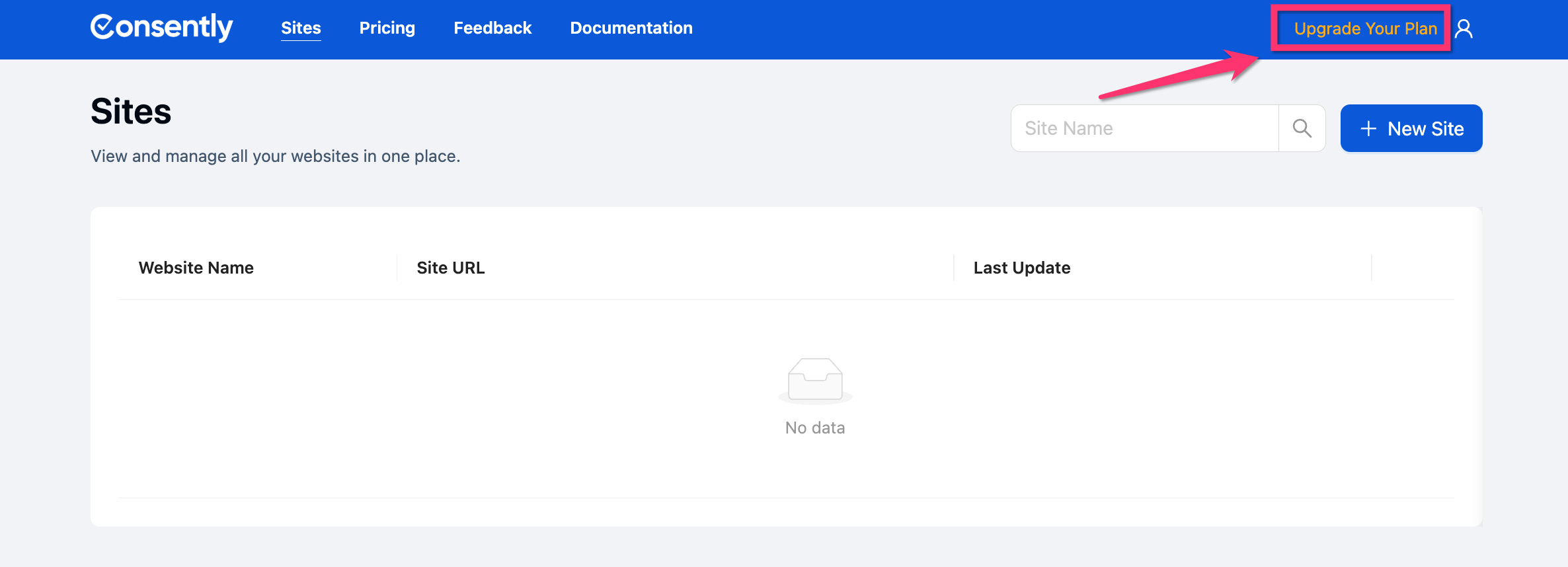
Step 2: Review plan options
Compare the three available plans and identify which tier meets your needs.
💡 Tip: You can choose the Yearly or the Monthly option based on your requirement.
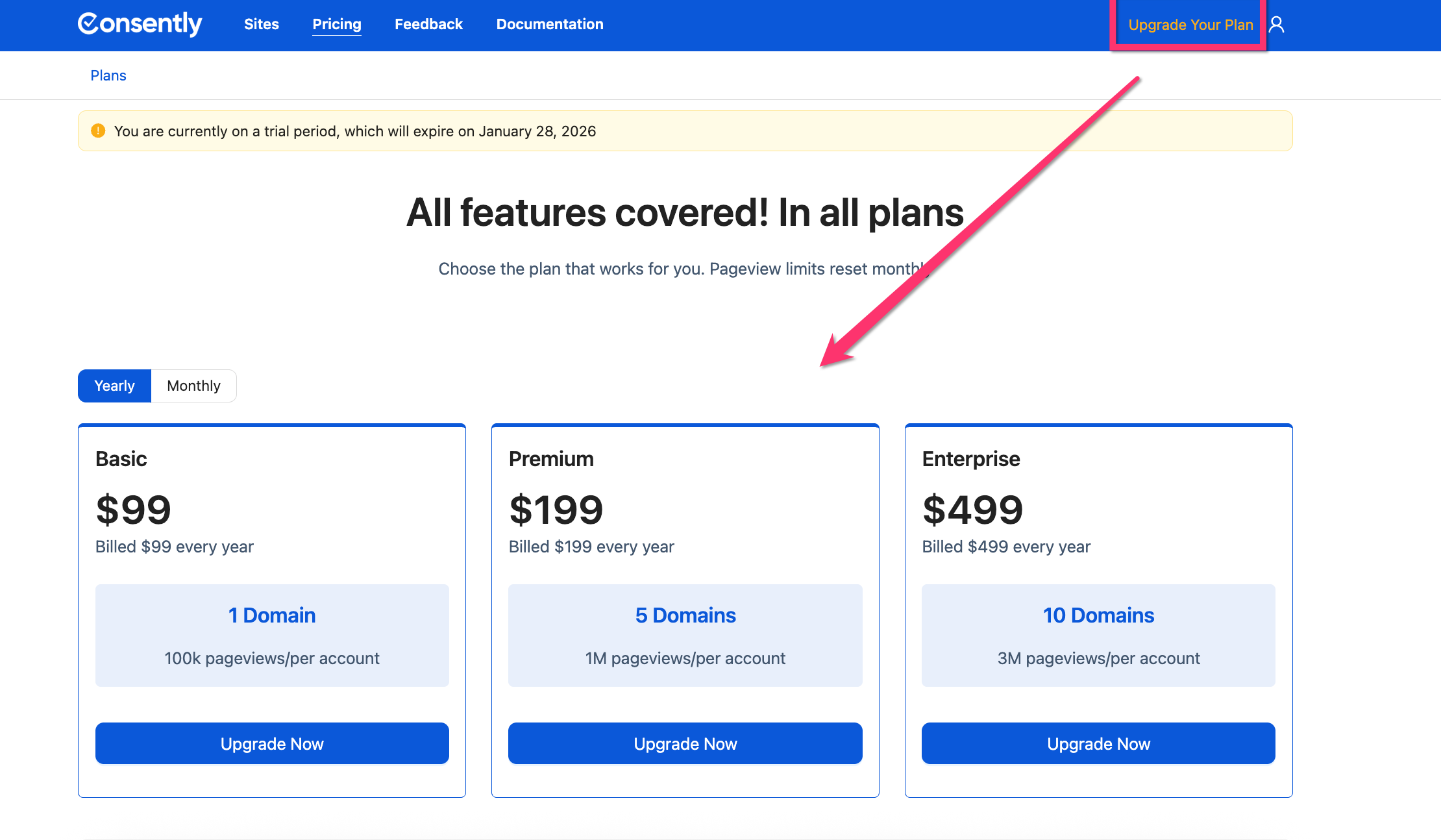
Step 3: Select your new plan
Click the Upgrade now button under your desired tier.
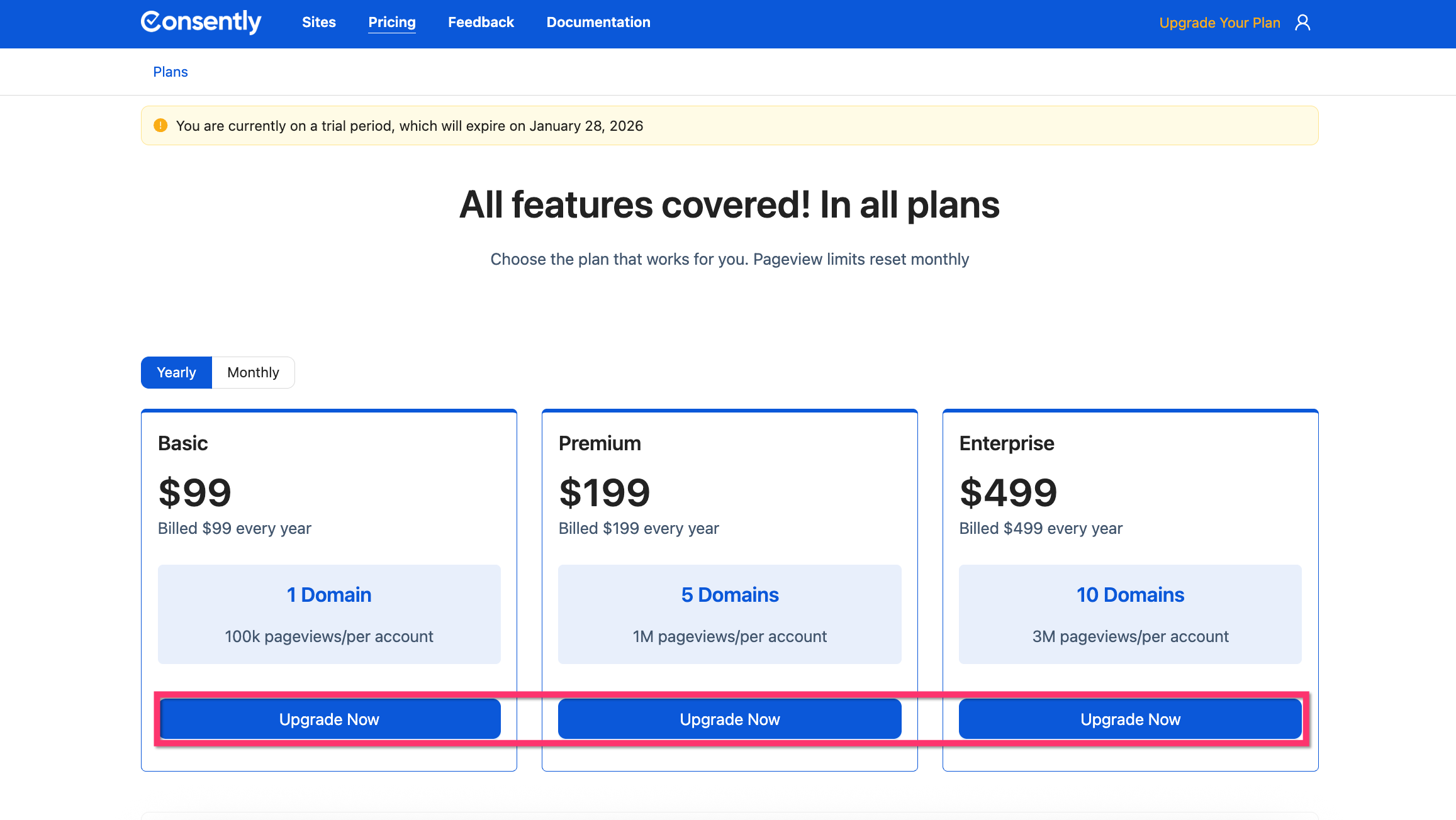
Step 4: Review billing details
Confirm the prorated charge for your upgrade and review the new billing amount.
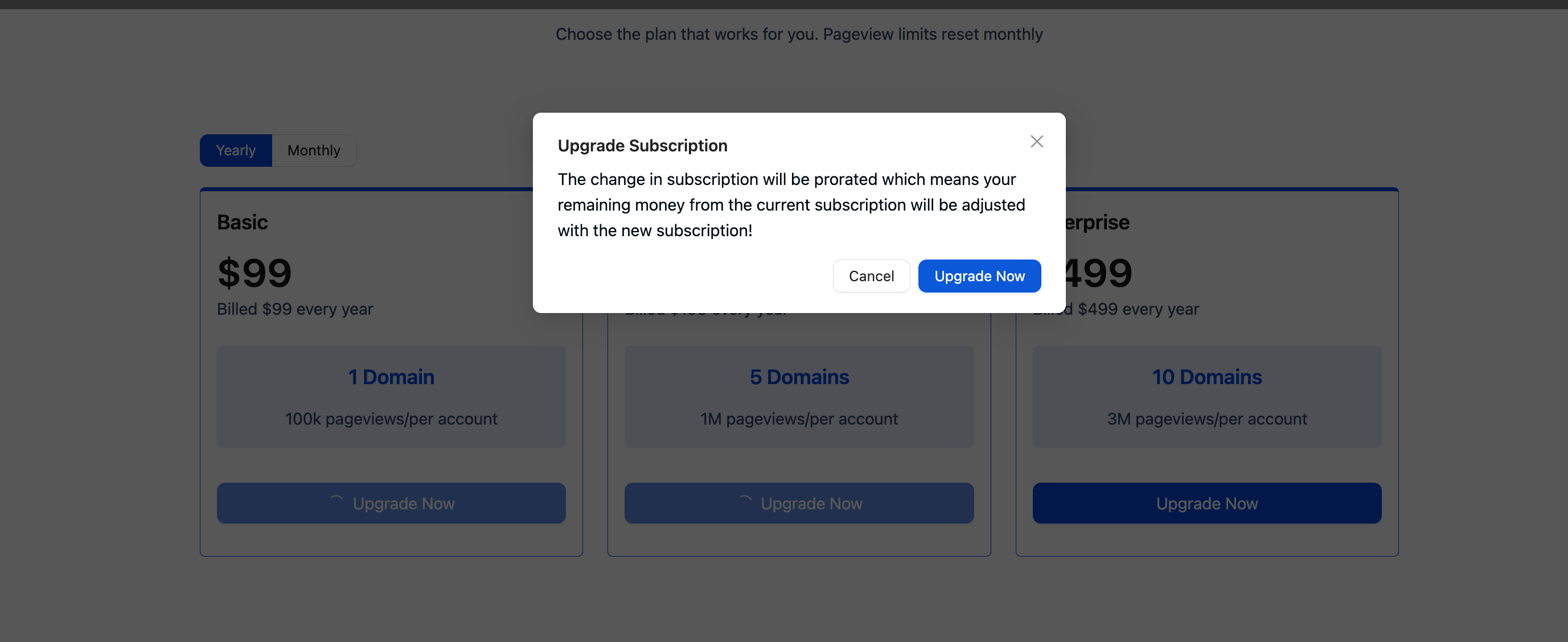
Step 5: Complete the upgrade
Click Upgrade Now to finalize the change. Your account upgrades immediately.

Done!
Your account has been upgraded to the new plan, with immediate access to additional sites and pageview capacity.
✅ Success indicator: You'll see a confirmation message and your new plan details in the account settings.
Upgrading your license at AppSumo
If you purchased your plan through AppSumo, you can manage your subscription directly from your AppSumo account. The upgrade request must be processed through your AppSumo account.
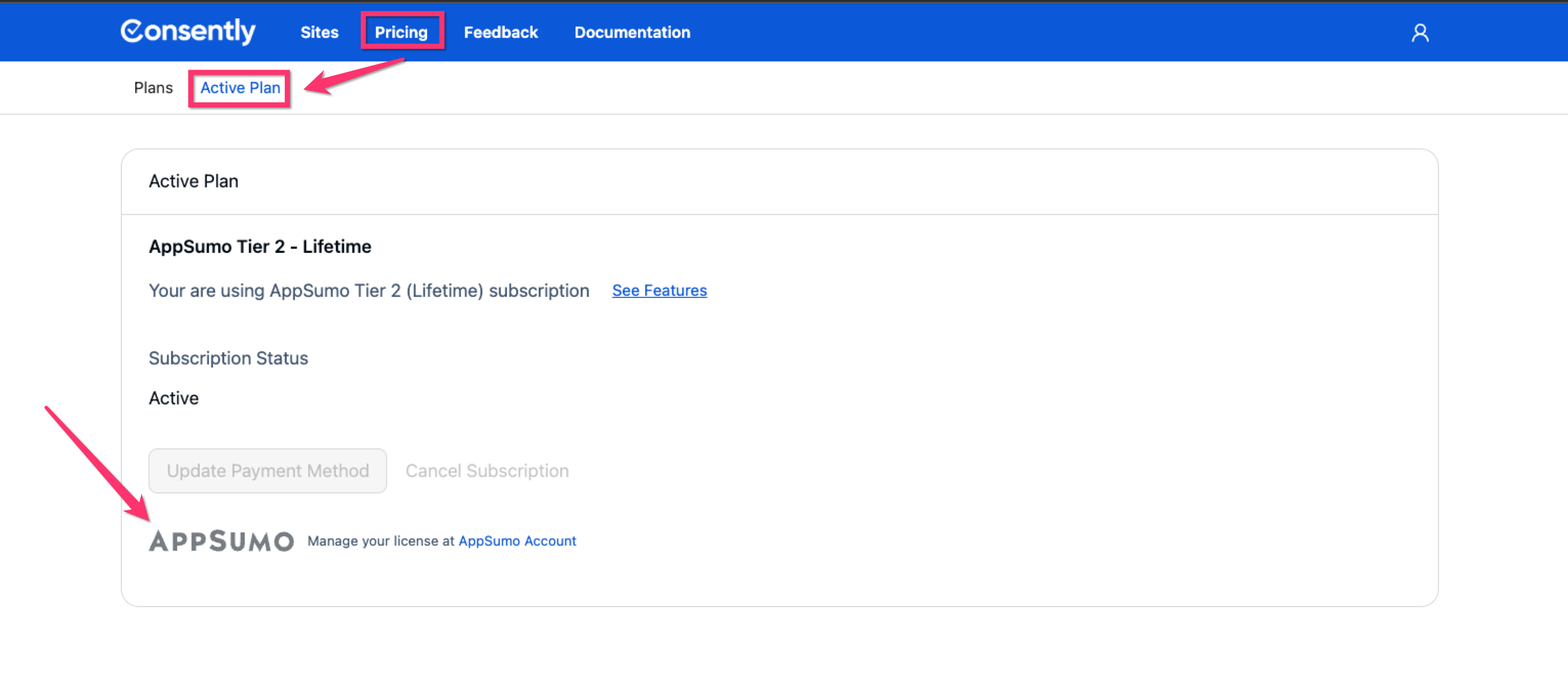
Step 1: Check if your license was purchased via AppSumo
Go to your Dashboard.
Navigate to Pricing → Active Plan.
Look for the AppSumo logo.
If the logo is visible, your license was purchased through AppSumo.
Step 2: Open your AppSumo account
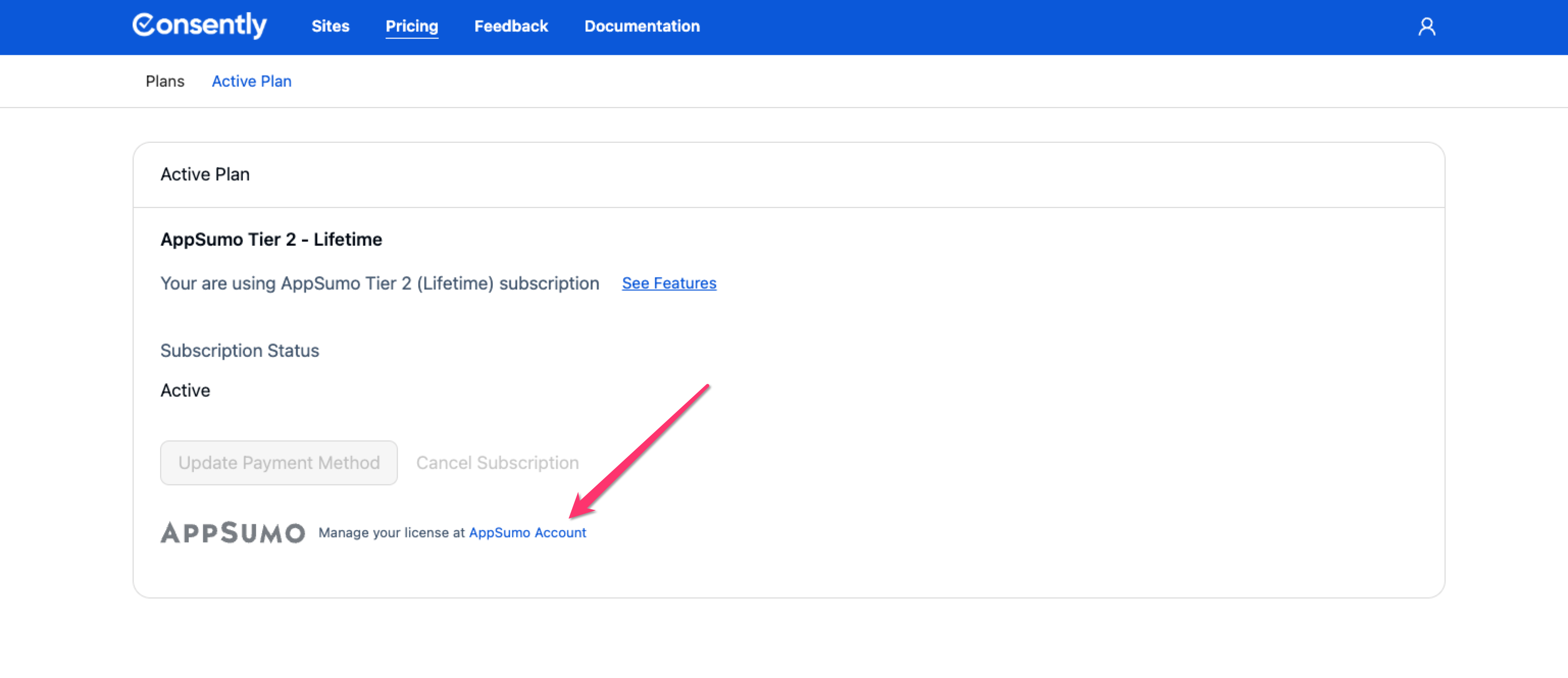
Click on the AppSumo Account link to open your AppSumo account.
Step 3: Expand the Select menu
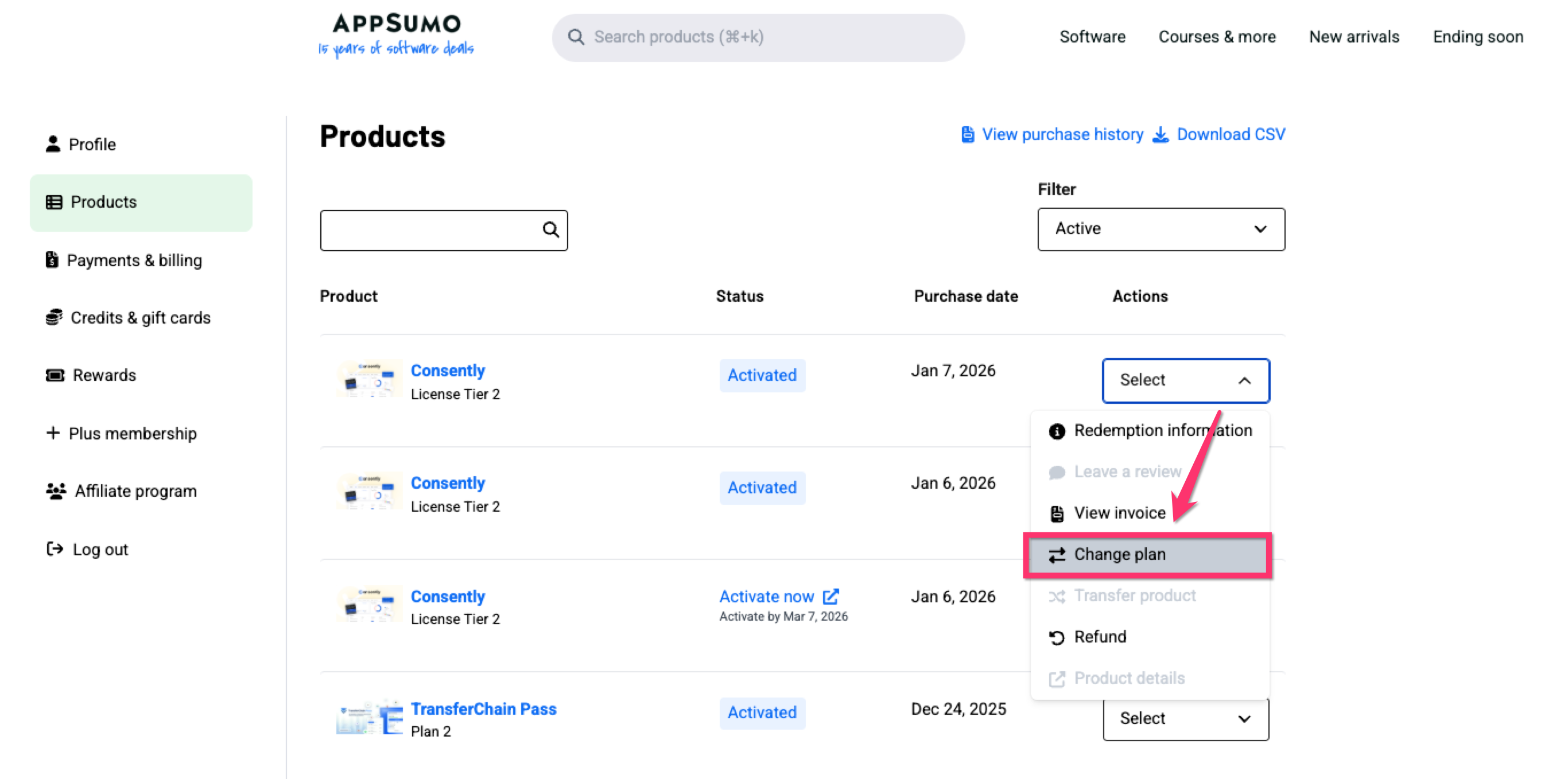
Click on the Select dropdown menu and choose Change plan
Step 4: Upgrade your plan
On the Change plan page, select Upgrade to your desired plan.

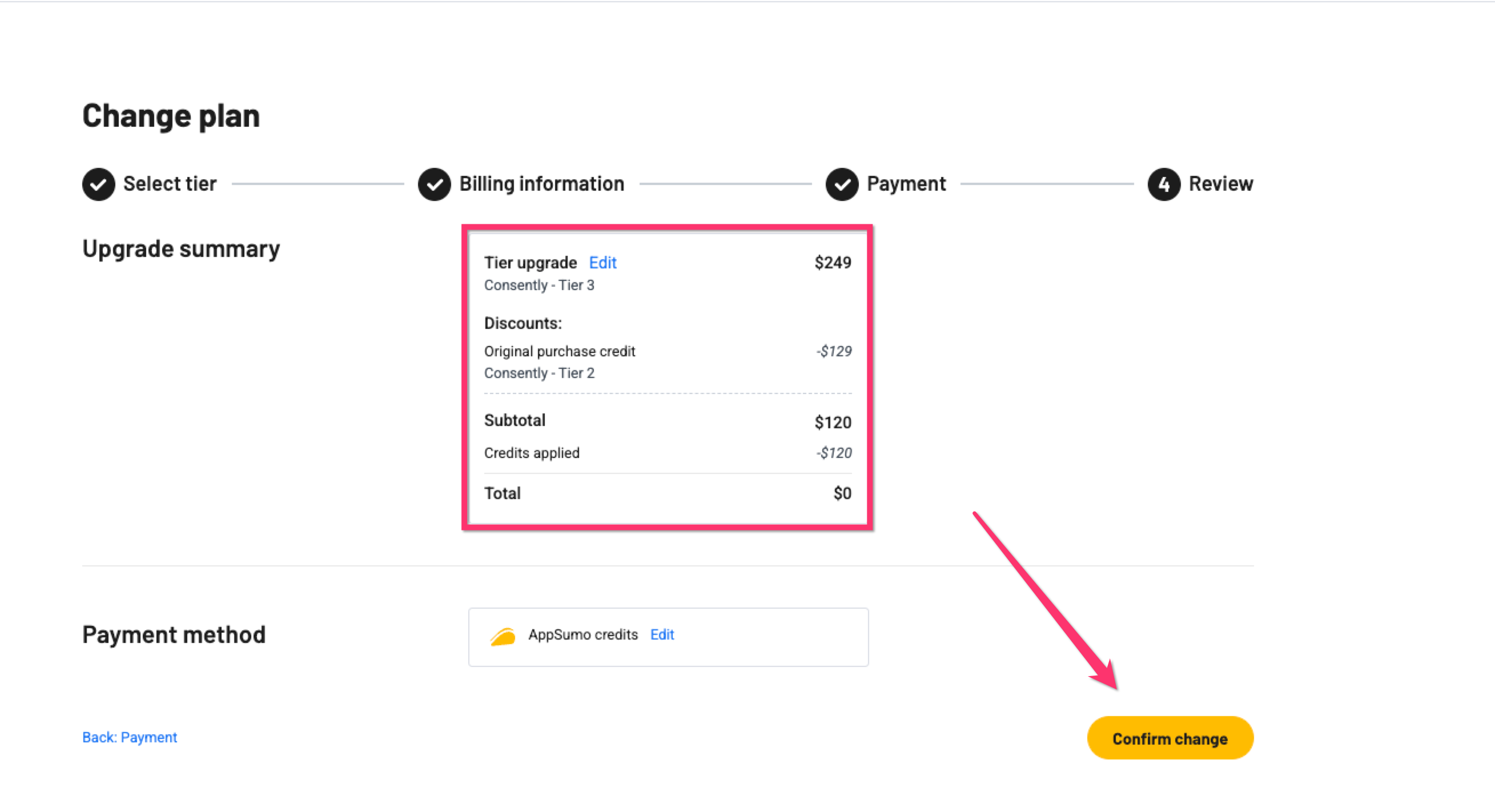
Step 5: Review your payment details
Review your upgrade and payment details, and confirm changes.
Done!
Your account has been upgraded to the new plan, with immediate access to additional sites and pageview capacity.
✅ Success indicator: You'll see a confirmation message and your new plan details in the account settings.
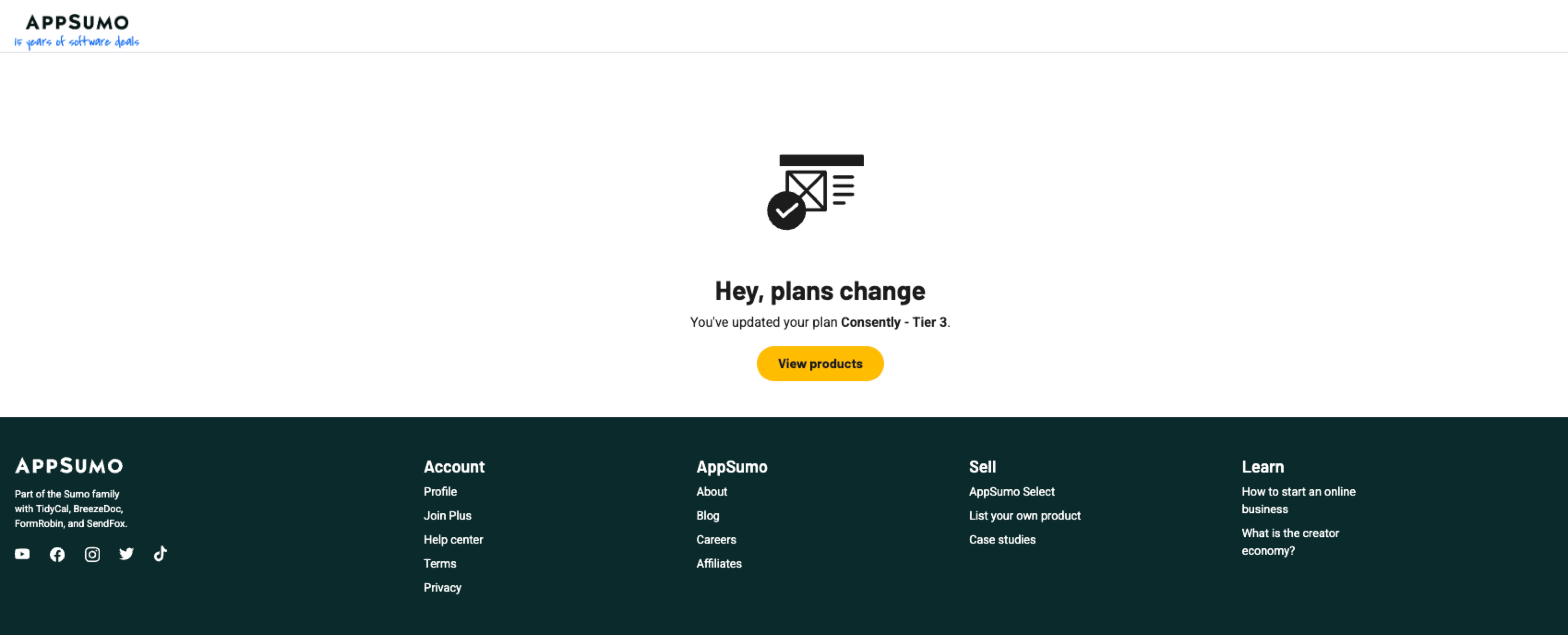
Understanding Prorated Billing
When you upgrade mid-billing cycle, Consently calculates a prorated charge:
Credit for unused time: You receive credit for the unused portion of your current plan
Charge for new plan: You're charged the prorated amount for the new plan through your next renewal date
Immediate access: Your new limits take effect instantly
Example: If you upgrade from Basic ($59 LTD) to Premium ($199 LTD) in the future, you'll pay approximately $140 (the difference).
Downgrading Considerations
If you need to reduce your plan tier:
At renewal only: Downgrades take effect at your next renewal date, not immediately
Preserve existing sites: Complete your current billing period with full access to your existing setup
Remove sites first: Before downgrading, ensure your website count matches the lower tier's limit
⚠️ Important: If you have 5 sites on Premium and want to downgrade to Basic (1 site), you must delete 4 sites before the downgrade takes effect.
What's Next
Now that you've upgraded your plan:
Add additional websites to use your new site capacity
Review your billing details to confirm the change
Troubleshooting
The upgrade button isn't working
Solution: Ensure you're logged in, and your current payment method is valid. If the issue persists, contact support at support@consently.net
I don't see the upgrade option
Why this happens: You may already be on the highest plan (Enterprise).
Solution: If you need higher limits than Enterprise offers, contact support at support@consently.net to discuss custom pricing.
Will I lose my current site configurations?
Solution: No. Upgrading preserves all your existing sites, banners, policies, and settings. You simply gain access to additional capacity.