

TL;DR: Dashboard → Advanced Settings → Exclude Paths → Add Paths. Included paths will not load Consently.
Overview
The banner will not load on these paths or anything beneath them, which is useful for page-builder editors that the cookie banner interferes with. The leading slash is optional. Note that the banner script still starts before these settings are fetched; for a path that must never load it at all, use the data-exclude-paths attribute on the embed script instead. For multiple paths use comma (,) separated values.
Before You Begin
Make sure you have:
Time required: 2 minutes
How to Exclude Paths
Step 1: Open Advanced Settings
Navigate to Advanced Settings in your site's top navigation bar.
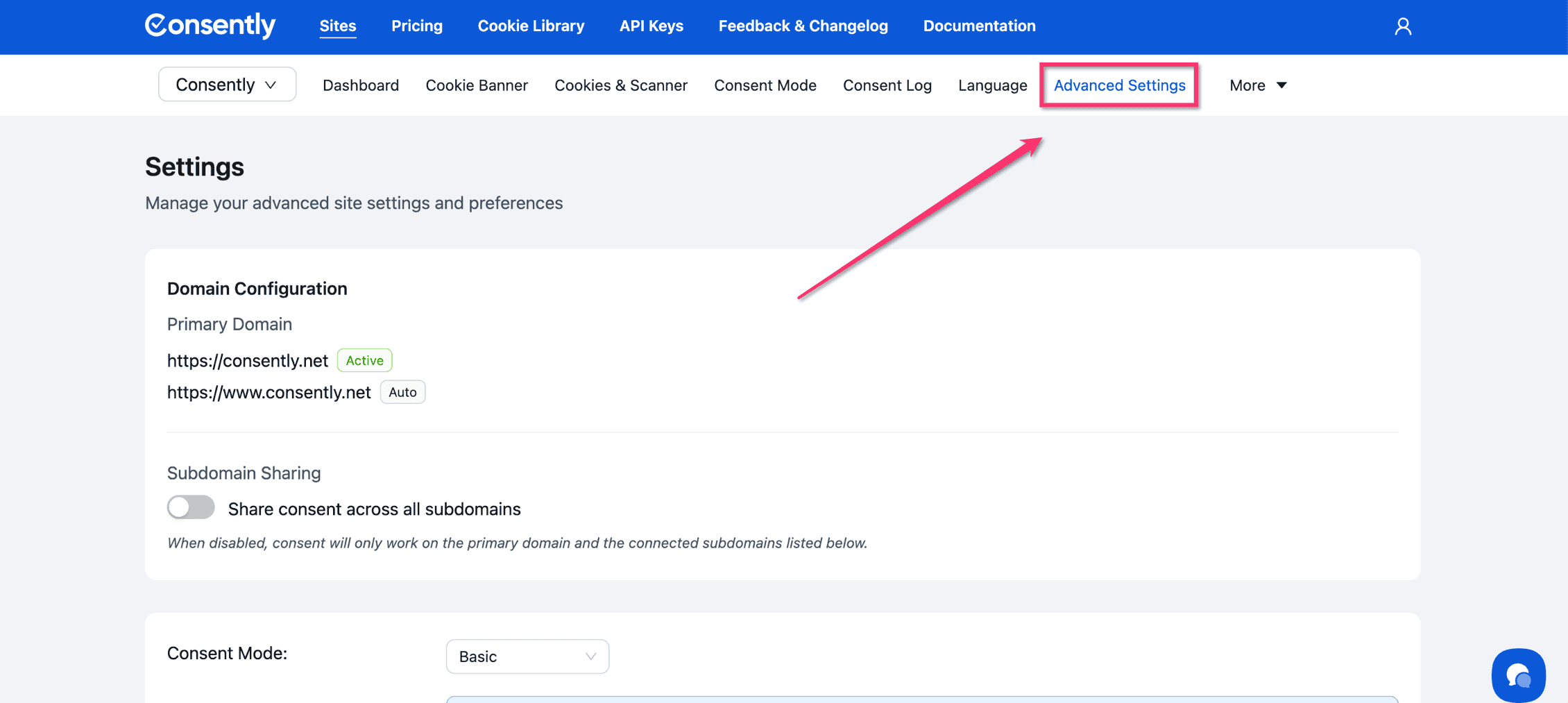
Step 2: Type the paths you want to exclude
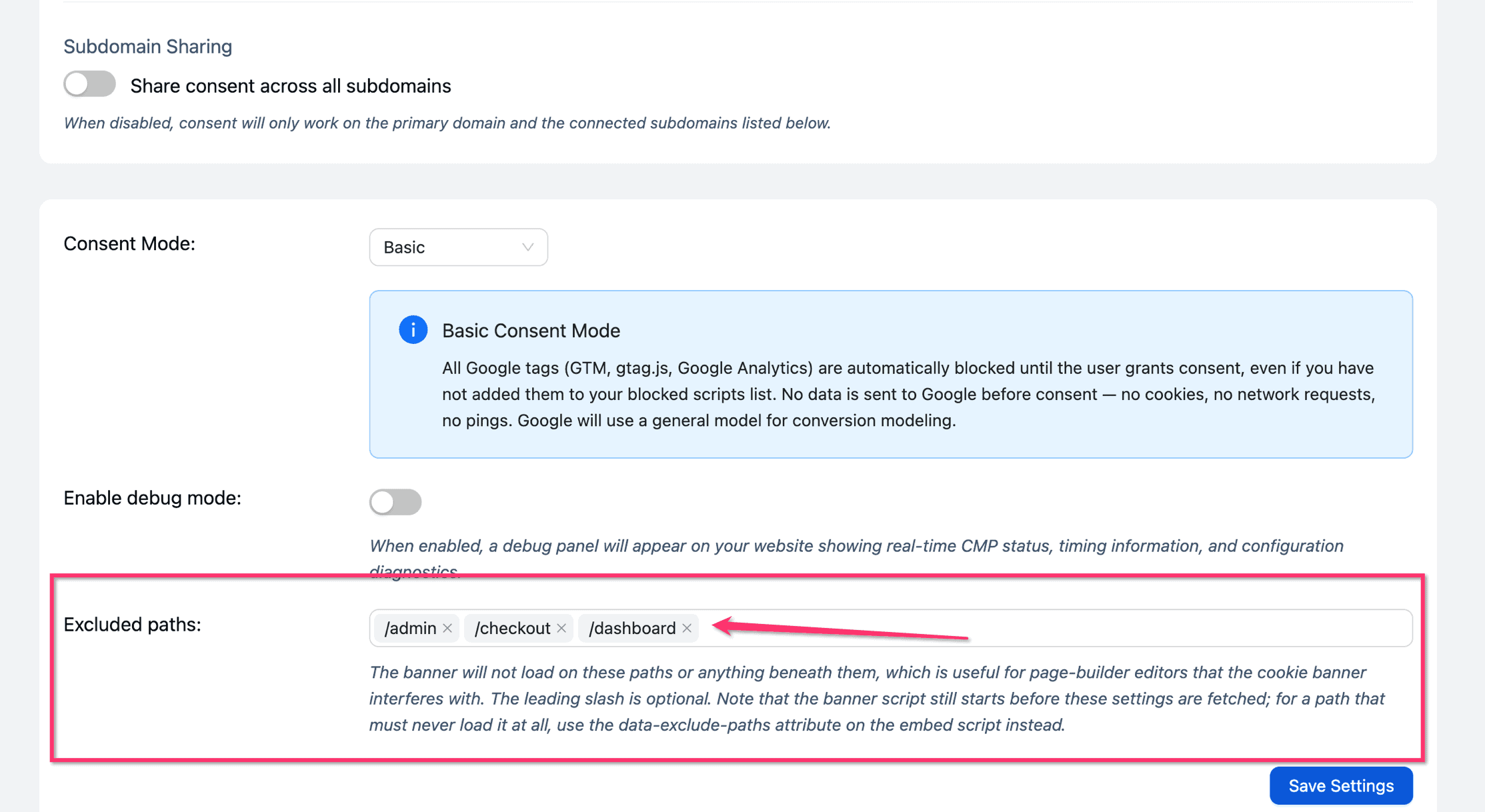
Under Exclude Paths, write down the /paths you want to exclude.
For example: /dashboard
Note: To exclude multiple paths use (,) comma separated values. For example: /dashboard , /checkout
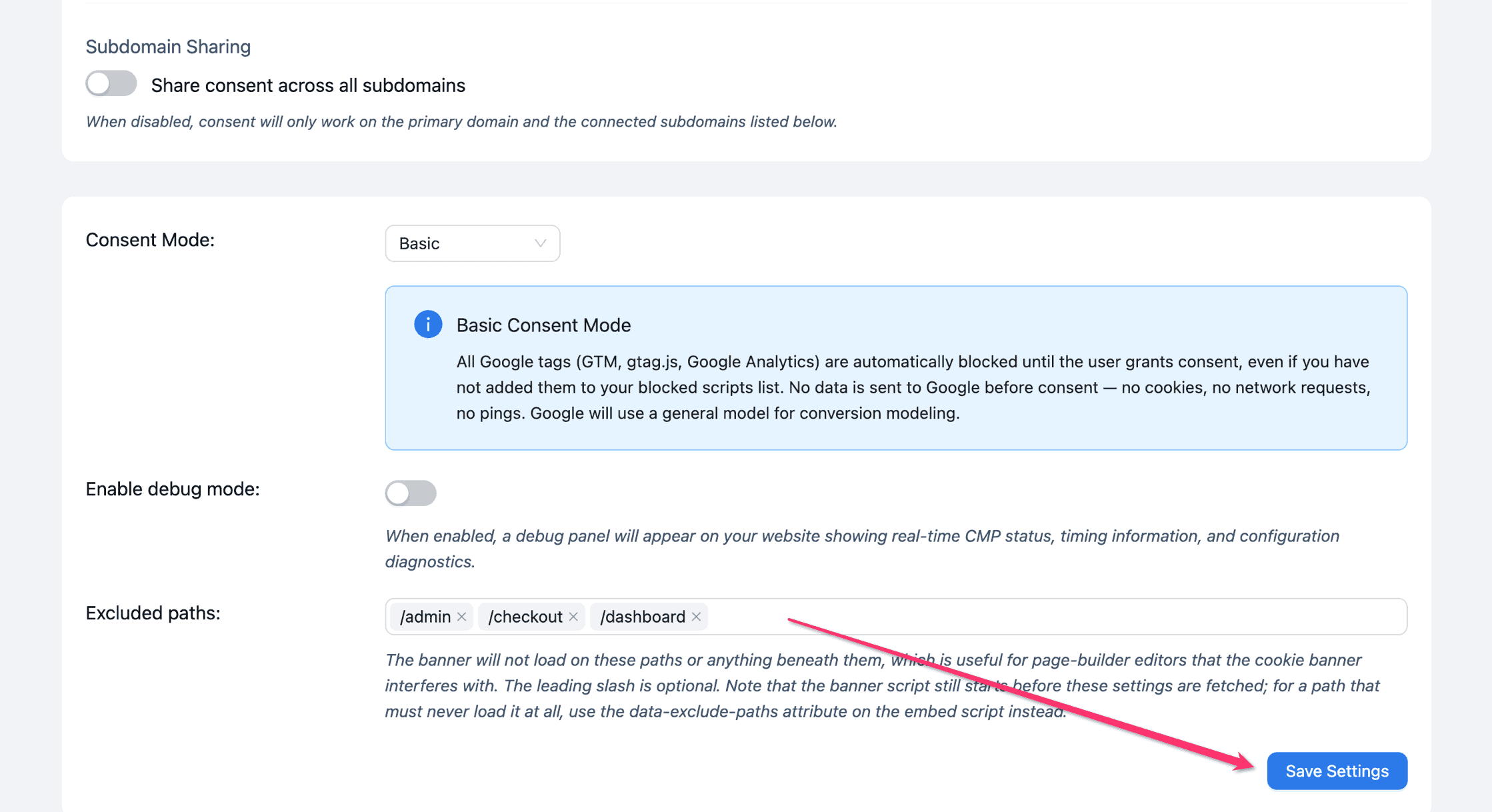
Step 3: Click on "Save Settings"
Once you have entered the paths you want to exclude, please click on Save settings.
Done!
Consently will now exclude the paths you have mentioned.
✅ Success indicator: The page updates to show "Settings content successfully updated!"
Troubleshooting
The banner still appears on the excluded paths
Why this happens: The visitor's browser may have a cached consent state from before exclude path was enabled.
Solution:
Clear your browser cache and cookies, then reload the specific path