

TL;DR: Cookie Banner → Configuration → IAB TCF Settings dropdown → Select preset or Custom. Enable additional options like Purpose List, Google Vendor, and TCF Vendor List to comply with IAB standards for programmatic advertising.
Overview
IAB TCF (Transparency & Consent Framework) Settings configure how your banner handles consent for programmatic advertising partners. These settings are required if your site monetizes through ad networks that follow IAB TCF 2.3 standards.
Before You Begin
Make sure you have:
Configured your consent template (GDPR or US State Laws)
Determined whether your site uses programmatic advertising partners
Time required: About 3 minutes
How to Configure IAB TCF Settings
Step 1: Open Cookie Banner configuration
Navigate to Cookie Banner from your site dashboard.
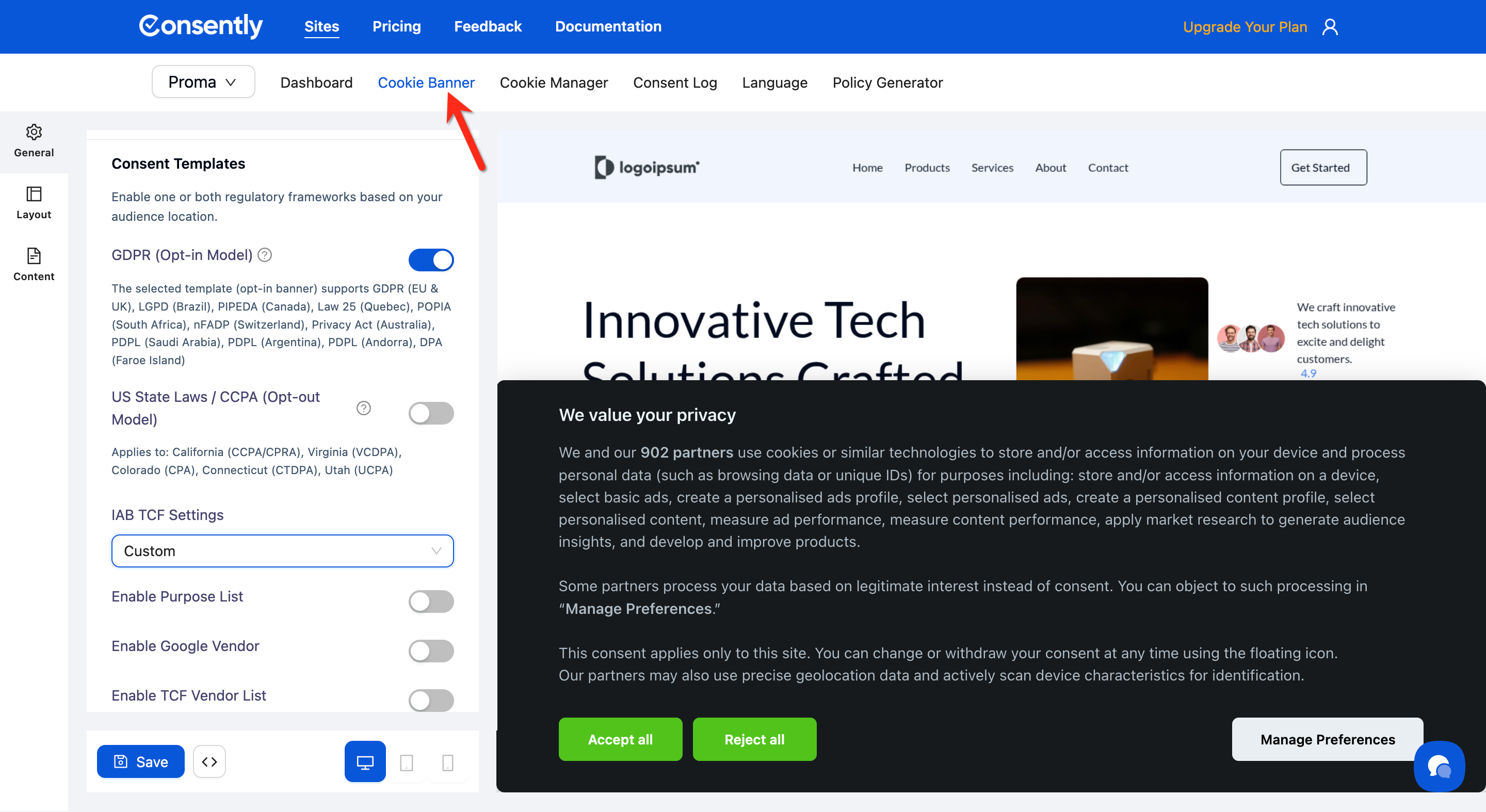
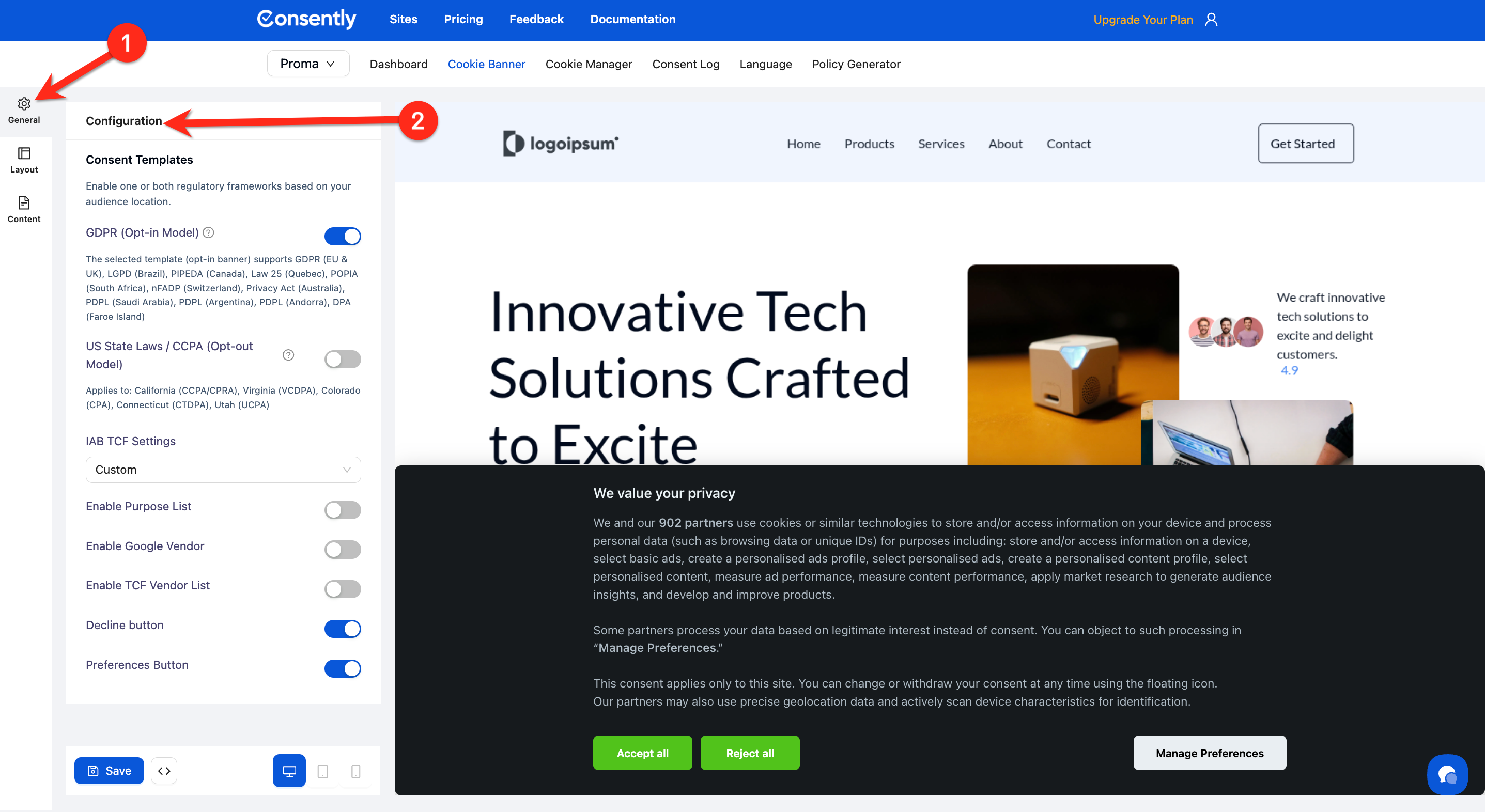
Step 2: Expand the Configuration section
Click the Configuration accordion on the left sidebar from the General tab to reveal consent template settings.
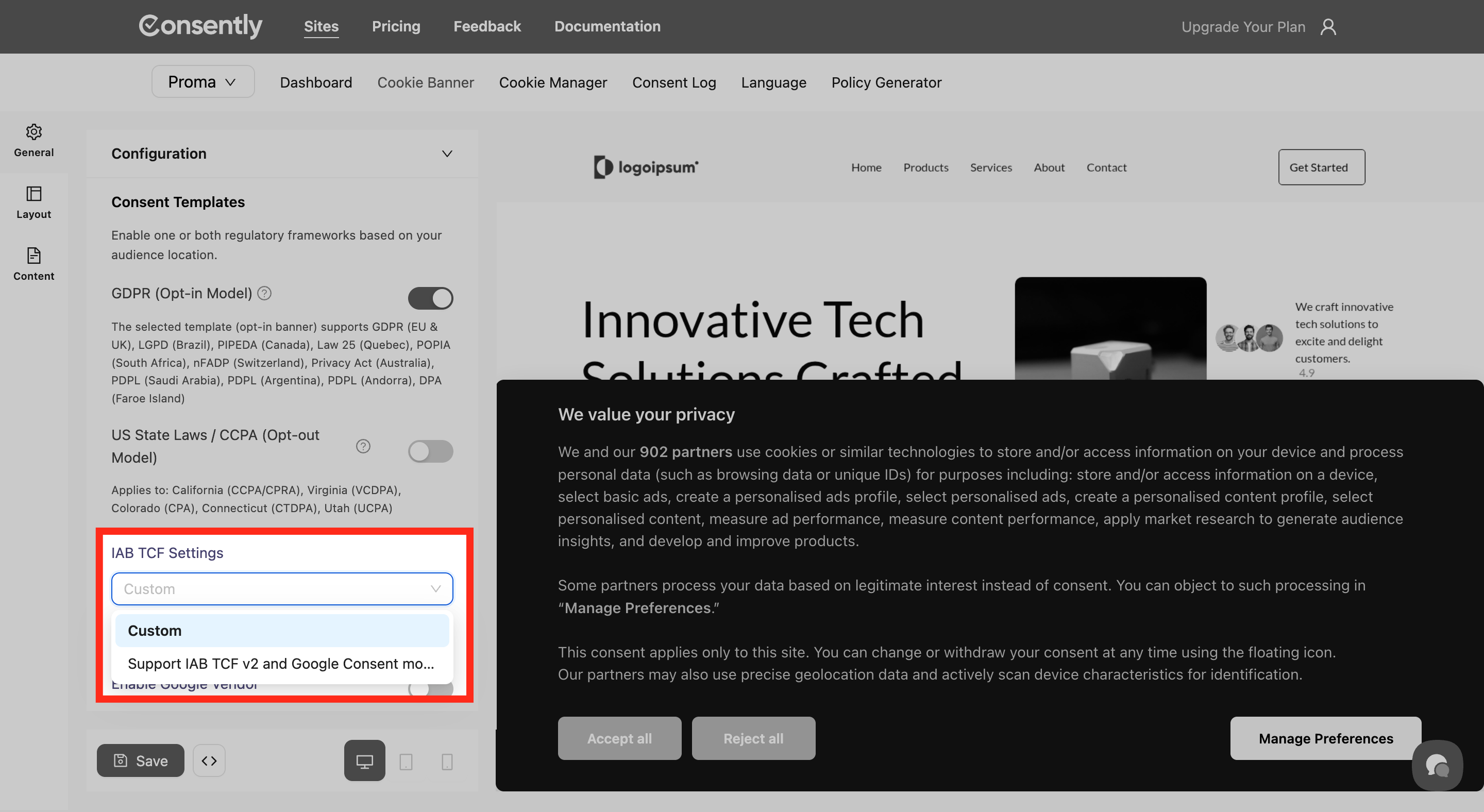
Step 3: Choose your IAB TCF configuration preset
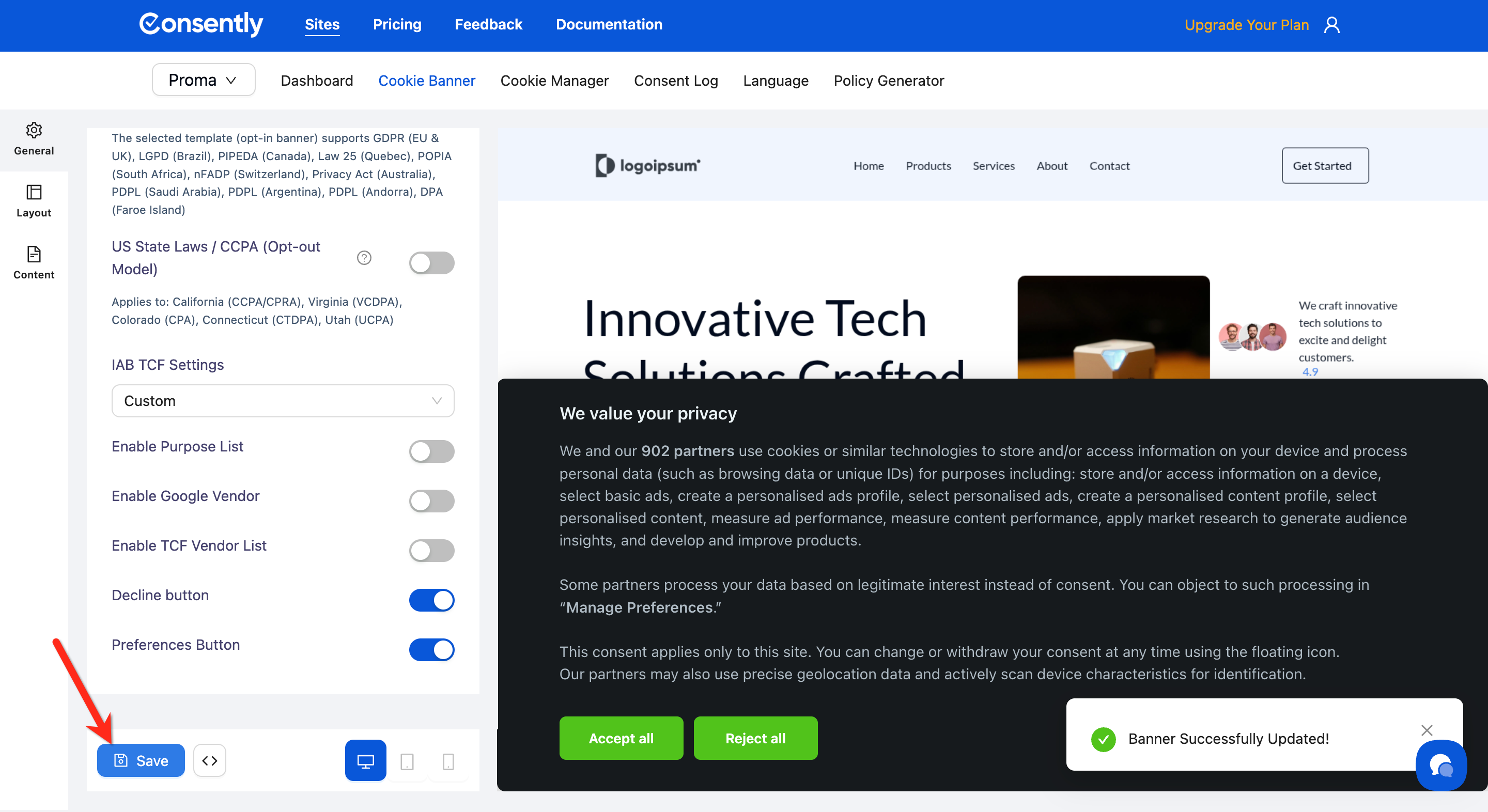
Click the IAB TCF Settings dropdown and select your configuration mode:
Custom — Manually configure each IAB setting individually
Support IAB TCF v2 and Google Consent mode — Preset that automatically enables Purpose List, Google Vendor, TCF Vendor List, Decline button, and Preferences button.
💡 Tip: If you monetize through Google AdSense or other Google advertising products, use the preset to ensure compatibility with Google's requirements.
Step 4: Enable individual IAB features (Custom mode only)
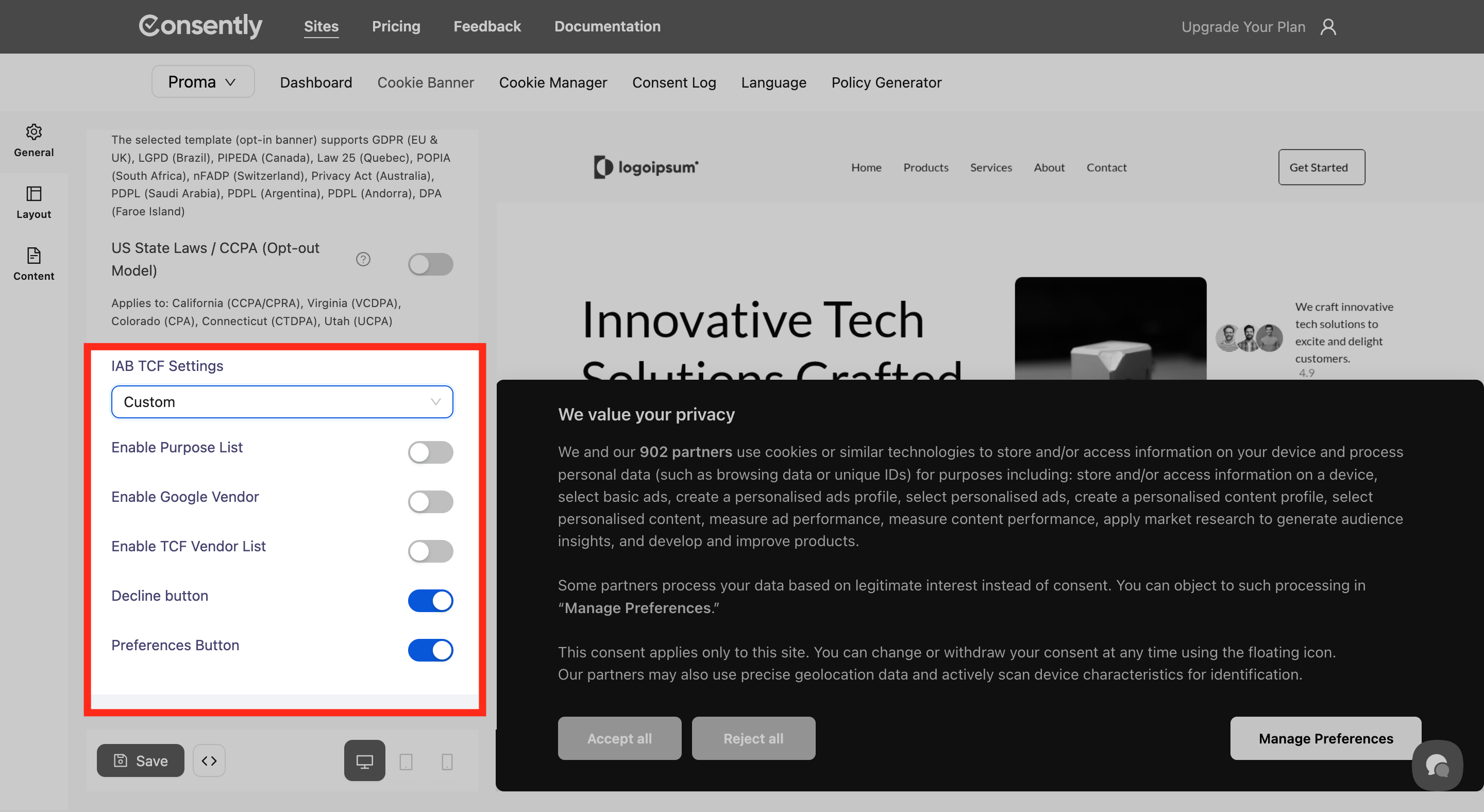
If you selected Custom, toggle on the IAB features you need:
Enable Purpose List — Displays IAB's standardized list of data processing purposes to visitors
Enable Google Vendor — Adds Google as a recognized vendor for consent management
Enable TCF Vendor List — Shows the full list of IAB-registered advertising technology vendors
Decline button — Adds a button allowing visitors to reject all non-essential vendors
Preferences Button — Adds a button for granular vendor consent choices
Step 5: Save your configuration
Click Save at the bottom of the Configuration panel.
Done!
Your banner now includes IAB TCF 2.3 compliance features for programmatic advertising consent.
✅ Success indicator: The IAB options you enabled will appear in your banner's preference center when visitors click Manage Preferences.
What's Next
Now that you've configured IAB TCF settings, you should:
Preview your banner to verify that the IAB features display correctly
Publish your banner to activate the changes
Understanding IAB TCF Features
What is IAB TCF 2.3?
The IAB Transparency & Consent Framework is an industry standard that lets website visitors control how advertising companies use their data. Consently is certified by the IAB to implement this framework.
Purpose List
The Purpose List displays the specific reasons why advertising partners collect data, such as:
Store and/or access information on a device
Create personalized ad profiles
Select personalized ads
Measure ad performance
Develop and improve products
Visitors can consent to individual purposes rather than accepting all advertising vendors as a group.
Google Vendor
Enabling Google Vendor recognizes Google as a consent framework participant, ensuring proper consent signals reach Google Ads, Google Analytics, and other Google advertising products.
TCF Vendor List
The TCF Vendor List shows all IAB-registered advertising technology companies that may process visitor data. This list is maintained by the IAB and updates automatically as vendors join or leave the framework.
Troubleshooting
IAB options don't appear in my banner
Why this happens: The IAB features only display when visitors interact with the Manage Preferences button in the preference center.
Solution:
Click Manage Preferences in your banner preview
Look for the IAB sections in the expanded preference center modal
If still missing, verify you clicked Save after enabling IAB settings
Should I use Custom or the preset?
Solution: Use the Support IAB TCF v2 and Google Consent mode preset if you:
Monetize through Google AdSense, AdX, or other Google advertising products
Want the simplest setup with industry-standard defaults
Use Custom if you:
Need to disable specific IAB features for your use case
Want granular control over which vendors and purposes to display
Related Pages
IAB TCF Consent Tracking — Monitor how visitors consent to advertising vendors