

TL;DR: Sites → New Site / ⋮ Menu → Update/Delete.
Add, edit, or remove websites from your Consently account to manage consent banners across multiple domains.
Overview
The Sites page lets you add, edit, and delete websites in your Consently account. Each site has its own consent banner configuration, cookie scanning, and compliance settings that you manage independently.
How to Add a New Website
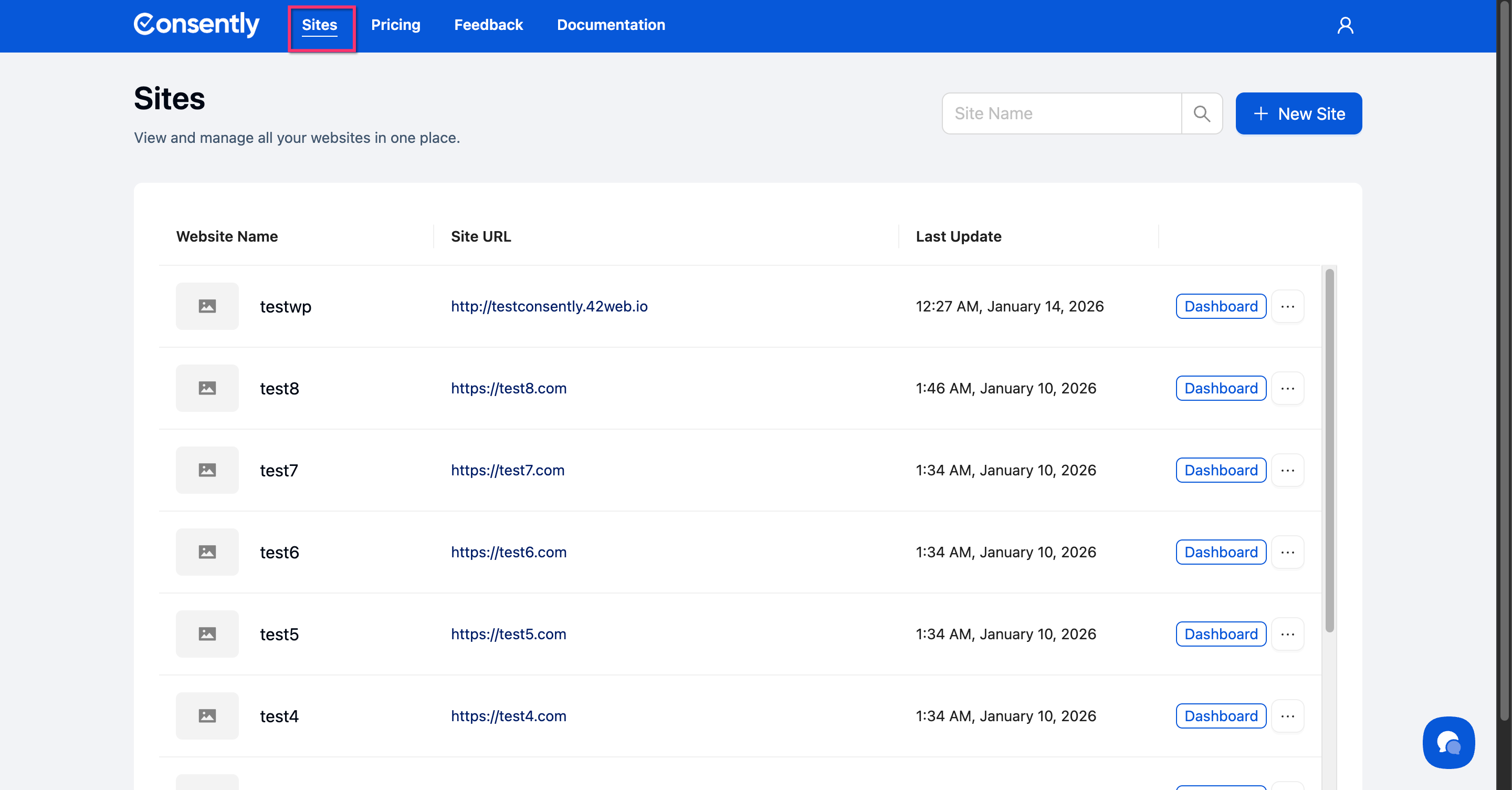
Step 1: Open the Sites page
Click Sites in the top navigation bar.
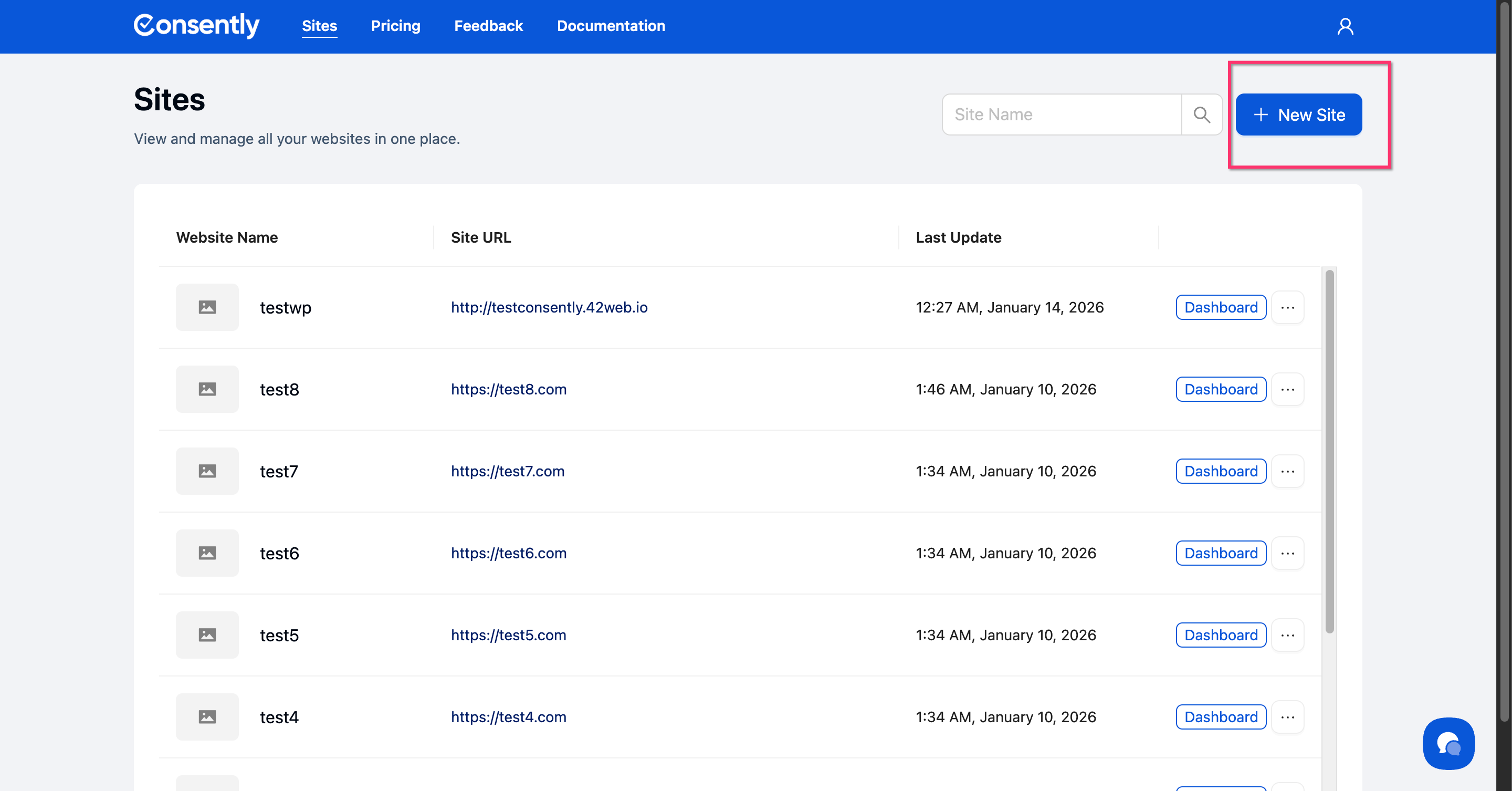
Step 2: Click New Site
Click the + New Site button in the top-right corner.
Step 3: Enter site details
In the modal that appears:
Enter your website name in the Name field
Enter your full website URL in the Website URL field (e.g.,
https://example.com)
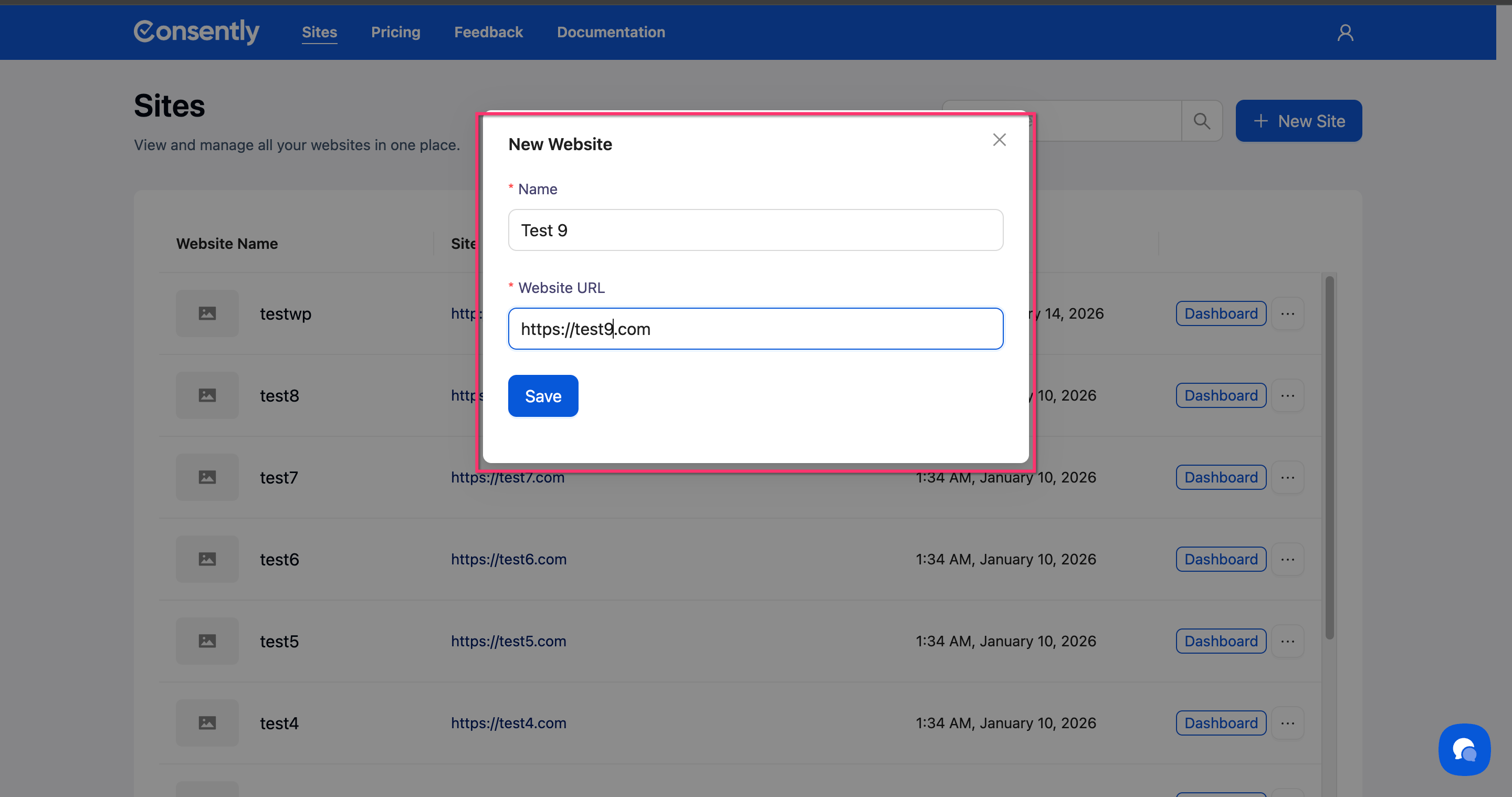
💡 Tip: Use your root domain only—don't include specific page paths.
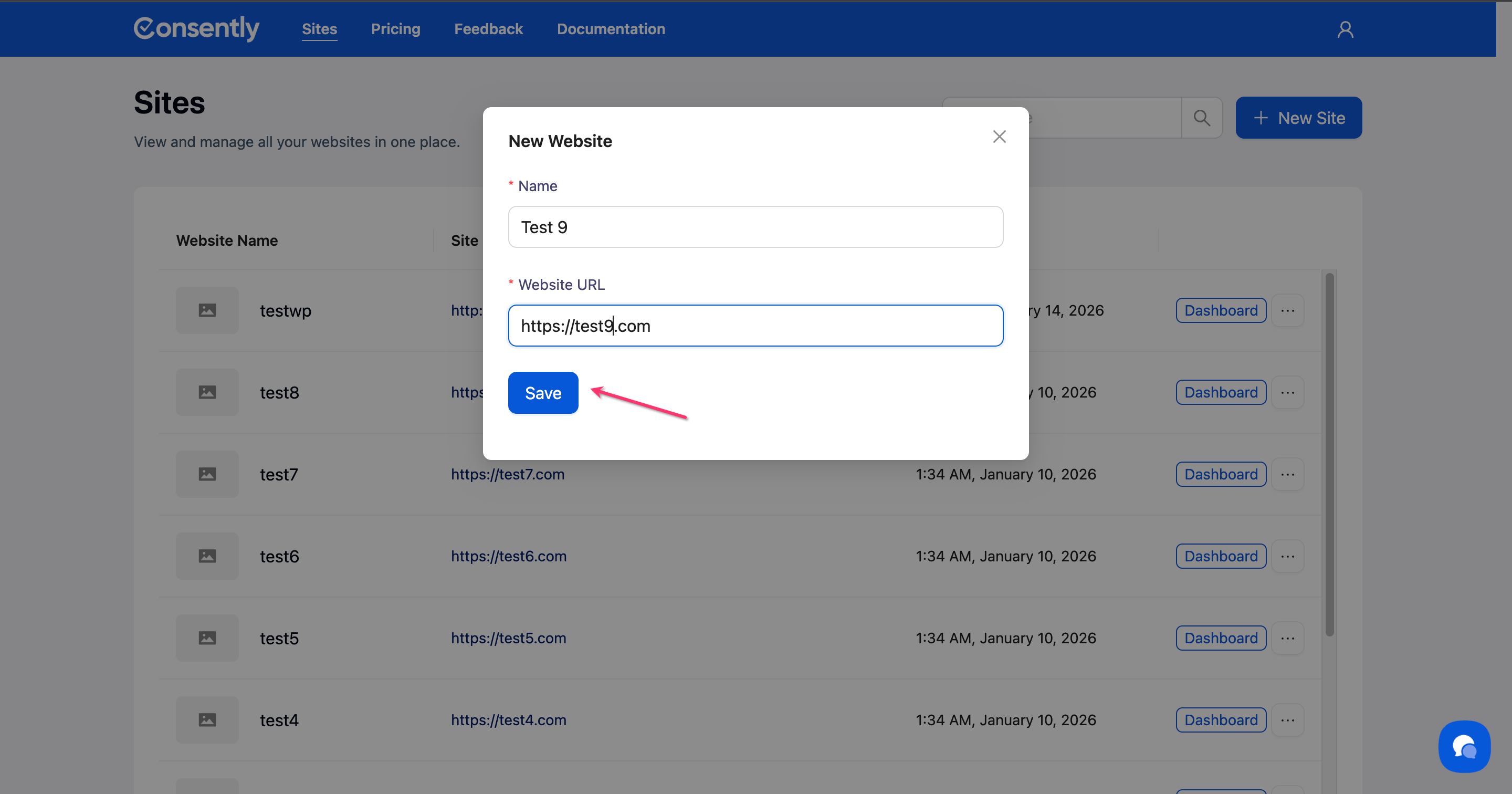
Step 4: Save the site
Click Save.
Done!
Your website now appears in the sites list.
✅ Success indicator: The new site appears with a timestamp showing when it was added.
How to Edit a Website
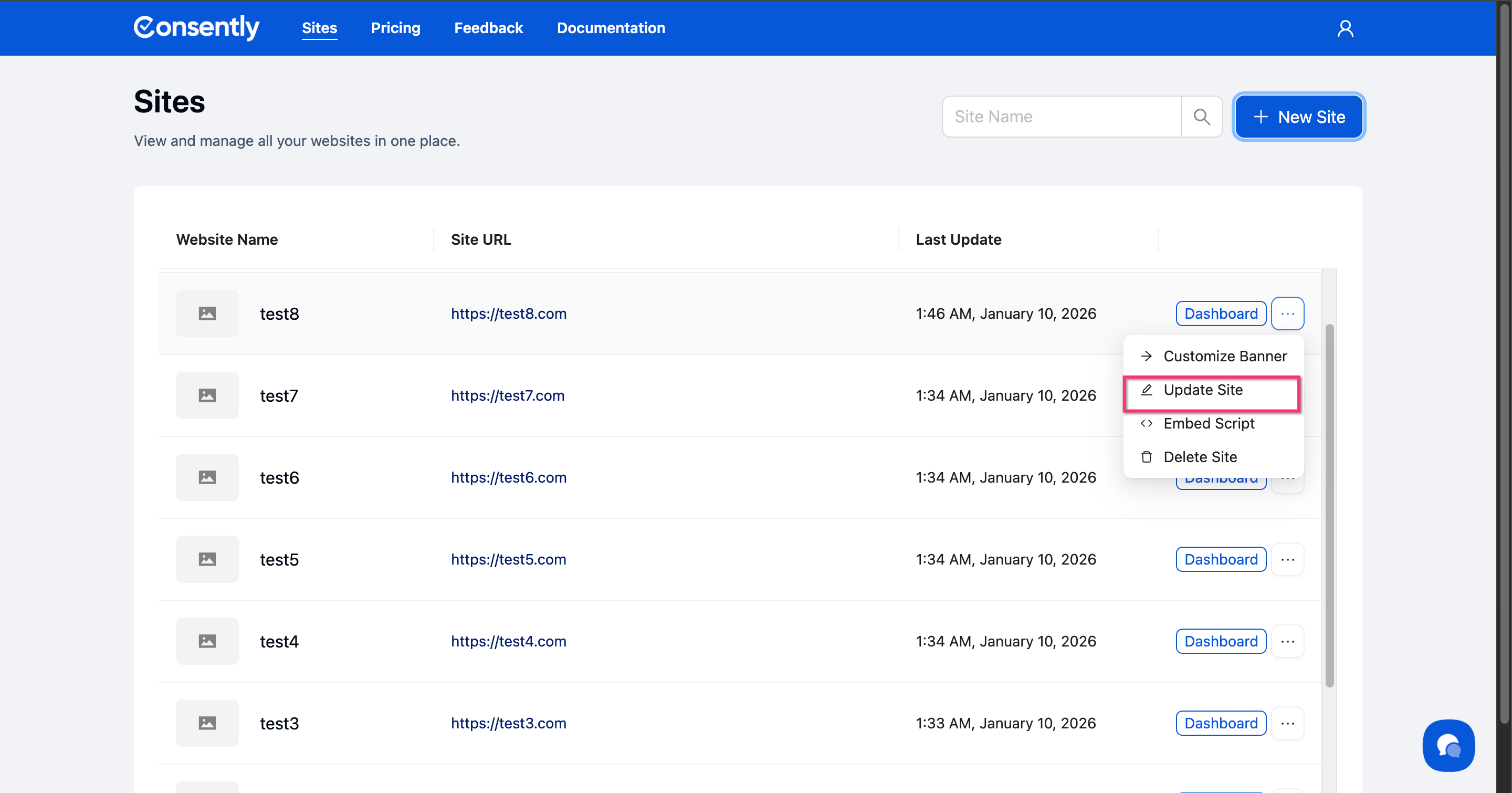
Step 1: Open the site menu
Find your website in the sites list and click the ⋮ (three-dot menu) next to it.

Step 2: Click Update Site
Select Update Site from the dropdown menu.
Step 3: Edit site details
Modify the Name or Website URL fields in the modal.
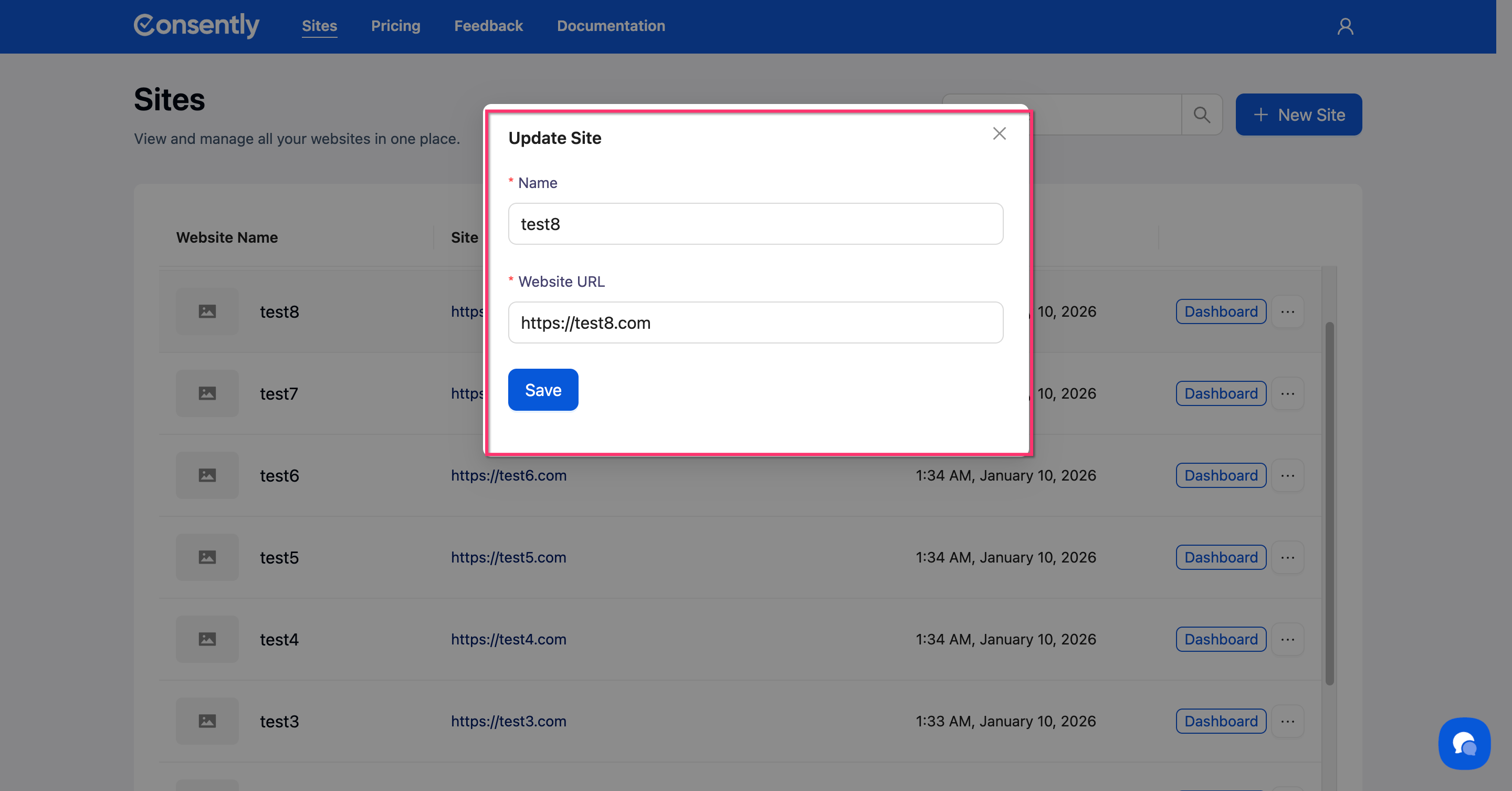
Step 4: Save changes
Click Save.

Done!
Your changes are saved immediately.
How to Delete a Website
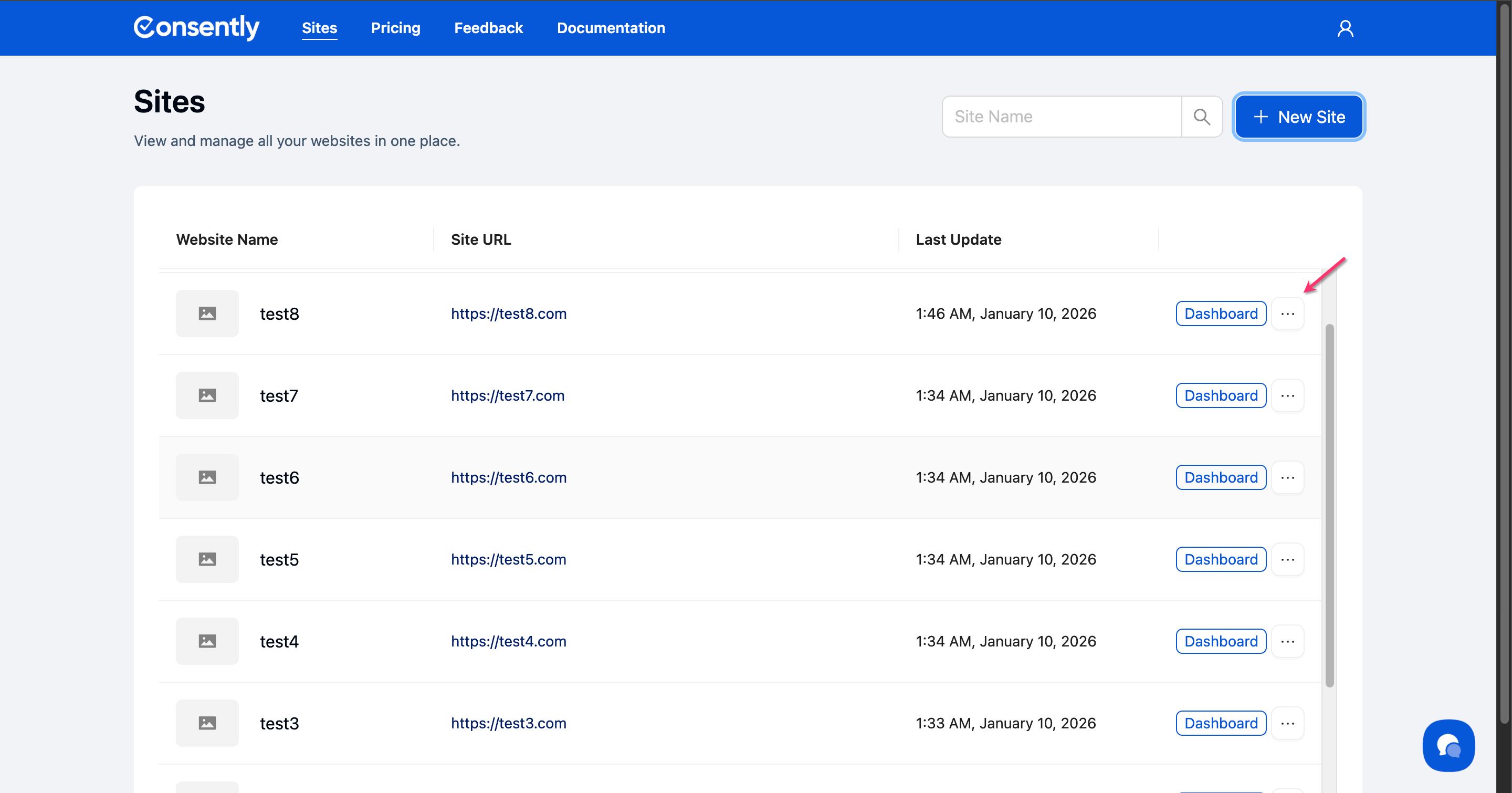
Step 1: Open the site menu
Find your website in the sites list and click the ⋮ (three-dot menu).
Step 2: Click Delete Site
Select Delete Site from the dropdown menu.
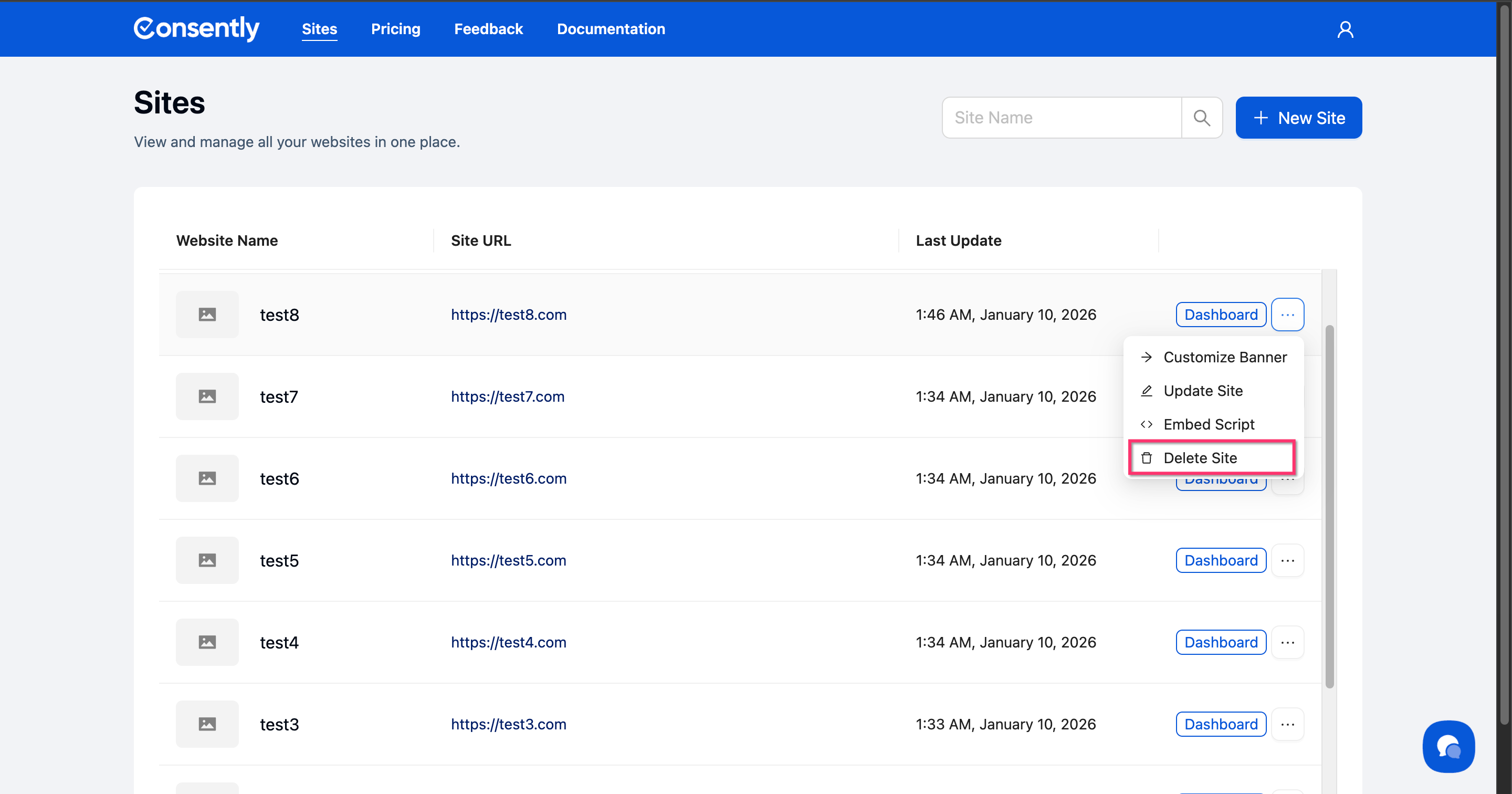
⚠️ Important: Deleting a site removes all associated consent banners, cookie configurations, and consent logs. This action cannot be undone.
Step 3: Confirm deletion
Confirm the deletion in the prompt that appears.
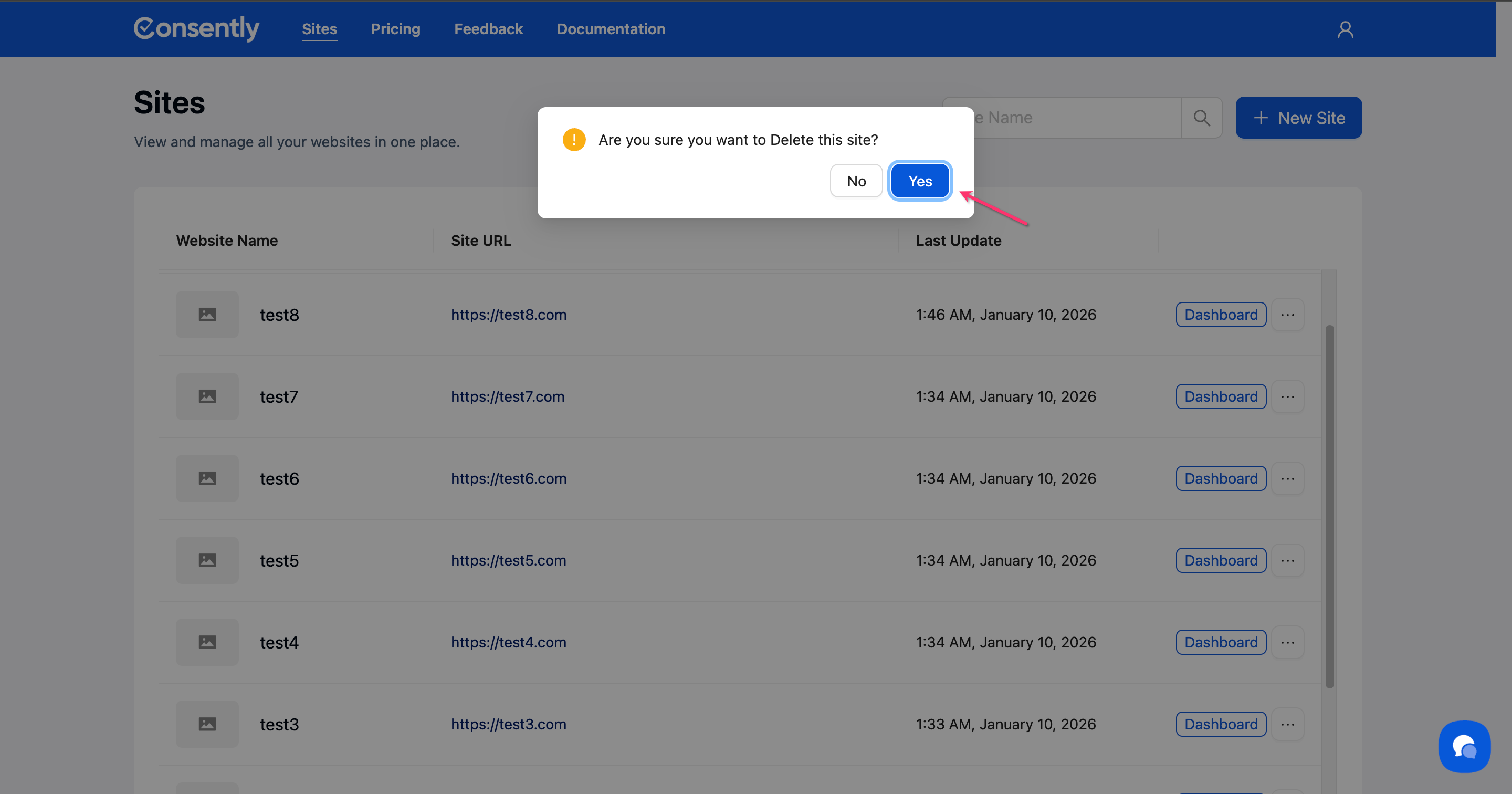
Done!
The site is removed from your account.
Quick Access to Site Features
From the ⋮ menu next to any site, you can:
Customize Banner — Open the banner configuration page
Update Site — Edit the site name or URL
Embed Script — Copy the installation script for that site
Delete Site — Remove the site from your account

What's Next
Now that you've added your website, you should:
Troubleshooting
Invalid URL error
Why this happens: The URL format isn't recognized by the system.
Solution:
Include the protocol:
https://example.comnotexample.comRemove trailing slashes or page paths
Use the root domain only
I can't see my site in the list
Solution: Refresh the page. If the site still doesn't appear, try adding it again—the system prevents duplicate entries automatically.
My site count exceeds my plan limit
Solution: Your plan restricts the number of sites you can add (1 for Basic, 5 for Premium, 10 for Enterprise). Either delete unused sites or upgrade your plan to add more.
Related Pages
Site-Level Customization — Configure settings for individual sites
Multi-Site Overview — Understanding multi-site management