

TL;DR: Visit your website in an incognito window → Banner should appear immediately → Open browser developer tools (F12) → Check Console for errors and Network tab for consently.js → Test cookie blocking by checking Application → Cookies before and after granting consent.
Overview
Testing confirms the Consently banner loads correctly, displays to visitors, and enforces consent by blocking non-essential cookies until permission is granted. Proper testing prevents compliance violations from undetected installation errors.
Before You Begin
Make sure you have:
Installed the Consently script on your website
Published your banner in the Consently dashboard
Access to your website in a browser
Time required: 10 minutes
How to Test Your Consently Installation
Step 1: Clear your browser data
Open a new incognito/private browsing window to ensure you're testing with a clean state, free from cached consent preferences.
Chrome: Press Ctrl+Shift+N (Windows) or Cmd+Shift+N (Mac) Firefox: Press Ctrl+Shift+P (Windows) or Cmd+Shift+P (Mac) Safari: Press Cmd+Shift+N (Mac) Edge: Press Ctrl+Shift+N (Windows)
💡 Tip: Incognito mode prevents stored consent preferences from hiding the banner during testing.
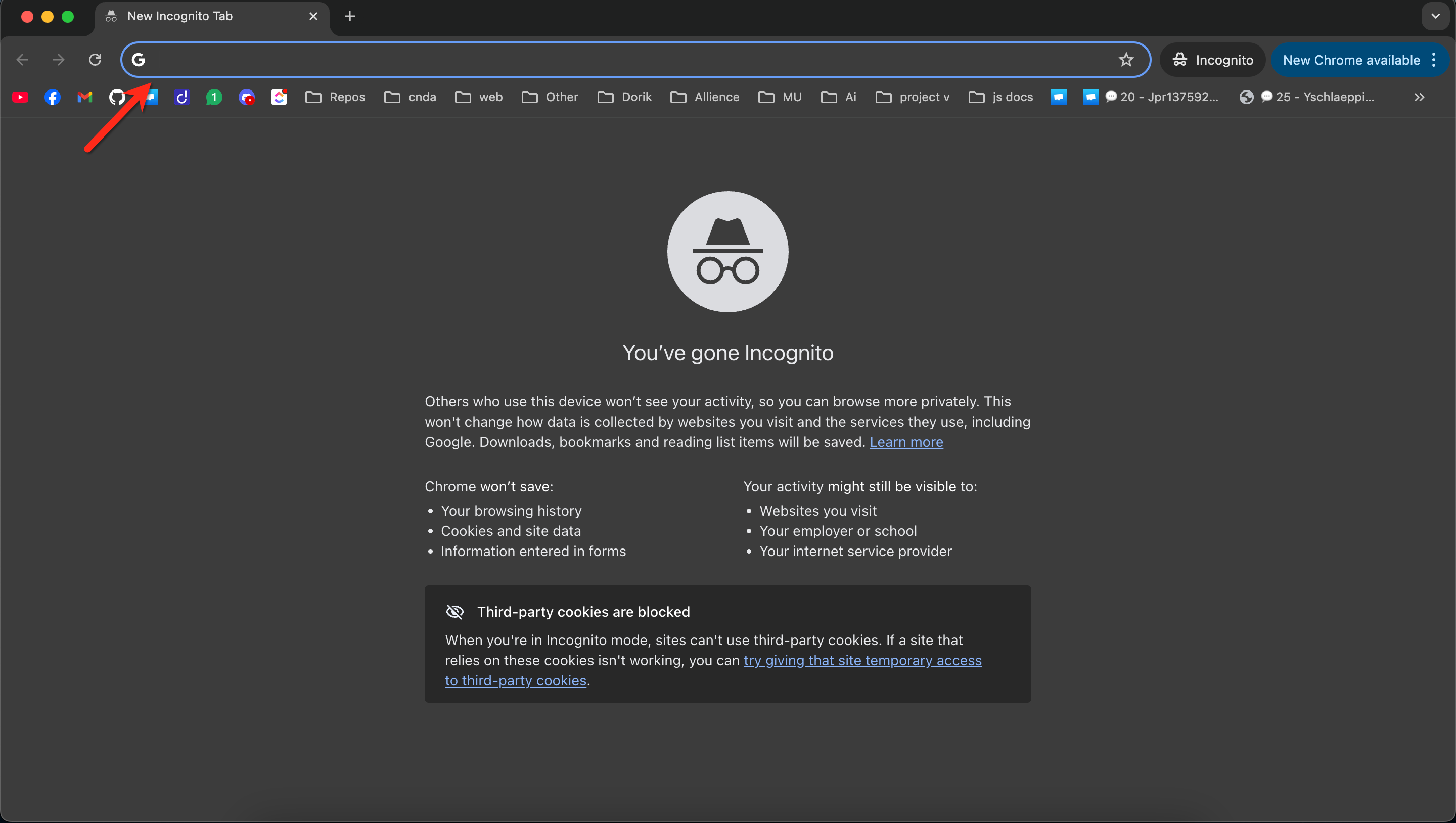
Step 2: Visit your website
Navigate to your website's homepage in the incognito window.

Step 3: Verify the banner appears
The consent banner should display immediately when the page loads. Check for:
Banner visibility (not hidden behind other elements)
Correct positioning (top, bottom, or center as configured)
All buttons present (Accept All, Reject All, Manage Preferences)
Readable text without layout issues
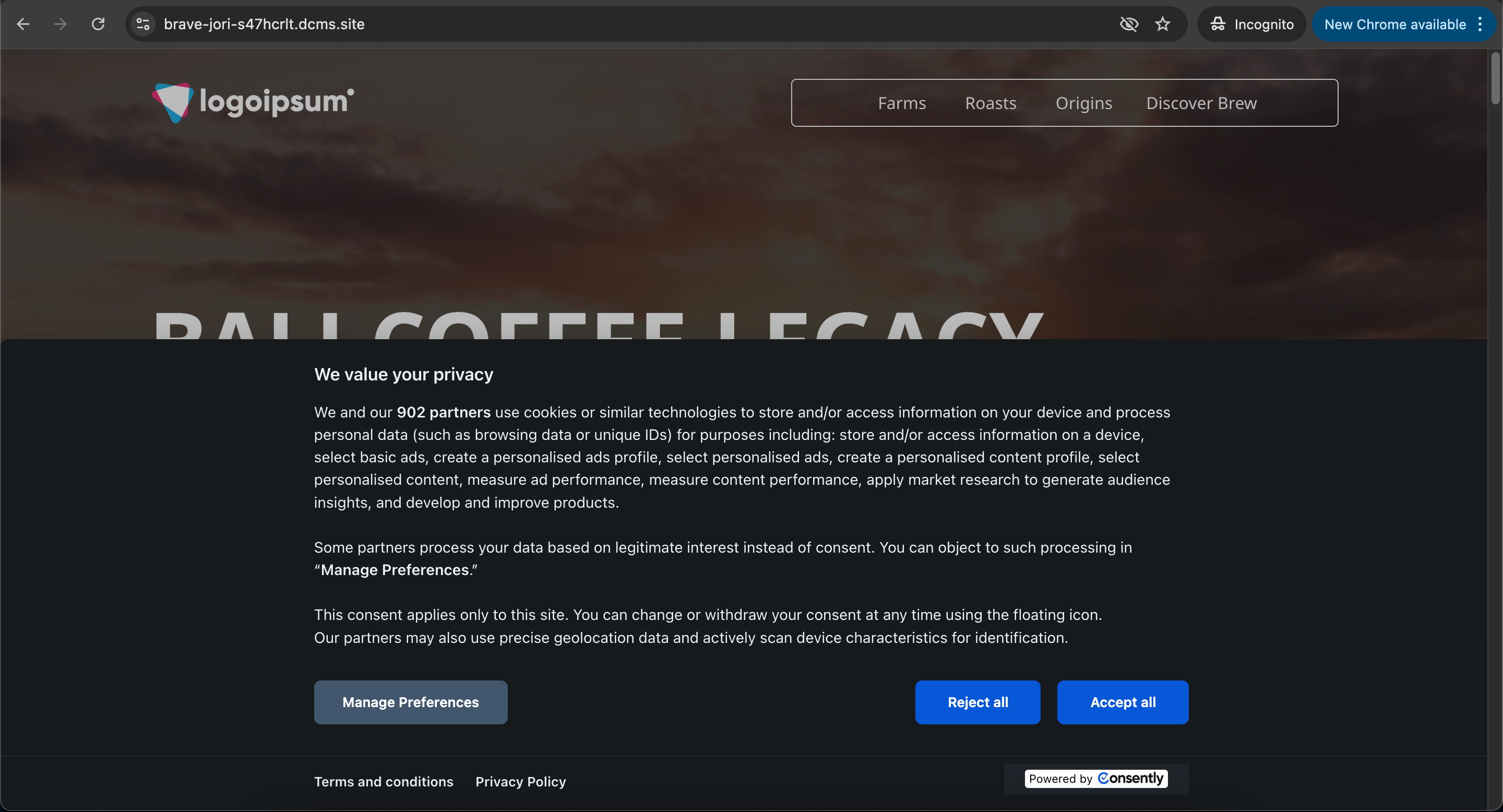
If the banner doesn't appear, proceed to the Troubleshooting section below.
Step 4: Open browser developer tools
Press F12 (all browsers) Or right-click the page and select Inspect to open developer tools.
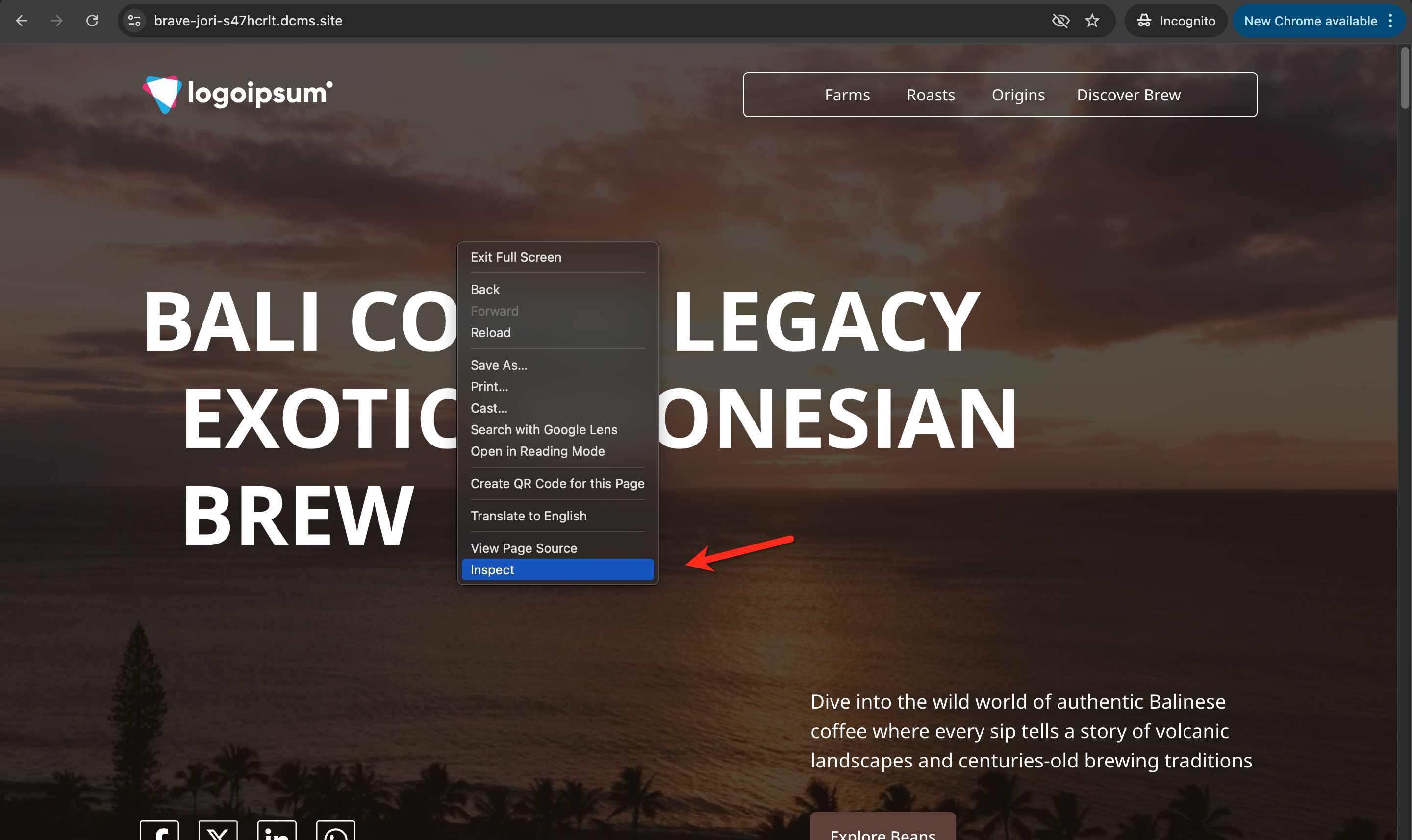
Step 5: Check the Console for errors
Click the Console tab in developer tools and look for any error messages related to Consently or consent. A successful installation shows no errors.
Common error indicators:
Red error messages mentioning
consently.js404 errors (script not found)
JavaScript syntax errors
If you see errors, note the exact message for troubleshooting.

Step 6: Verify the script loaded
Click the Network tab in developer tools, then refresh the page. Filter for consently.js In the search box and verify:
The script appears in the network list
Status code is
200(success)Size shows the script loaded (typically 20-40 KB)
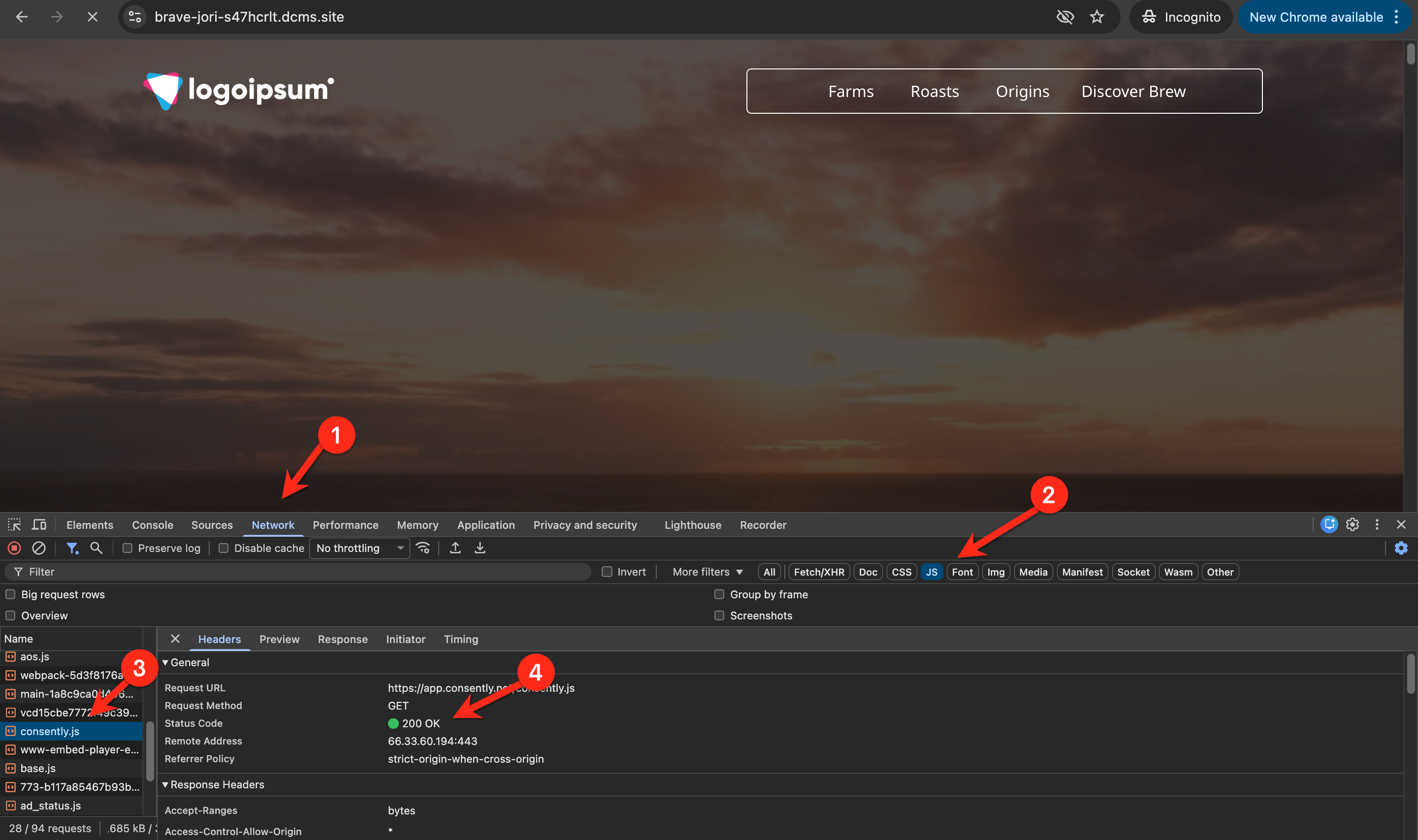
Step 7: Check cookies are blocked
Before interacting with the banner, click the Application tab (Chrome/Edge) or Storage tab (Firefox) in developer tools, then expand Cookies and select your website domain.
You should see:
Essential cookies only — If properly configured, non-essential cookies (analytics, advertising, social) should not be present yet
No tracking cookies from Google Analytics, Facebook Pixel, or other services
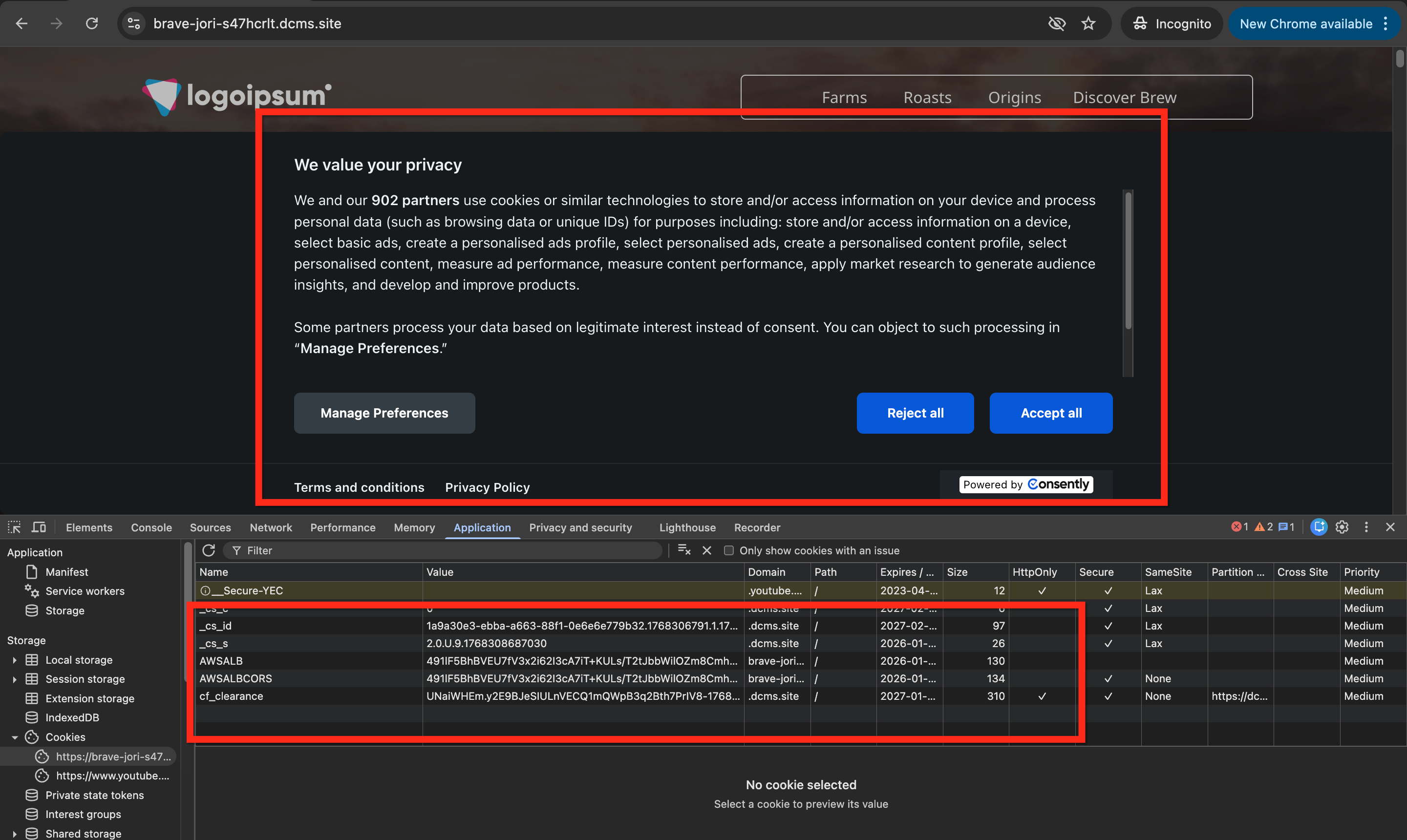
⚠️ Important: If you see analytics or advertising cookies already present, your installation has a cookie blocking problem. Non-essential cookies are loading before consent is granted, which violates GDPR and other privacy laws.
Step 8: Grant consent
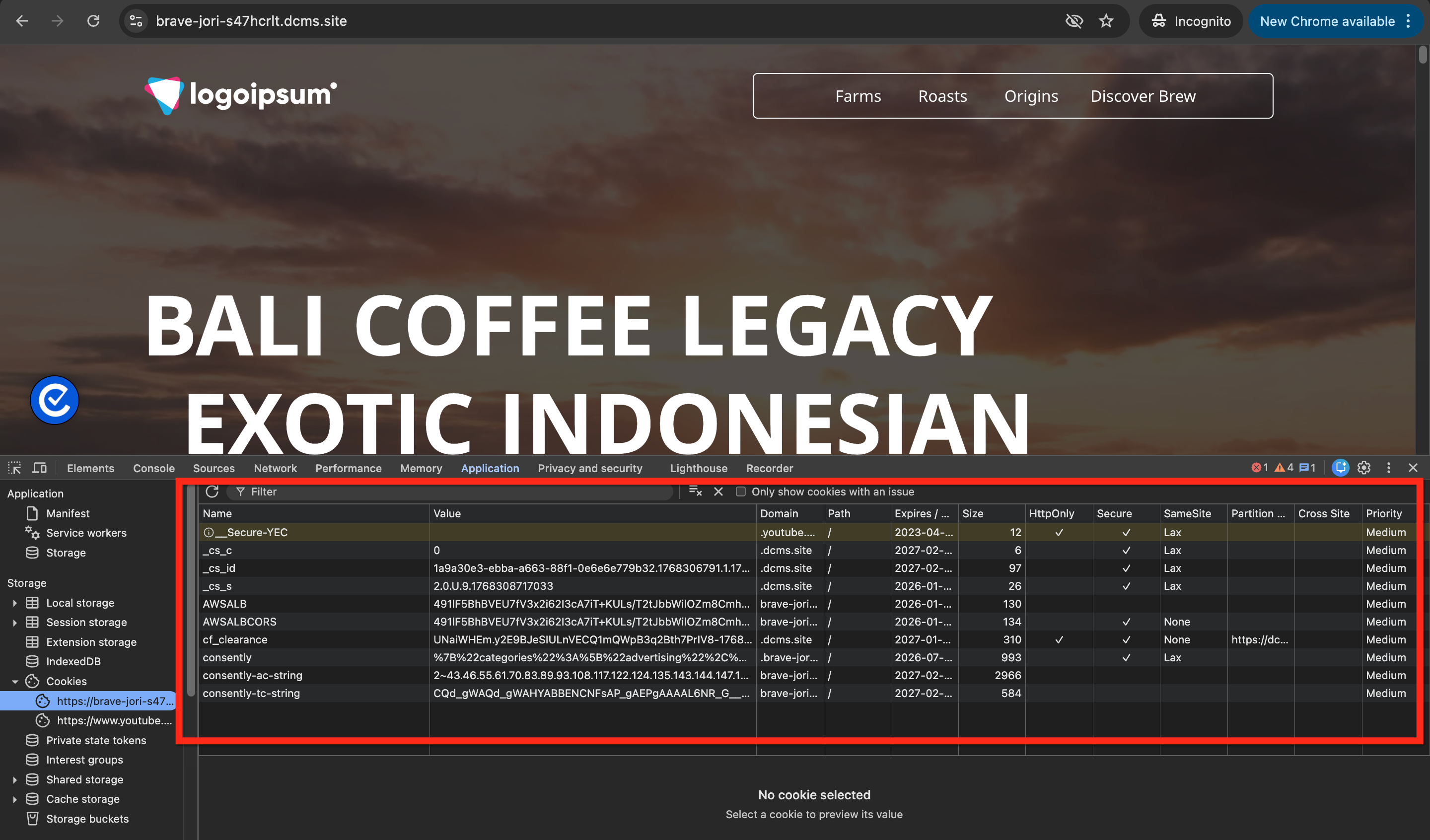
Click Accept All on the banner to grant consent for all cookie categories.
Step 9: Test the floating icon
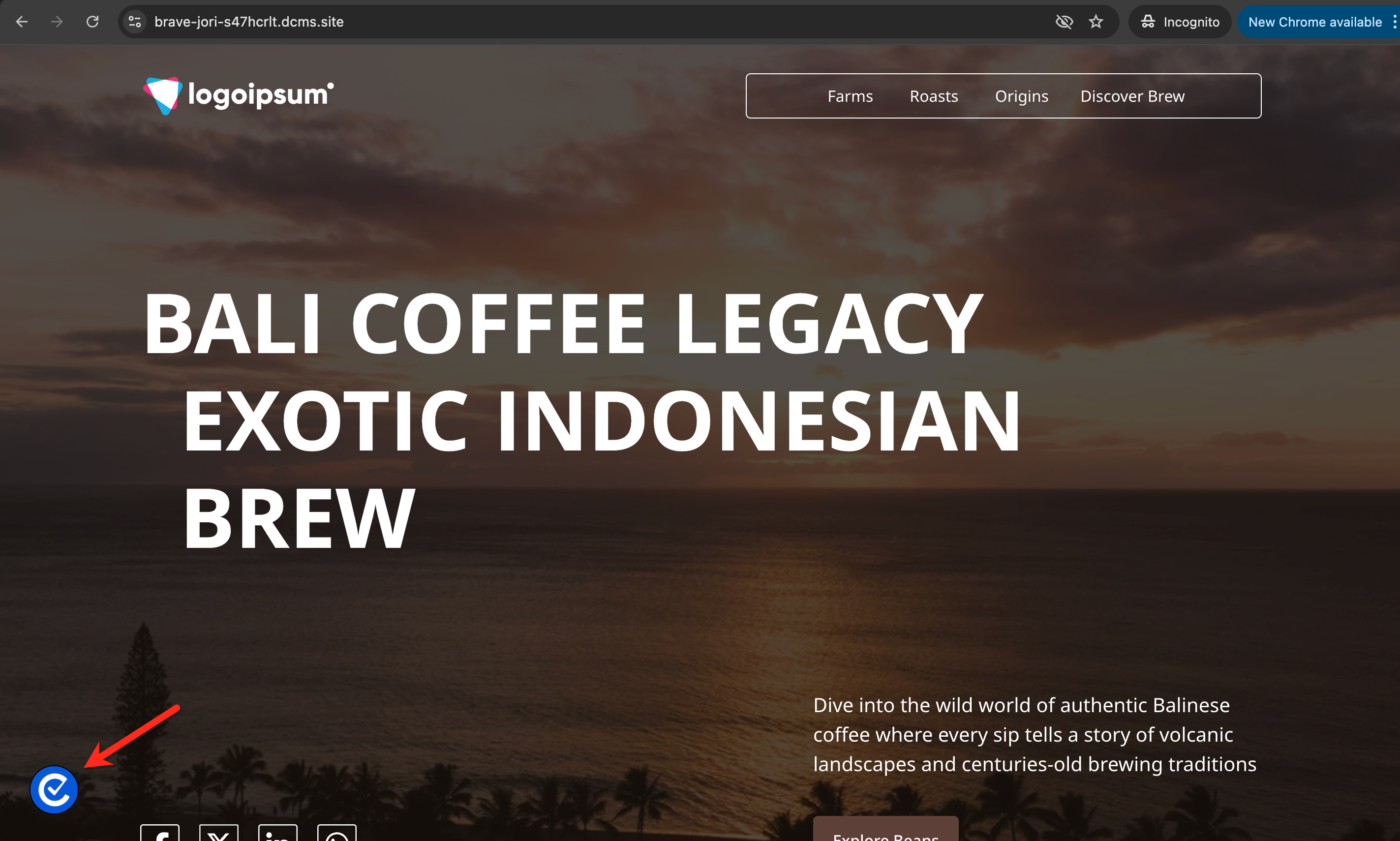
Scroll through the page and locate the floating consent icon (typically in a corner). Click it to verify the preference center reopens, allowing visitors to modify their choices.
Step 10: Test consent withdrawal
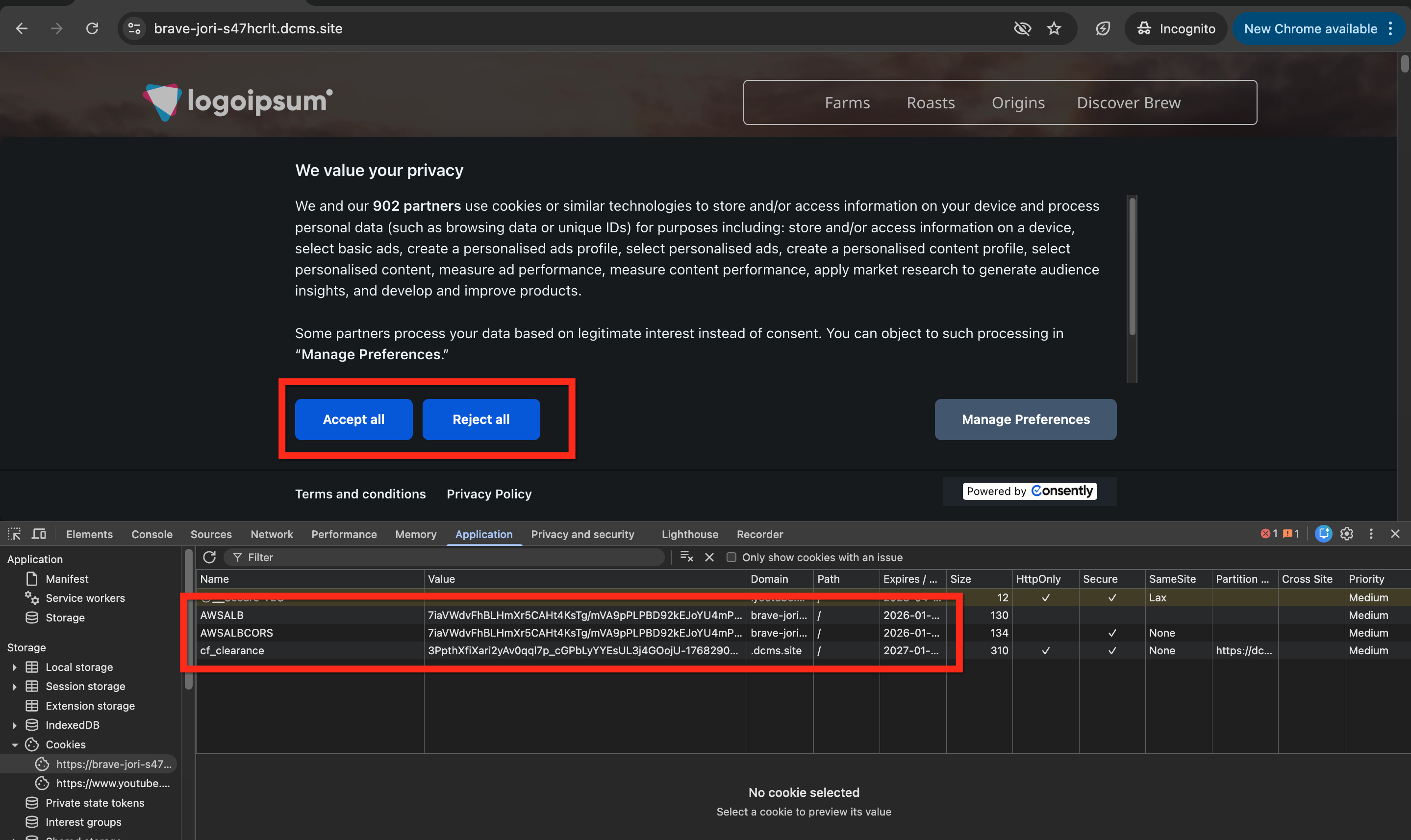
In the preference center, click Reject All or disable specific categories, then click Save Preferences. Refresh the page and check the Application → Cookies tab again—non-essential cookies should be removed or stop functioning.
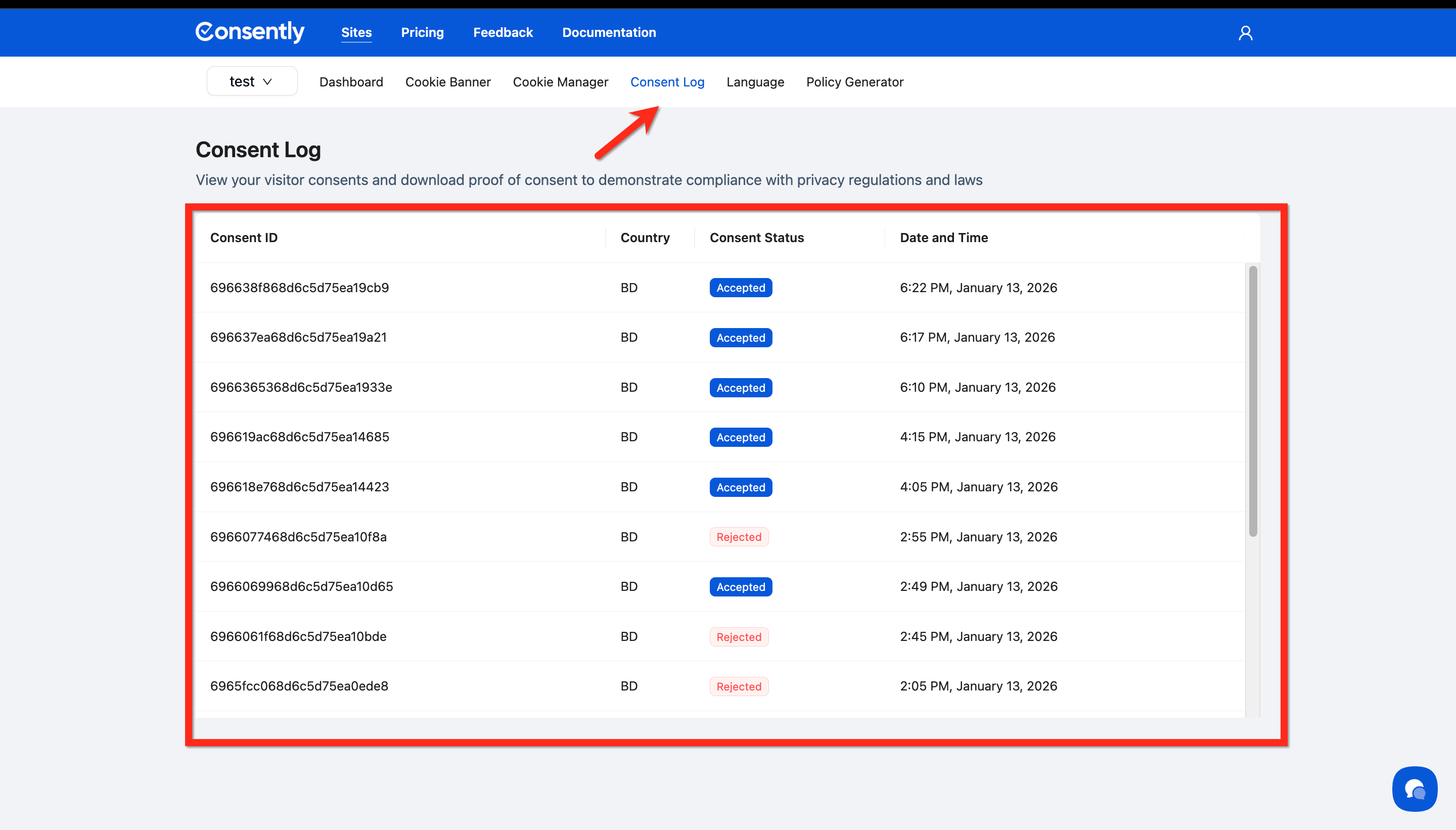
Step 11: Check the Consent Log
Return to your Consently dashboard and navigate to Consent Log. Verify your test consent actions appear in the log with:
Correct timestamp
Your country/location
Consent status (Accepted All, Rejected All, or Custom)
Done!
Your Consently installation is working correctly if all tests passed.
✅ Success indicator: Banner appears immediately, cookies block until consent is granted, and consent choices are logged in the dashboard.
Multi-Device Testing
After desktop testing, verify the banner displays correctly on mobile and tablet devices:
Mobile Testing
Option 1: Use browser responsive mode
Press
F12to open developer toolsClick the device icon (Toggle Device Toolbar)
Select a mobile device from the dropdown
Verify the banner displays correctly at smaller screen sizes
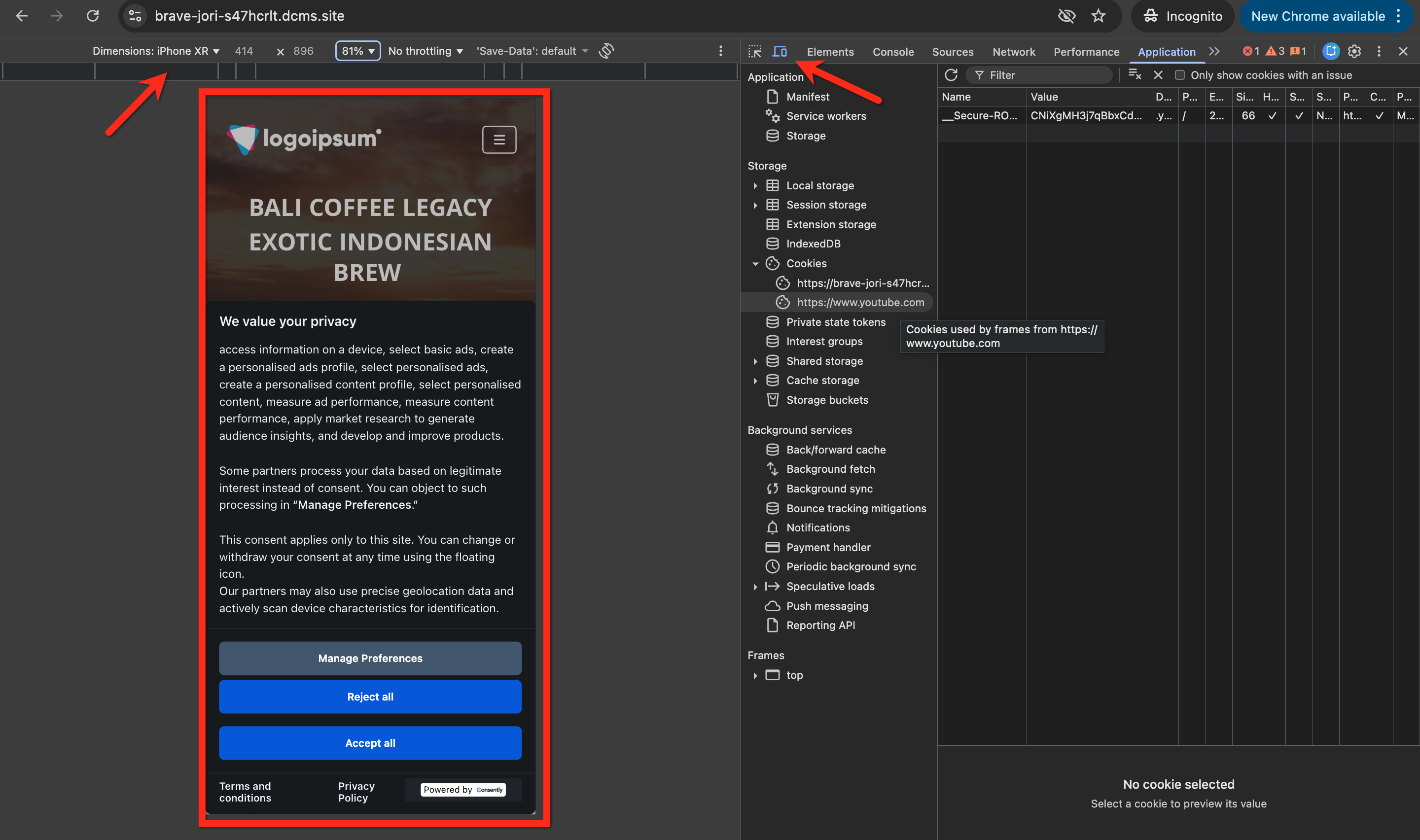
Option 2: Test on actual devices: Visit your website on your smartphone or tablet to verify real-world display. Check:
Banner fits the screen without horizontal scrolling
Buttons are easily tappable (not too small)
Text is readable without zooming
Banner doesn't cover critical content
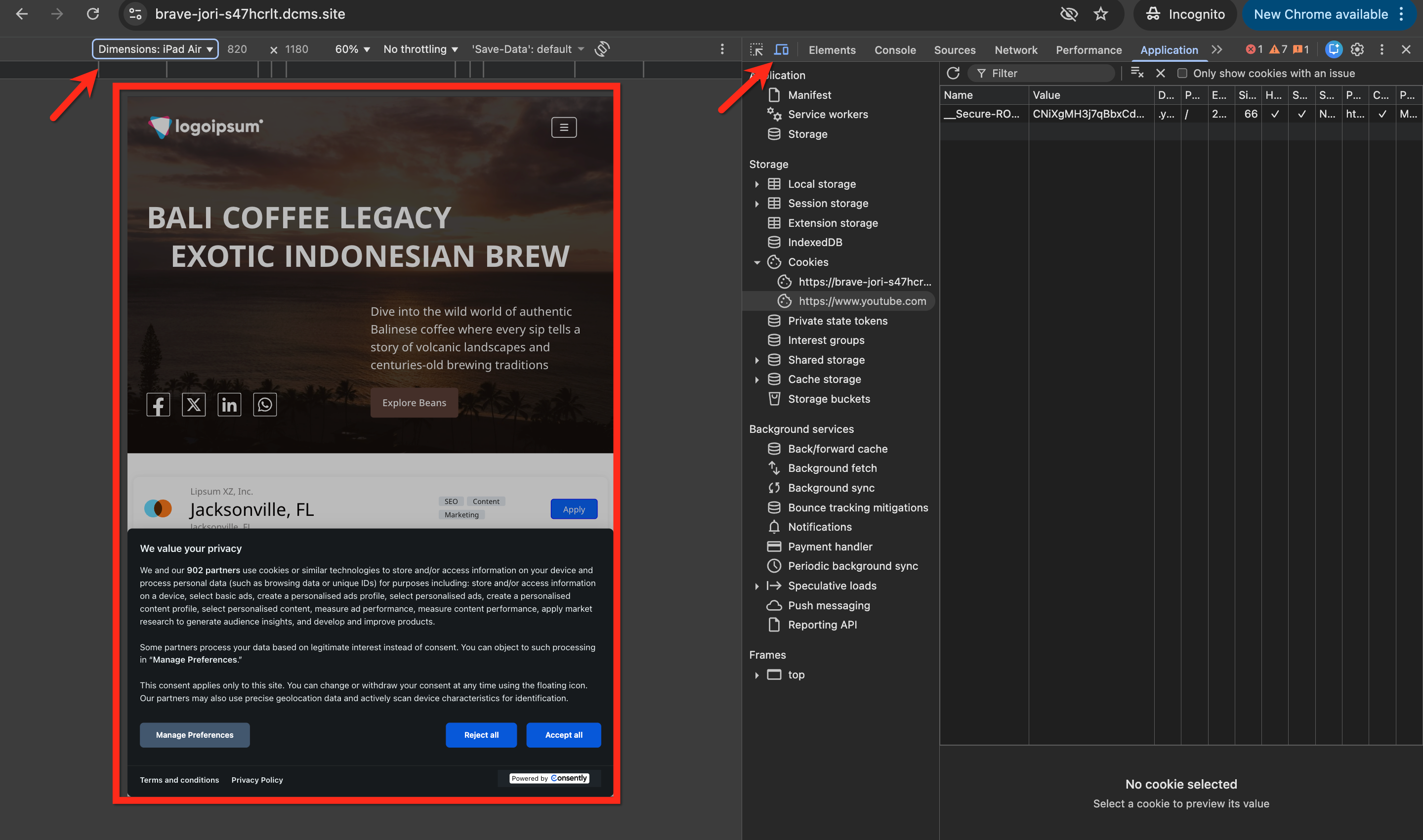
Tablet Testing
Use responsive mode or an actual tablet to test the mid-size screen experience. The banner should adapt appropriately between mobile and desktop layouts.
Advanced Testing Scenarios
Testing Location-Based Templates
If you enabled both GDPR and US State Laws templates, test that the correct template displays based on the visitor's location:
Method 1: Use a VPN
Connect to a VPN server in the EU (for GDPR template)
Visit your website in incognito mode
Verify the GDPR (opt-in) banner appears
Disconnect and connect to a US server
Verify the US State Laws (opt-out) banner appears
Method 2:
Manual verification: If you can't use a VPN, verify that both templates are enabled in your dashboard and check the banner content matches the expected model (opt-in vs opt-out) for your location.
Testing Google Consent Mode v2
If you use Google Analytics or Google Ads, verify consent signals pass correctly:
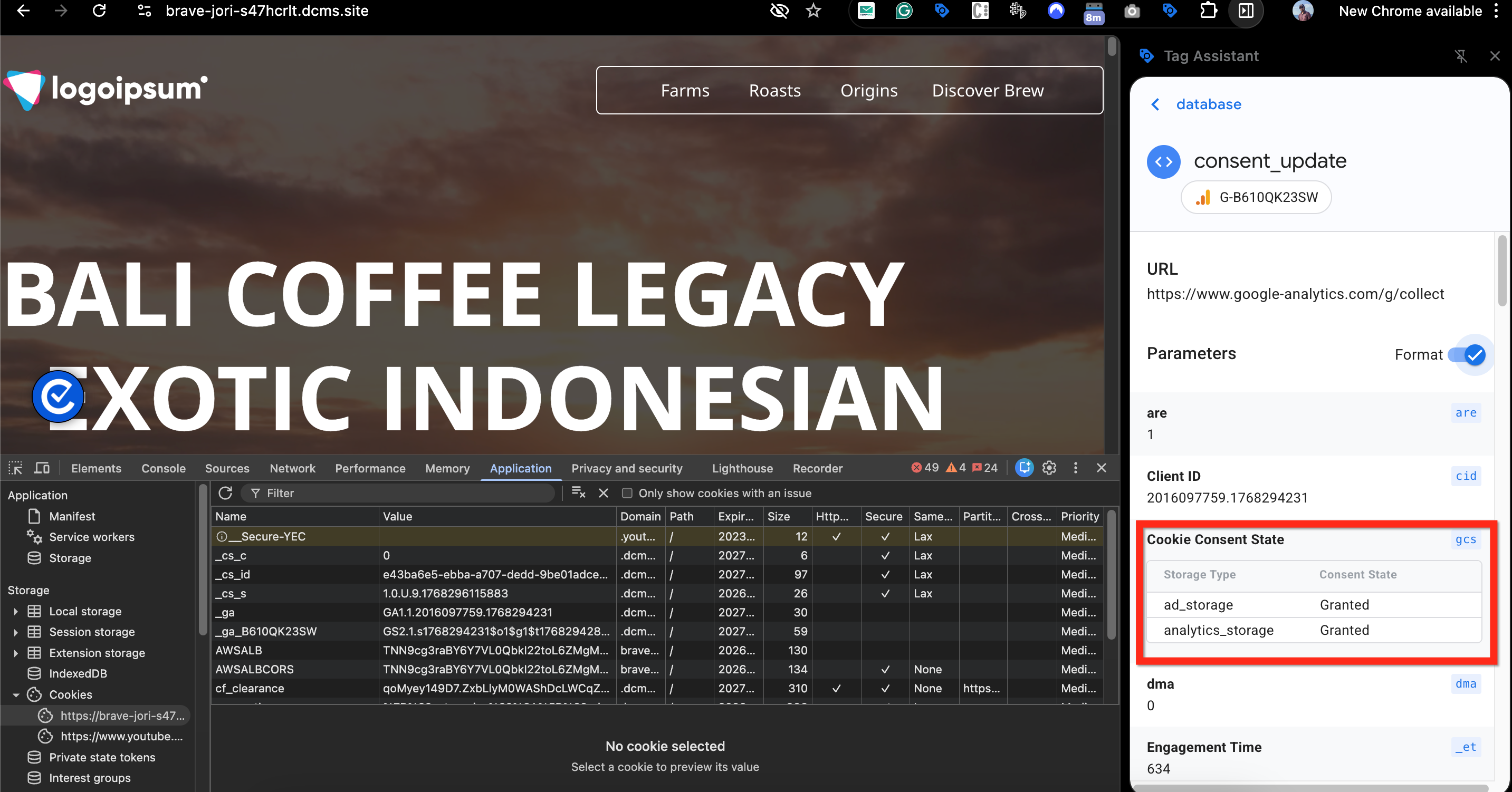
Install the Google Tag Assistant Chrome extension
Visit your website with the extension active
Check that consent mode signals show proper states:
- Before consent: denied for ad_storage and analytics_storage
- After consent: granted for accepted categoriesThis confirms that Google Consent Mode v2 integration works
Testing IAB TCF Integration
If you enabled IAB TCF settings:
Open your website with the cookie banner enabled.
Open Developer Tools (F12) → go to the Console tab.
Run the following JavaScript to check the consent status:
__tcfapi('getTCData', 2, function(tcData, success) {
  console.log('Success:', success);
  console.log('TC String:', tcData?.tcString);
});
What to expect:
Before interacting with the banner (no action yet),
successshould betrueandtcStringmay be empty.After clicking Accept or Reject,
successremainstrueandtcStringwill show a valid ID representing the consent choices.
You can then decode this TC string at iabtcf.com decoder to see exactly which purposes and vendors the user consented to.
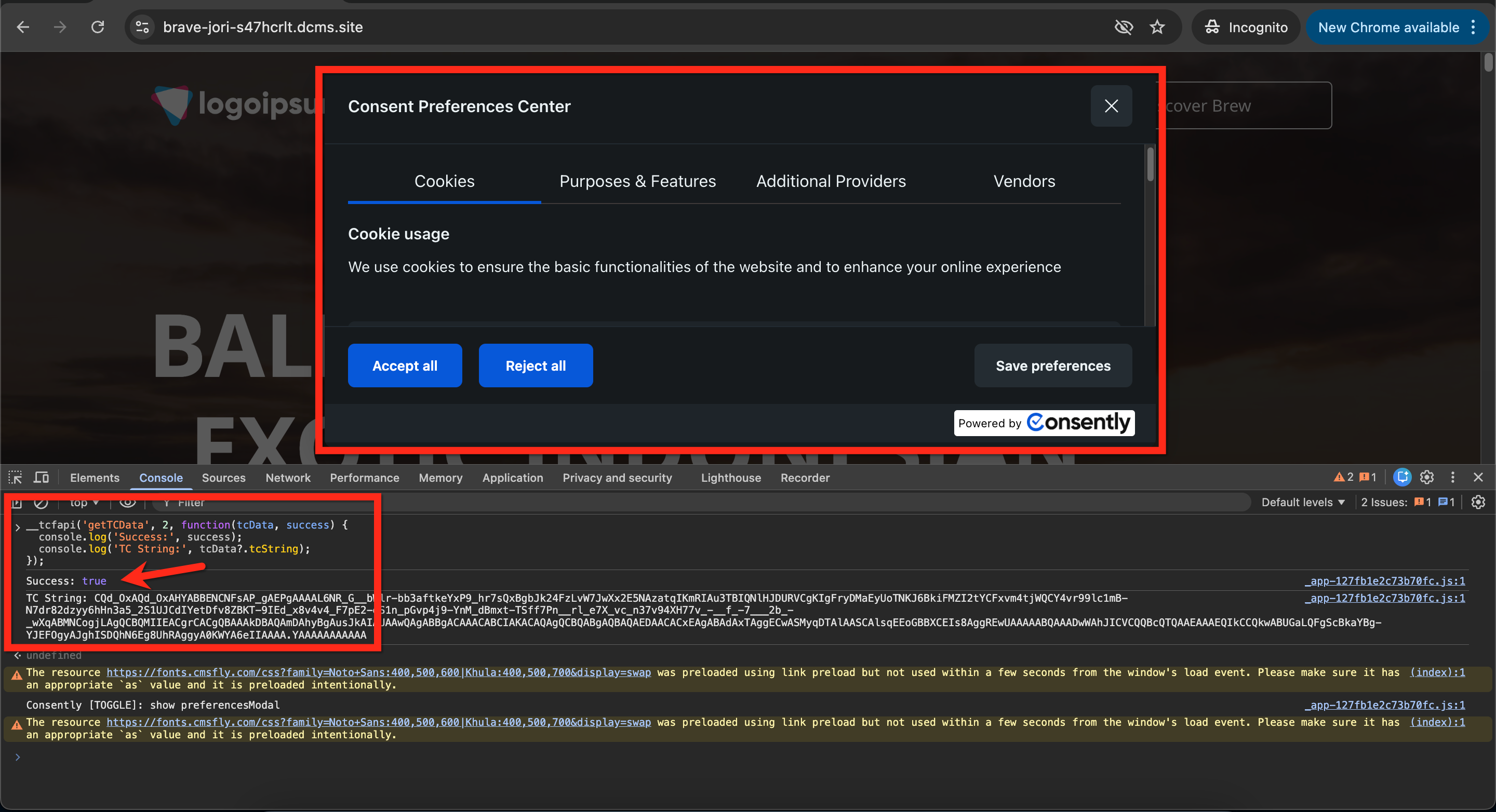
Alternatively, click Manage Preferences in your banner and verify that the vendor list and purpose list display correctly under the consent options.
What's Next
Now that your installation is verified, you should:
Monitor your Consent Log regularly to track visitor consent patterns
Review Consent Analytics to understand acceptance rates
Troubleshooting
The banner doesn't appear at all
Why this happens: The script isn't loading, isn't installed correctly, or the banner is unpublished.
Solution:
Open developer tools → Network tab and search for
consently.jsIf you see a
404error, the script isn't loading—verify you installed it correctly in your website's<head>sectionIf the script loads (200 status) but the banner doesn't appear, check that you published the banner in the Consently dashboard
Review your platform's installation guide to confirm correct placement
Check for JavaScript errors in the Console tab that might prevent banner initialization
The banner appears, but cookies aren't blocked
Why this happens: Other tracking scripts load before Consently initializes, or cookies are miscategorized.
Solution:
Verify the Consently script appears in your
<head>section BEFORE any other tracking scripts (Google Analytics, Facebook Pixel, etc.)If using Google Tag Manager, configure tag sequencing so Consently fires first
Check the Cookie Manager and verify non-essential cookies aren't miscategorized as Essential
Ensure that Enabled Necessary is turned OFF for non-essential categories
The banner appears multiple times
Why this happens: The script is installed in multiple locations on the page.
Solution:
Check if the script appears in both your theme header AND a plugin/tag manager
Use browser developer tools → Sources tab to search for
consently.jsand see how many instances loadRemove duplicate script installations, keeping only one instance in the
<head>section
The banner looks broken or has layout issues
Why this happens: CSS conflicts with your website theme, or JavaScript errors prevent proper rendering.
Solution:
Check the Console tab for JavaScript errors
Try viewing the site in incognito mode with browser extensions disabled
Test in a different browser to isolate browser-specific issues
If the problem persists, contact support with screenshots and your website URL
Cookies reappear immediately after rejecting
Why this happens: Third-party cookies may be set by external domains that Consently can't control, or page scripts are resetting cookies.
Solution:
Check which specific cookies are reappearing in the Application tab
If they're first-party cookies (same domain as your site), verify they're categorized correctly in Cookie Manager
If they're third-party cookies (different domain), they may be loaded by external services—contact those services to configure consent-based loading
Review your website code for scripts that manually set cookies without checking consent status
Related Pages
Direct HTML Installation — Verify script placement in your HTML
Troubleshooting Banner Issues — Additional solutions for banner problems