

TL;DR: Consently works with any website platform through a simple JavaScript snippet. For popular platforms like WordPress, Shopify, Wix, and Squarespace, we provide step-by-step installation guides tailored to each platform's interface.
Overview
Consently is platform-agnostic and installs via a single JavaScript snippet that works across all website builders, content management systems, and custom-coded sites. The installation method varies by platform—some let you paste code directly into theme files, while others provide custom code injection settings or require plugins.
Supported Platforms
Consently officially supports and provides dedicated installation guides for:
Website Builders
Content Management Systems
Joomla (covered in Other CMS Platforms)
Drupal (covered in Other CMS Platforms)
Ghost (covered in Other CMS Platforms)
Tag Management Systems
Custom & Static Sites
Direct HTML installation works for any website where you can edit the source code
Static site generators (Hugo, Jekyll, Gatsby, Next.js, etc.) use direct HTML installation
Choosing Your Installation Method
The right installation approach depends on your platform's capabilities:
Method 1: Custom Code Injection (Easiest)
Best for: Wix, Squarespace, Framer, Webflow, Shopify
These platforms provide built-in settings for adding custom code to your site header without editing theme files. Navigate to the platform's custom code or site settings area and paste the Consently script.
Advantages:
No file editing required
Updates don't overwrite your code
Simple copy-paste process
No technical knowledge needed
Platform examples:
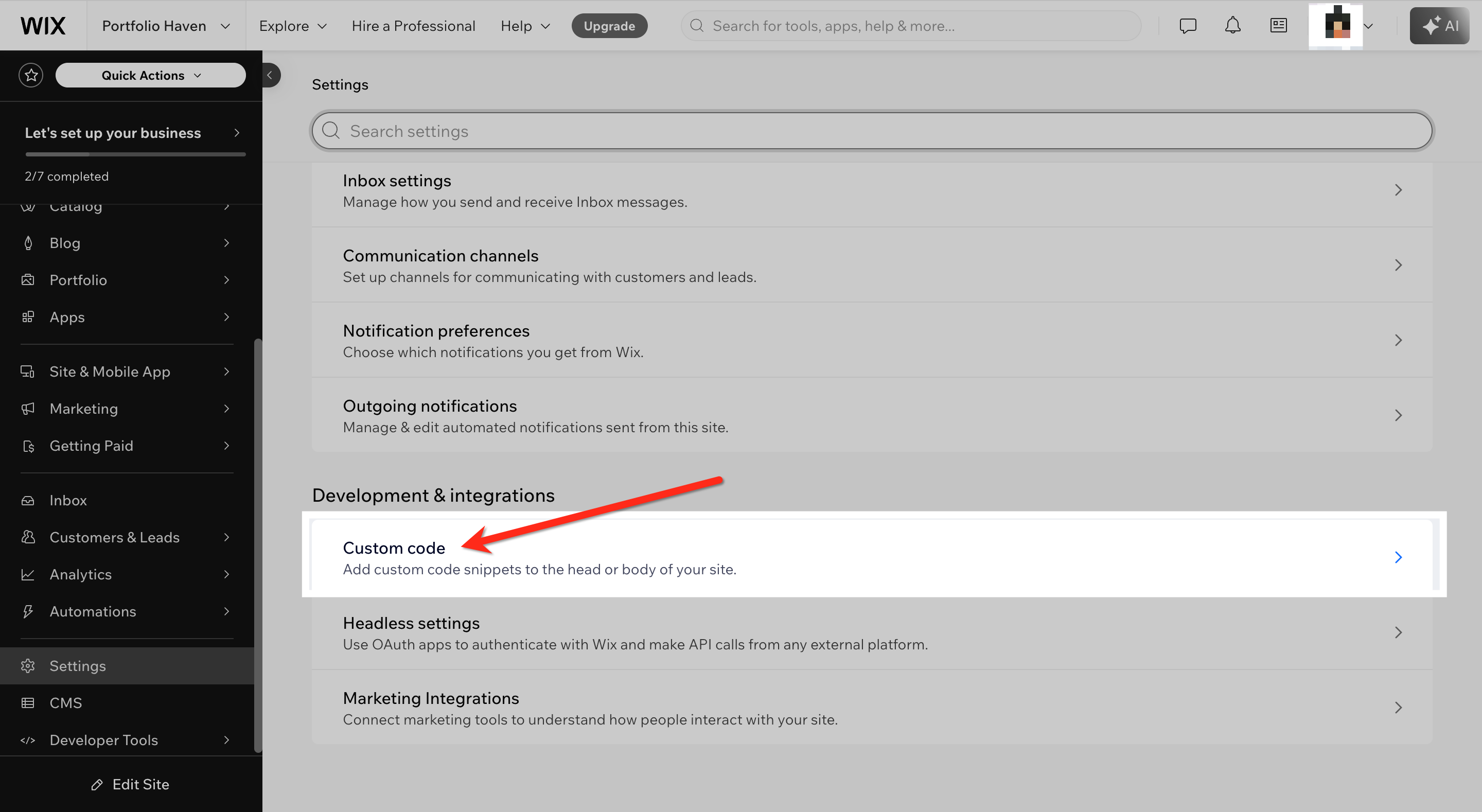
Wix: Settings → Custom Code → Add Code to Header
Squarespace: Settings → Advanced → Code Injection → Header
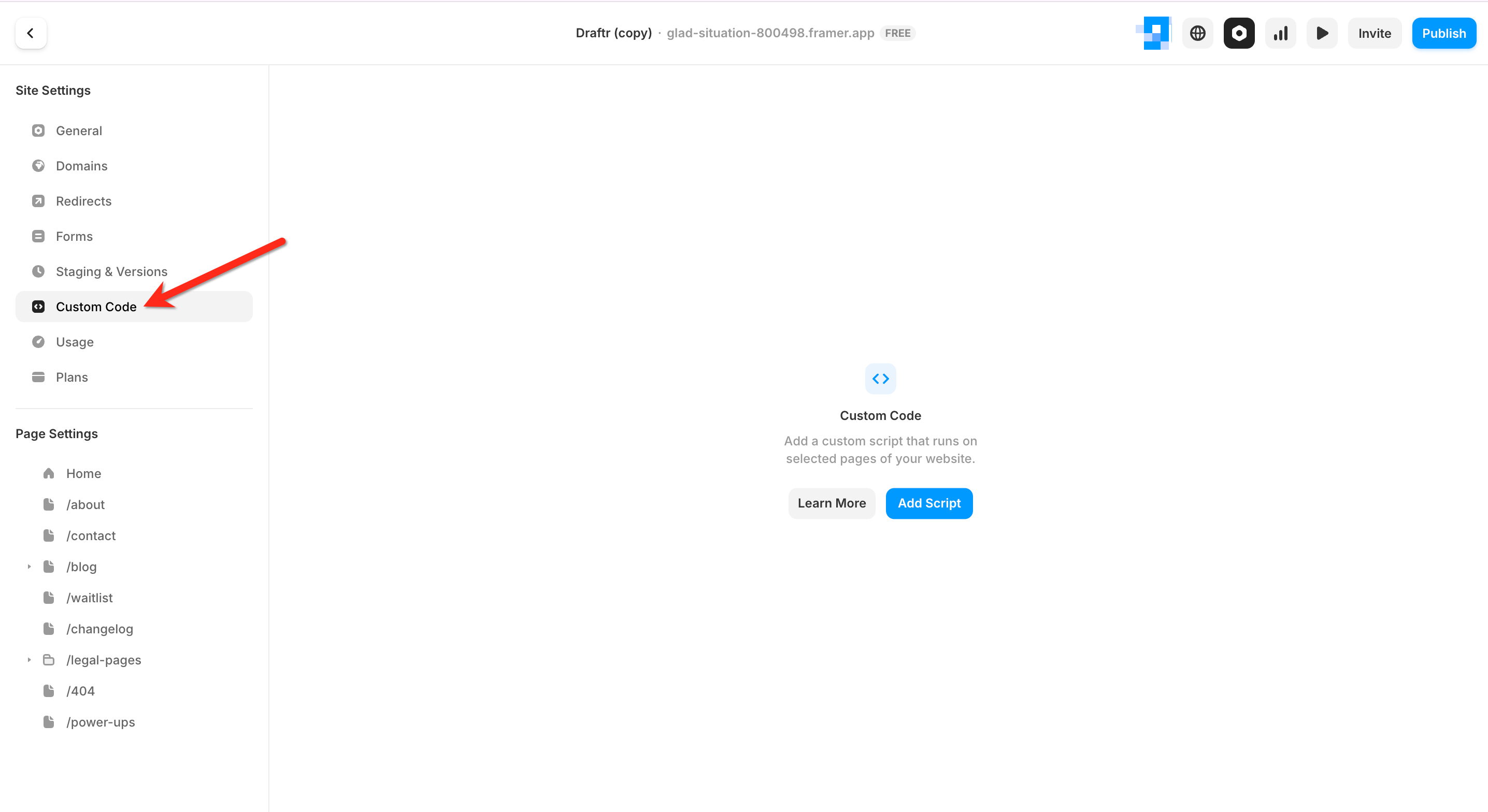
Webflow: Site Settings → Custom Code → Head Code
Method 2: Theme File Editing (Most Control)
Best for: WordPress, Shopify, Joomla, Drupal, custom sites
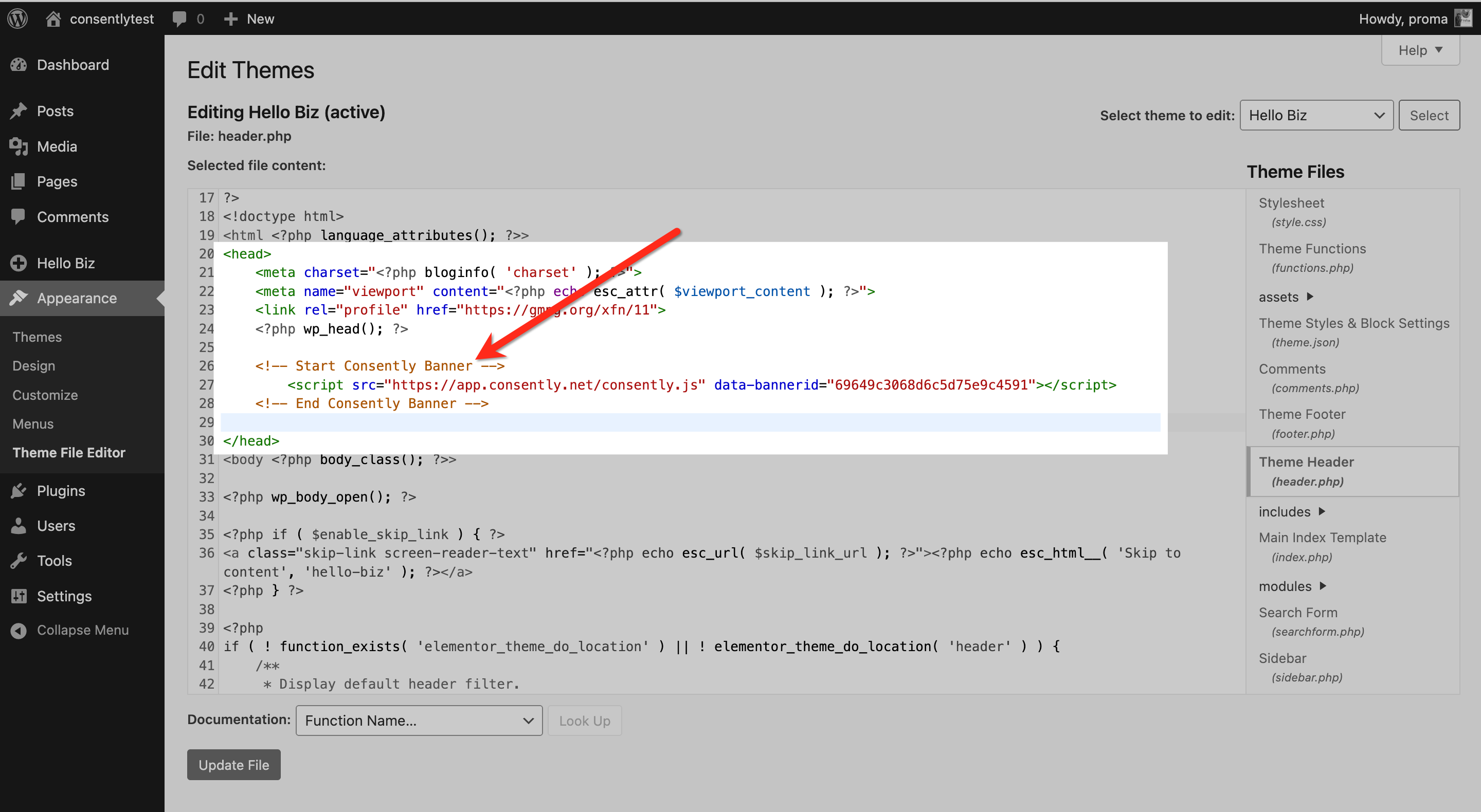
Platforms that expose theme files let you add the Consently script directly to your theme's header template (usually header.php, theme.liquid, or index.html). This method provides the fastest load time but requires accessing theme files.
Advantages:
Script loads immediately (no additional HTTP requests)
Maximum control over placement
Works with any platform that exposes code
Considerations:
Theme updates may overwrite changes (use child themes when possible)
Requires basic HTML knowledge
File access permissions needed
Platform examples:
WordPress: Appearance → Theme Editor → header.php (or use child theme)
Shopify: Online Store → Themes → Edit Code → theme.liquid
Method 3: Google Tag Manager (Most Flexible)
Best for: Websites with multiple tracking scripts, marketing teams managing tags
Google Tag Manager centralizes all your tracking scripts in one interface. Install Consently as a Custom HTML tag that fires on all pages.
Advantages:
Manage all tracking scripts from one dashboard
Non-developers can update without code access
Easy tag sequencing and consent mode integration
Multiple environment support (staging, production)
Considerations:
Slightly slower load time vs. direct HTML
Requires existing GTM installation
Must configure tag firing order correctly
Method 4: Plugins (Platform-Specific)
Best for: WordPress users who prefer plugin-based solutions
Some platforms have third-party plugins for adding header/footer code. WordPress users can use plugins like "Insert Headers and Footers" or "Head, Footer and Post Injections" to add the Consently script without editing theme files.
Advantages:
No direct file editing
Survives theme changes
User-friendly interface
Considerations:
Adds plugin dependency
May increase site overhead
Update compatibility required
CMS vs. Website Builder Differences
Understanding the distinction helps you choose the right installation guide:
Content Management Systems (CMS)
Examples: WordPress, Joomla, Drupal, Ghost
Characteristics:
Provide access to theme files and templates
Allow direct code editing (with appropriate permissions)
Support plugins/extensions for functionality
Often self-hosted or managed hosting
Installation approach: Typically, theme file editing or plugins. Advanced users can add code to theme functions or header includes.
Website Builders
Examples: Wix, Squarespace, Webflow, Framer
Characteristics:
Provide visual editing interfaces
Limit direct code access (by design)
Include built-in custom code injection features
Fully hosted by the platform
Installation approach: Use the platform's custom code settings. These are specifically designed for adding tracking scripts like Consently.
E-Commerce Platforms
Examples: Shopify, BigCommerce, WooCommerce (WordPress)
Characteristics:
Combine CMS functionality with store management
May have specific checkout/cart code injection areas
Often restrict certain code modifications for security
Support app/plugin ecosystems
Installation approach: Depends on the platform. Shopify uses theme file editing, WooCommerce follows WordPress methods, and BigCommerce provides custom code injection.
Finding Installation Settings
If your platform isn't listed in our guides, look for these common settings locations:
Settings to search for:
Custom Code
Code Injection
Header Code
Site Scripts
Analytics & Tracking
Advanced Settings → Custom HTML
Theme Customization → Additional Scripts
Common menu paths:
Settings → Advanced → Code Injection
Design → Custom Code
Site Settings → Scripts
Marketing → Analytics
Appearance → Theme Editor

If you can't find a code injection feature, your platform likely requires direct HTML installation by editing theme files or using GTM.
Platform Compatibility Matrix
Platform | Installation Method | Difficulty | Guide Available |
WordPress | Theme files or plugins | Easy | |
Shopify | Theme files (theme.liquid) | Easy | |
Wix | Custom code settings | Very Easy | |
Squarespace | Code injection settings | Very Easy | |
Webflow | Custom code tab | Very Easy | |
Framer | Site settings | Very Easy | |
Dorik | Custom code settings | Very Easy | |
Joomla | Template files | Medium | |
Drupal | Theme templates | Medium | |
Ghost | Code injection settings | Easy | |
Custom HTML | Direct code editing | Easy | |
Google Tag Manager | Custom HTML tag | Easy | |
Static Generators | Build templates | Medium |
What If Your Platform Isn't Listed?
If your website platform doesn't have a dedicated guide:
Try the general approach — Look for custom code injection settings in your platform's site settings or theme options
Check for header code features — Most modern platforms provide a way to add tracking scripts to the site header
Use Google Tag Manager — If your platform supports GTM, install Consently through GTM instead
Consult platform documentation — Search your platform's help docs for "custom code," "tracking scripts," or "Google Analytics installation" (the method is usually the same)
Contact support — Reach out to Consently support with your platform name, and we can provide specific guidance
Compatibility Guarantees
What's guaranteed:
Consently script works on any website that executes JavaScript
The script is tested across all major browsers (Chrome, Firefox, Safari, Edge)
The banner displays correctly on desktop, tablet, and mobile devices
What's not guaranteed:
Platform-specific admin interface instructions (platforms update their UIs regularly)
Compatibility with heavily customized or outdated platform versions
Integration with conflicting JavaScript libraries (rare but possible)
If you encounter compatibility issues, test your installation using browser developer tools to identify the problem.
What's Next
Choose your platform's installation guide:
For website builders — Select your platform: Dorik, Wix, Squarespace, Framer, Webflow
For CMS platforms — Select your platform: WordPress, Shopify, Other CMS
For tag management — Use Google Tag Manager
For custom sites — Use Direct HTML Installation