

TL;DR: Site Dashboard → Advance Settings → Consent Mode dropdown → Select Basic or Advanced → Save Settings. Basic blocks all Google tags until consent is granted; Advanced lets tags load immediately in a restricted state to enable Google's conversion modeling.
Overview
Google Consent Mode v2 controls how Google tags (GTM, gtag.js, Google Analytics, Google Ads) behave before a visitor grants consent. Consently supports two configurations—Basic and Advanced—each making a different trade-off between privacy protection and measurement accuracy. Choosing the right one depends on your audience, your compliance requirements, and how much you rely on Google's advertising and analytics tools.
How Each Mode Works
Basic Consent Mode
Google tags are completely blocked from loading until the visitor explicitly grants consent via your banner. Before consent is given, nothing is transmitted to Google—no cookies, no network requests, no pings of any kind.
Before consent:
Google tags do not load
No cookies are set
No data is sent to Google
After consent is granted:
Tags activate and begin full tracking
Data collection resumes according to the visitor's preferences
After consent is rejected:
Tags remain blocked
No data is collected, including the visitor's consent status
Best for: Websites serving primarily EU/EEA audiences where strict GDPR compliance is the priority, or where legal counsel requires zero pre-consent data transmission.
Advanced Consent Mode
Google tags load immediately but operate with denied consent defaults. While consent is pending or denied, tags send cookieless pings—small signals containing only non-identifying information such as timestamps, browser type, and consent state. No cookies are set and no personal data is transmitted until consent is granted.
Before consent / while consent is denied:
Google tags load with denied defaults
No cookies are set
Cookieless pings are sent to Google (non-identifying only)
Consent banner is shown to collect preferences
After consent is granted:
Tags activate with full functionality
Standard measurement and conversion tracking resume
After consent is rejected:
Tags continue sending cookieless pings only
analytics_storage,ad_storage,ad_user_data, andad_personalisationremain deniedNo personal data or cookies are used
Best for: Businesses that rely on Google Ads or Google Analytics for conversion tracking and want to preserve measurement accuracy through Google's advertiser-specific modeling, while still respecting visitor privacy.
Side-by-Side Comparison
Basic | Advanced | |
|---|---|---|
Google tags before consent | ❌ Blocked entirely | ✅ Load with denied defaults |
Cookies before consent | ❌ None | ❌ None |
Data sent to Google before consent | ❌ None | ✅ Cookieless pings only (non-identifying) |
Cookies after consent granted | ✅ Full tracking | ✅ Full tracking |
Cookies after consent rejected | ❌ None | ❌ None |
Conversion modeling | General model (less accurate) | Advertiser-specific model (more accurate) |
Behavioral modeling in GA4 | ❌ Not available | ✅ Available |
Implementation complexity | Lower | Higher |
Privacy level | Maximum | High |
Which Mode Should You Choose?
Choose Basic if:
Your top priority is strict legal compliance with zero pre-consent data transmission
You don't rely heavily on Google Ads conversion data or GA4 behavioral modeling
You want a simpler setup with minimal ongoing maintenance
Choose Advanced if:
Your business depends on accurate conversion tracking and ad optimization
You want Google to use its advertiser-specific modeling to fill gaps from non-consenting visitors
You have the technical resources to support and verify the configuration
💡 Tip: If you're unsure where to start, Basic Mode is the safer default. You can switch to Advanced later once your compliance posture is established and you need better measurement accuracy.
⚠️ Important: This choice has legal implications. Consently implements both modes correctly as a Google-certified CMP—but which mode applies to your situation depends on your specific regulatory requirements. Consult your legal counsel if you are unsure.
How to Switch Between Basic and Advanced
Step 1: Open your site dashboard
Click Sites in the top navigation, then click Dashboard next to your website.
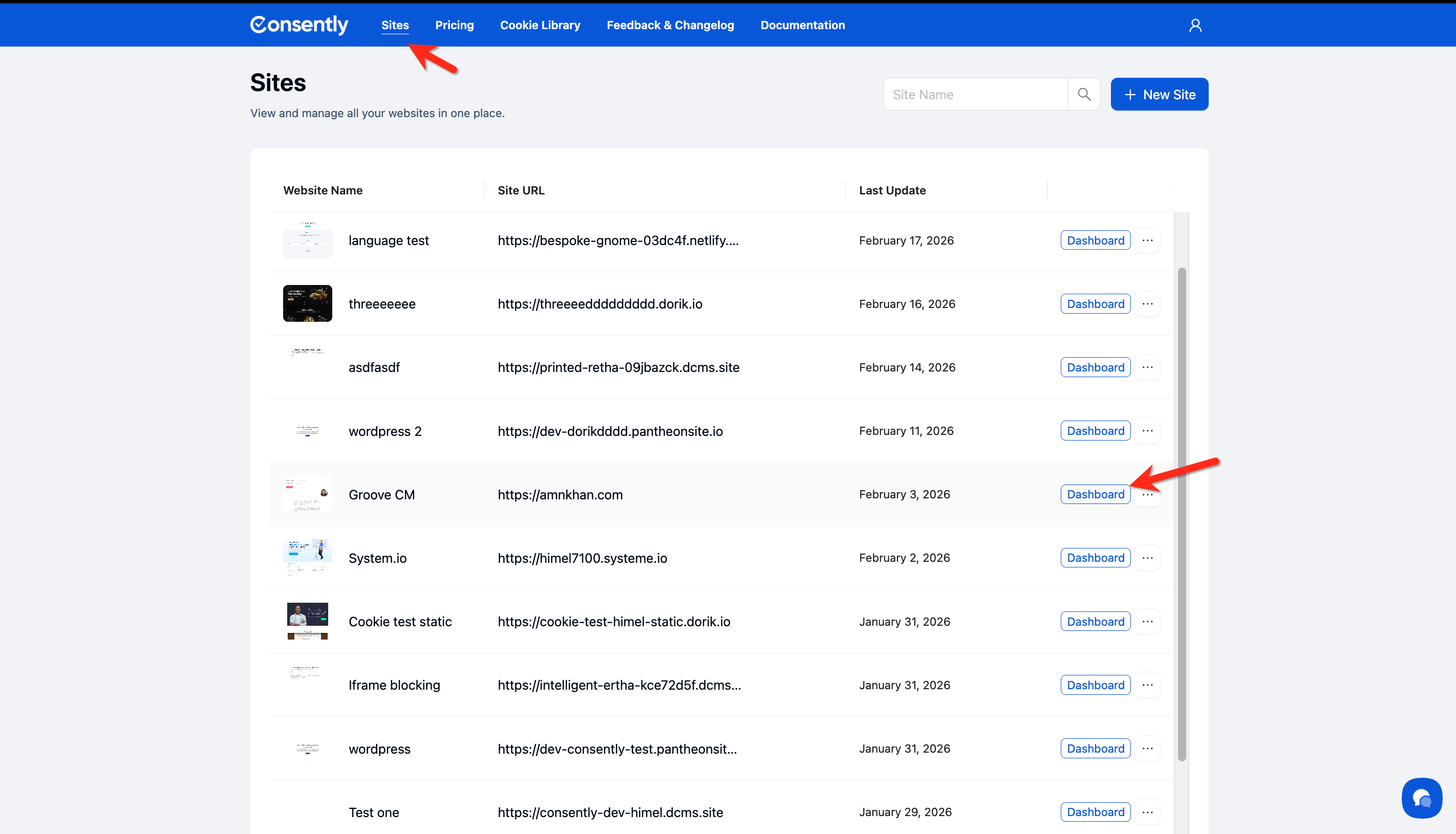
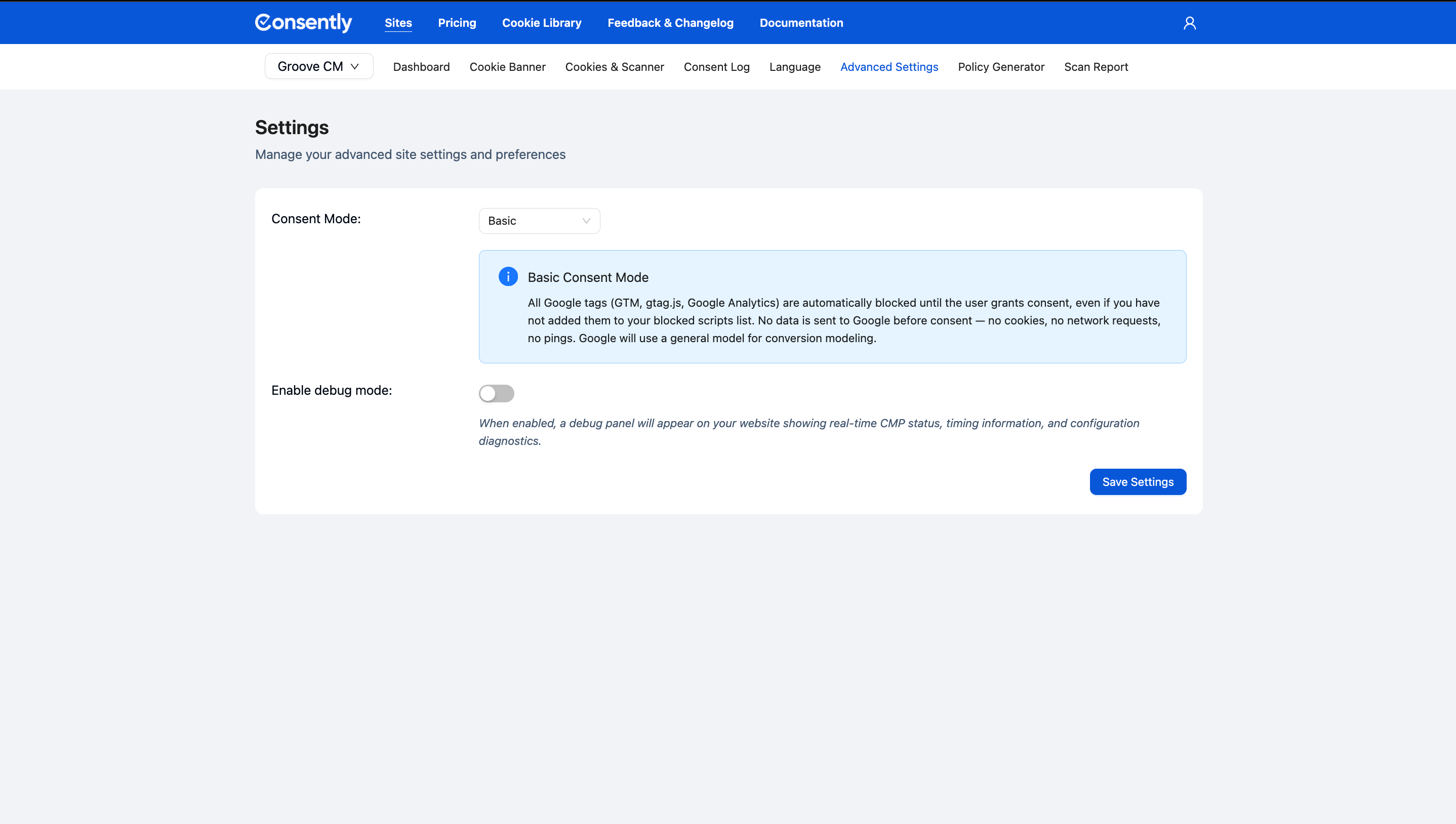
Step 2: Navigate to Advanced Settings
Click the Advanced Settings tab in the site navigation bar.
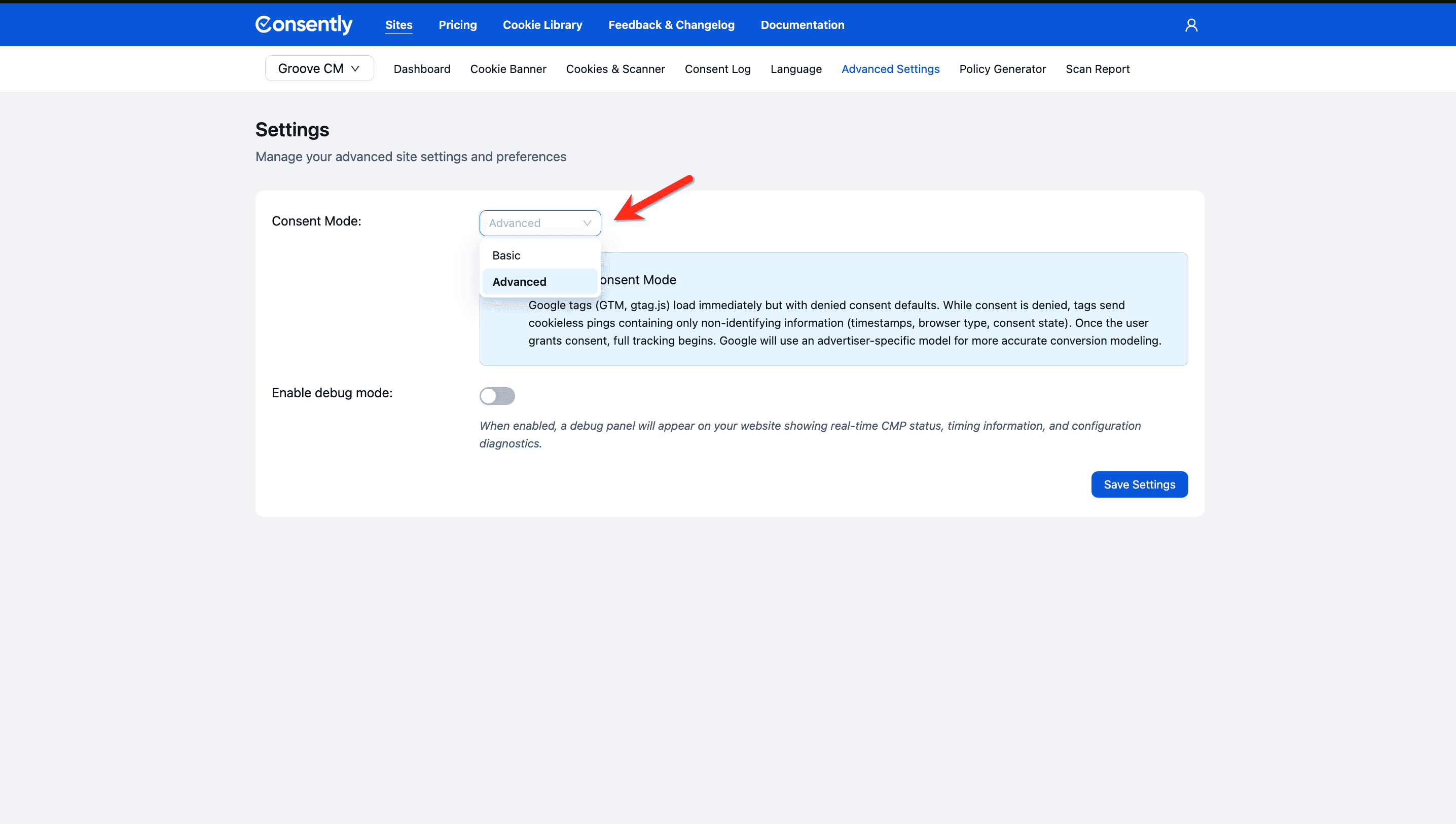
Step 3: Select your Consent Mode
Click the Consent Mode dropdown and select either Basic or Advanced.
An information panel appears immediately below the dropdown summarizing the behavior of your selected mode.
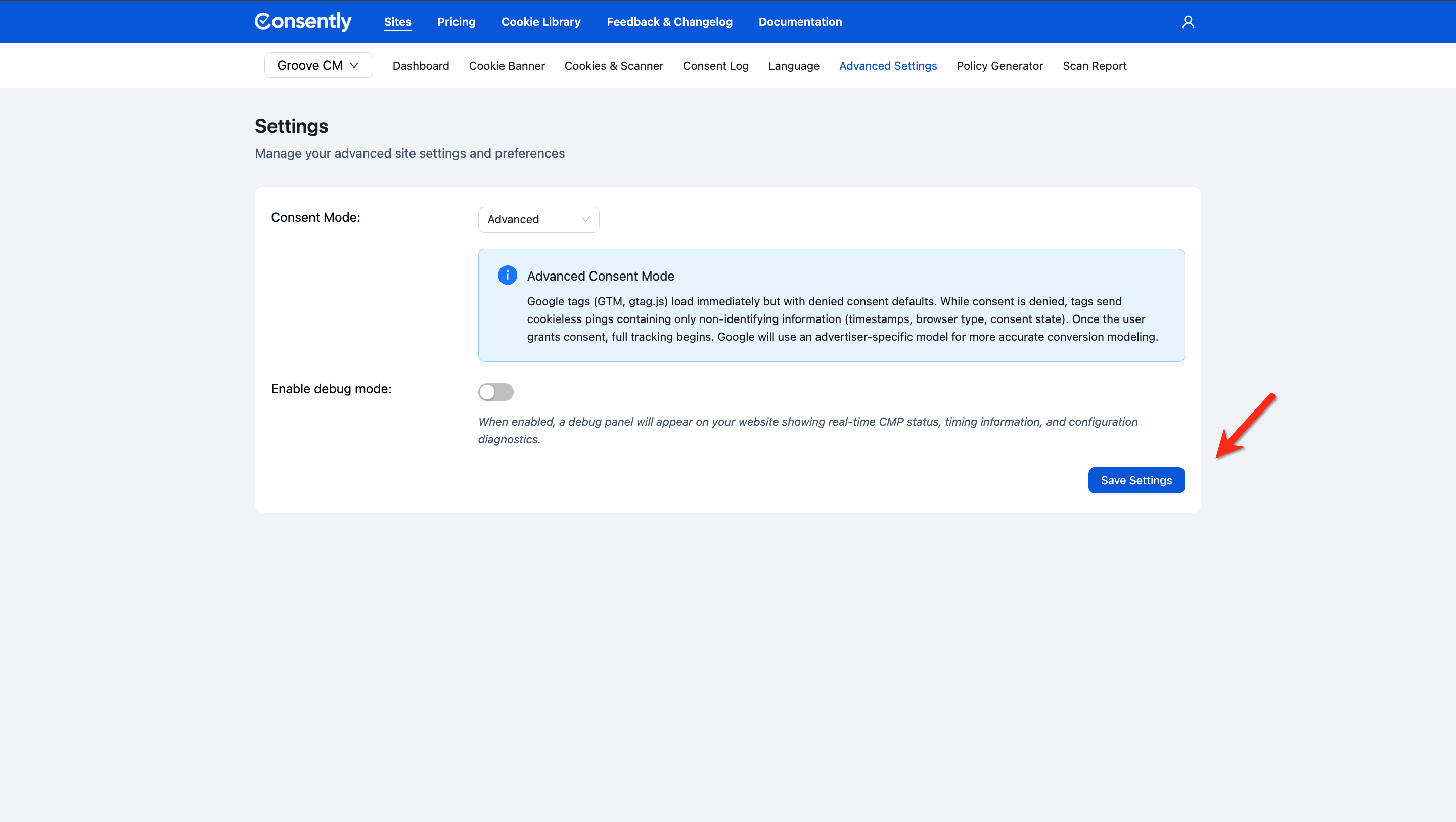
Step 4: Save your changes
Click Save Settings.
Done!
Your selected Consent Mode is now active for this site.
✅ Success indicator: The information panel updates to reflect the selected mode before you save, confirming your choice.
What's Next
Now that you've configured your Consent Mode, you should:
Google Consent Mode v2 — Understand how Consently passes consent signals to Google Analytics and Google Ads
Cookie Auto-Blocking — See how Consently enforces consent decisions by blocking non-essential cookies
Troubleshooting
Google tags are firing before consent is given
Why this happens: This indicates your site may be running in Advanced Mode when Basic was intended, or the Consently embed script is not installed correctly.
Solution:
Confirm the Consent Mode dropdown in Advanced Settings shows Basic
Verify your embed script is installed in the
<head>of every page — see Embedding the Banner ScriptUse the Enable debug mode toggle in the same settings screen to surface real-time CMP diagnostics on your site
I switched modes, but my Google Analytics data looks unchanged
Why this happens: Mode changes apply going forward only — historical data already collected is not affected. Changes also take 24–48 hours to appear in Google Analytics reports.
Solution: Allow at least 24 hours after saving. If the issue persists after 48 hours, verify your embed script is active by checking the Dashboard tab for your site.
Cookieless pings are appearing in network requests even though consent was rejected
Why this happens: This is expected behavior in Advanced Consent Mode. Cookieless pings are a core feature of Advanced Mode — they contain only non-identifying signals (timestamps, browser type, consent state) and no personal data or cookies.
Solution: If you need to prevent all pre-consent data transmission to Google, switch to Basic Consent Mode.
💡 Tip : For any issue with consent signals on your site, start with Consently support at support@consently.net . We can inspect your banner configuration directly — Google Support cannot.
Related Pages
Google Official Documentation — Google official documentation of Consent mode
Certifications — Consently's Google CMP certification and what it means for your compliance posture
Understanding Consent Frameworks — GDPR, CCPA, and the regulatory context behind consent mode requirements