

TL;DR: Dashboard → Sites → ⋮ Menu → Embed Script → Copy. This script is what you'll paste into your website <head> section to activate your consent banner.
Overview
The embed script is a JavaScript snippet that loads your Consently consent banner on your website. After customizing your banner design and settings, copy this script and add it to the <head> section of your HTML file to start collecting visitor consent.
Before You Begin
Make sure you have:
Access to your website's HTML or CMS admin panel
Time required: About 2 minutes
How to Access Your Embed Script
Step 1: Navigate to your Sites page
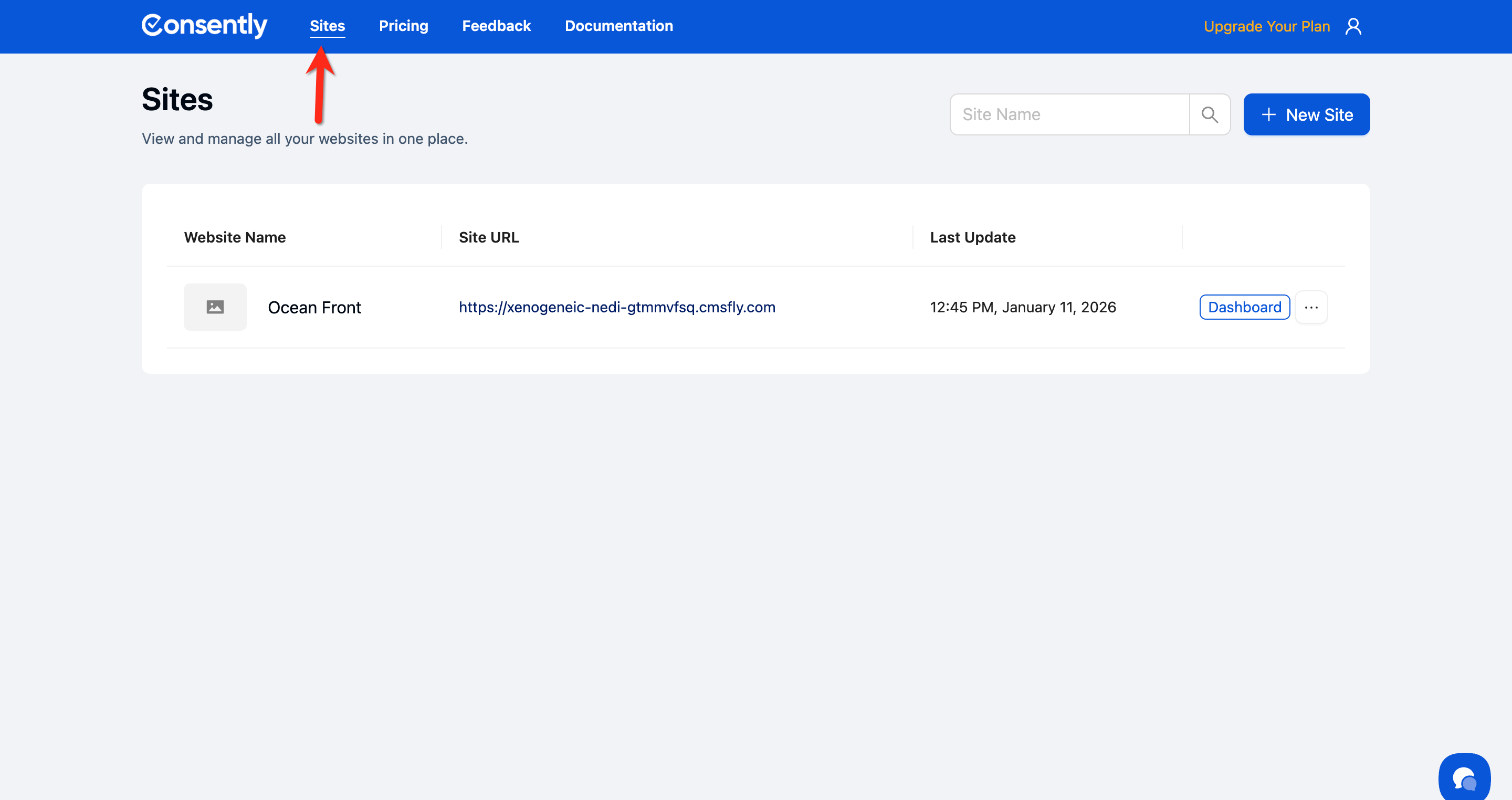
Click Sites in the top navigation bar.
Step 2: Open the site menu
Find your website in the list and click the ⋮ (three-dot menu) next to it.
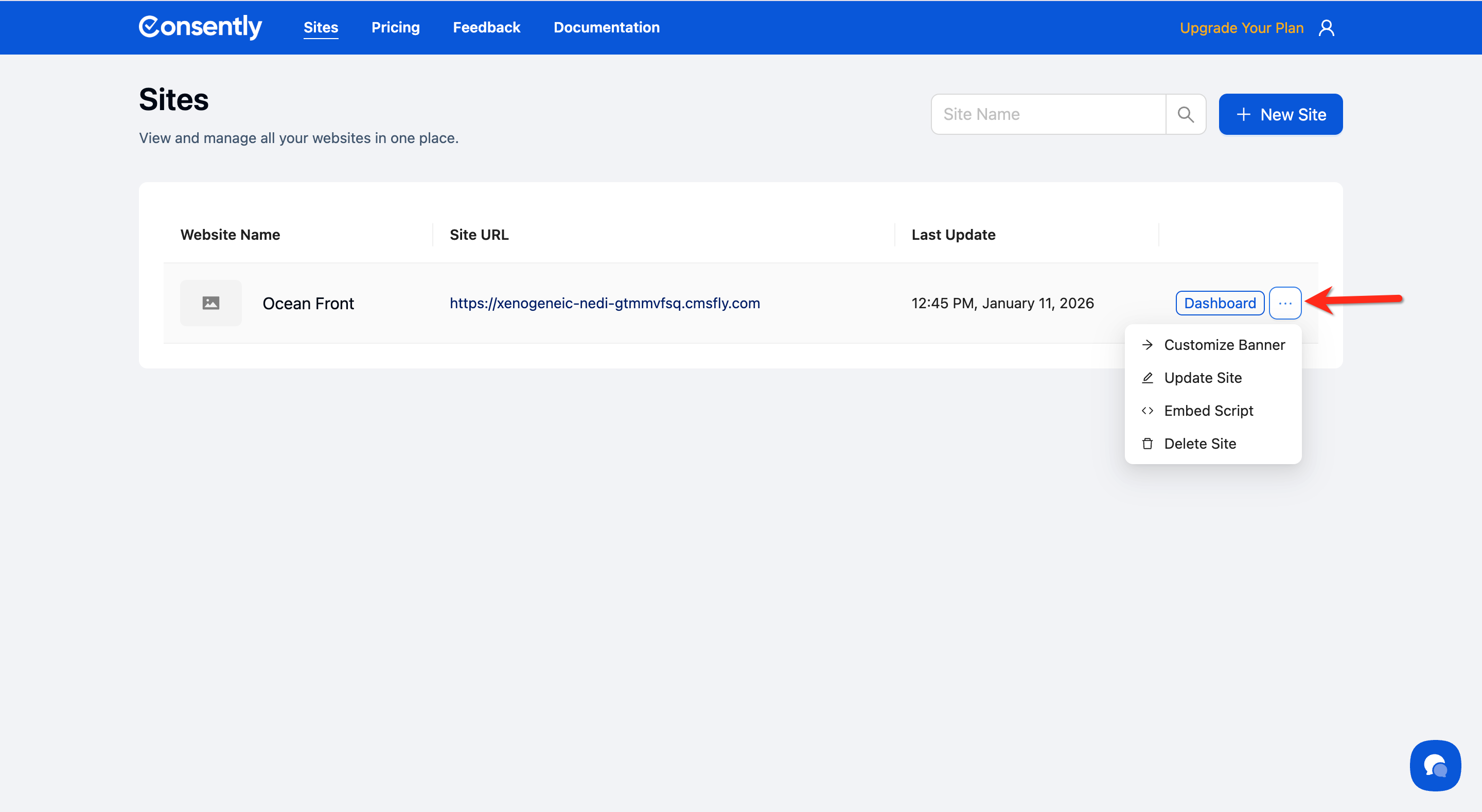
💡 Tip: If you have multiple sites, use the search box at the top to quickly find the right one.
Step 3: Open the Embed Script modal
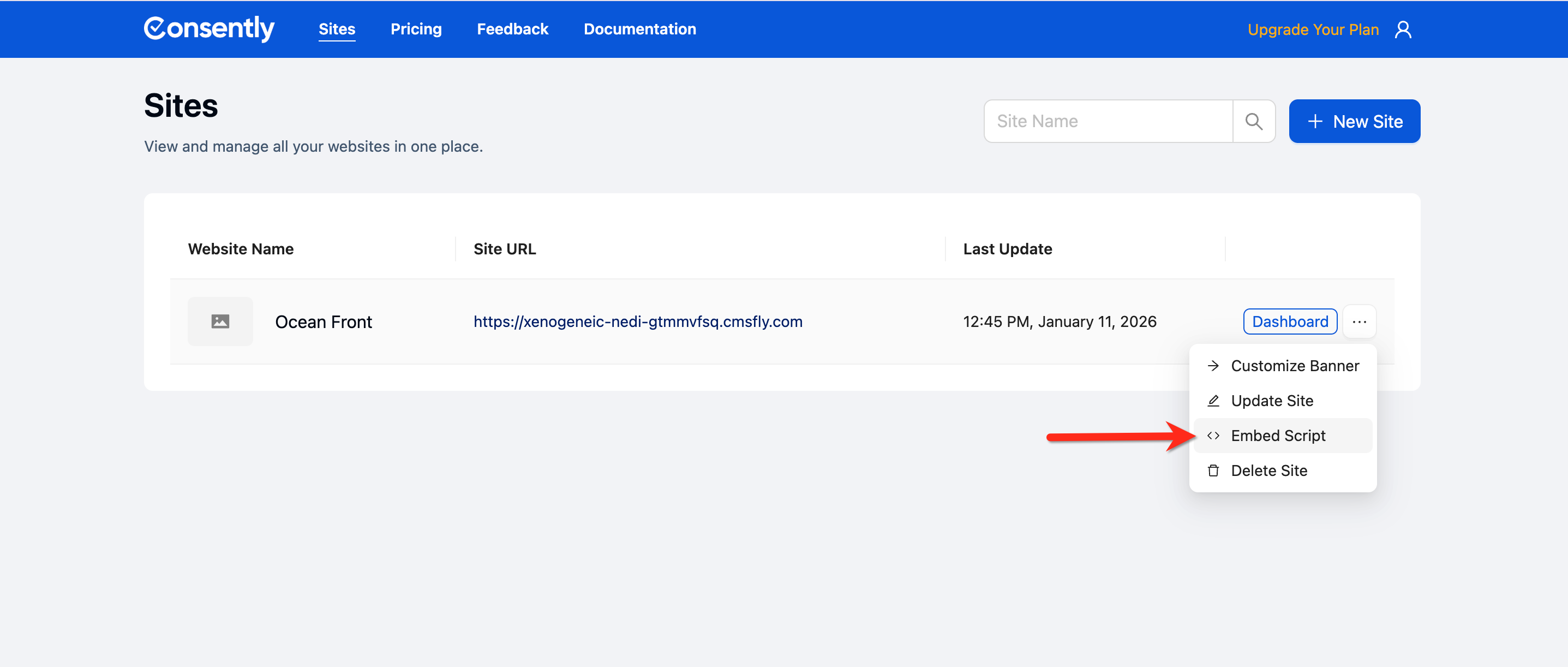
Click Embed Script from the dropdown menu.
Step 4: Copy the script
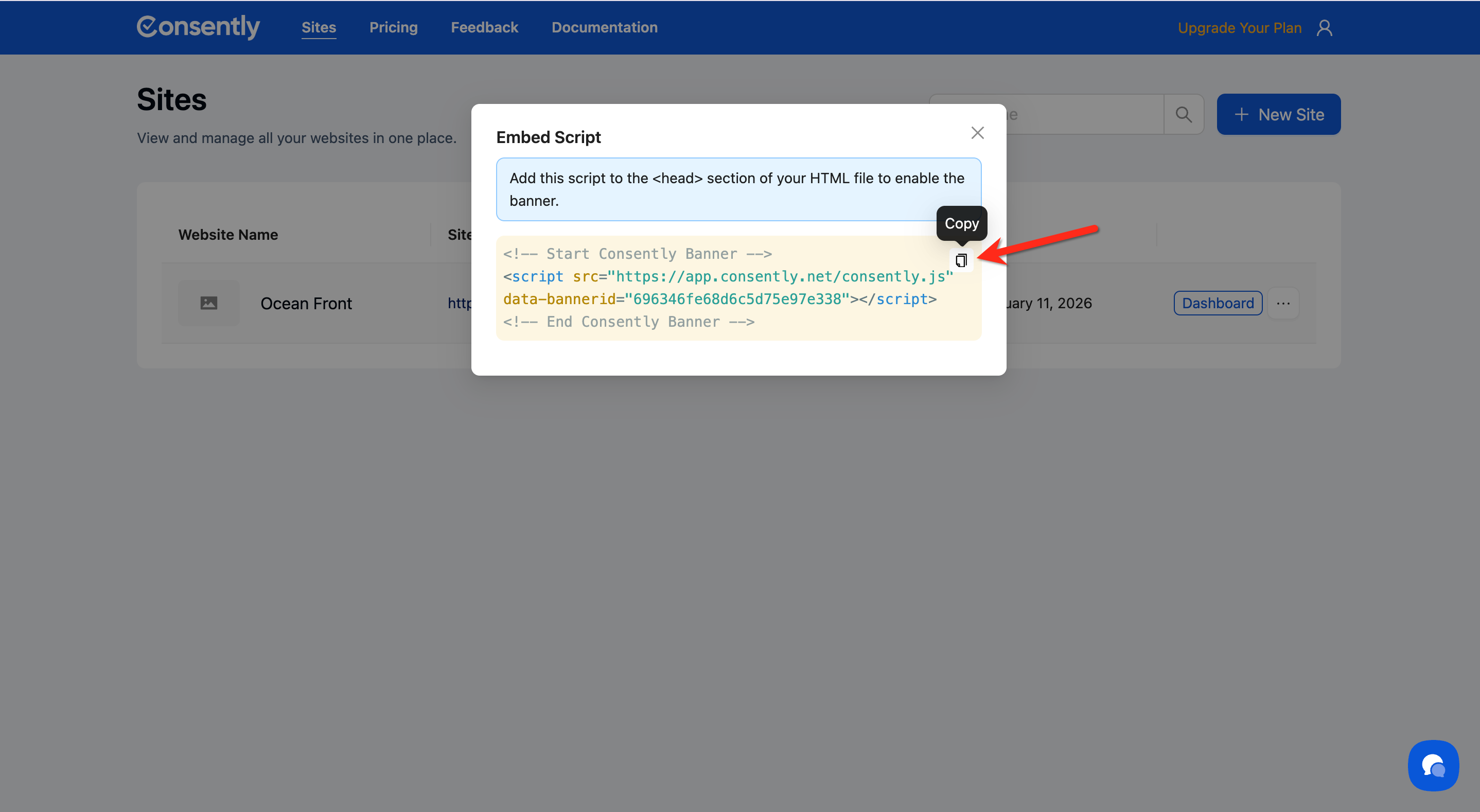
Click the Copy button (clipboard icon) in the top-right corner of the code block.
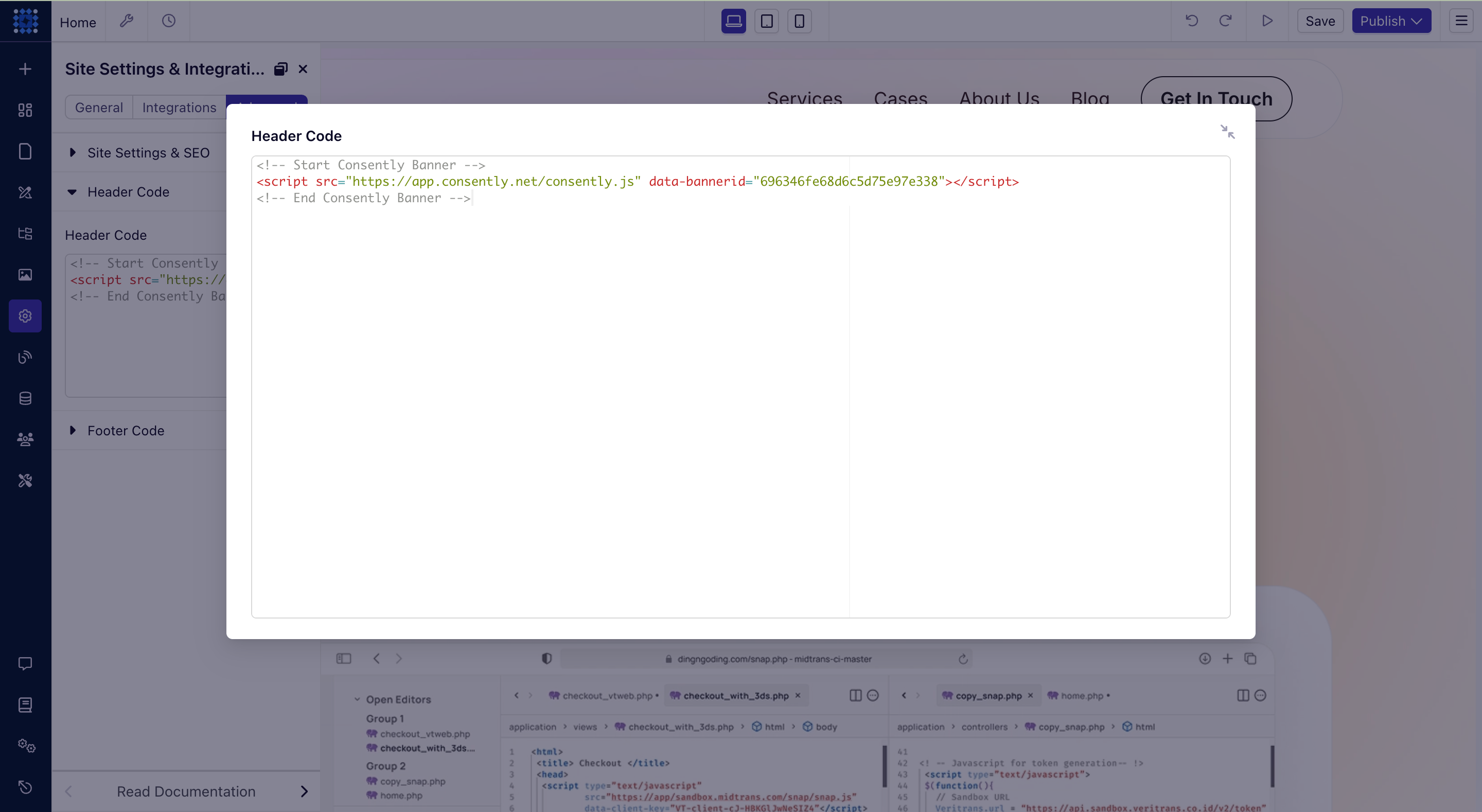
Step 5: Paste the Consently script
Paste your copied script anywhere inside the <head> section, ideally before the closing </head> tag. The script looks like this:
Done!
Your embed script is now copied to your clipboard and ready to install.
✅ Success indicator: A "Copied!" confirmation message appears briefly.
Understanding Your Embed Script
The script you copied looks like this:
<!-- Start Consently Banner -->
<script src="https://app.consently.net/consently.js" data-bannerid="[YOUR_BANNER_ID]"></script>
<!-- End Consently Banner -->
Key components:
Script source: Loads the Consently library from our CDN
data-bannerid attribute: Unique identifier linking to your specific banner configuration
Asynchronous loading: The script loads without blocking your page content
What's Next
Now that you've copied your embed script, you should:
Troubleshooting
The Copy button isn't working
Why this happens: Some browsers block automatic clipboard access for security reasons.
Solution:
Try a manual copy: Click inside the script box, select all text with
Ctrl+A(orCmd+Aon Mac), then copy withCtrl+C(orCmd+C)Check for a permission prompt in your browser's address bar and allow clipboard access if prompted
If the issue persists, try using Chrome, Firefox, or Edge
The script box appears empty
Solution: Refresh the page and try again. If the problem continues, verify that your banner configuration was saved properly—check for any "unsaved changes" indicator on the dashboard.
Related Pages
Google Tag Manager Installation — Alternative installation method for sites using GTM