

TL;DR: Cookie Banner → Configure settings → Click Save. All changes are live immediately on your website—there's no draft mode.
Overview
When you save your banner configuration, changes go live on your website immediately. Consently doesn't have a draft mode for banners, so every change you save becomes active right away. Test your settings thoroughly in Preview Modes before saving.
How to Save Your Banner Changes
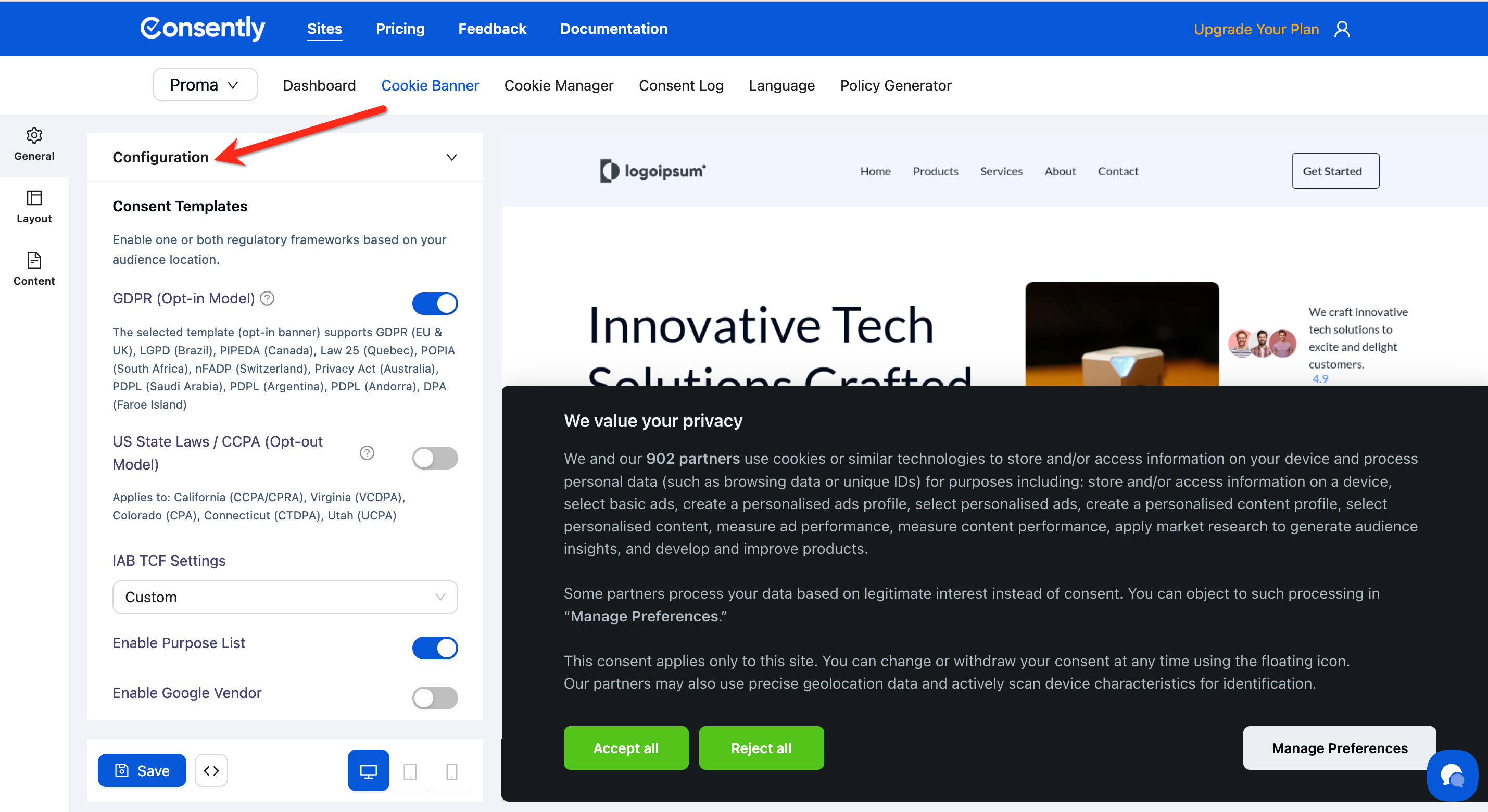
Step 1: Complete your banner configuration
Make all your changes to layout, design, content, and settings. Review each section carefully since changes take effect immediately.
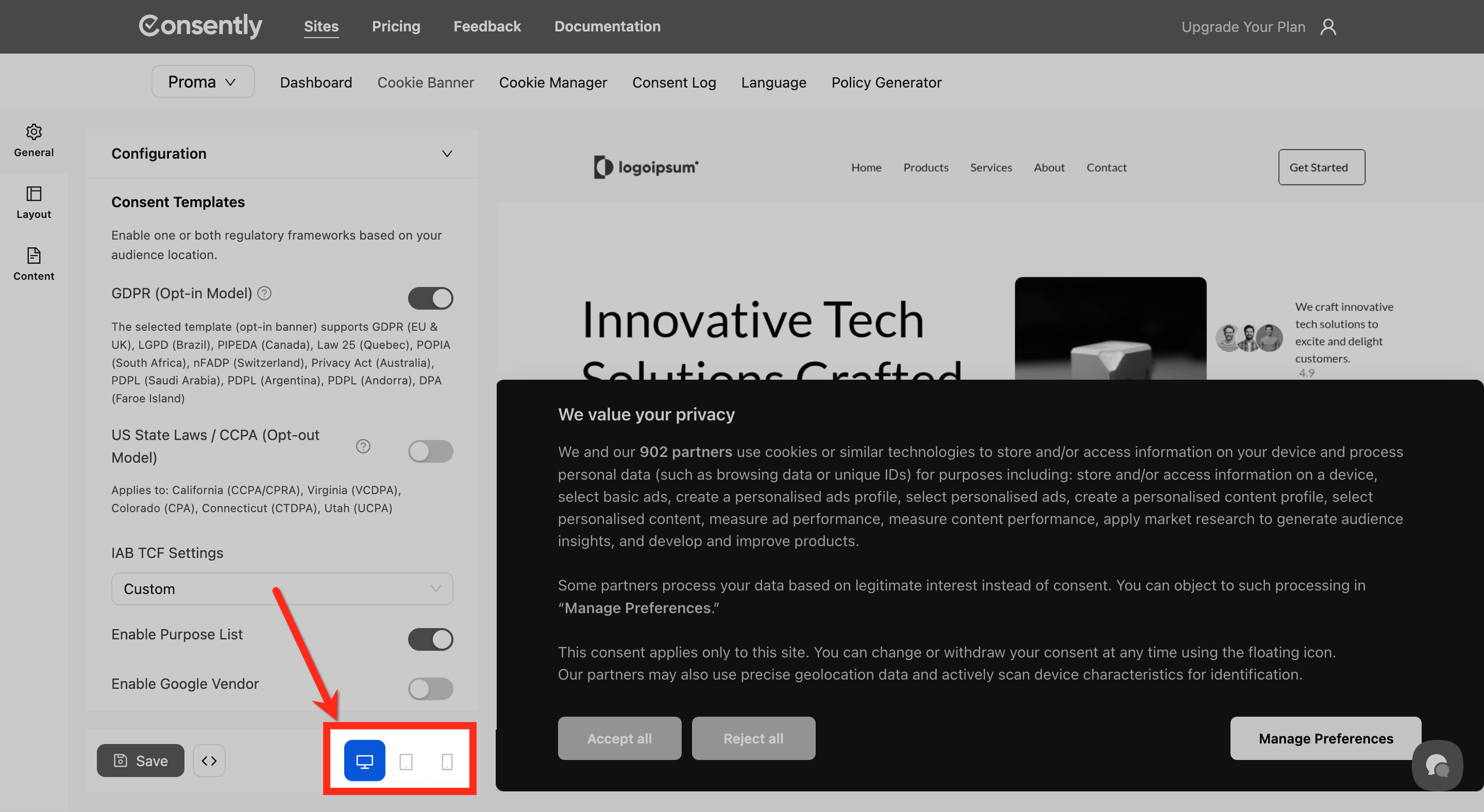
Step 2: Preview your changes
Click the preview icons (desktop, tablet, mobile) at the bottom of the left sidebar to see how your banner looks on different devices before saving.
💡 Tip: Test the complete consent flow—click Accept All, Reject All, and Manage Preferences to verify everything works as expected.
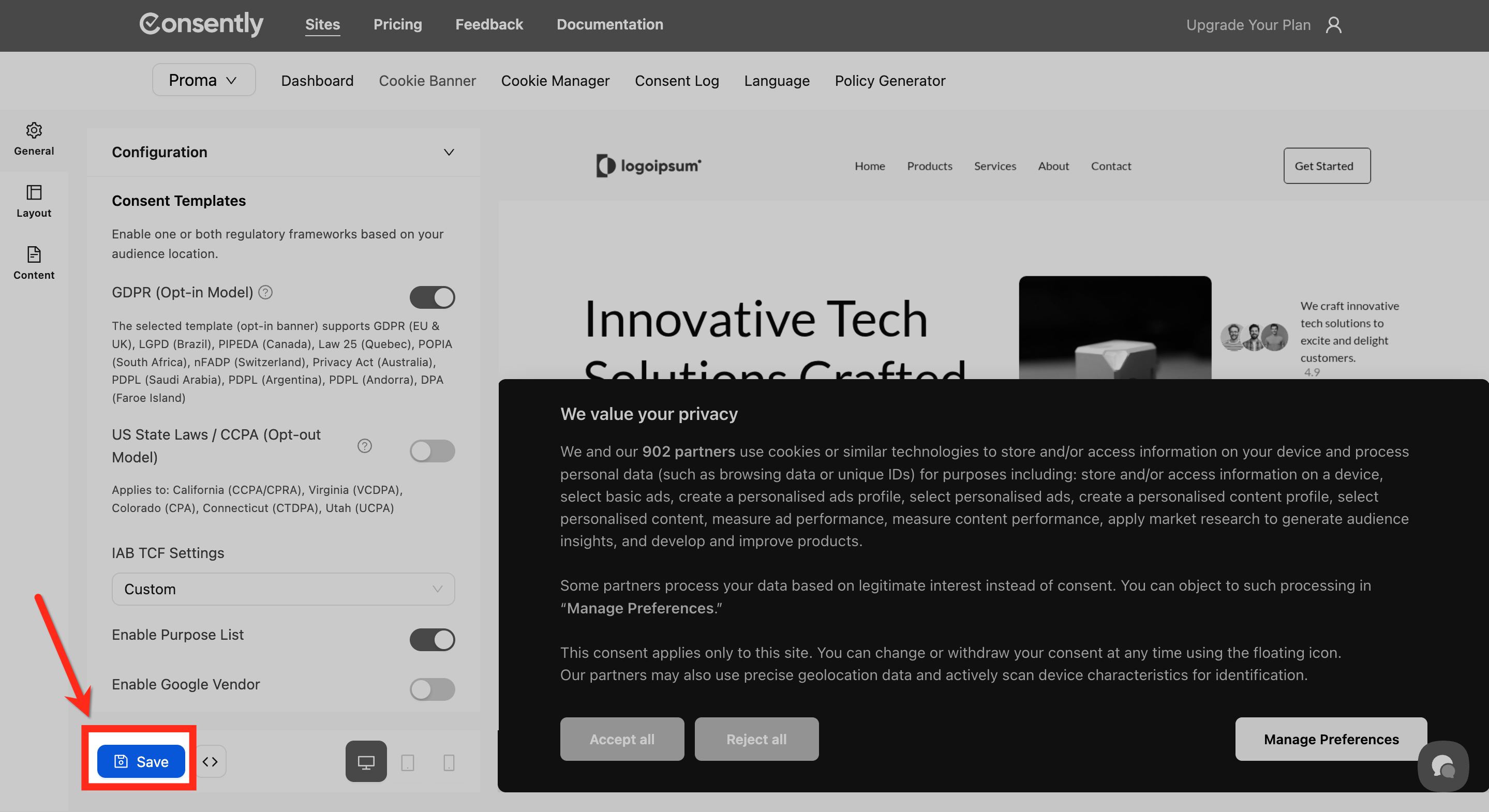
Step 3: Save your banner
Click the Save button at the bottom of the left sidebar. Your changes are now live on your website.
⚠️ Important: The Save button publishes changes immediately. There is no draft mode—once you click Save, visitors see your updated banner.
Done!
Your banner is now live on your website.
✅ Success indicator: You'll see a confirmation message and your banner immediately reflects the changes on your site.
What Happens When You Save
When you click Save, Consently:
Updates your banner configuration across all active pages
Applies your design and content changes instantly
Makes your banner available to all website visitors
Updates the embed script behavior (if already installed)
Your banner changes take effect within seconds. Visitors who are already on your site may need to refresh their browser to see updates.
What's Next
Now that you've published your banner, you should:
Get your embed script to install on your website
Install the script to activate the banner for visitors