

TL;DR: Most language issues come from incorrect HTML lang attributes. Check your site's <html lang="..."> tag matches your target language code. Clear your browser cache and test in incognito mode.Overview
Consently detects your banner language automatically from your website's HTML lang attribute. When the banner displays the wrong language or translations don't appear, it's usually a configuration issue with this detection system.
Troubleshooting
Banner showing the wrong language
Why this happens: The language displayed is determined by your website's <html lang=""> attribute. If this doesn't match your intended language, the banner defaults to English or might show unexpected content.
Solution:
Check your website's HTML source code for the opening
<html>tag using developer toolsTo open the browser's developer tools, right-click anywhere on the page and select Inspect, or use the keyboard shortcut
Ctrl + Shift + Ion Windows andCmd + Option + Ion macOS.Look for the
langattribute (e.g.,<html lang="en">for English,<html lang="fr">for French)Verify the language code matches one you've configured in Editing Language Content
Update the HTML lang attribute to your desired language code
Clear your browser cache and reload the page
💡 Tip: Common language codes areen(English),fr(French),de(German),es(Spanish),ar(Arabic),bg(Bulgarian),cs(Czech),da(Danish),el(Greek).
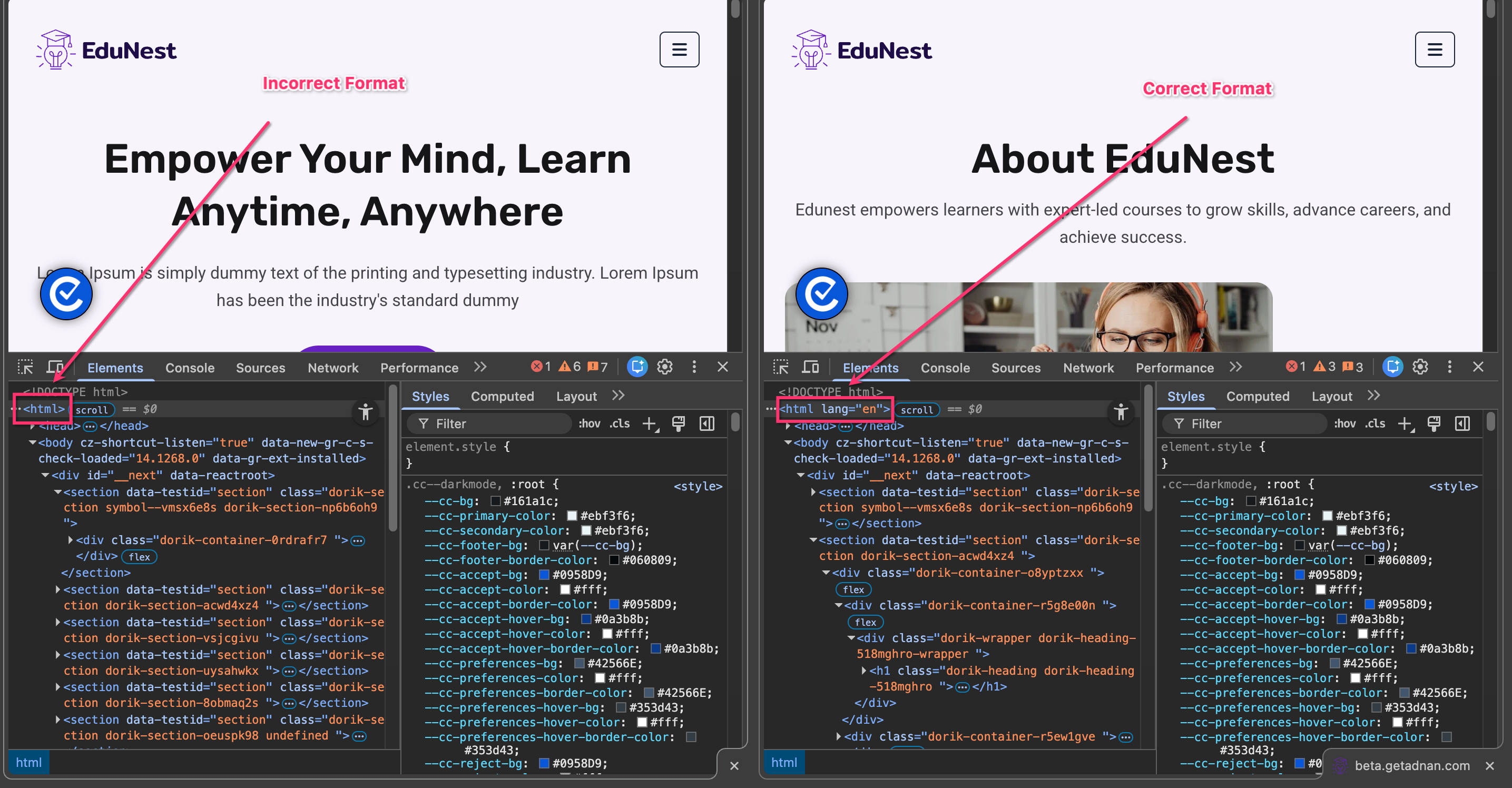
The HTML lang attribute is missing
Solution:
Add the
langattribute to your site's<html>tag in your theme or template fileUse the two-letter ISO language code for your primary language
If you can't edit the HTML tag directly, check your CMS or website builder settings for language options
See these examples from popular platforms:
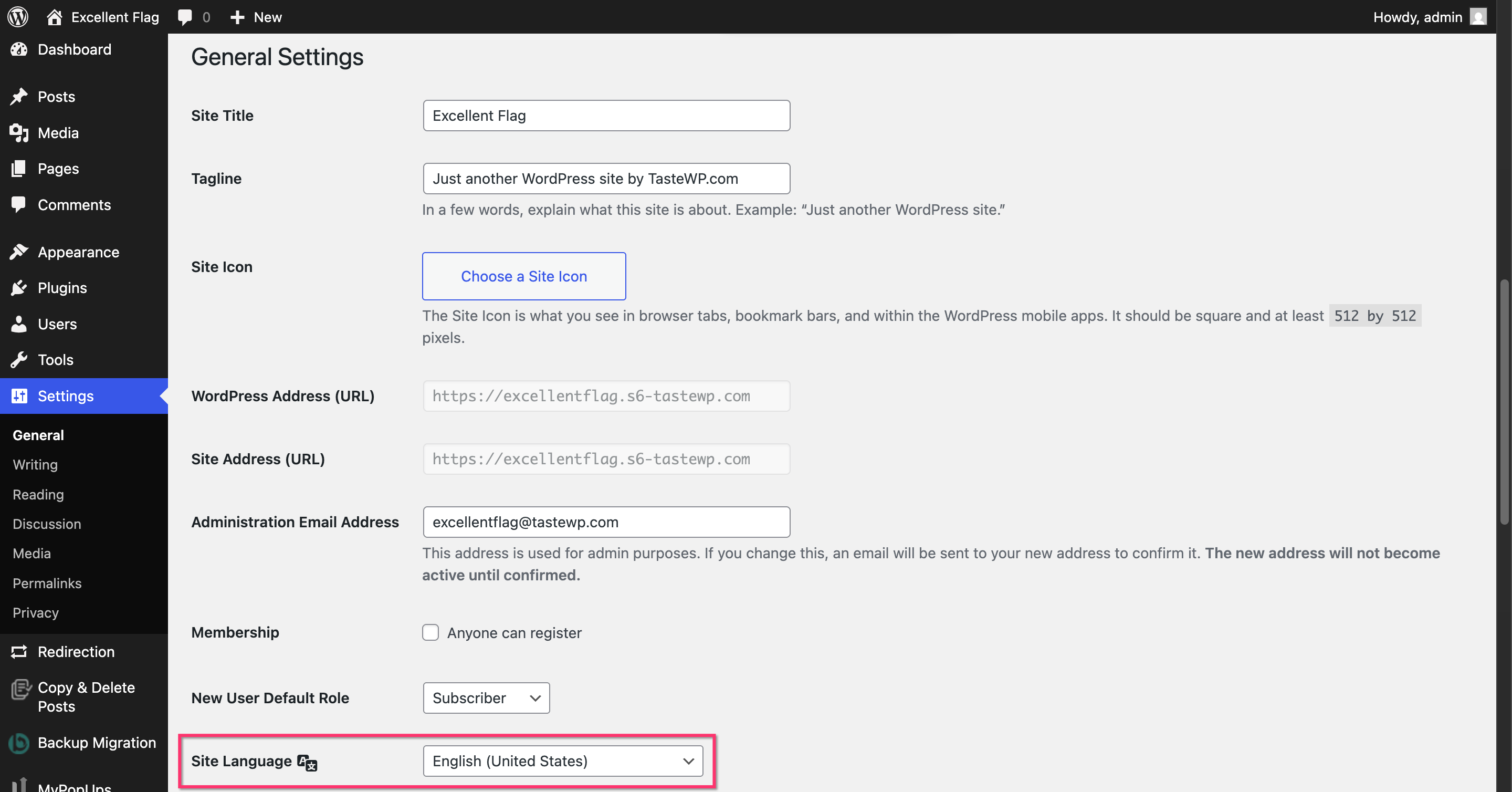
For WordPress: Go to Settings → General → Site Language
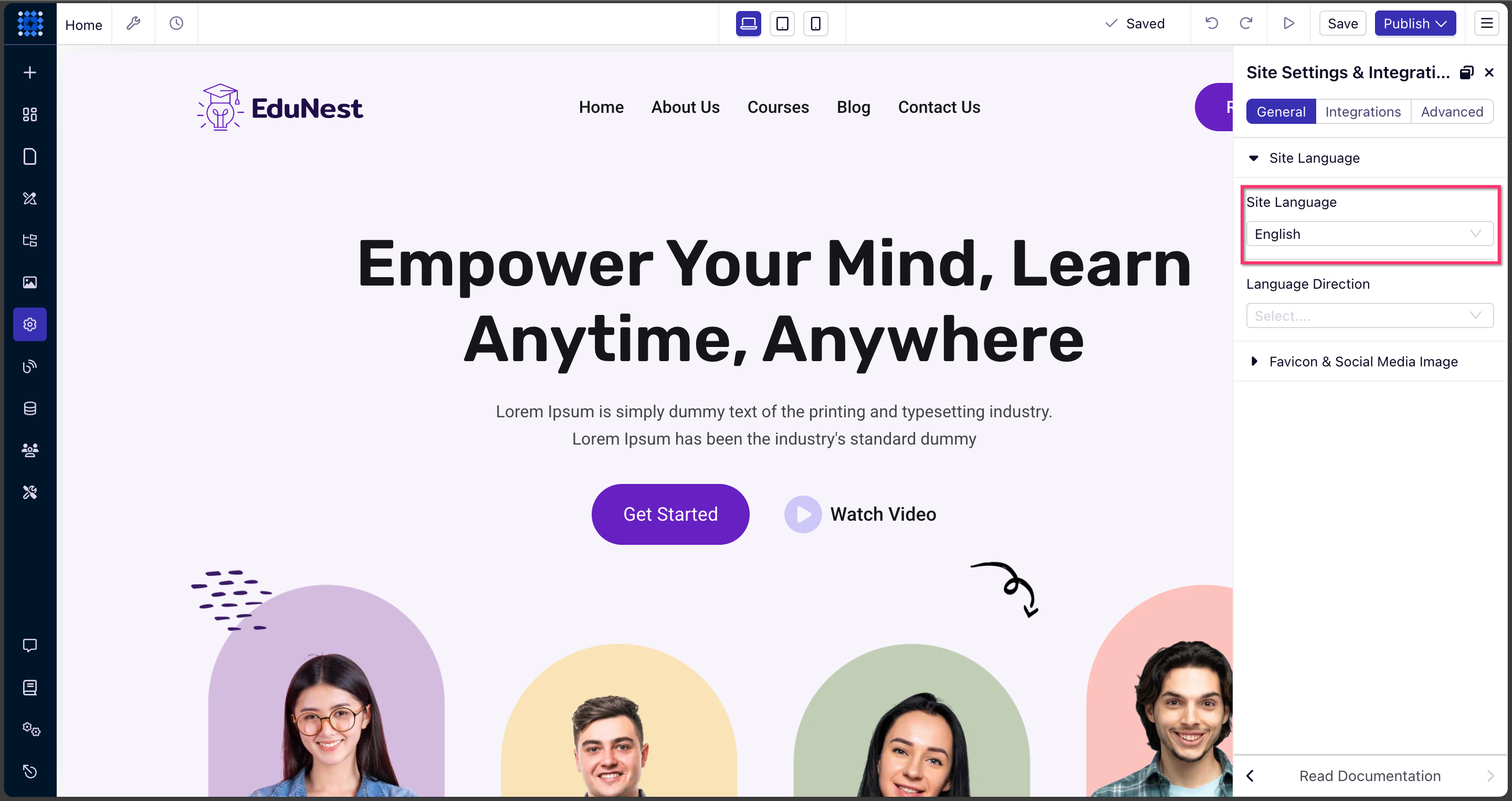
For Dorik: Go to Site Settings → General → Site Language
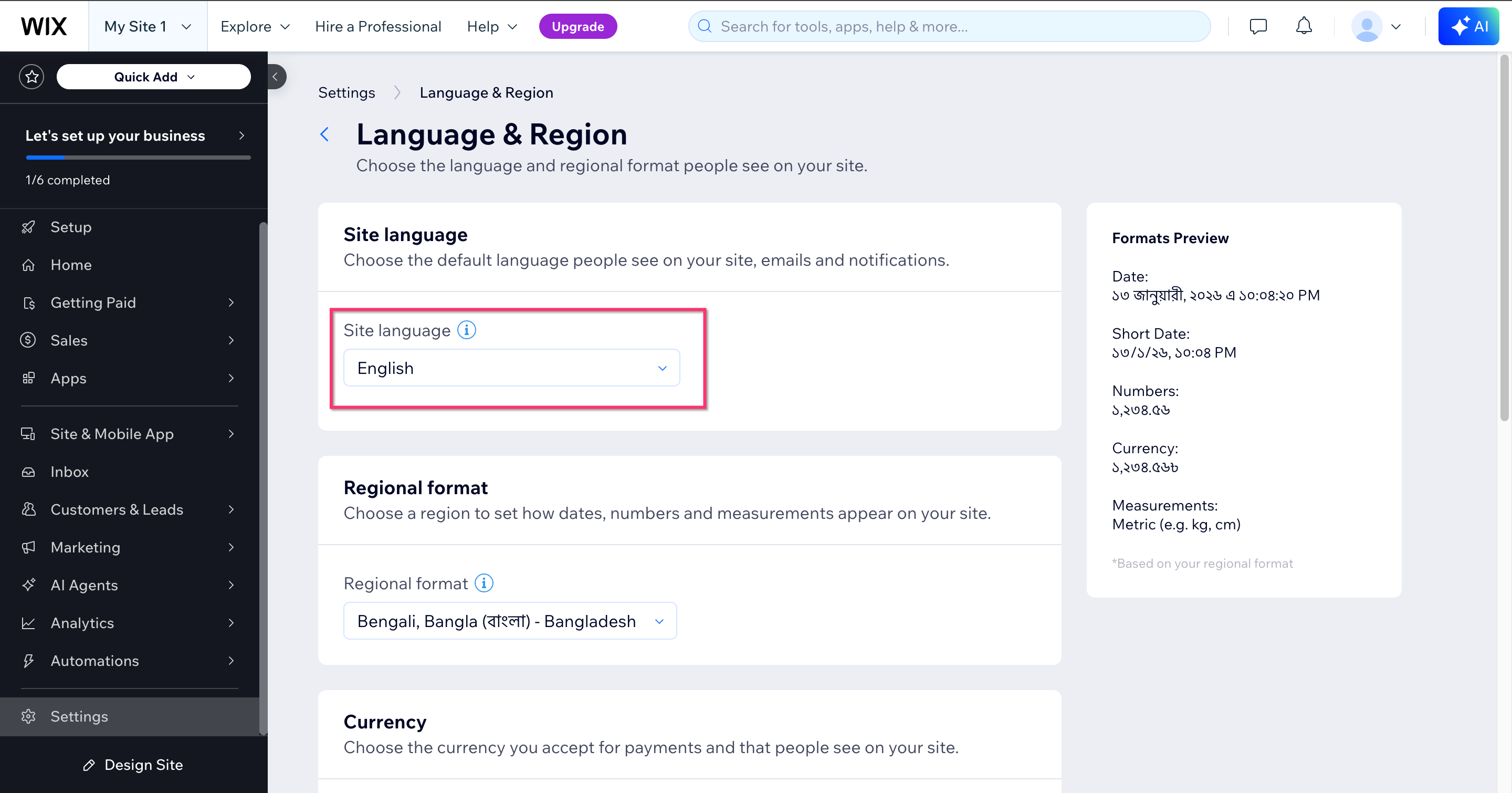
For Wix: Go to Settings → Language and Region → Site Language
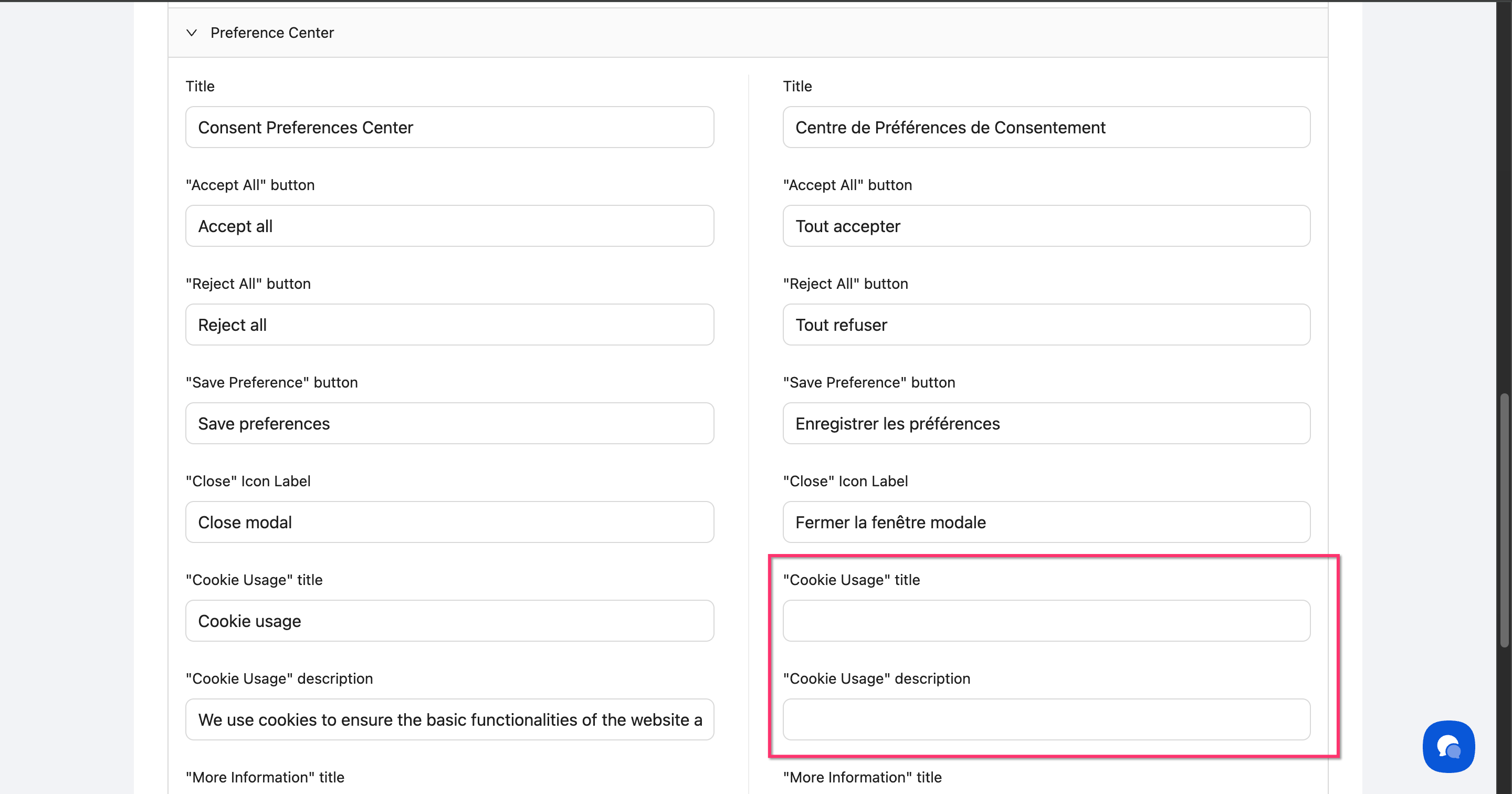
Translation fields appear empty or incomplete
Why this happens: You may have added a language, but haven't filled in all translation fields yet.
Solution:
Navigate to Language in your site dashboard
Click Edit Content next to the affected language
Select the language from the dropdown
Scroll through all sections and fill in any blank fields
Click Save Changes at the bottom
Characters displaying incorrectly (encoding issues)
Why this happens: Character encoding mismatches between your website and Consently can cause special characters to display as symbols or question marks.
Solution:
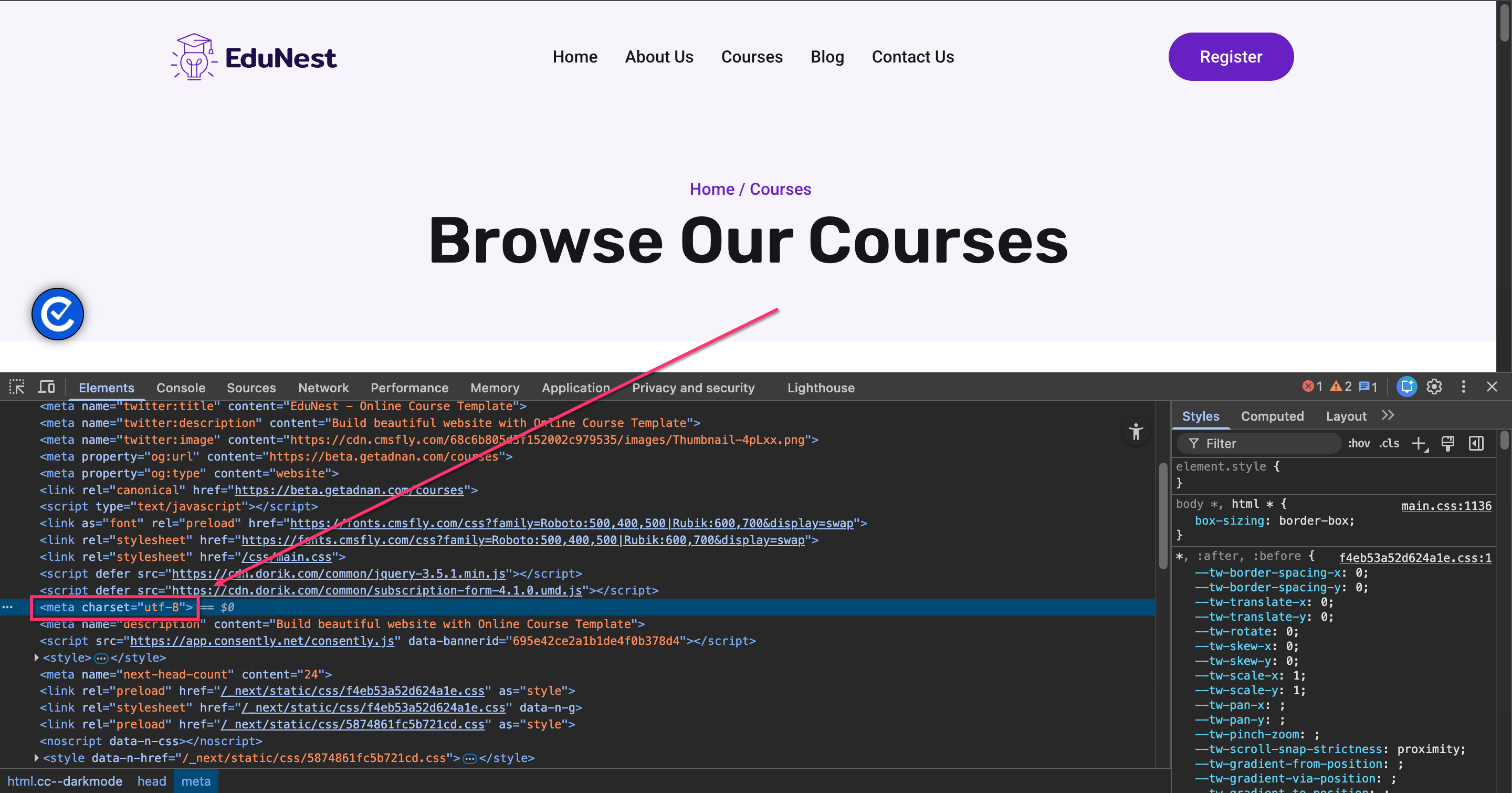
Verify your website uses UTF-8 encoding by checking for
<meta charset="UTF-8">on your site's<head>sectionEnsure your language translations are entered using proper character encoding in the Consently editor
For languages with special characters (Arabic, Greek, Cyrillic, etc.), copy-paste text from a proper text editor rather than typing directly
If issues persist, try re-entering the affected translations
Language detection is not working after setup
Solution:
Clear your browser cache completely (
Ctrl+Shift+DeleteorCmd+Shift+Delete)Test in an incognito/private browsing window
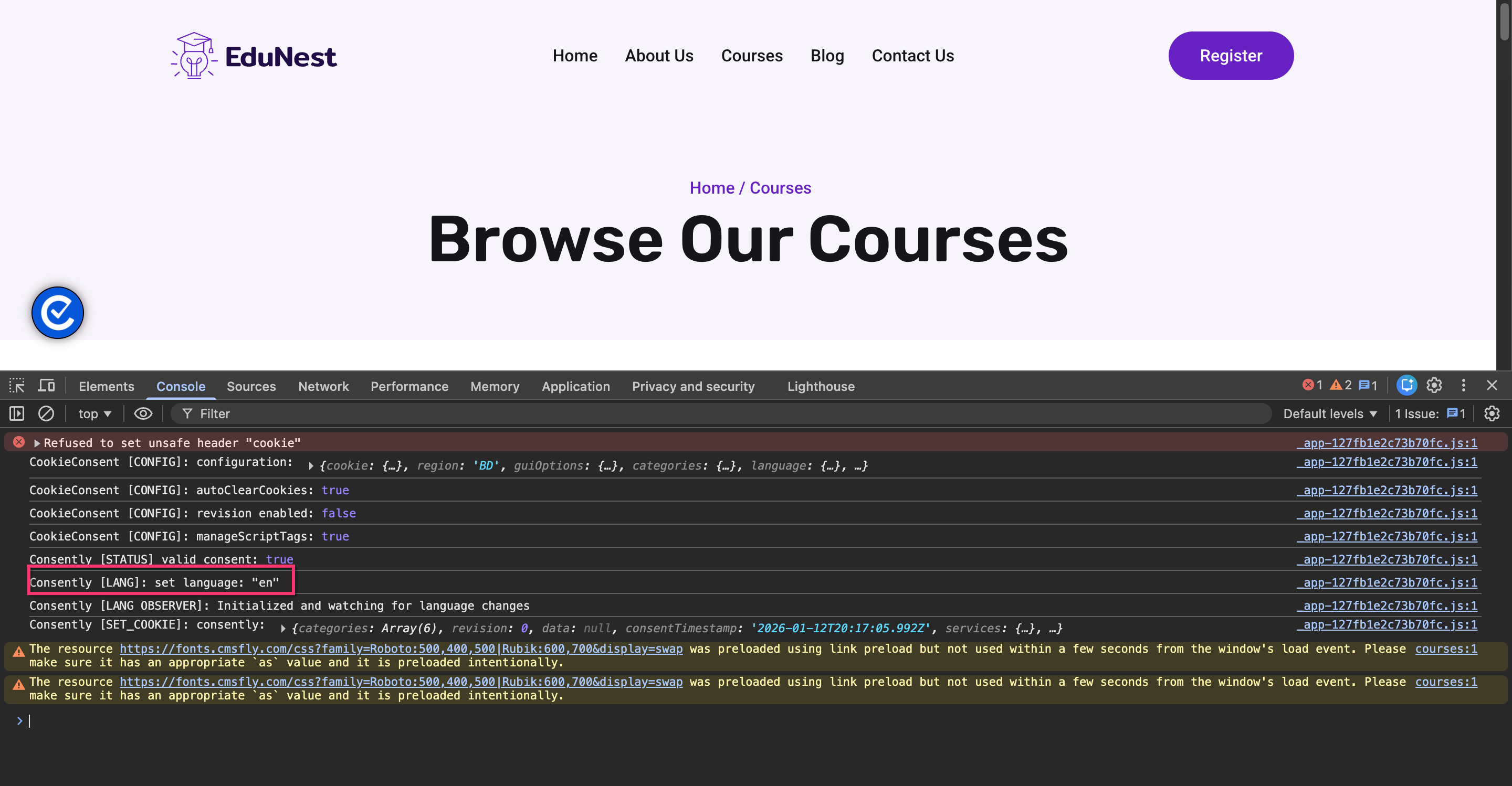
Check that the Consently script is loading properly by opening your browser's developer console (press
F12)Look for errors in the Console tab related to Consently
Verify the HTML lang attribute hasn't been changed or removed
The default language appears instead of the intended language
Why this happens: If Consently can't find a matching translation for the detected language code, it falls back to your default language.
Solution:
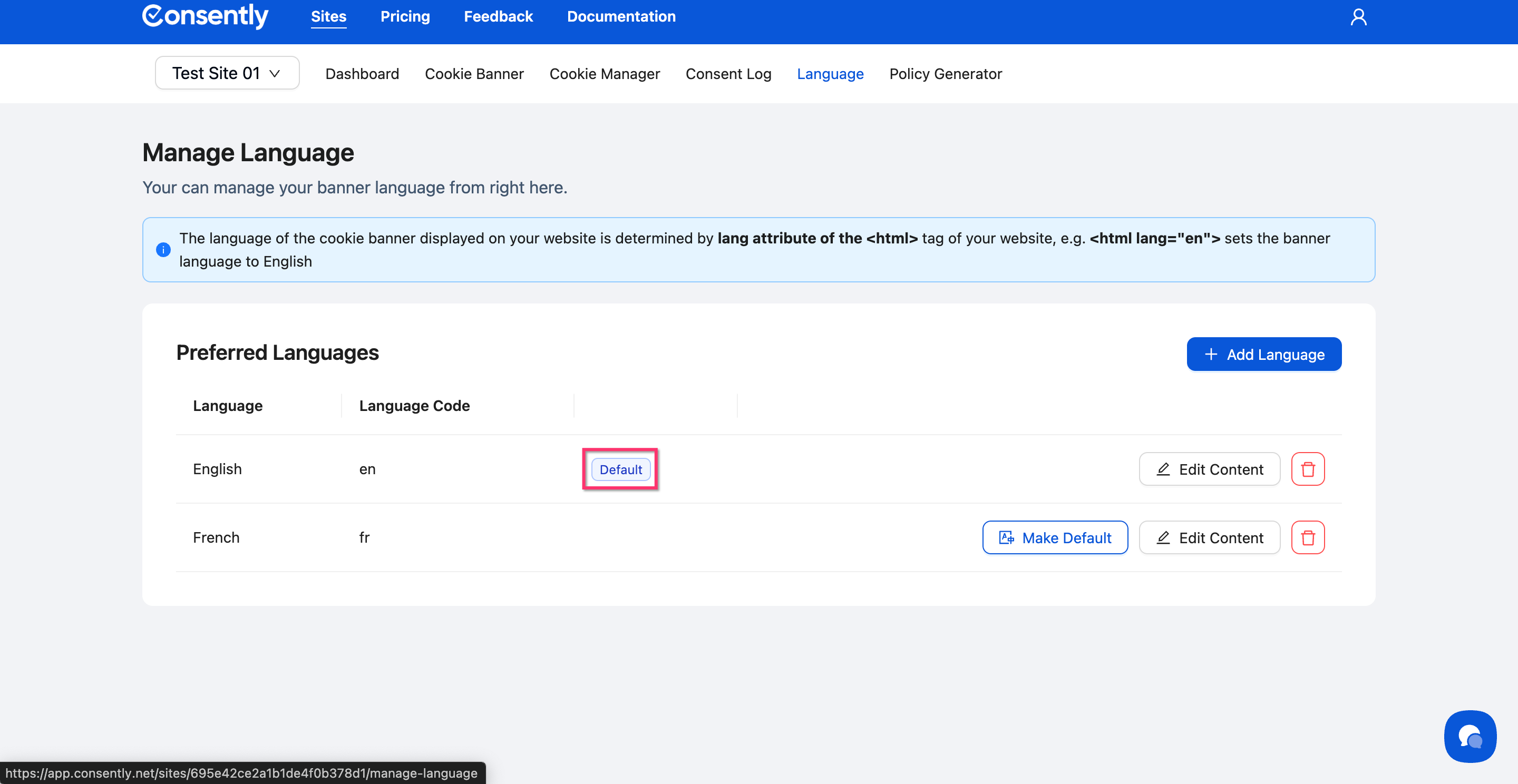
Go to Language → Manage Language
Check which language has the "Default" badge
Verify the language code in your HTML tag exactly matches one of your configured languages
Language codes are case-sensitive:
enworks, butENmay not
Testing language detection across different languages
How to test:
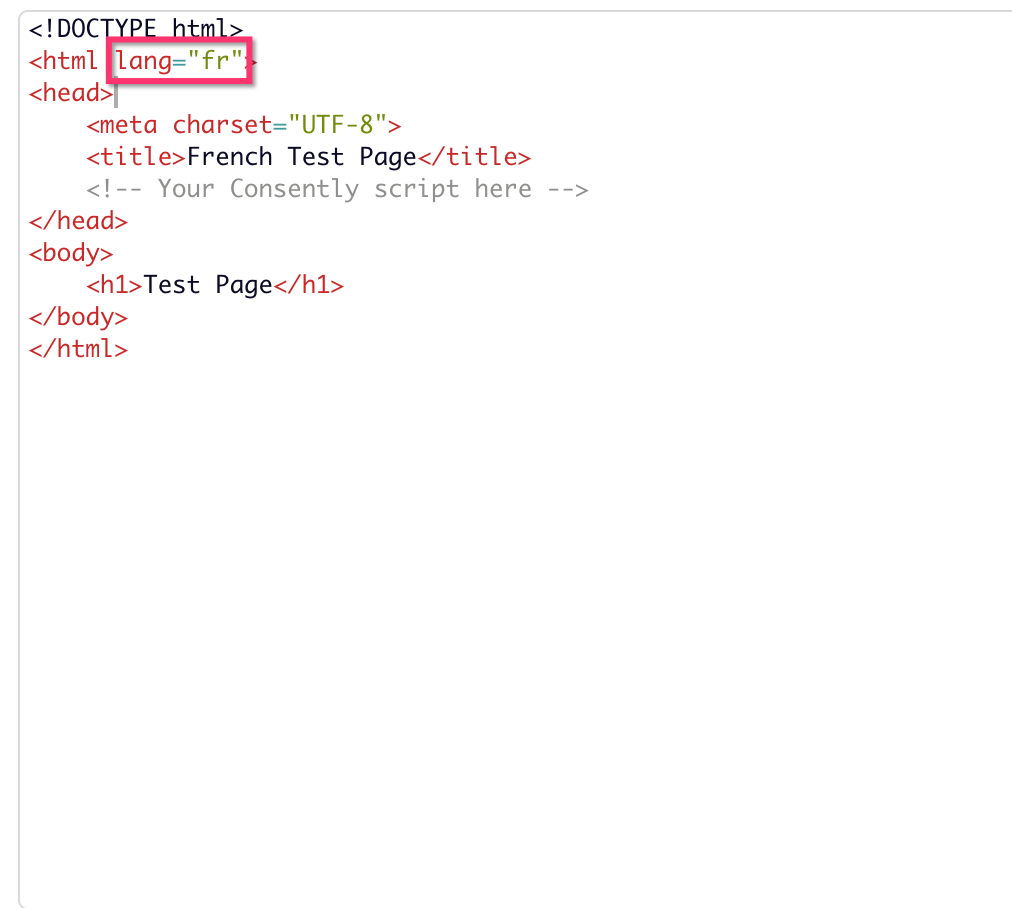
Create a simple test HTML file with different lang attributes:
<!DOCTYPE html>
<html lang="fr">
<head>
    <meta charset="UTF-8">
    <title>French Test Page</title>
    <!-- Your Consently script here -->
</head>
<body>
    <h1>Test Page</h1>
</body>
</html>
Change
lang="fr"to other configured languages and reloadVerify the banner content updates to match the lang attribute
Test all languages you've configured in Consently
Banner language differs from website language
Why this might be intentional: You may want to show a consent banner in one language while your website content is in another (e.g., English banner on a multilingual site).
Solution:
Set your website's HTML lang attribute to match your banner's intended language
Consider whether visitors would be confused by language mismatches
What's Next
If language issues persist after trying these solutions:
Contact Support with details about your site's HTML lang attribute and configured languages
Related Pages
Adding Languages — Enable additional languages for your banner
Multi-Language Overview — Understanding how language support works