

TL;DR: Cookie Banner → Preview panel (right side) → Device toggle buttons. Test your banner's appearance across desktop, tablet, and mobile before publishing.
Overview
Preview Modes let you see how your consent banner looks on different devices before publishing it live. You can switch between desktop, tablet, and mobile views to ensure your banner displays correctly for all visitors.
Before You Begin
Make sure you have:
Time required: About 2 minutes
How to Test Your Banner Across Devices
Step 1: Access the preview panel
While editing your banner, look at the right side of the screen for the live preview panel showing your actual website.
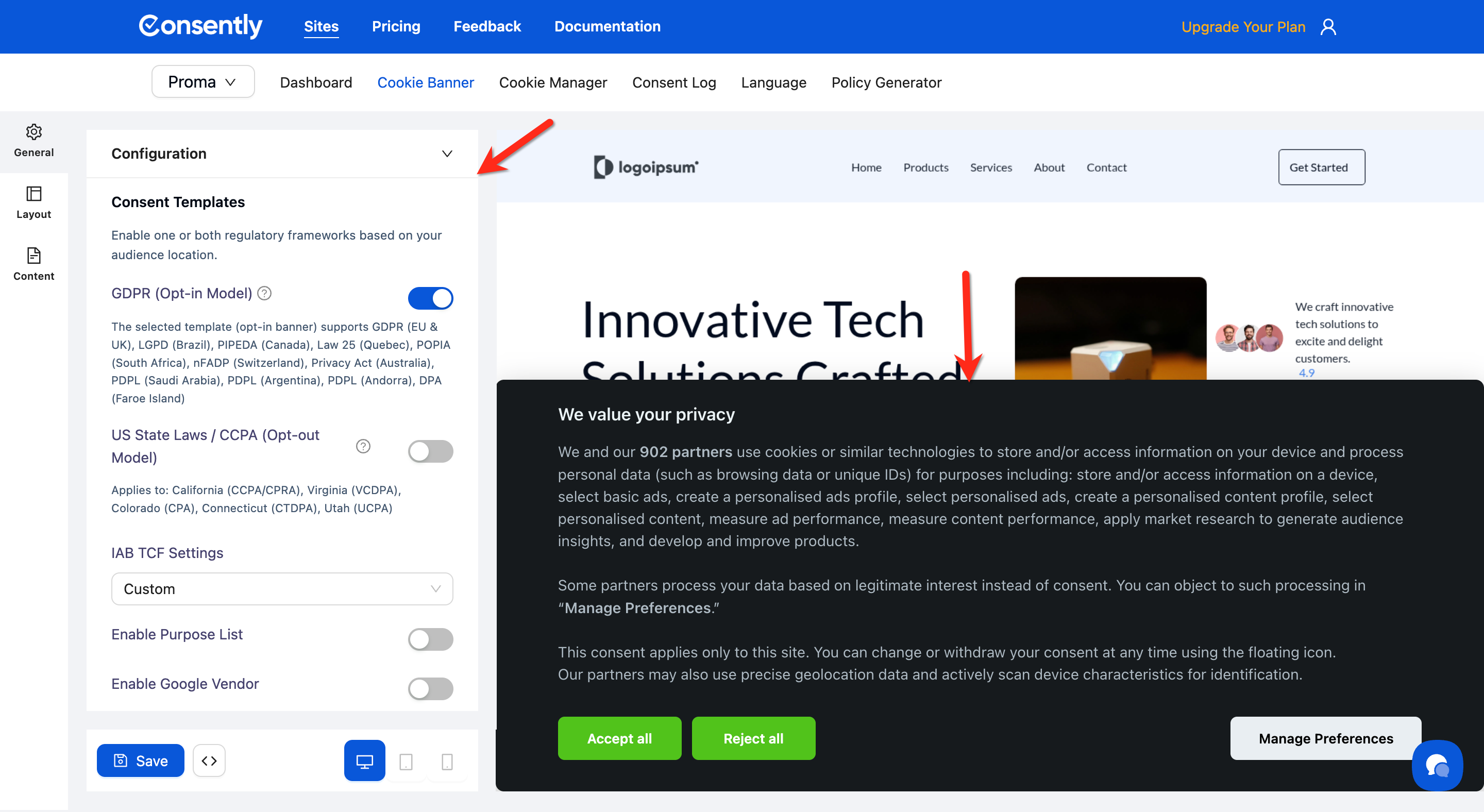
Step 2: Select a device mode
Click the device toggle buttons on the left side of the preview panel to switch between views:
Desktop — Full-width browser display
Tablet — Medium-sized screen display
Mobile — Phone-sized screen display
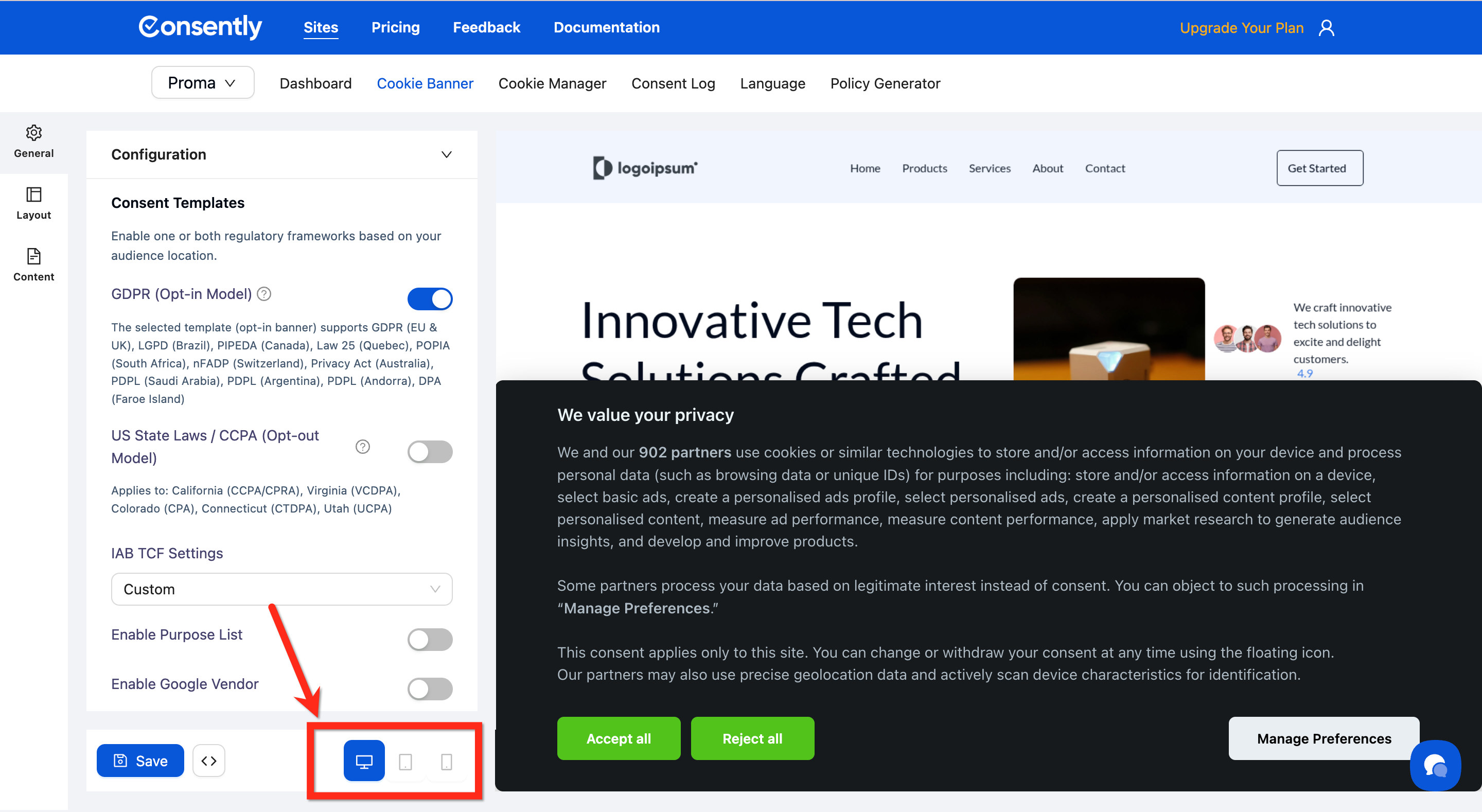
Step 3: Review banner appearance
Check how your banner displays in each mode:
Banner position and alignment
Text readability
Button sizes and spacing
Overall visual layout
💡 Tip: Mobile view is especially important—most visitors will see your banner on phones.
%20(1000%20x%20500%20px).jpg)
Step 4: Test consent interactions
Click through the banner options in preview:
Click Accept All to see how the banner closes
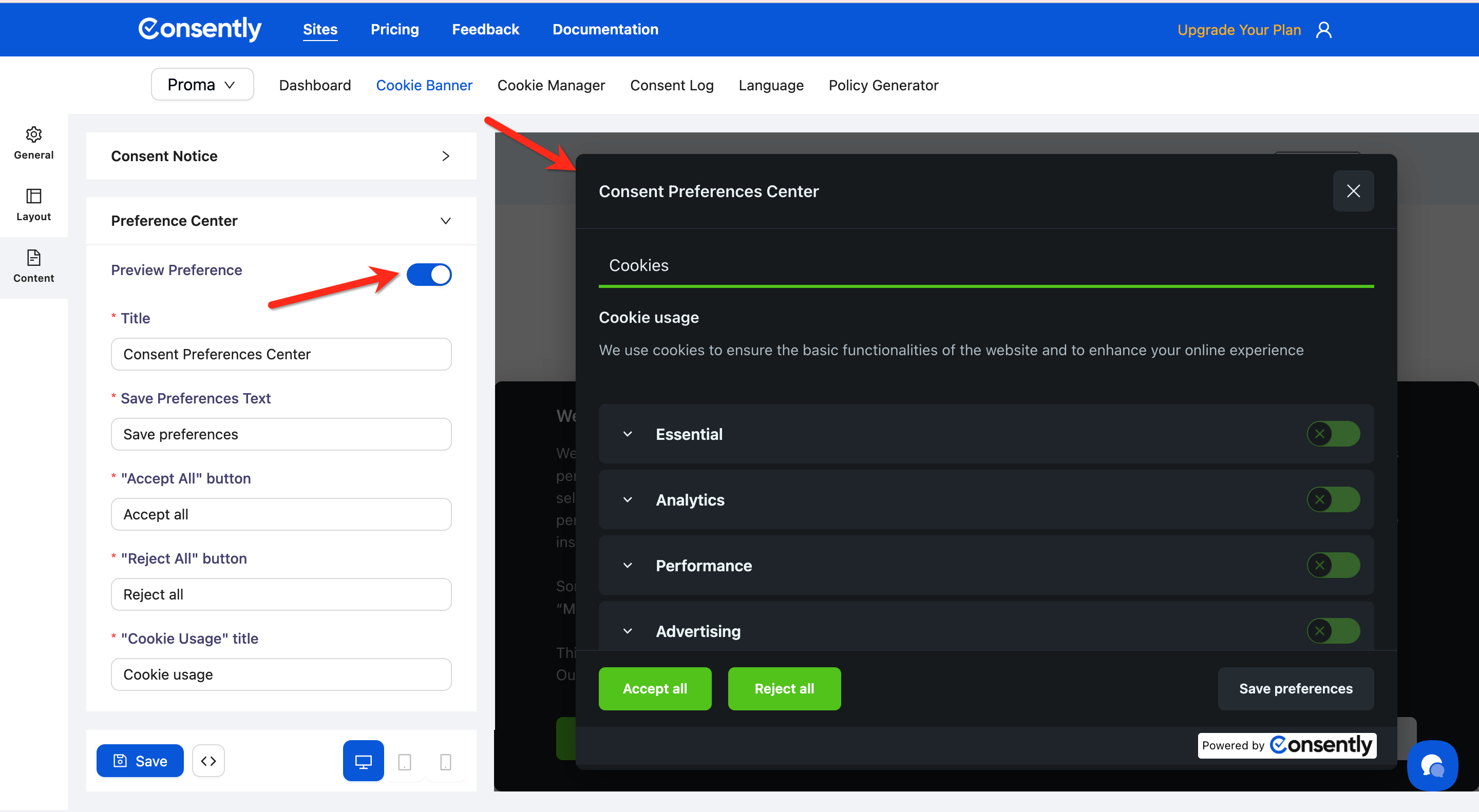
Click Manage Preferences to view the preference center modal
Check if all content is readable and accessible
Done!
Your banner now displays correctly across all devices.
✅ Success indicator: The banner looks good and functions properly in all three preview modes.
Preview Limitations
What preview shows
Preview displays your banner's visual appearance in real-time as you edit. Changes to layout, colors, text, and positioning appear immediately.
What preview doesn't show
Preview has these limitations:
Cookie blocking behavior — Preview doesn't demonstrate actual cookie auto-blocking. You'll need to test this after installing the script on your live site.
Consent logging — Preview doesn't create actual consent records. Real consent collection only happens after publishing and installation.
Geo-targeting — If you've enabled both GDPR and CCPA templates, the preview shows the GDPR version by default. Actual template switching based on visitor location only works on the live site.
Language detection — Preview displays your default language. Automatic language switching based on the
langattribute happens only on your published site.
What's Next
Now that you've previewed your banner, you should:
Publish your banner to make it live
Install the embed script on your website
Troubleshooting
The preview panel is blank or not loading
Solution: Refresh the page and verify your website URL is entered correctly in your site settings. If the issue persists, check that your website allows embedding in iframes—some security settings may block preview.
Preview doesn't update when I make changes
Why this happens: Browser caching can prevent the preview from refreshing.
Solution:
Click away from the field you just edited to trigger a preview refresh
Try refreshing your browser if changes still don't appear
Clear your browser cache if the problem continues
My website appears distorted in preview
Solution: This is normal if your website isn't responsive. The preview accurately shows how your site appears at different screen sizes—the banner itself will still display correctly for visitors.