

TL;DR: Cookies & Scanning → Cookies & Tracker List → Others Scripts → Click script → Toggle "Should Block" → Save. Third-party scripts won't load until visitors consent to the appropriate cookie categories.
Overview
Script blocking prevents third-party JavaScript files and tracking scripts from loading on your website until visitors provide consent. This feature provides granular control over analytics tools, advertising pixels, chat widgets, and other third-party scripts, ensuring compliance with GDPR and other privacy regulations.
Before You Begin
Make sure you have:
Run a cookie scan to detect scripts on your site
Time required: 3 minutes
How to Block Scripts
Step 1: Navigate to Cookies & Scanning
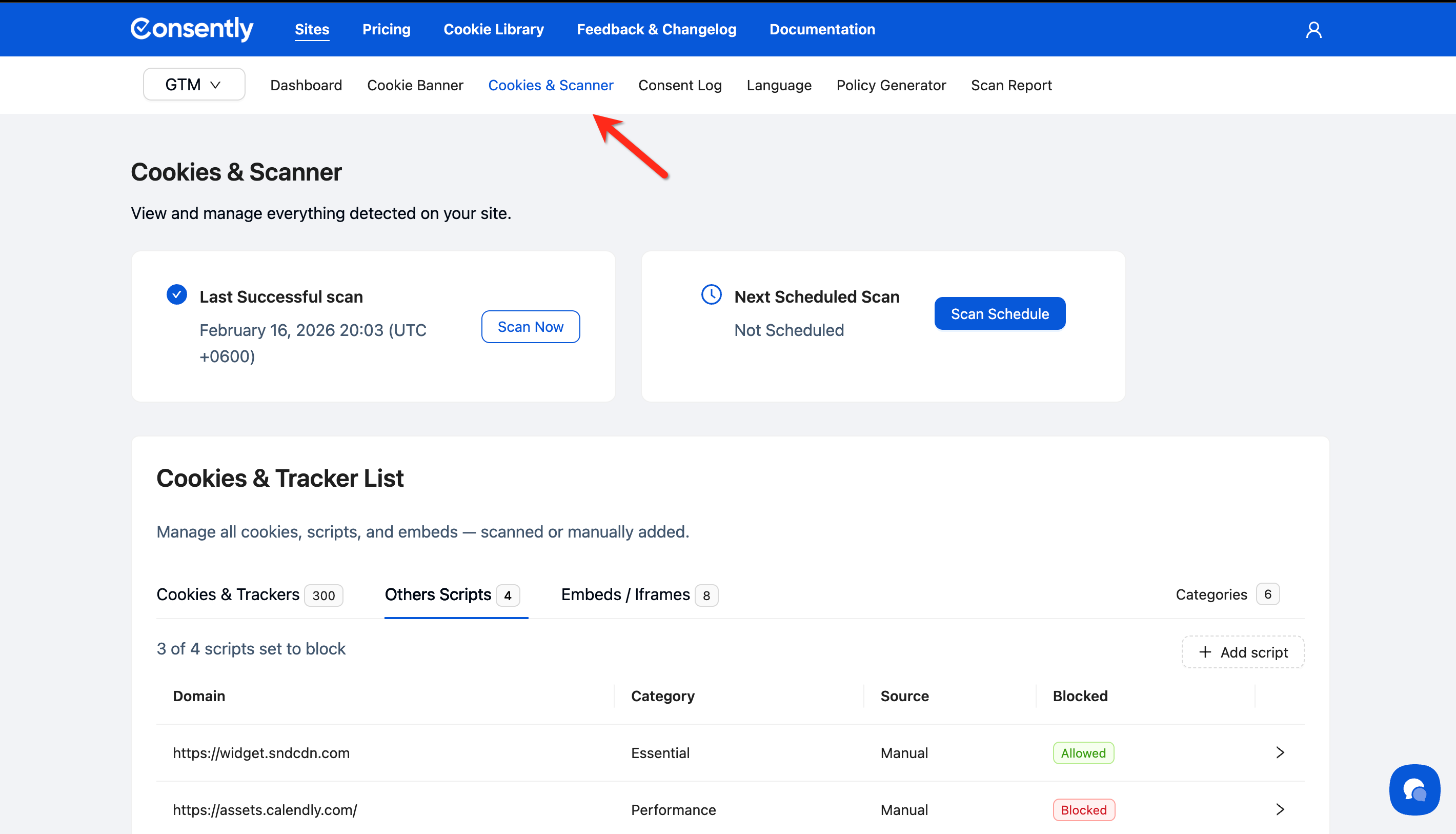
Click Cookies & Scanning in the top navigation bar.
Step 2: Access the Others Scripts tab
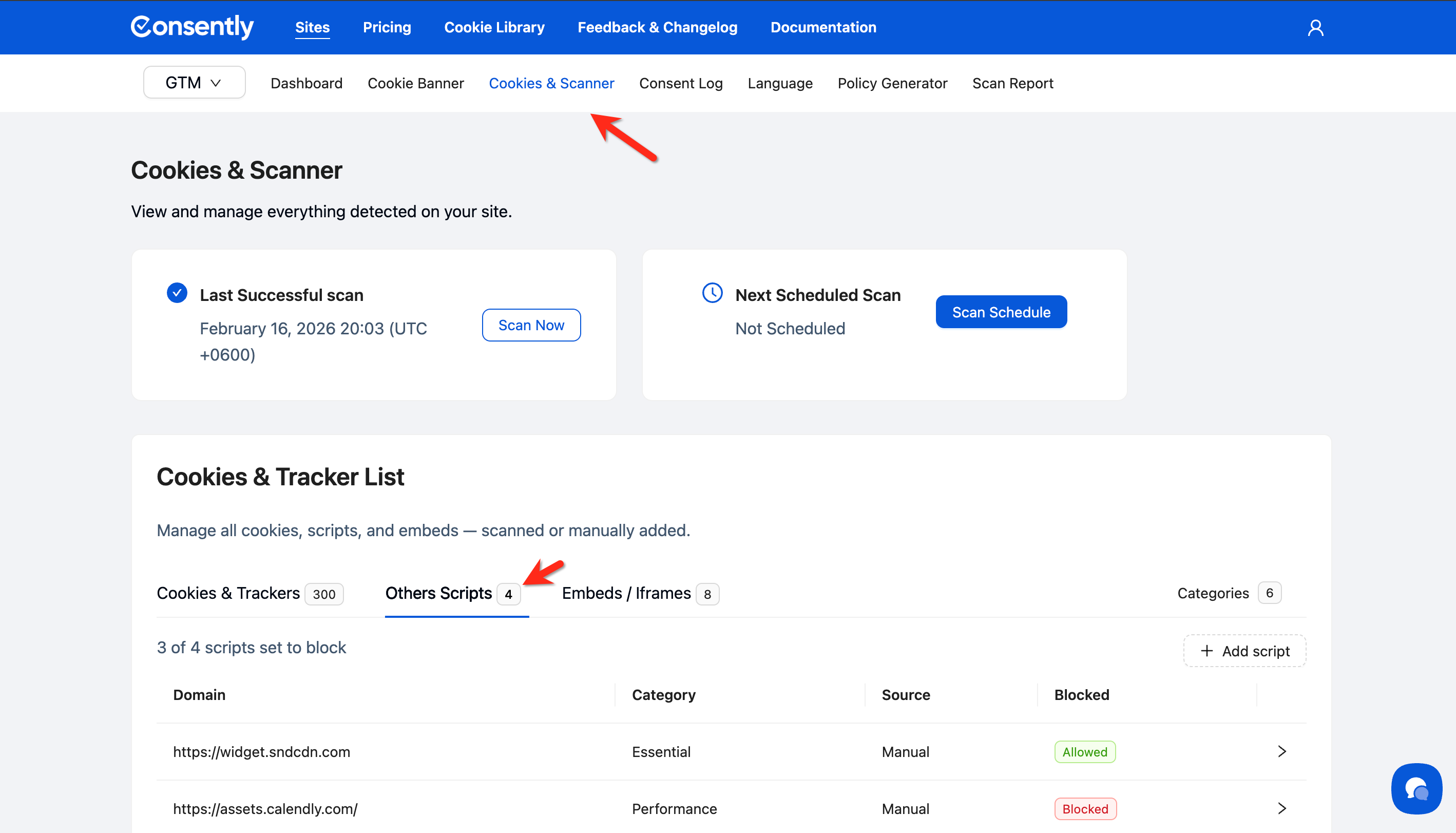
In the Cookies & Tracker List section, click the Others Scripts tab.
Step 3: View detected scripts
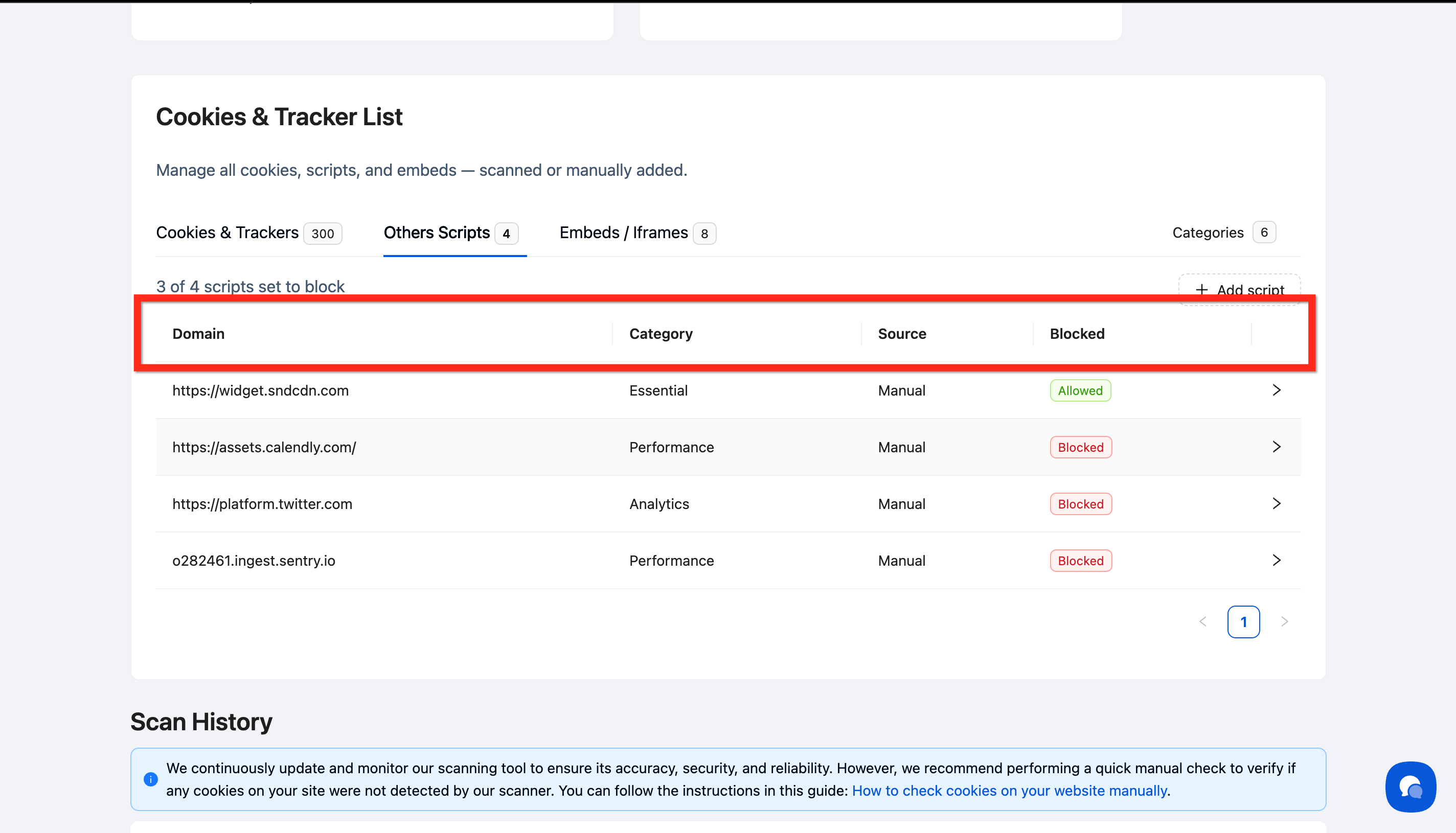
Review the list of scripts detected on your website. Each script shows:
Domain: The source domain of the script
Category: The assigned cookie category
Source: Whether the script was detected automatically or added manually
Blocked: Current blocking status (Allowed or Blocked)
Step 4: Select a script to configure
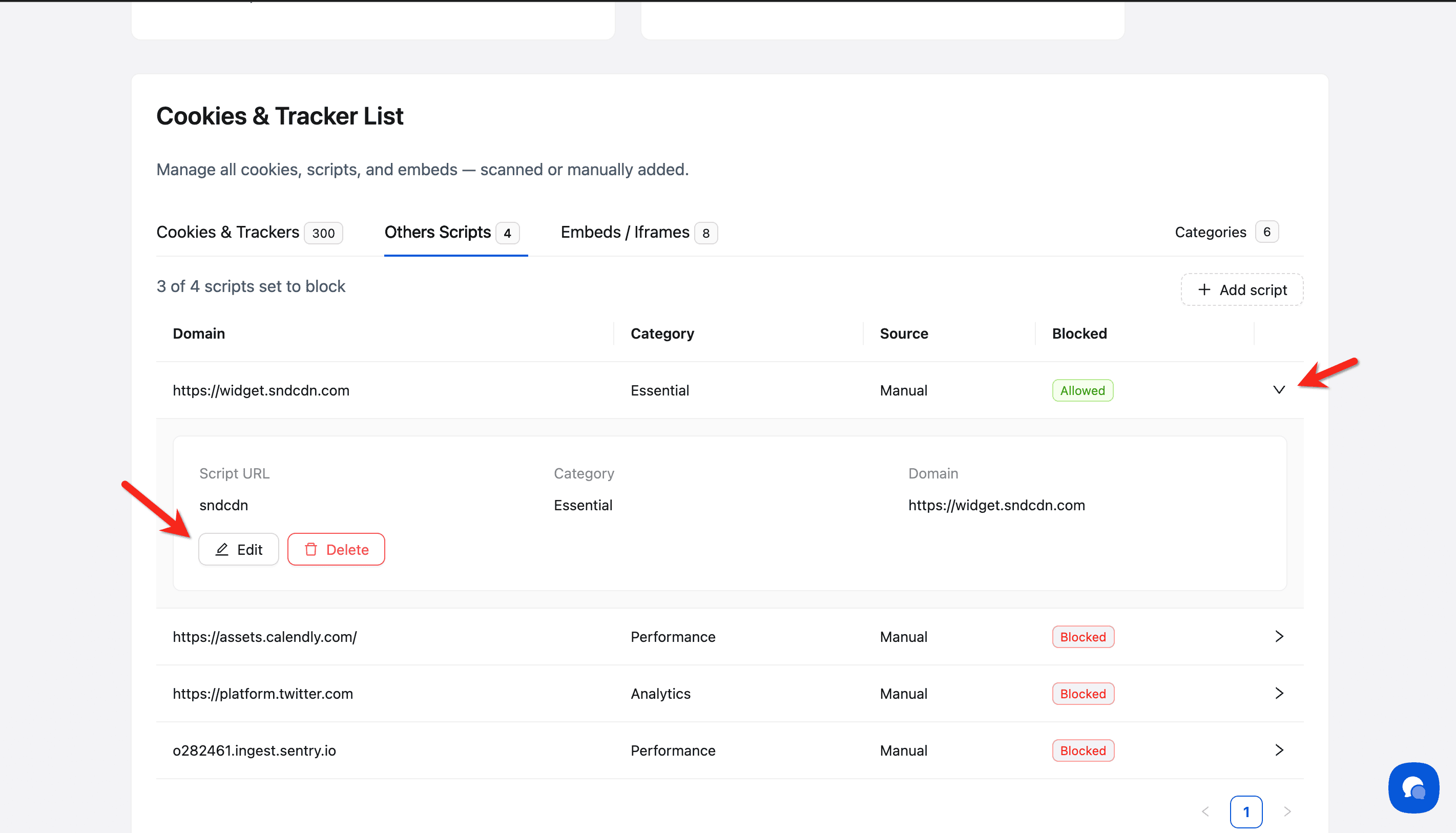
Click on any script row (or the arrow icon) to expand its details.
Step 5: Enable blocking for the script
Click the Edit button to open the Update Script modal.
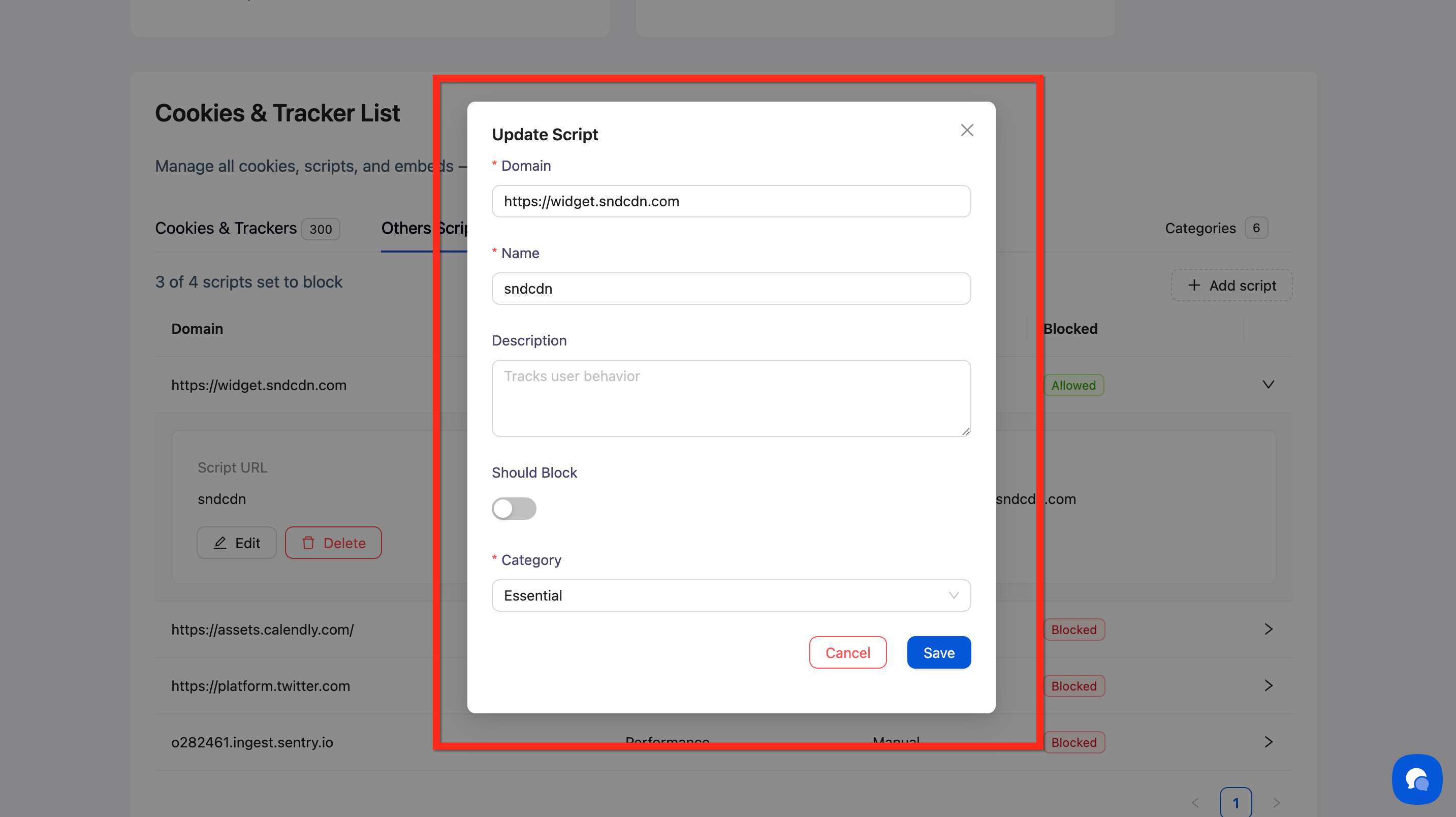
Step 6: Toggle blocking and verify category
Turn on the Should Block toggle
Verify or change the Category assignment (Analytics, Essential, Advertising, Performance, Social, or Unclassified)
Click Save
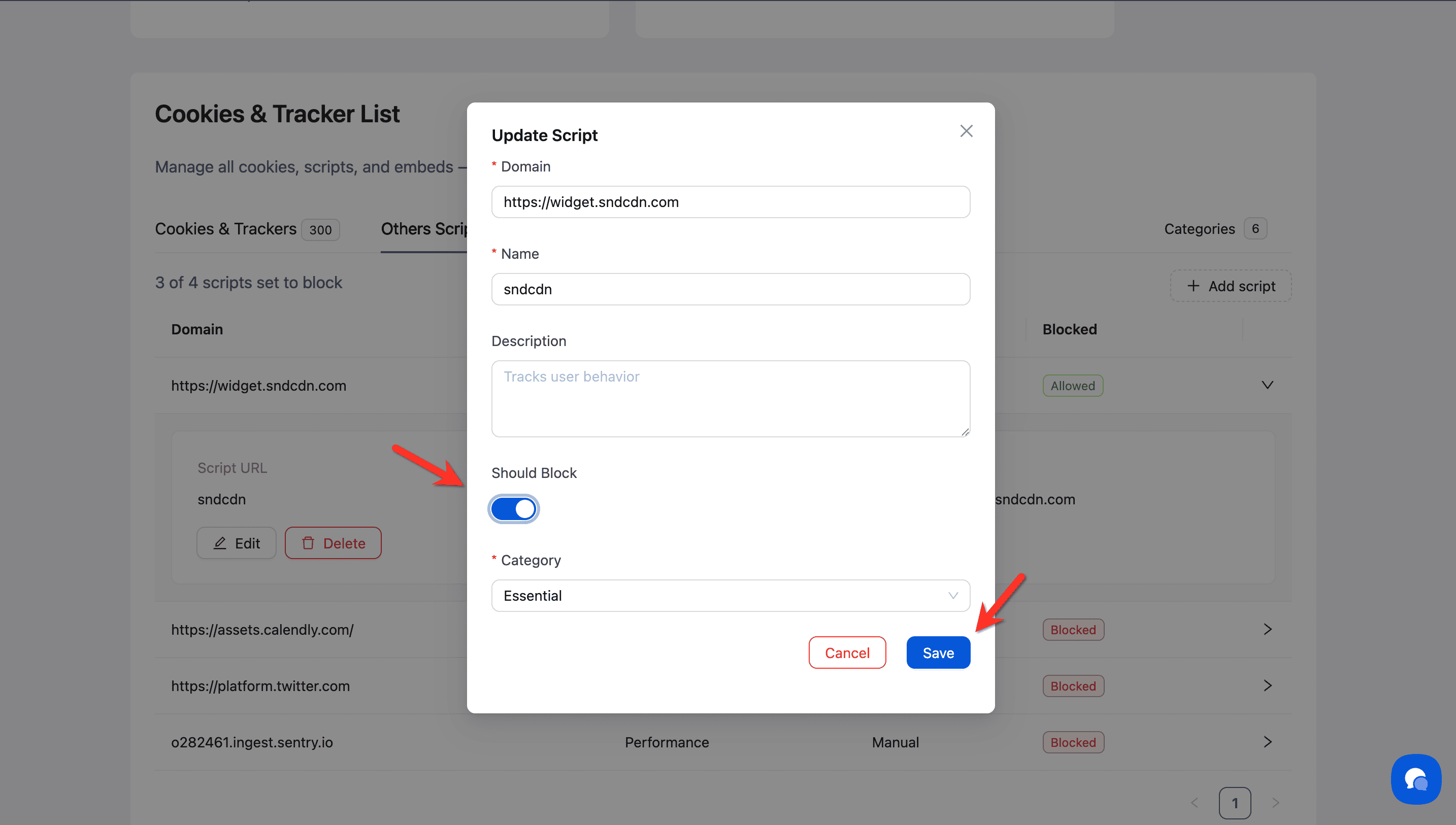
💡 Tip: Non-essential scripts like analytics tools, advertising pixels, and marketing tags should be blocked by default and assigned to their appropriate categories to comply with GDPR.
Done!
The script now requires visitor consent before loading.
✅ Success indicator: The script's status changes from "Allowed" to "Blocked" in the Others Scripts table. The script will only load after visitors consent to the assigned category.
Adding Scripts to Your Blocking List
There are two ways to add scripts for blocking:
Option 1: Add from Scan Results
After running a cookie scan, review the Scan History section at the bottom of the page. Scripts detected during scans can be added directly to your blocking list.
Scroll to the Scan History section
Click View Cookies or View Details on a completed scan
Review the detected scripts and add any that should be blocked
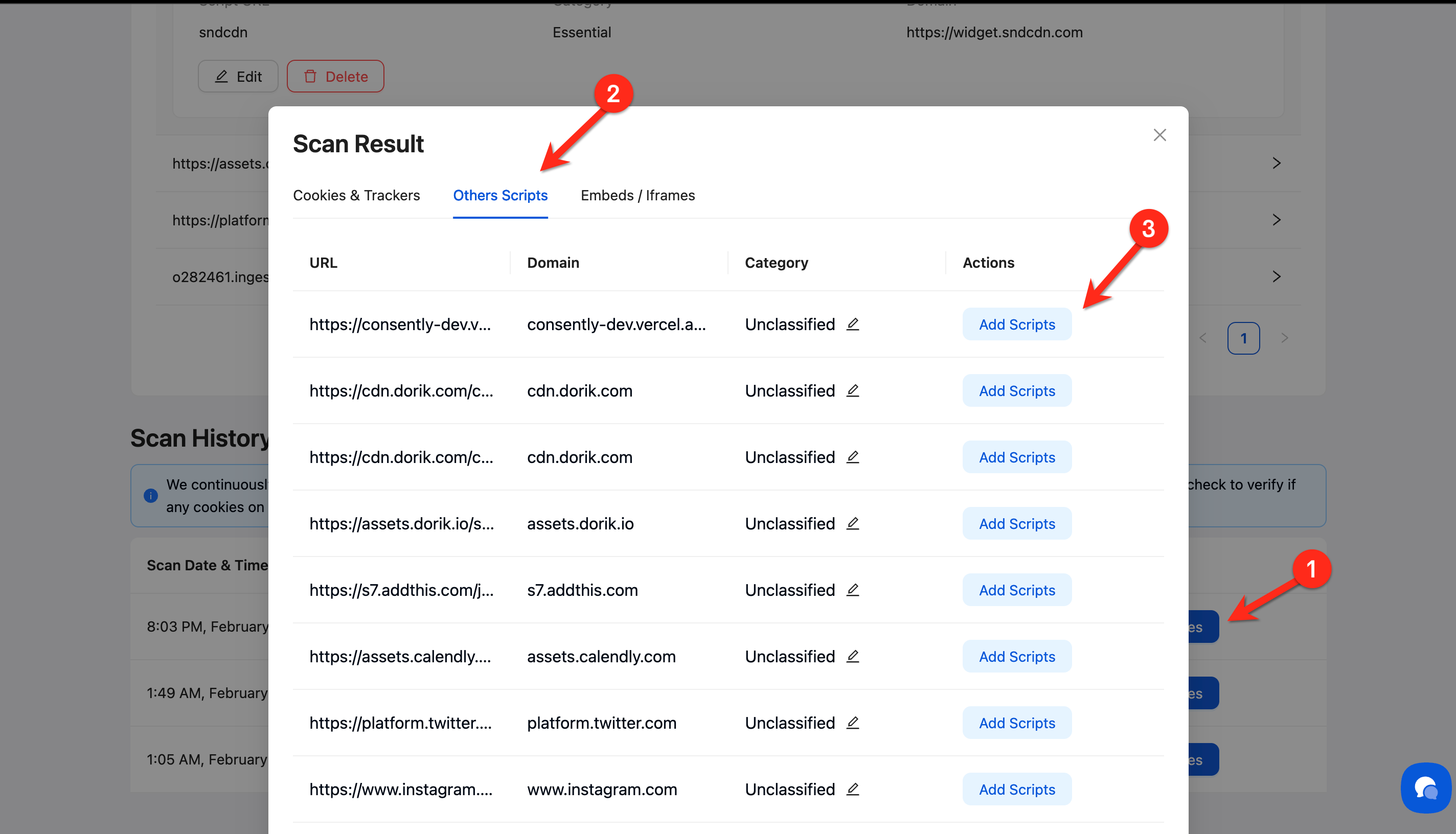
💡 Tip: Running regular scans helps you discover new scripts added to your website automatically. Check the "How to check cookies on your website manually" guide in the Scan History banner for additional verification methods.
Option 2: Add Scripts Manually
If you want to block a script proactively or the scan didn't detect it, use the manual add feature.
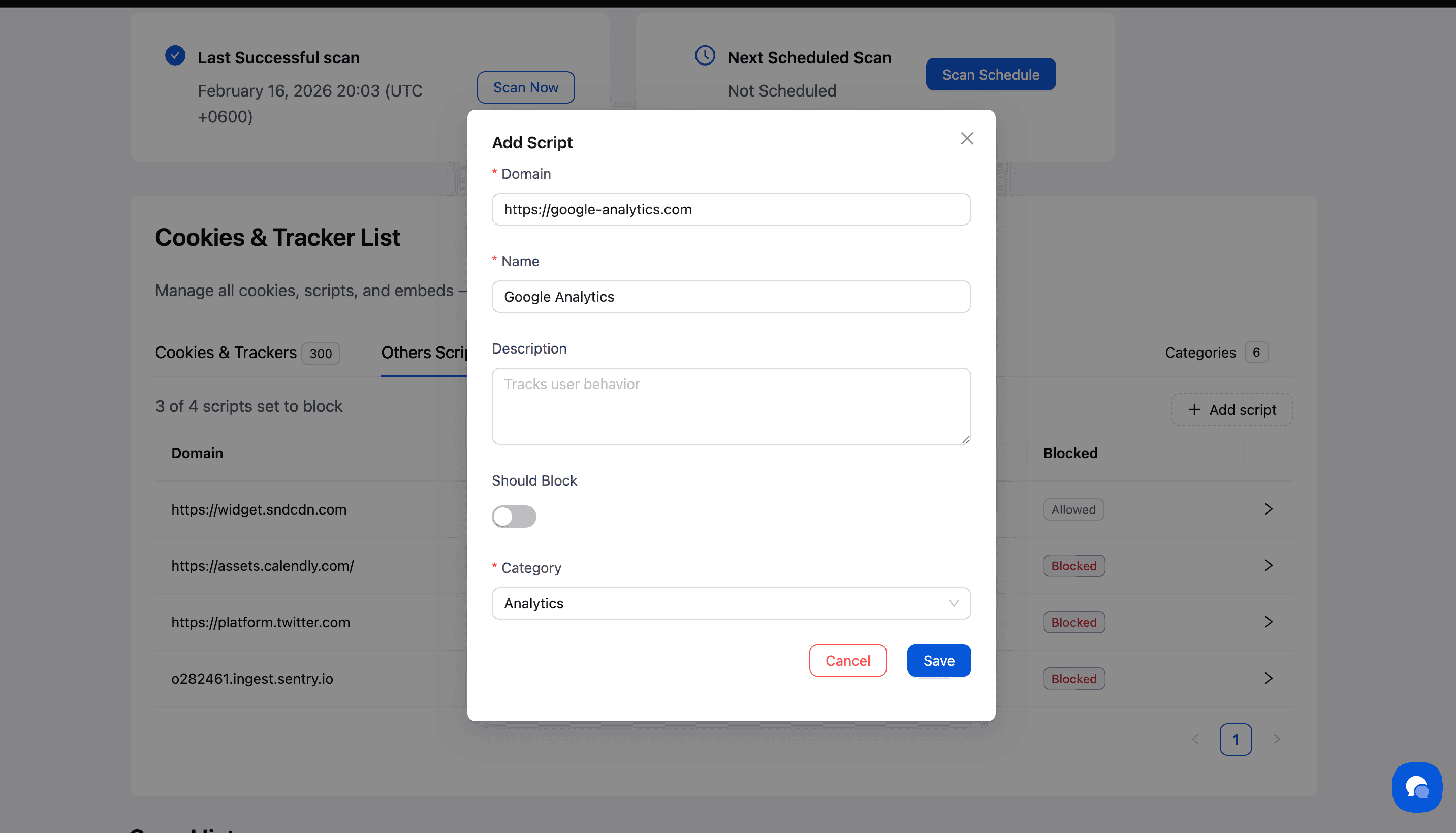
Step 1: Open the Add Script modal
Click the + Add script button in the top-right corner of the Others Scripts section.
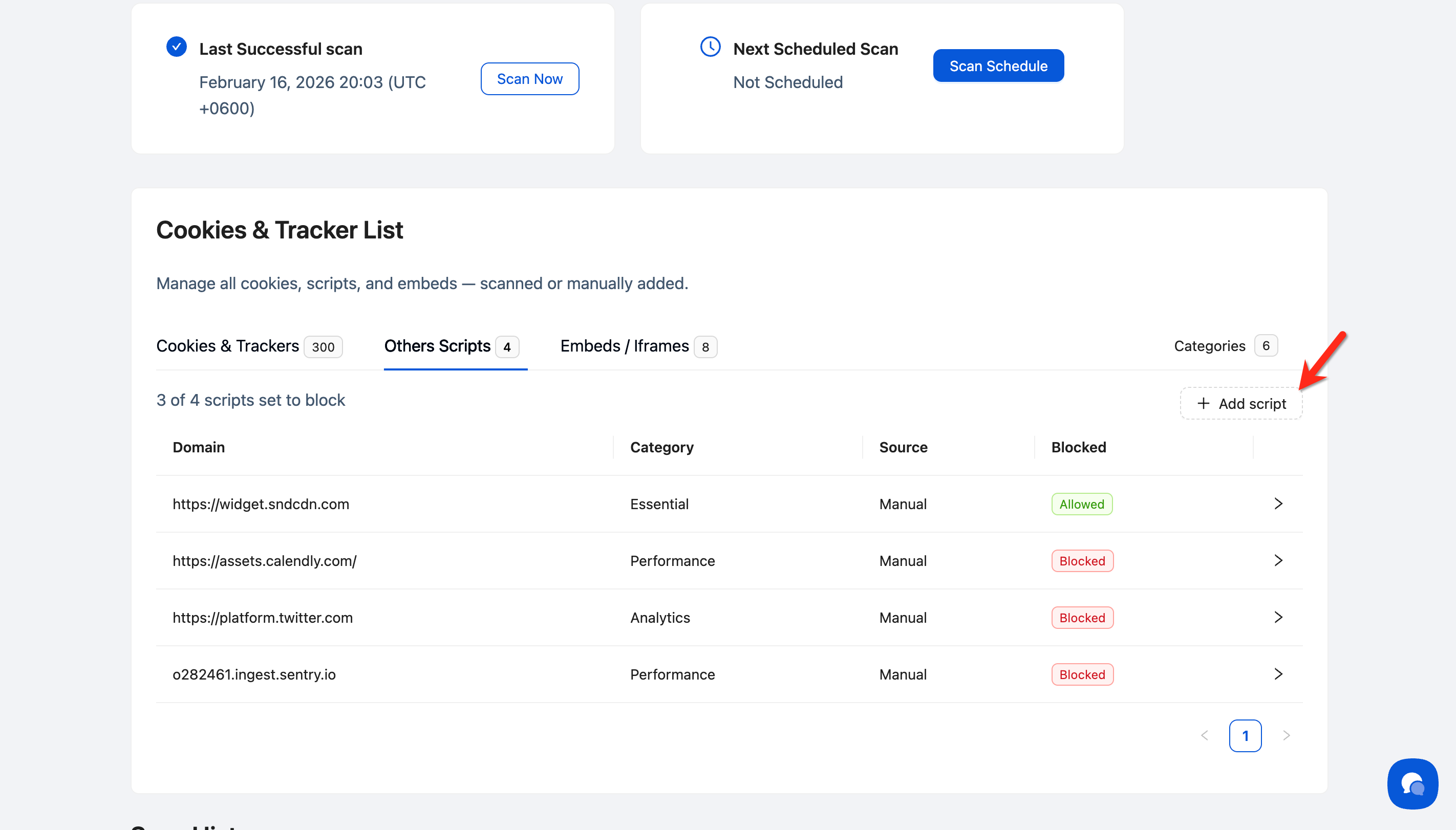
Step 2: Enter script details
In the Add Script modal, fill in the following:
Domain (required): The domain hosting the script (e.g.,
google-analytics.com)Name (required): A descriptive name for the script (e.g.,
Google Analytics)Description (optional): Additional details about what the script does (e.g.,
Tracks user behavior)Should Block: Turned on or off
Category (required): Select a category (Analytics, Essential, Advertising, Performance, Social, or Unclassified)
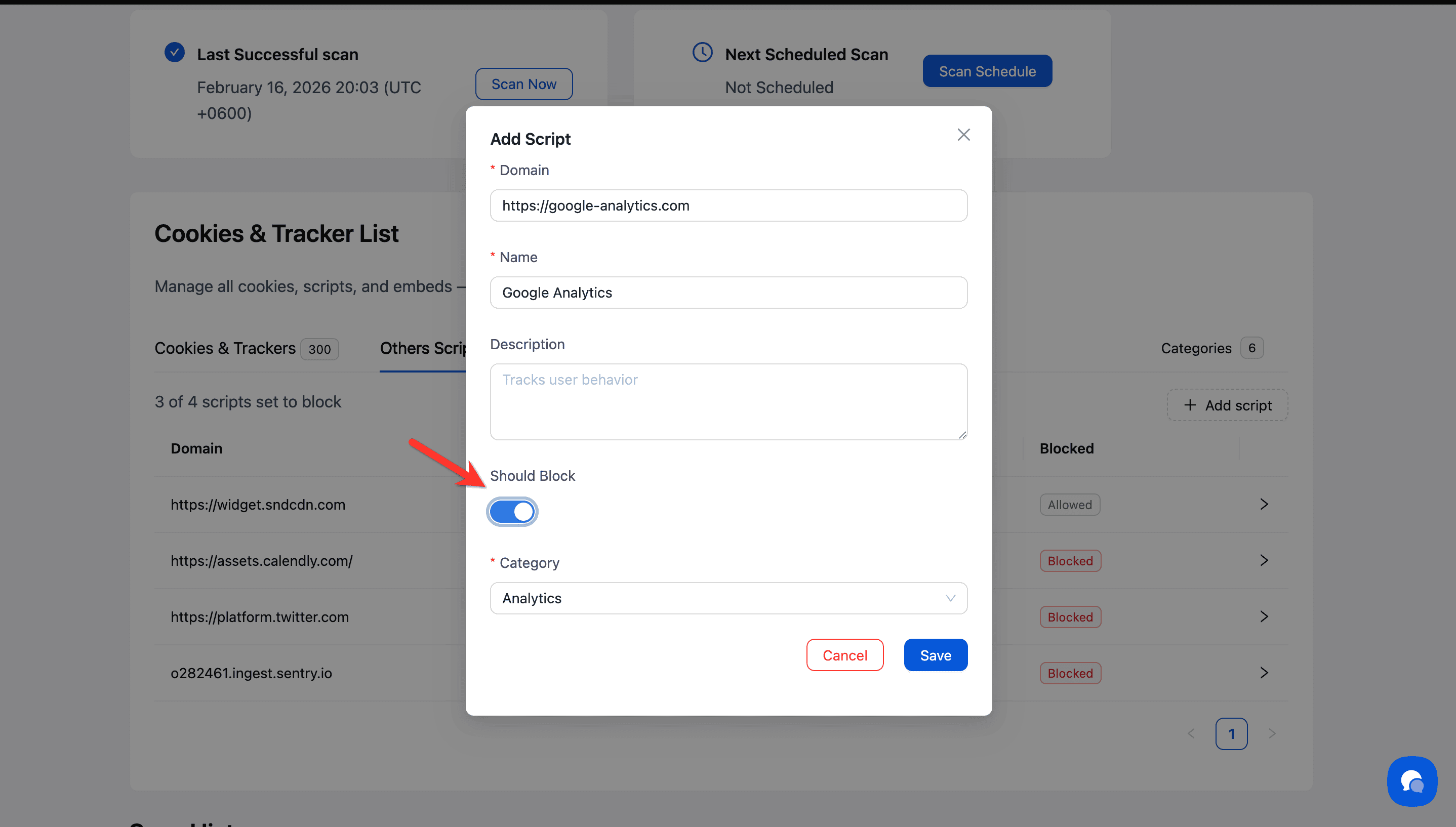
Step 3: Enable blocking
Toggle Should Block on to block this script until consent is granted.
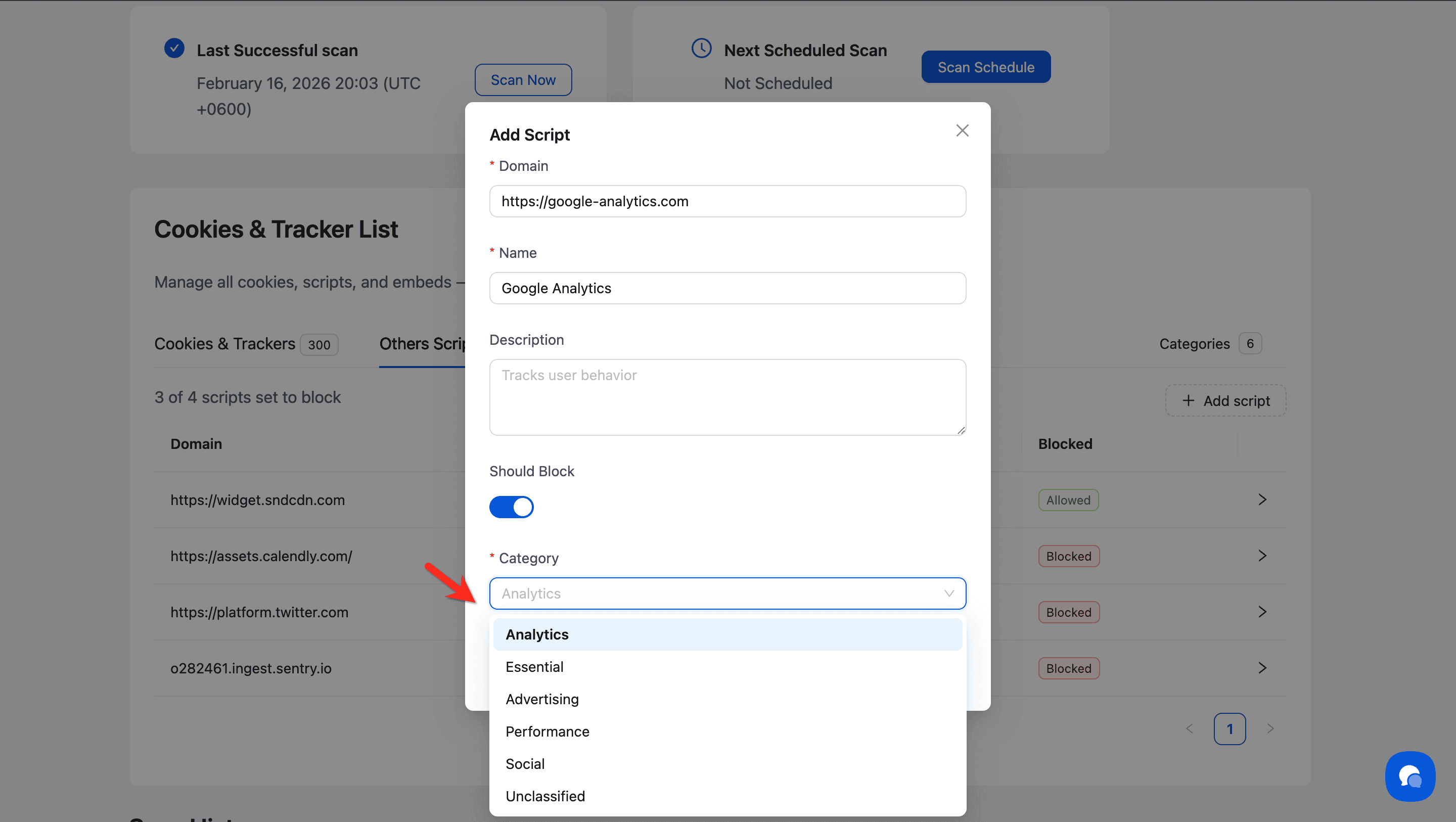
Step 4: Assign category
Select the appropriate cookie category from the Category dropdown:
Analytics: Google Analytics, Matomo, Mixpanel
Advertising: Facebook Pixel, Google Ads, AdRoll
Performance: CDN scripts, optimization tools
Social: Social media sharing widgets
Essential: Critical functionality scripts (use sparingly)
Unclassified: Scripts pending categorization
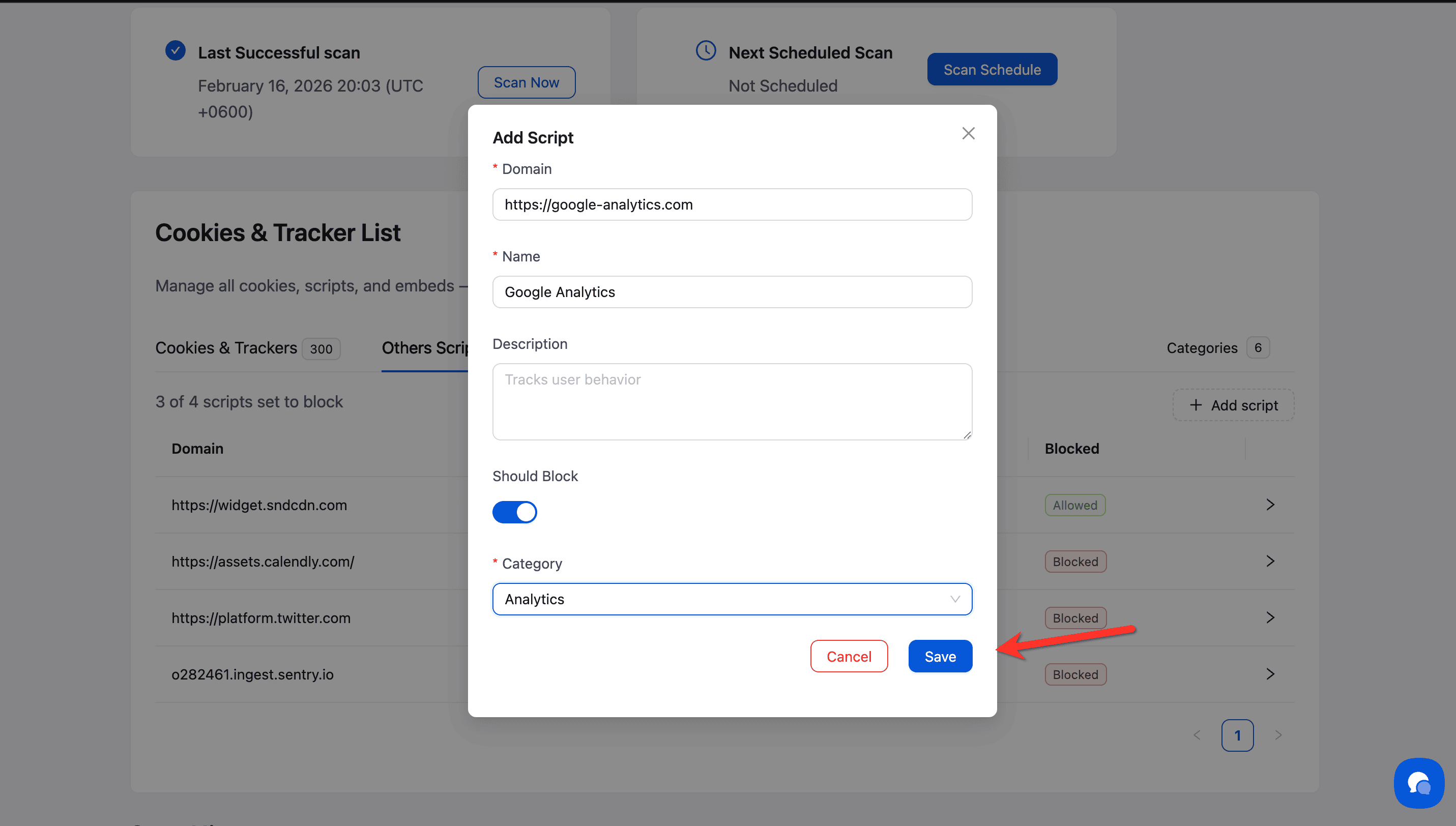
Step 5: Save the script
Click Save to add the script to your blocking list.
Common Script Examples
Analytics Scripts
Google Analytics (
google-analytics.com,analytics.js)Google Tag Manager (
googletagmanager.com)Matomo/Piwik (
matomo.org)Mixpanel (
mixpanel.com)
Category: Analytics
Advertising Scripts
Facebook Pixel (
connect.facebook.net)Google Ads (
googleadservices.com)Twitter Ads (
analytics.twitter.com)LinkedIn Insight Tag (
snap.licdn.com)
Category: Advertising
Chat & Support Scripts
Intercom (
widget.intercom.io)Drift (
js.driftt.com)Zendesk (
static.zdassets.com)Tawk.to (
embed.tawk.to)
Category: Performance or Essential (if required for core support)
Social Media Scripts
Facebook SDK (
connect.facebook.net)Twitter Widgets (
platform.twitter.com)LinkedIn Widgets (
platform.linkedin.com)
Category: Social
How It Works
When you block a script:
Before consent: The script does not load on the visitor's browser
After consent: Once visitors accept the relevant cookie category, the script loads and begins execution
Consent withdrawal: If visitors later withdraw consent, the script stops loading on subsequent page views
What's Next
Now that you've configured script blocking:
Test your blocking configuration to verify scripts are blocked correctly
Review cookie auto-blocking settings to ensure comprehensive consent enforcement
Troubleshooting
Script still loads without consent
Why this happens: The script might be loaded inline rather than from an external source, or the domain doesn't match exactly.
Solution:
Clear your browser cache and reload the page in incognito mode
Verify the script domain matches exactly (including subdomains like
www.orcdn.)Check if the script is inline (embedded directly in HTML) — inline scripts require different blocking approaches
Confirm the "Should Block" toggle is enabled for that script
Use browser developer tools (Network tab) to verify the script URL matches your configuration
Essential website functionality breaks
Why this happens: You may have blocked a script that's required for core website features.
Solution:
Move truly essential scripts (like payment processors, security tools, or critical UI libraries) to the Essential category
Essential scripts will load immediately without requiring consent
Only categorize scripts as Essential if they're genuinely required for basic website operation — most scripts are not essential under GDPR
Scripts from same domain have different behavior
Why this happens: Each script entry is based on the exact domain/path combination.
Solution: If a domain serves multiple scripts, you may need to add multiple entries for different paths. For example:
www.googletagmanager.com/gtm.jswww.googletagmanager.com/gtag/js
Each path should be configured separately if you need different blocking behaviors.
Automatic scan didn't detect my script
Solution: Use the + Add script button to manually add scripts that weren't detected. Make sure to enter the exact domain as it appears in the script's source URL. If you're unsure, check your browser's developer tools (Network tab) to see the exact script URLs loading on your site.
Status shows "3 of 4 scripts set to block"
Why this shows: This counter displays how many scripts have blocking enabled out of the total scripts detected.
Solution: This is informational only. If you want all non-essential scripts blocked, go through each script and enable the "Should Block" toggle. Scripts in the Essential category typically should not be blocked.
Related Pages
Cookie Auto-Blocking — How Consently blocks cookies until consent
Cookie Categories — Understanding which category each script belongs to
Cookie Scanning — Running scans to detect scripts automatically
GDPR Compliance — Why script blocking helps with GDPR compliance