

TL;DR: Most banner issues are resulted from incorrect script placement, browser cache, or conflicting code. Clear your cache, verify the script is in the <head> section, and check the browser console for errors.Overview
When your consent banner doesn't work as expected, the issue is typically related to script installation, caching, or browser compatibility. This guide addresses the most common banner problems and provides step-by-step solutions.
Common Banner Problems
Banner not appearing on the website
Why this happens: The script is missing, incorrectly placed, or blocked by another script or plugin.
Solution:
Verify the script is installed by viewing your website's page source (
Ctrl+UorCmd+Option+U)Search for
consently.jsin the page sourceConfirm the script appears in the
<head>section, not at the bottom of the pageCheck that the
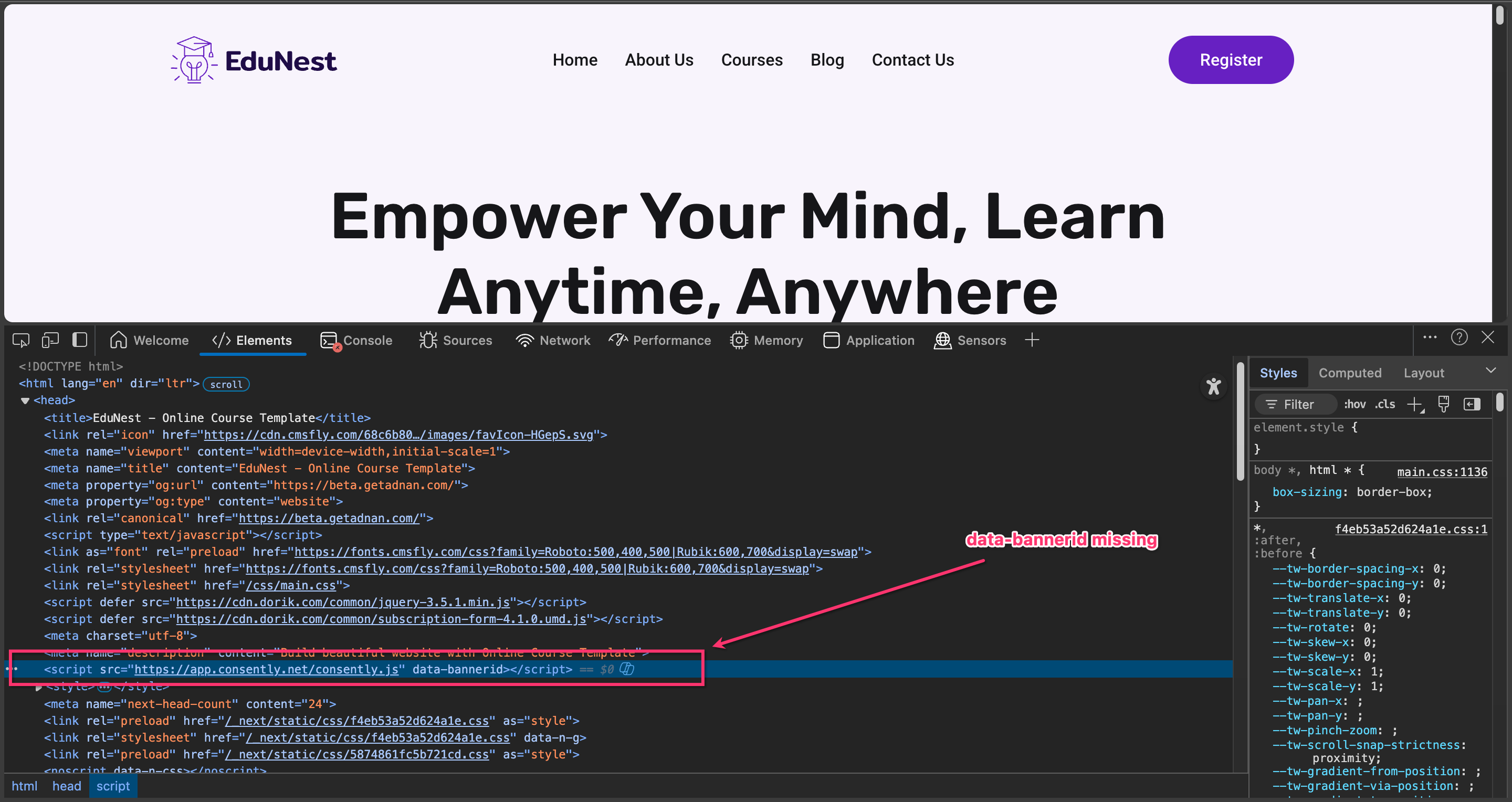
data-banneridattribute contains your actual banner IDOpen your browser's Developer Tools (F12) and check the Console tab for JavaScript errors
If using a caching plugin, clear all caches
Try viewing the site in an incognito/private browsing window
Sample Error on Console:
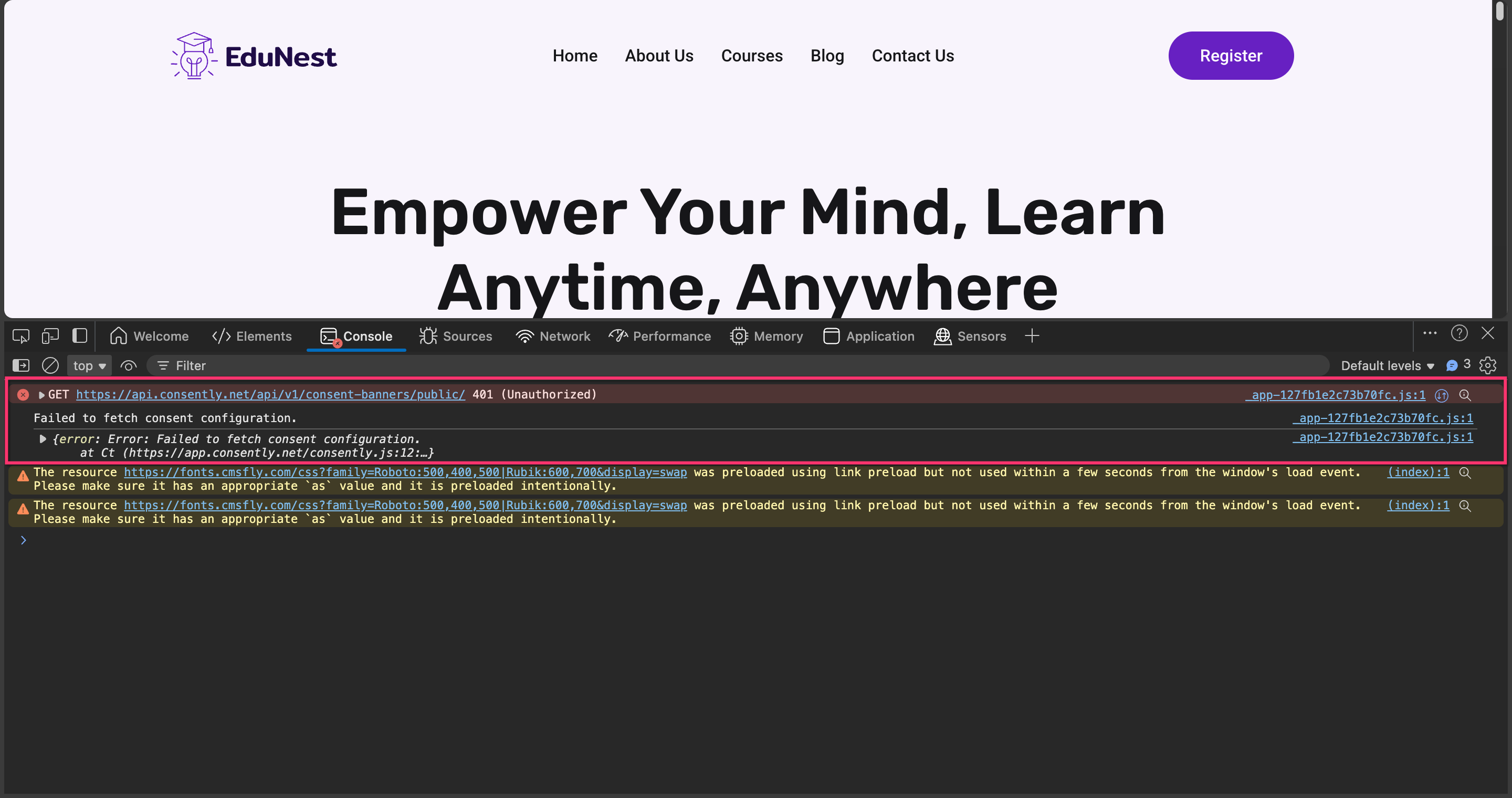
Cause of the Error:
💡 Tip: If you see a "Failed to load resource" error for consently.js, your firewall or ad blocker may be interfering. Try disabling browser extensions temporarily.Banner appears multiple times
Why this happens: The embed script was added to multiple locations on your website.
Solution:
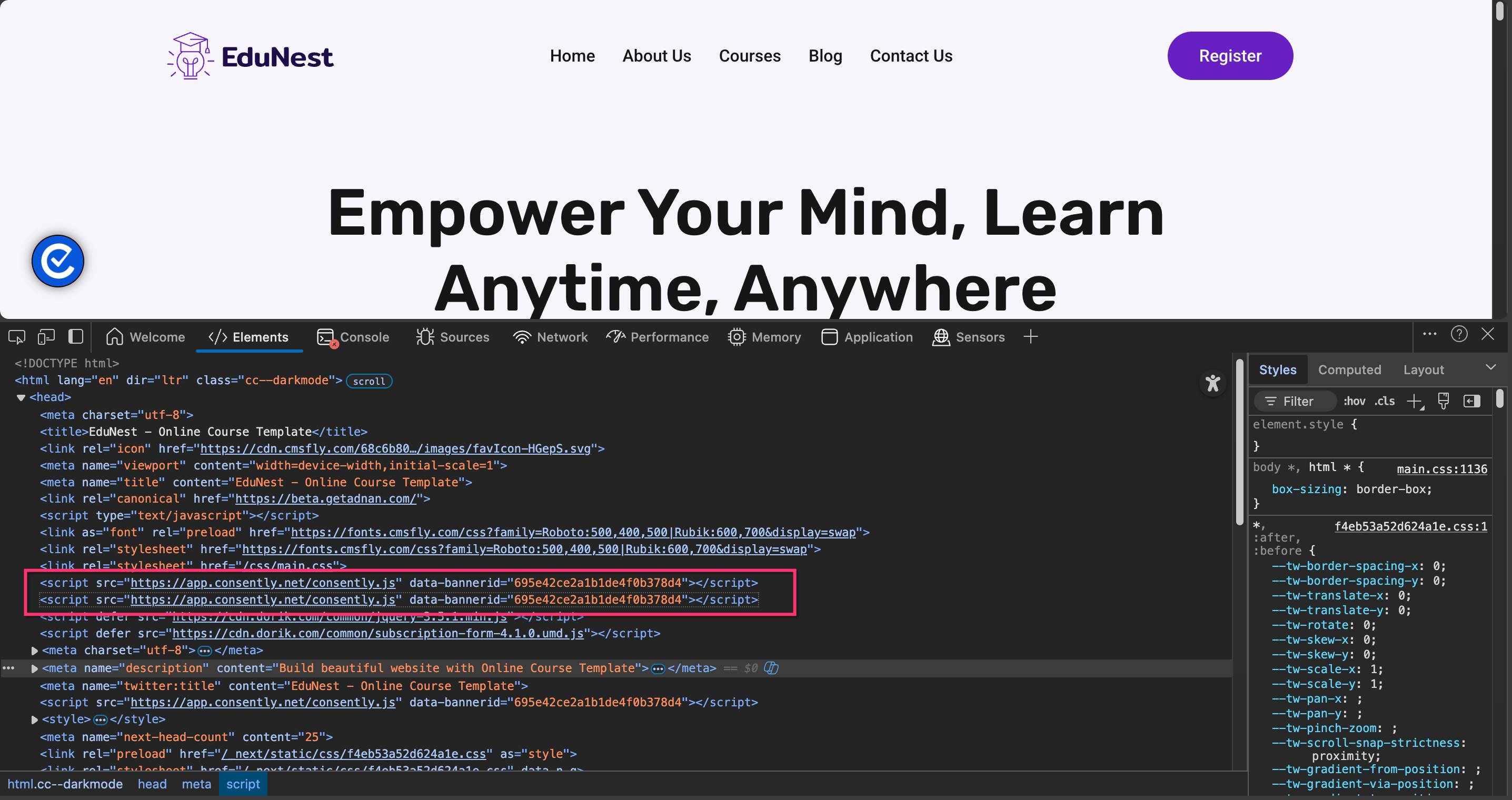
Check your website's
<head>section for duplicate script tagsIf using Google Tag Manager, verify you haven't created multiple Consently tags
Review your theme's header file and any custom code sections
Check if the script is added both in your theme and via a plugin
Remove all duplicate instances, make sure there is only one script tag in the
<head>section is availableClear your browser cache and refresh the page
Styling doesn't match your customization
Why this happens: The browser cache is serving an old version of the banner, or the changes weren't published.
Solution:
Verify your changes were published in Publishing Your Banner
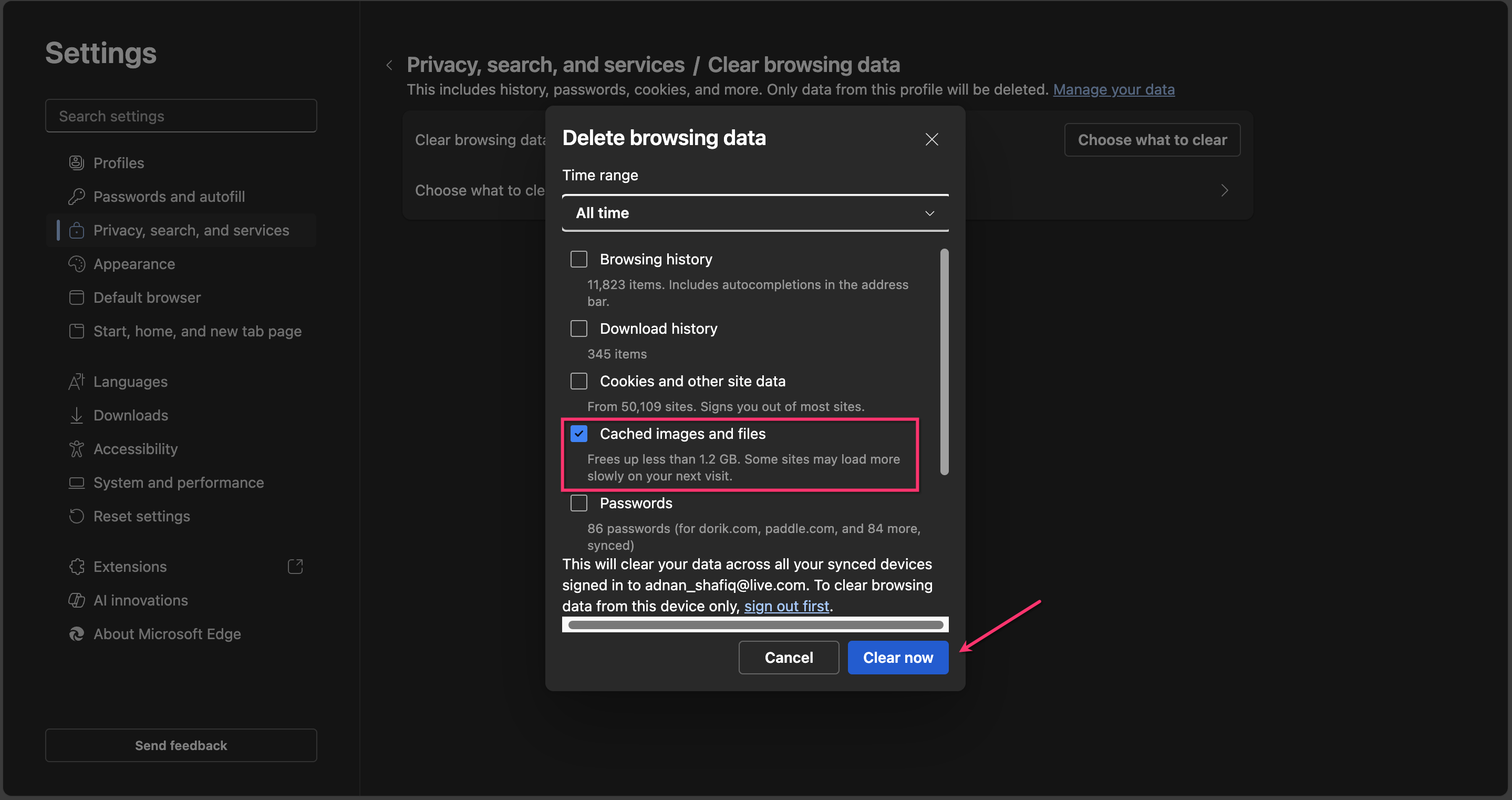
Clear your browser cache completely (
Ctrl+Shift+DeleteorCmd+Shift+Delete)Try viewing the banner in an incognito/private window
If using a caching plugin (WP Rocket, W3 Total Cache, etc.), clear the plugin cache
If using a CDN (Cloudflare, etc.), purge the CDN cache
Wait 5-10 minutes for changes to propagate
⚠️ Important: Changes to banner styling require cache clearing on both your browser AND any caching systems your website uses.
Banner content is not updating after changes
Why this happens: Similar to styling issues, browser or server-side caching is serving outdated content.
Solution:
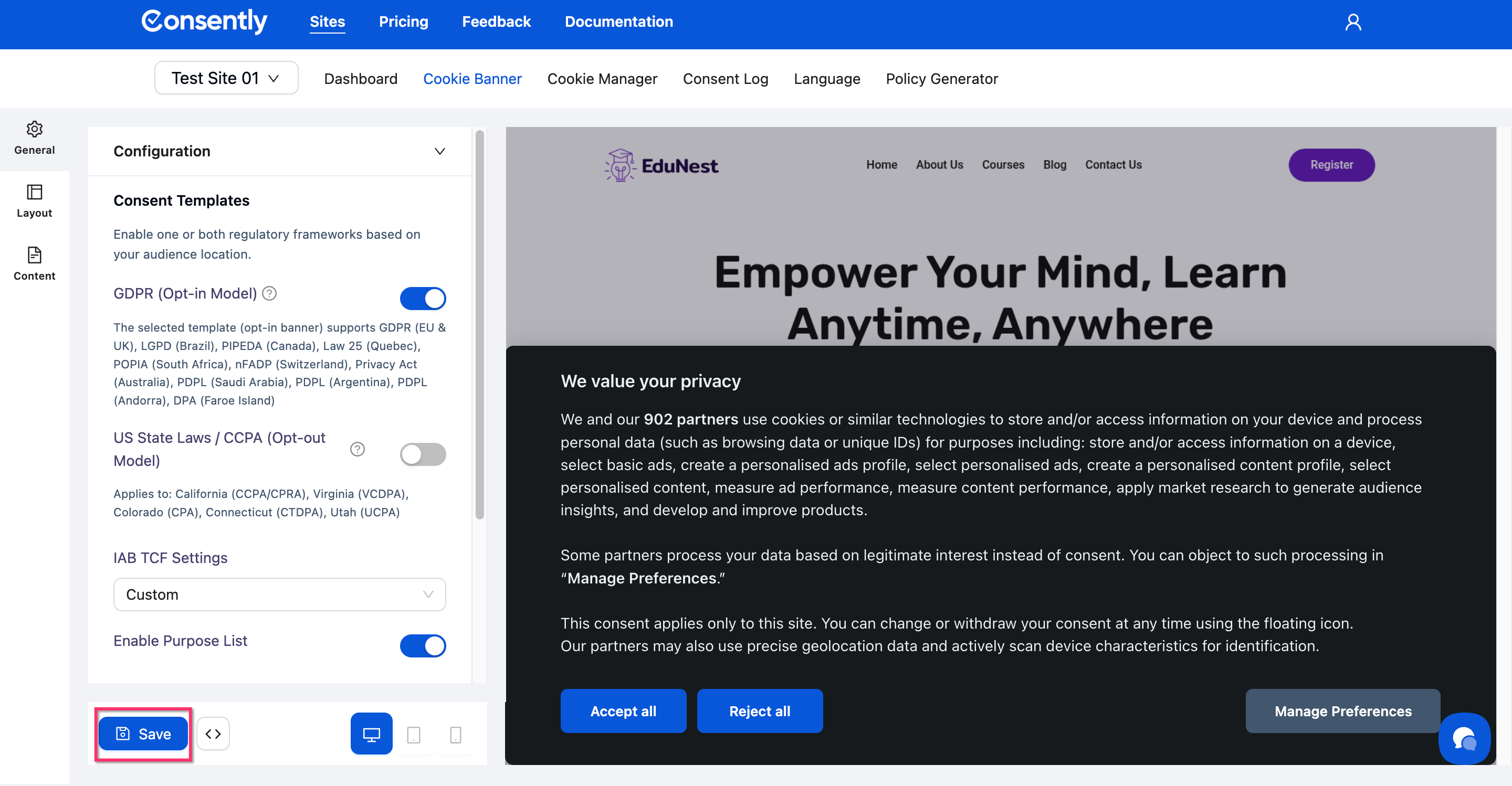
Confirm you clicked Save after making content changes
Clear all caches (browser, WordPress plugins, CDN)
Test in an incognito/private browsing window
Check the banner configuration page to confirm your changes are saved
If content still doesn't update after 10 minutes, verify the correct site is selected in the site selector dropdown
Cookie blocking is not working properly
Why this happens: Scripts may be loading before the consent banner initializes, or cookie categories are misconfigured.
Solution:
Verify the Consently script is the first script in your
<head>sectionCheck that cookies are correctly categorized in the Cookie Manager
Confirm Enabled Necessary is only turned on for truly essential cookies
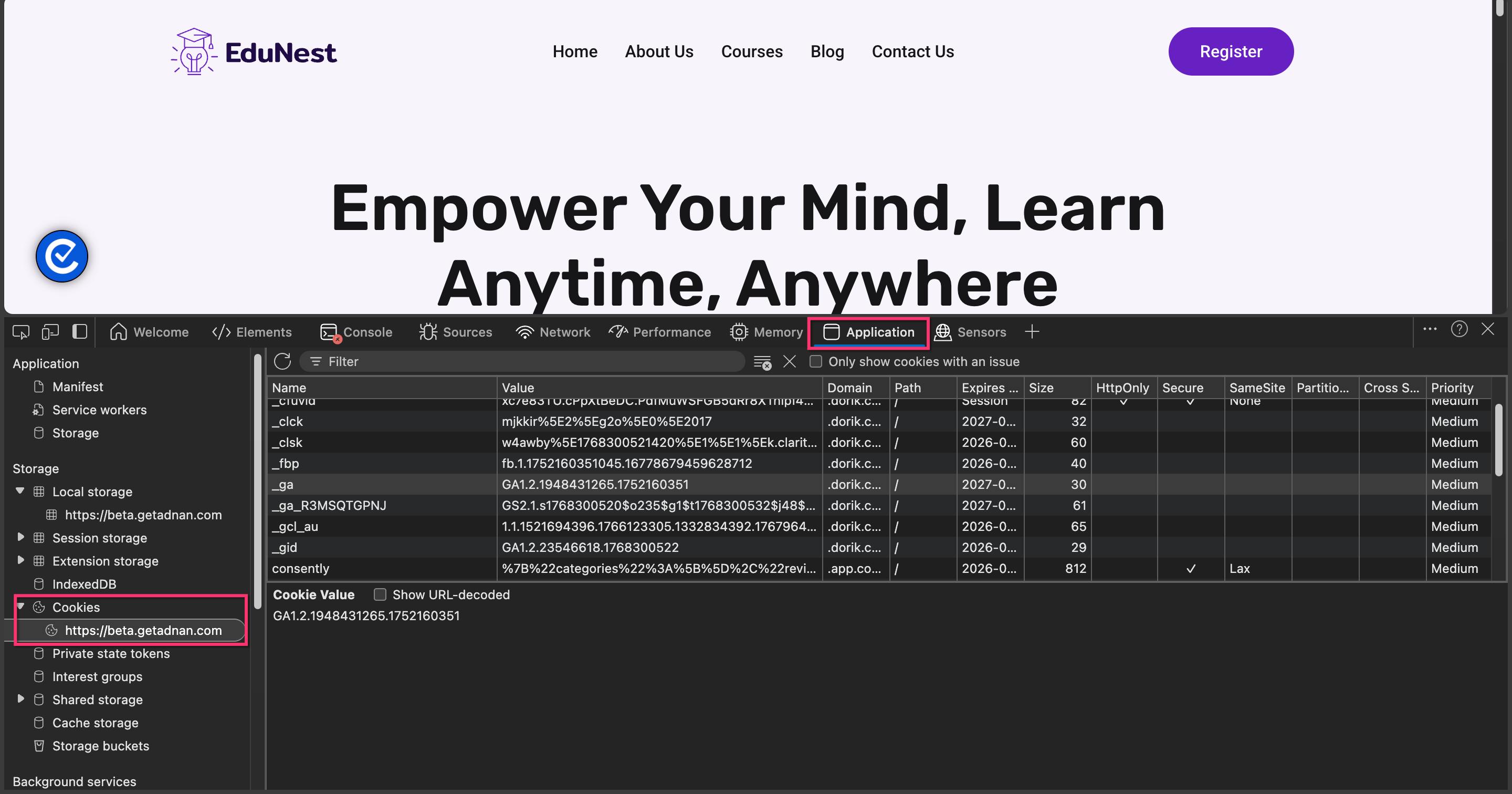
Test cookie blocking by opening Developer Tools → Application tab → Cookies
Reject all cookies in the banner and verify that non-essential cookies don't appear
Check for third-party scripts that may bypass consent (some analytics or chat widgets)
💡 Tip: Some third-party services like Google Analytics require additional configuration to respect consent. Learn more about Cookie Auto-Blocking.
Banner not displaying on specific browsers
Why this happens: Browser extensions, strict privacy settings, or JavaScript being disabled can prevent the banner from loading.
Solution:
Test the banner in multiple browsers (Chrome, Firefox, Safari, Edge)
Disable browser extensions, especially ad blockers and privacy tools
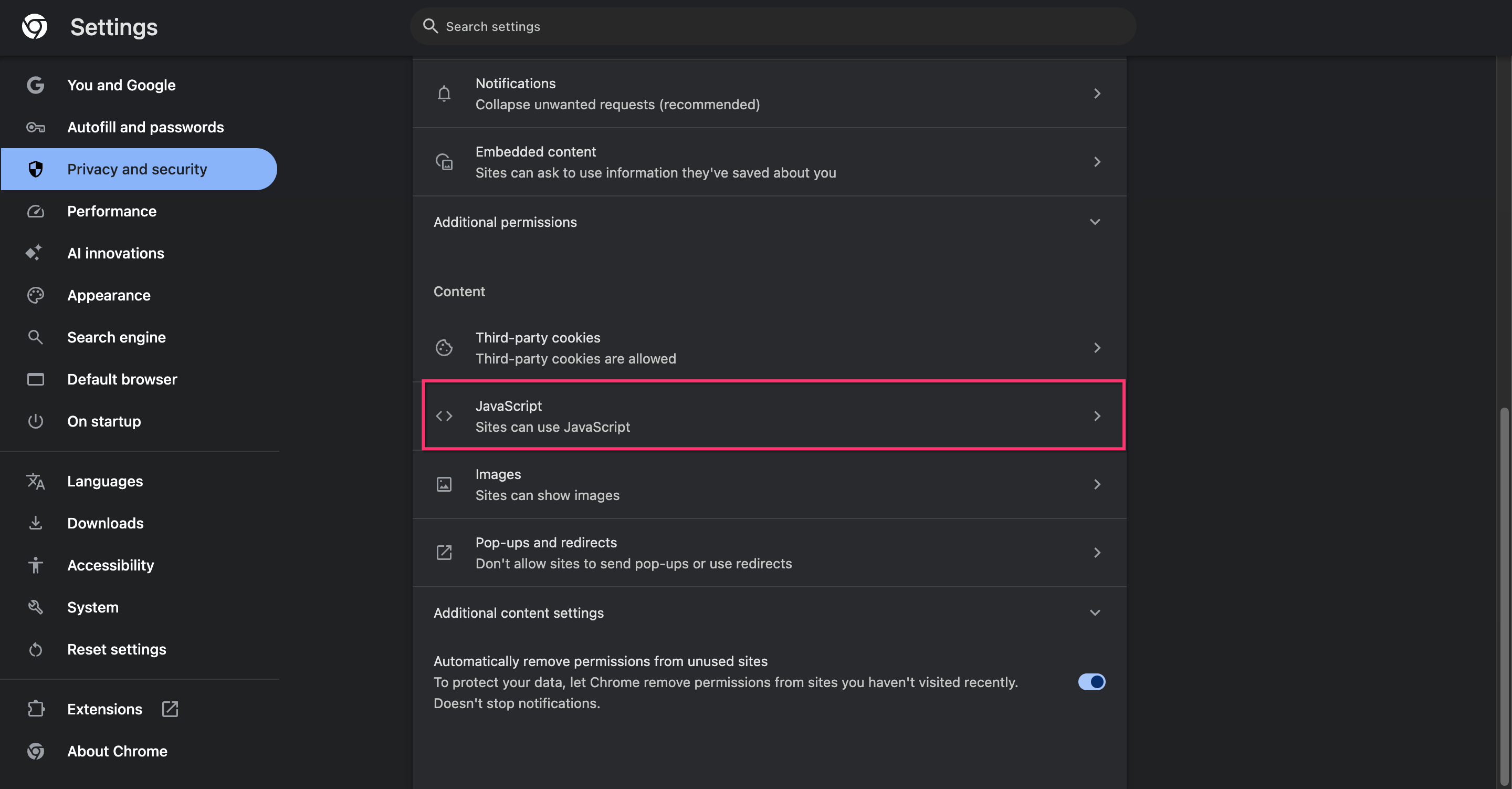
Check if JavaScript is enabled in the browser settings
Verify the browser version is current (very old browsers may not be supported)
Test in a private/incognito window to rule out browser extension interference
Clear browser cache and cookies for your website
Banner shows incorrect language
Why this happens: The website's HTML lang attribute doesn't match available translations, or language detection isn't configured.
Solution:
Check your website's HTML
langattribute (e.g.,<html lang="en">)Verify you've added and saved the corresponding language in Adding Languages
Confirm translations are complete in Editing Language Content
Clear the browser cache after adding new languages
If using a multilingual plugin, ensure it sets the correct
langattribute
Changes take a long time to appear
Why this happens: Multiple layers of caching delay updates from reaching visitors.
Solution:
Clear browser cache (immediate effect for you)
Clear WordPress/CMS cache plugins
Purge CDN cache (if using Cloudflare, etc.)
Note that changes can take 5-15 minutes to propagate fully
Test in incognito mode to bypass the local browser cache
What's Next
Now that you've resolved your banner issue:
Test your installation to verify everything works correctly
Contact Support if issues persist after trying these solutions
Related Pages
Customizing Banner Content — Editing banner text and messages
Preview Modes — Testing banner appearance before publishing