

TL;DR: Dashboard → Consent Log. View all visitor consent choices with timestamps, countries, and consent statuses for compliance audit trails.
Overview
The Consent Log records every visitor's consent decision on your website. Each entry includes a unique ID, visitor country, consent status, and timestamp—providing an audit-ready trail to demonstrate GDPR compliance and other privacy regulations.
Before You Begin
Make sure you have:
Installed the banner script on your website
Time required: 1 minute
How to View Your Consent Log
Step 1: Navigate to the Consent Log
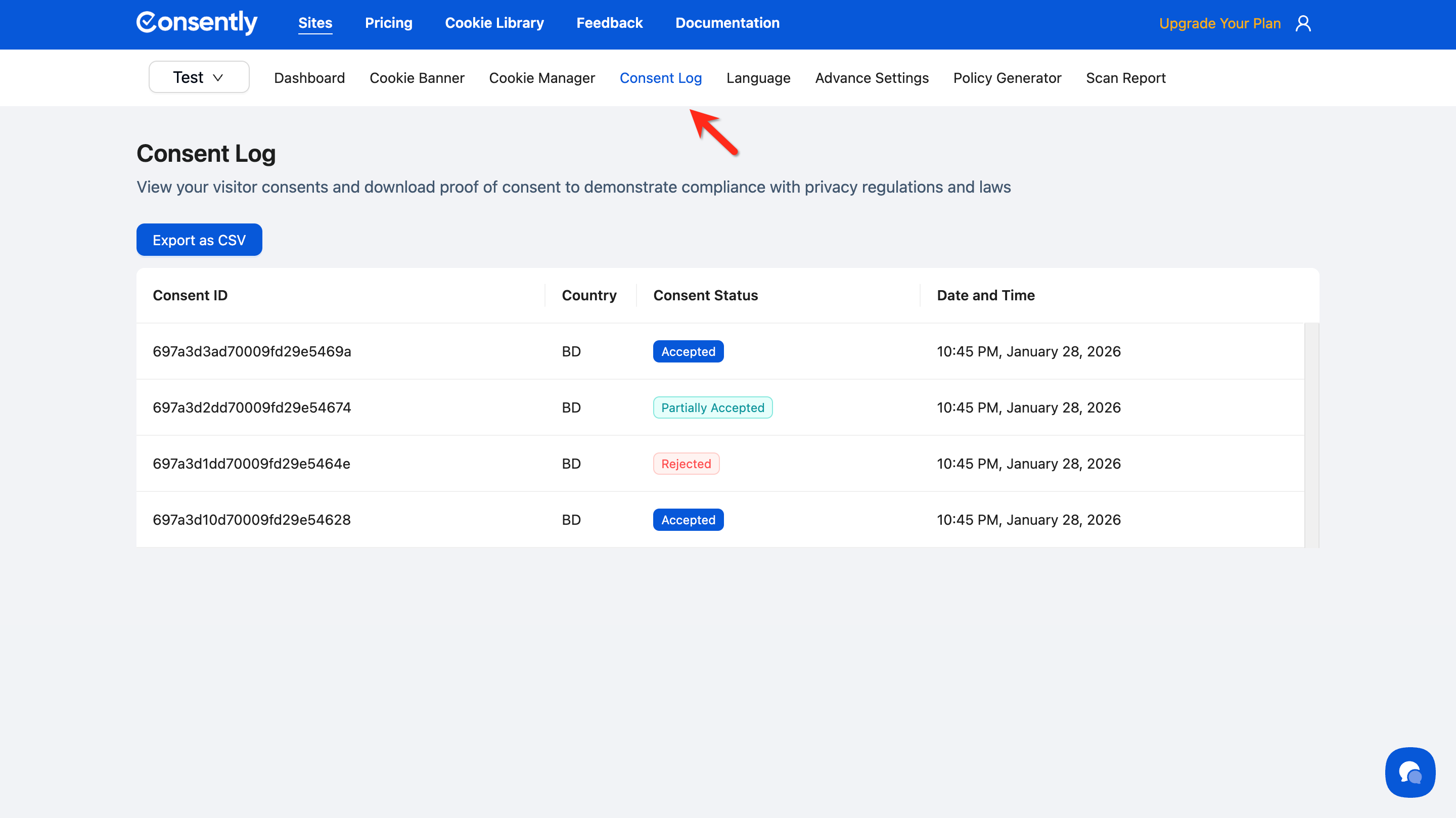
From your dashboard, click Consent Log in the top navigation bar.
Step 2: Review consent records
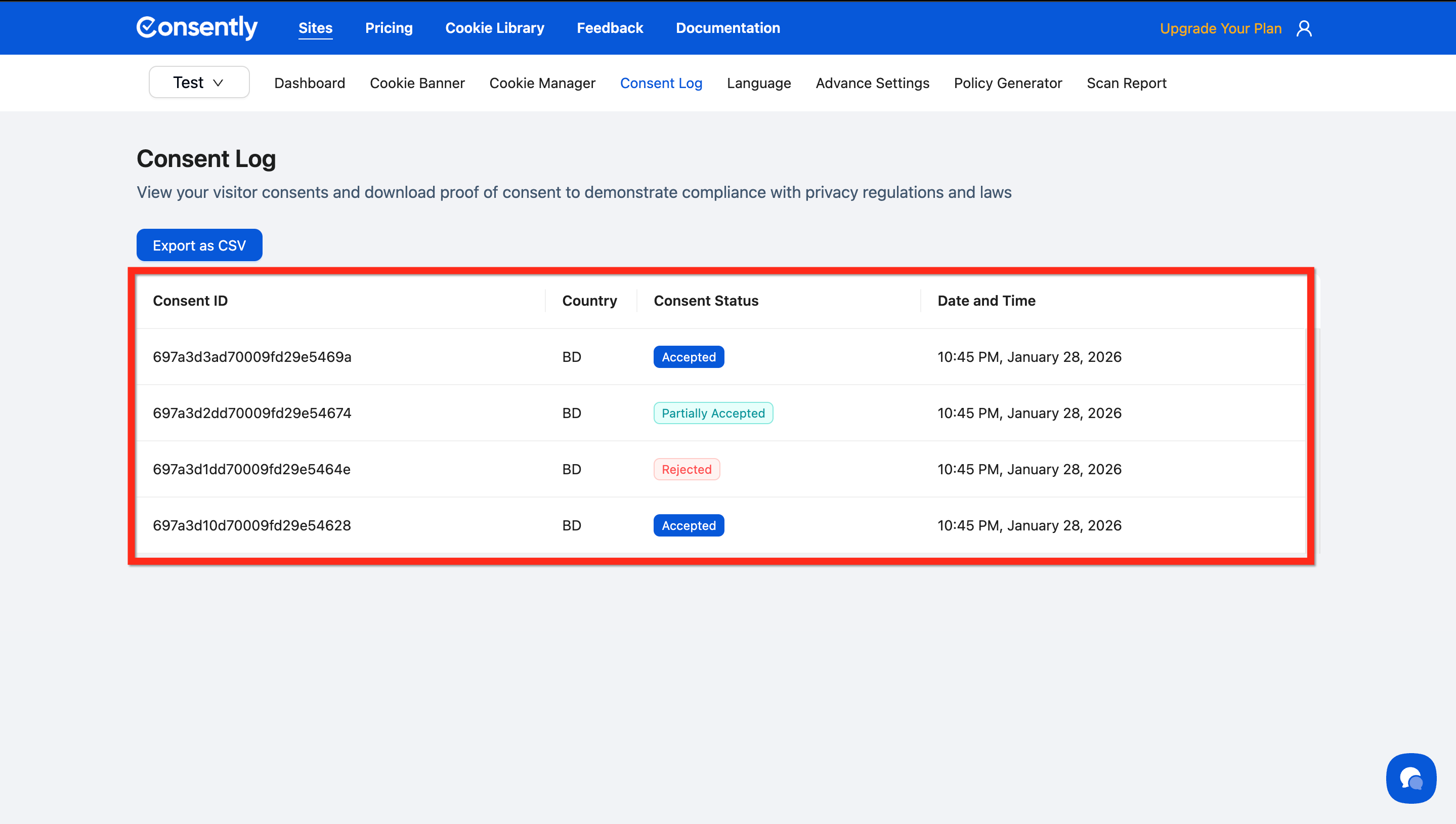
The Consent Log table displays all recorded consent decisions with the following information:
Consent ID — Unique identifier for each consent record
Country — Visitor's geographic location based on IP address
Consent Status — The visitor's choice:
Accepted All — All cookie categories accepted
Rejected All — All non-essential cookies rejected
Custom — Specific categories selected through Manage Preferences
Date and Time — When the consent decision was recorded
Done!
You're now viewing your consent records. The log updates automatically as visitors interact with your banner.
Understanding the Consent Log
The consent log table contains four key pieces of information:
Consent ID: A unique identifier for each consent record (e.g., 67890abc-1234-5678-def0-123456789abc)
Country: The visitor's location based on their IP address (e.g., United States, Germany, Canada)
Consent Status: The visitor's choice, displayed as:
Accepted — Visitor accepted all cookie categories
Rejected — Visitor rejected all non-essential cookies
Partially accepted — Visitor made granular selections in the preference center
Date and Time: Timestamp of when consent was collected (e.g., 1:59 AM, January 14, 2026 )
💡 Tip: For new installations with no visitor activity yet, you'll see a "No data" message. Once visitors interact with your banner, records will appear automatically.
How to Export Consent Logs
Step 1: Open the export options
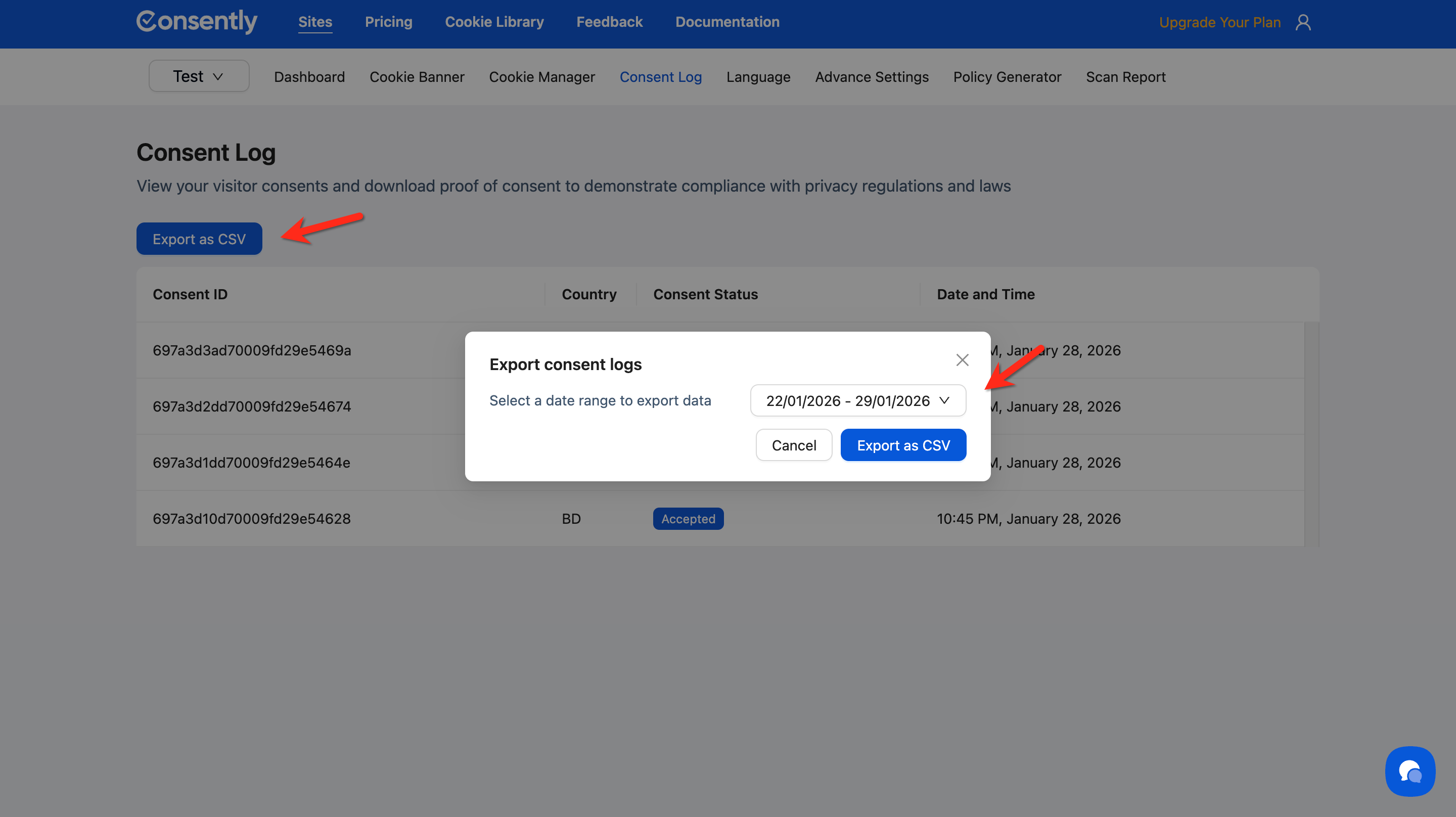
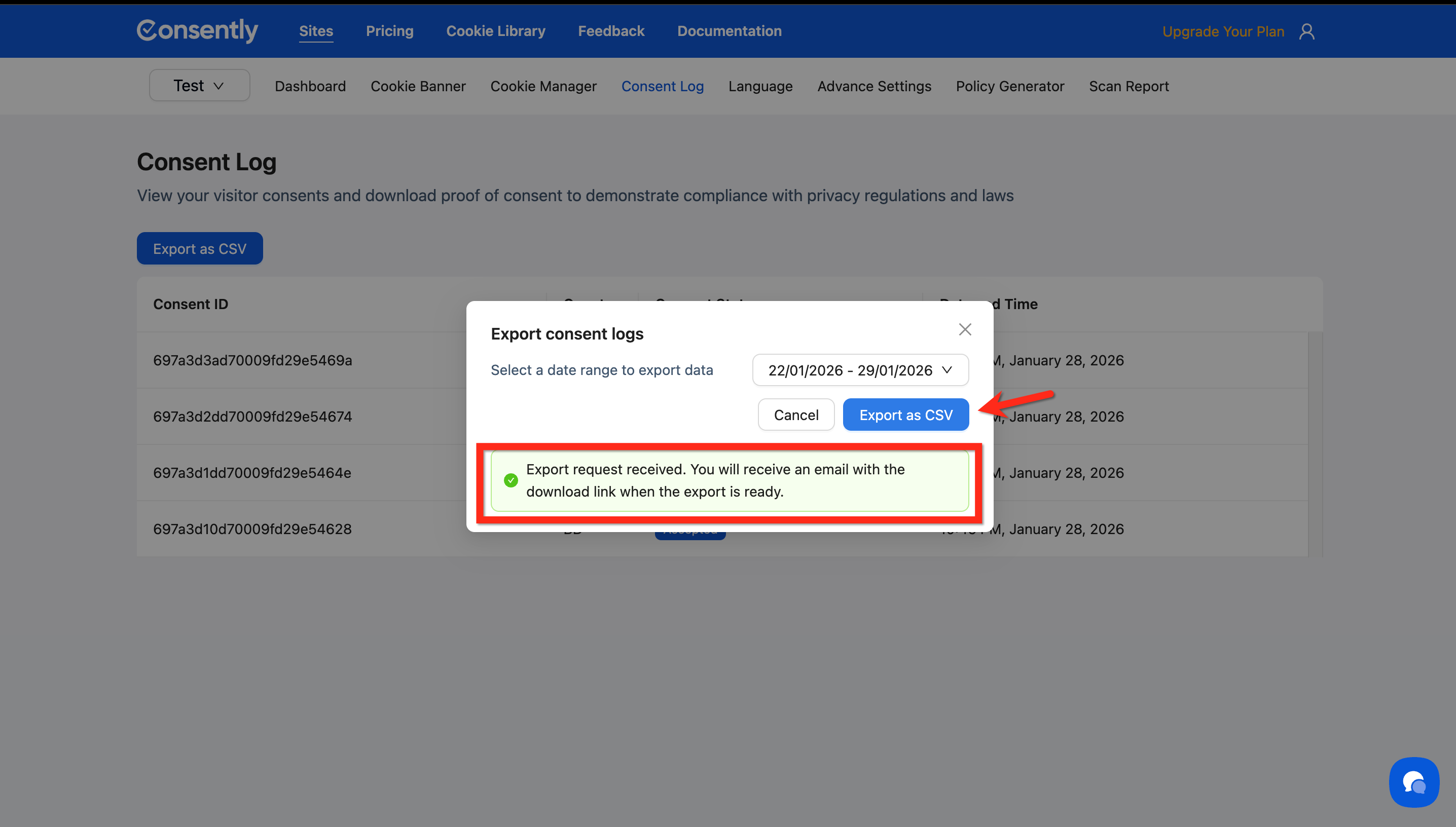
Click the Export as CSV button at the top of the Consent Log page.
Step 2: Select your date range
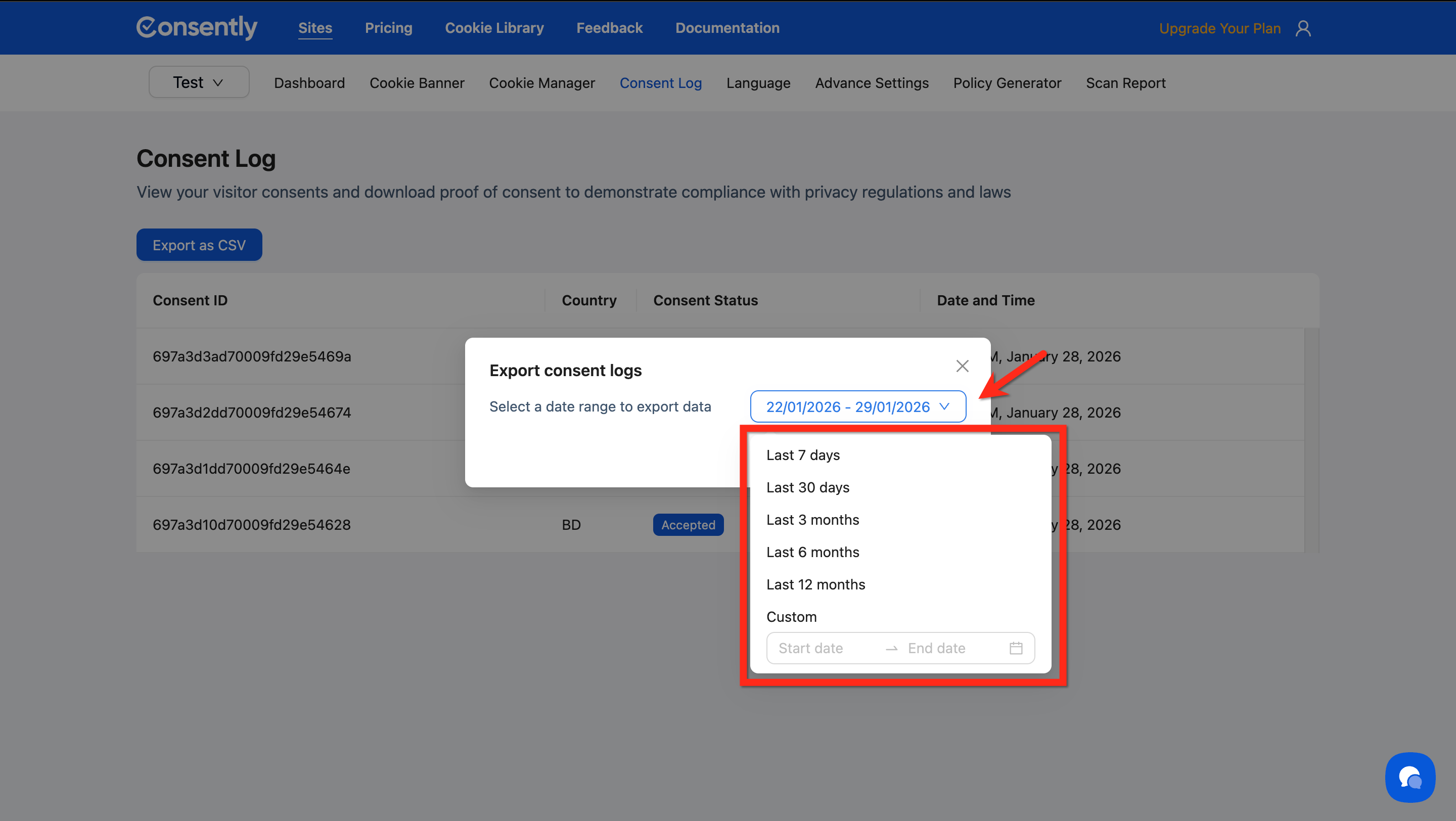
In the export modal, choose the time period you want to export:
Last 7 days — Recent week of activity
Last 30 days — Previous month
Last 3 months — Quarterly data
Last 6 months — Half-year records
Last 12 months — Annual export
Custom date range — Select specific start and end dates
Step 3: Submit the export request
Click Export CSV to process your request.
Done!
Your export request has been submitted for processing.
✅ Success indicator: You'll see a confirmation message: "Export request received. You will receive an email with the download link when the export is ready."
Downloading Your Export
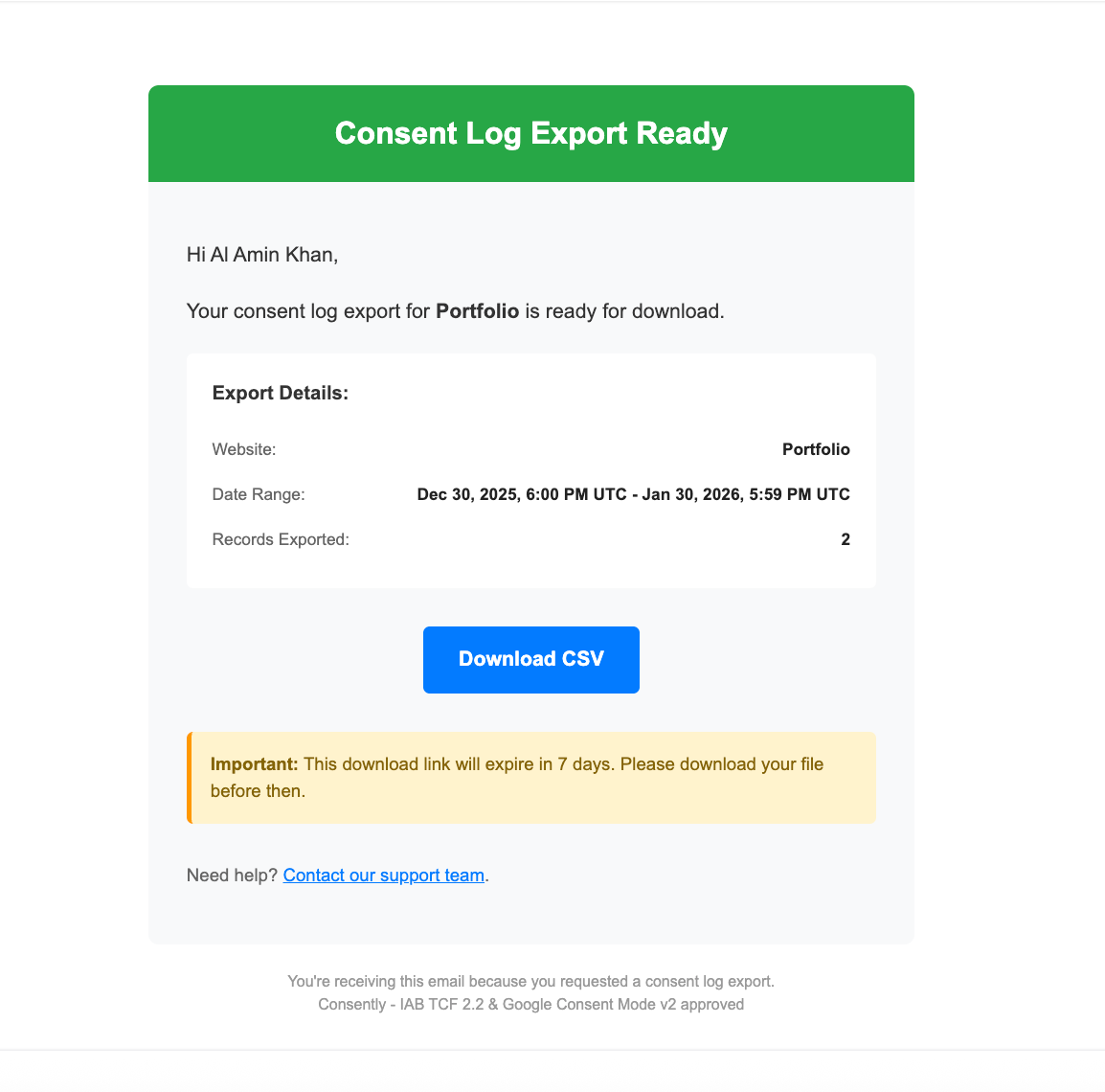
Once processing completes, you'll receive an email with the subject: "Your consent log export is ready – [Site Name]"
The email contains a Download CSV link. Click this link to download your consent log file.
💡 Tip: Export processing time varies based on your selected date range. Larger date ranges with more consent records may take several minutes to prepare.
CSV File Contents
Your exported file includes these columns:
Consent ID — Unique record identifier
Timestamp — Exact date and time of consent
User IP — Visitor's IP address (anonymized where required by regulation)
Country — Geographic location
Preferences — Specific cookie categories accepted or rejected
Consent — Overall consent status (True or False)
What's Next
Now that you understand consent logging, you should:
Troubleshooting
No consent records are appearing
Why this happens: Consent logs only appear after visitors interact with your banner.
Solution:
Verify your banner is installed and displaying correctly on your website
Check that you're viewing the correct site in the site selector dropdown
Test by visiting your website and making a consent choice yourself
If using multiple sites, ensure you've selected the right one from the dashboard
The export email hasn't arrived
Solution:
Check your spam or junk folder for emails from Consently
Verify the email address associated with your Consently account is correct
Large exports (6-12 months) may take longer—wait up to 15 minutes
If still not received after 30 minutes, try submitting a new export request
Related Pages
Consent Analytics — Visualize consent trends and acceptance rates over time
Compliance Overview — Understand how consent logging supports regulatory requirements