

TL;DR: Cookie Library → Browse approved cookies, submit new ones, or track your submissions. Community-contributed cookie database helps you quickly identify and categorize cookies on your website.
Overview
The Global Cookie Library is a community-driven database of approved cookies that helps you identify and categorize cookies detected on your website. You can browse existing cookies, submit new ones for review, and track the status of your submissions.
Before You Begin
Make sure you have:
An active Consently account
Access to the Cookie Library from the top navigation
Time required: 2-5 minutes per cookie submission
How to Browse Approved Cookies
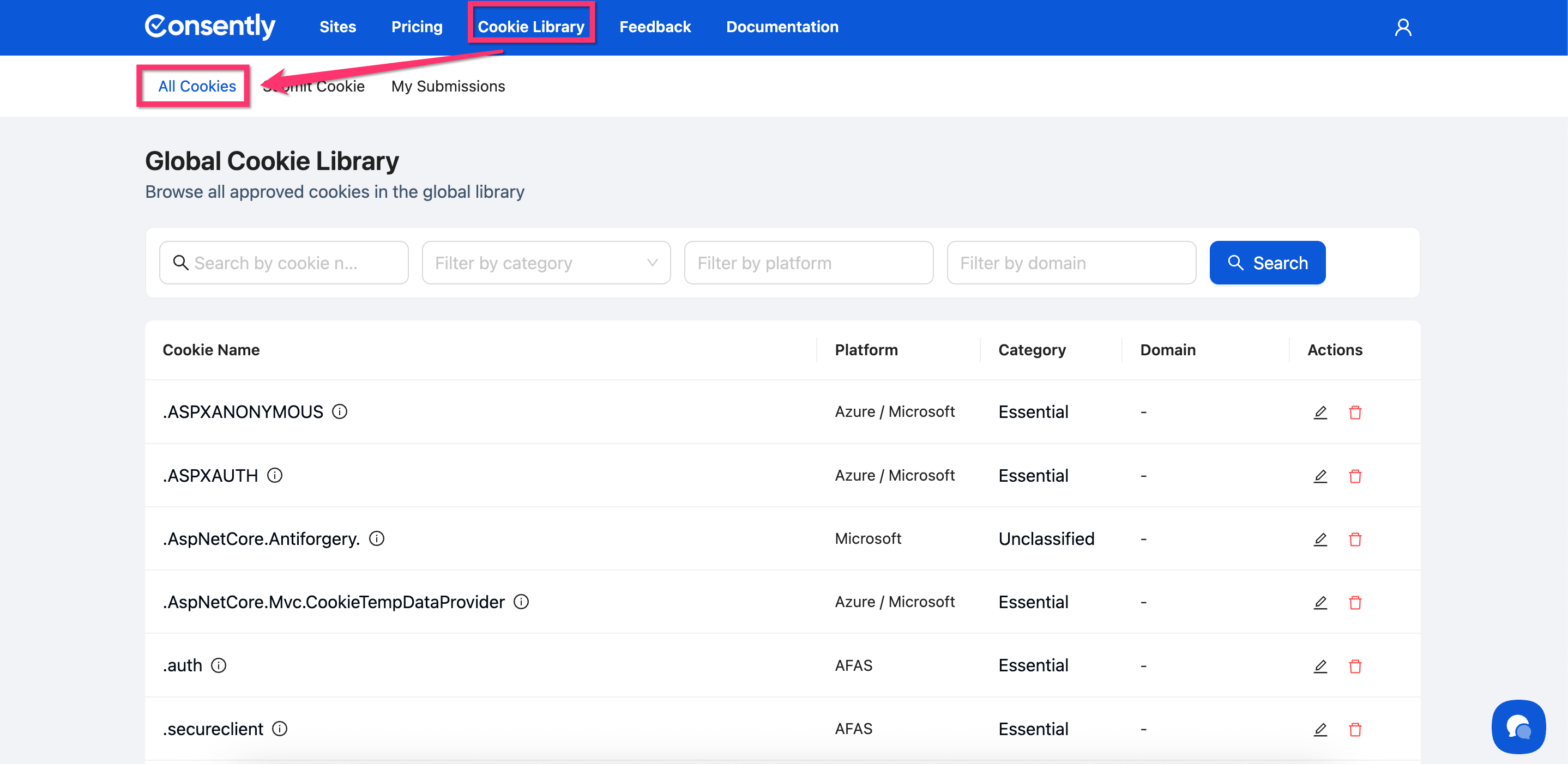
Step 1: Access the Cookie Library
Click Cookie Library in the top navigation bar, then select the All Cookies tab.
Step 2: Search or filter cookies
Use the search box to find cookies by name, or apply filters by category, platform, or domain.
💡 Tip: Cookie names support wildcards—searching for _ga* will show all Google Analytics cookies.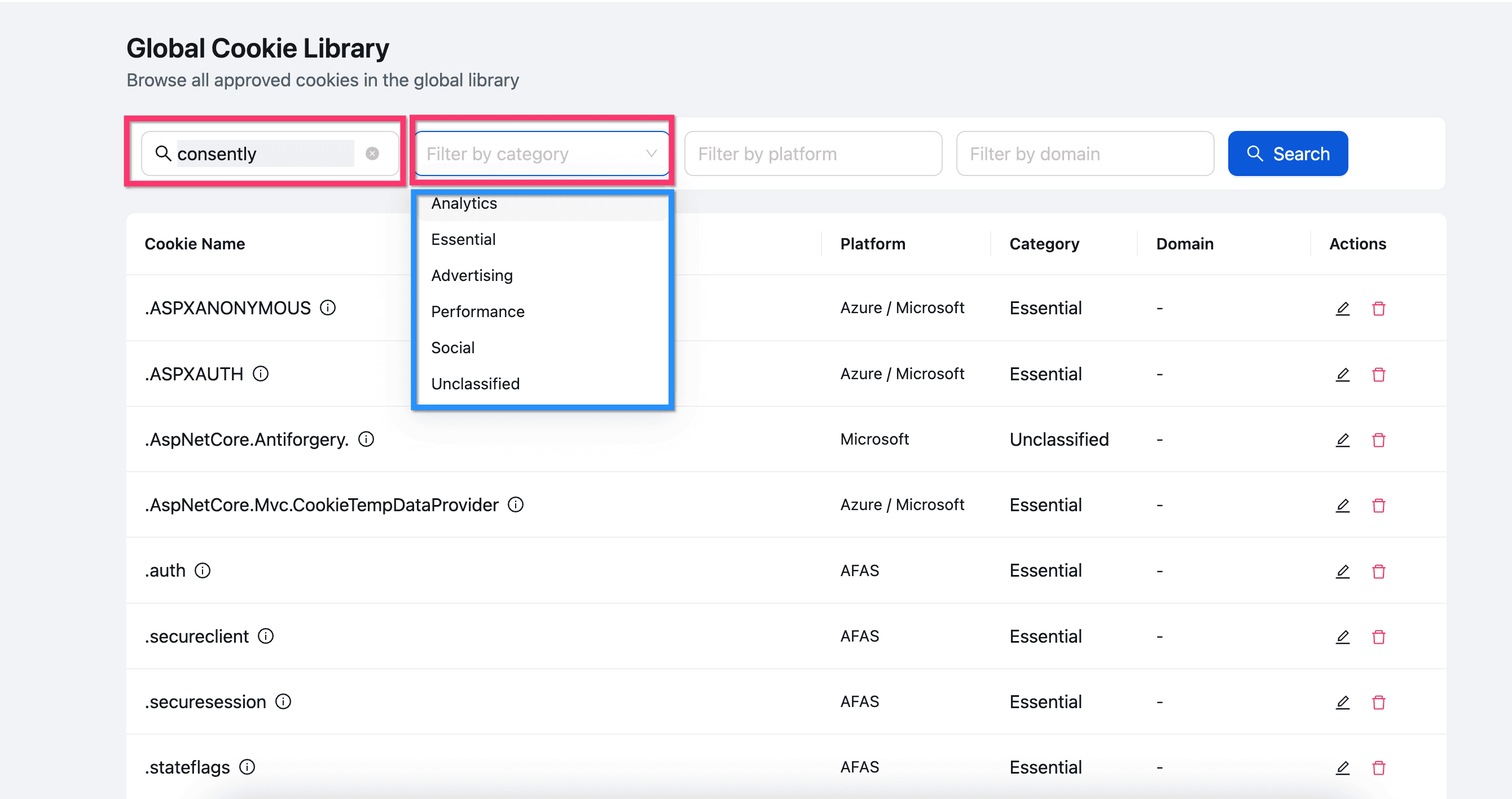
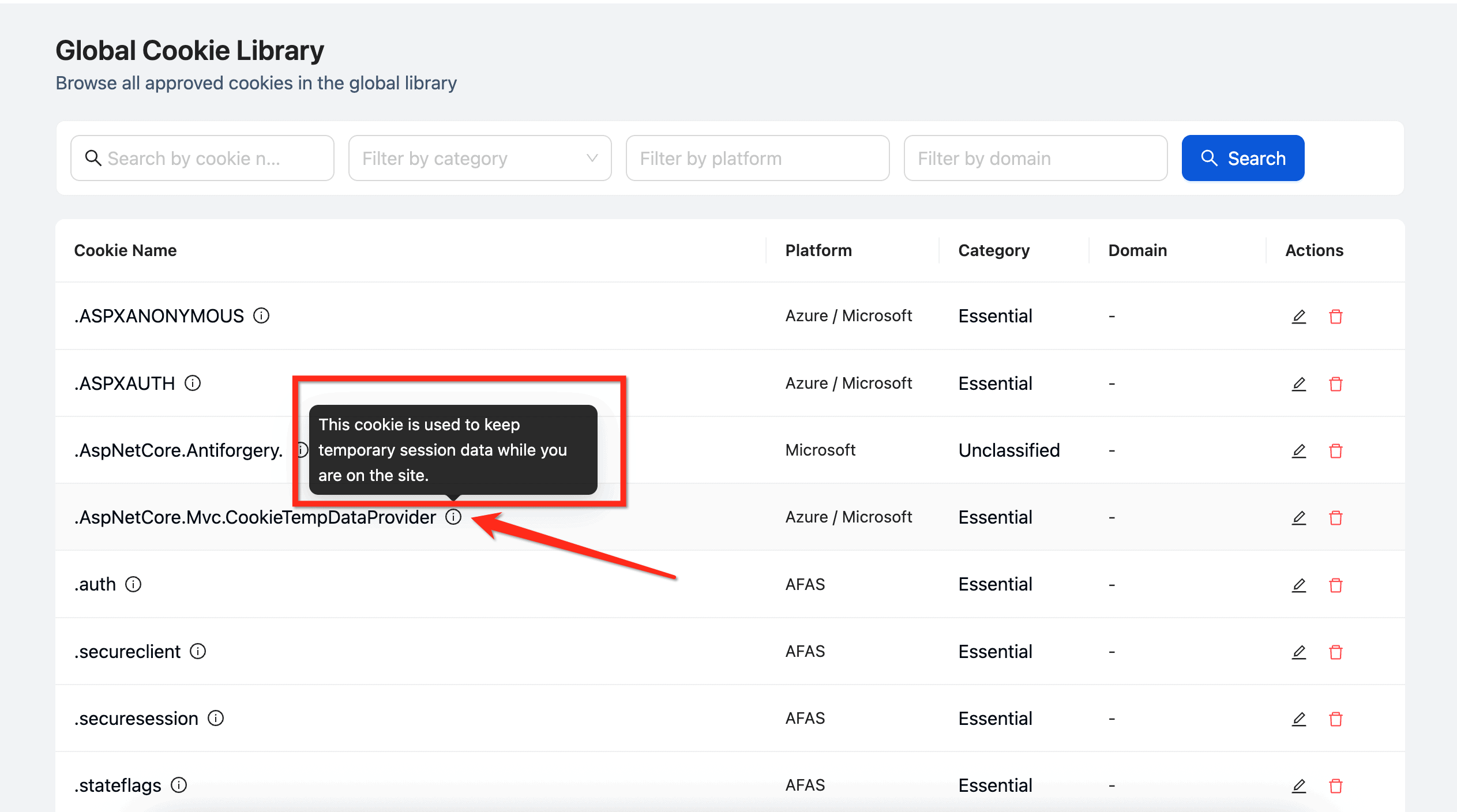
Step 3: View cookie details
Click the info icon next to any cookie name to see its description, platform, domain, and category.
Done!
You can now reference the library when categorizing cookies on your own site.
How to Submit a New Cookie
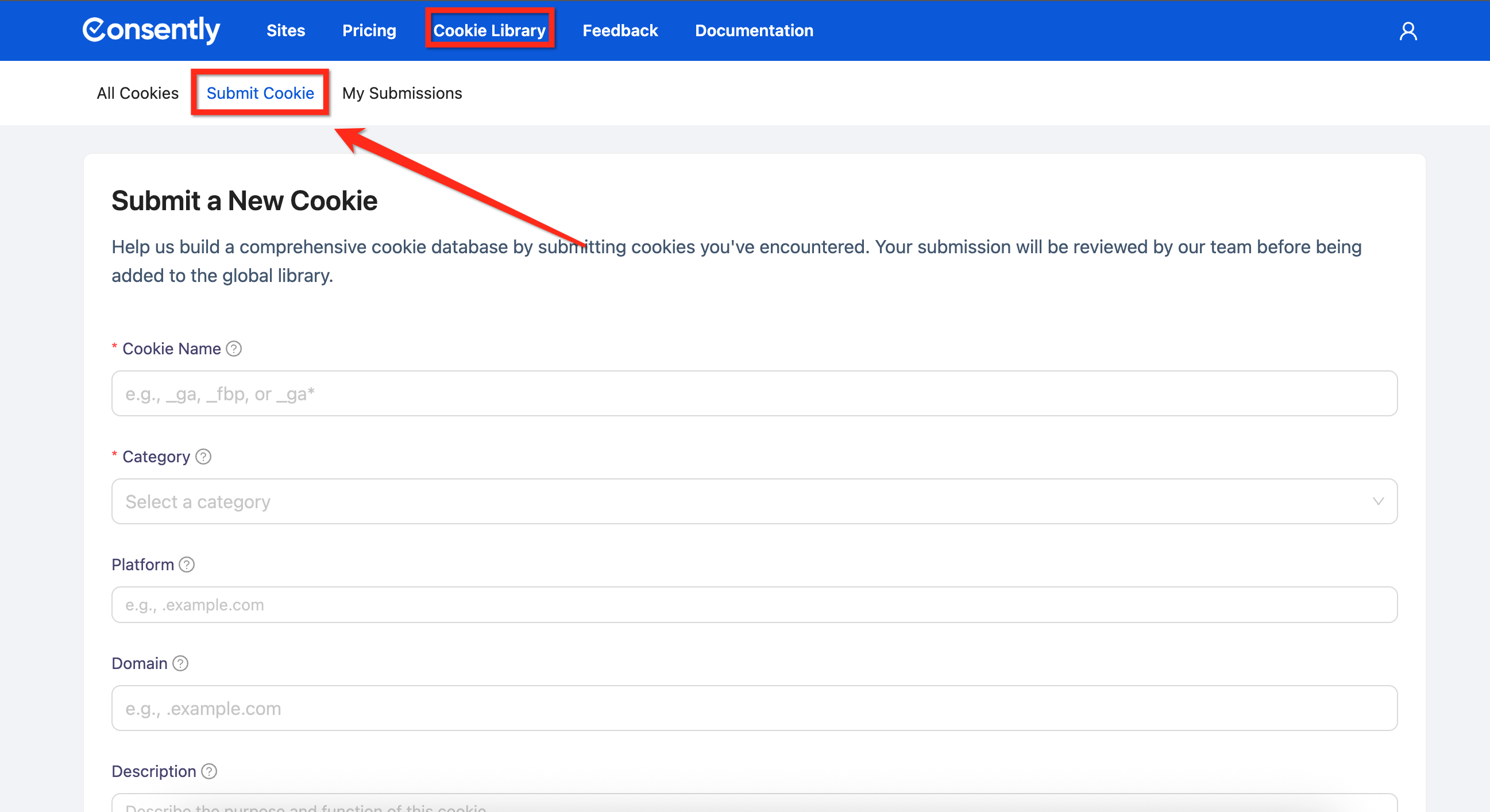
Step 1: Open the submission form
Navigate to the Submit Cookie tab in the Cookie Library.
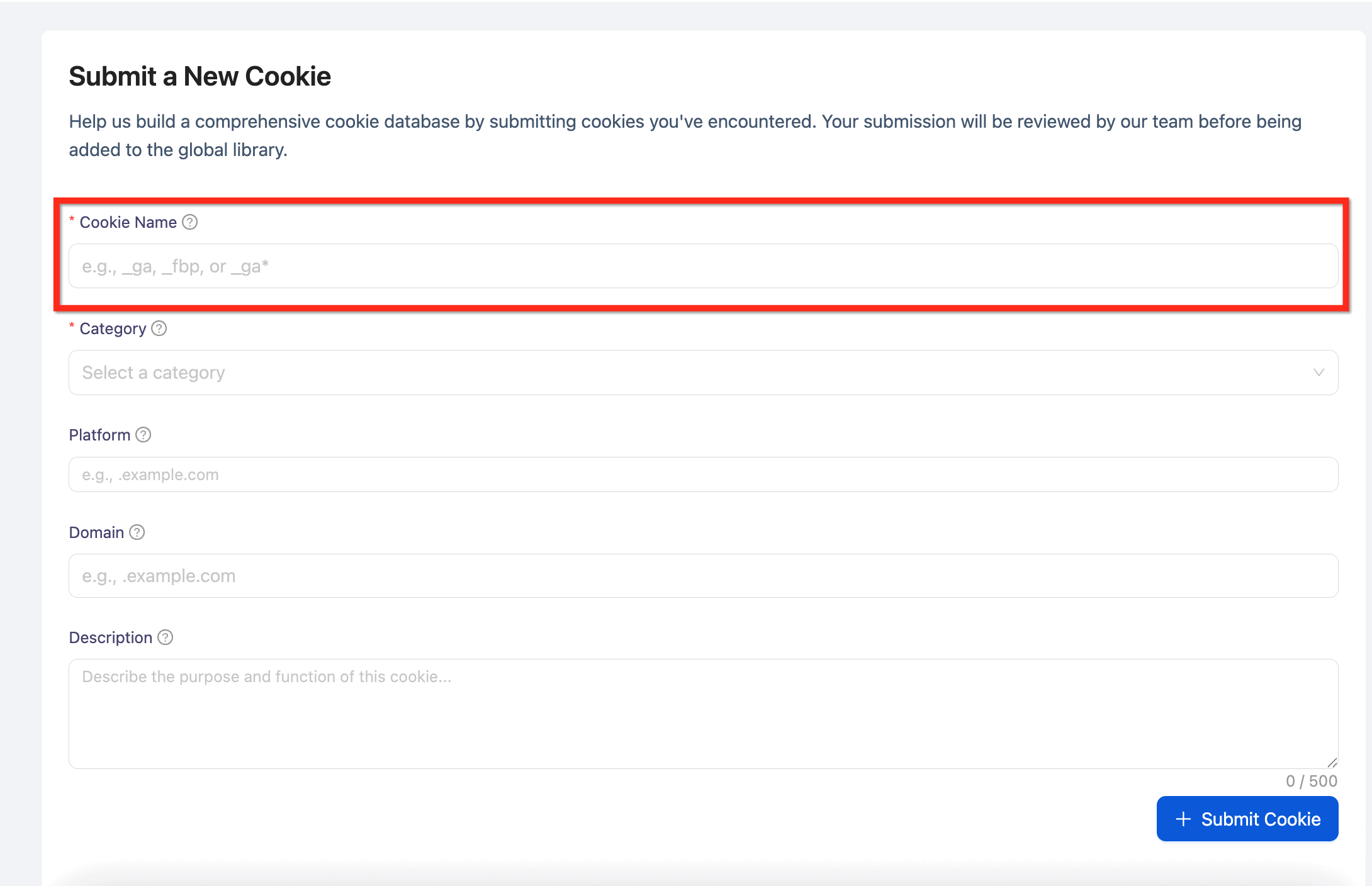
Step 2: Enter the cookie name
Type the cookie name exactly as it appears in your browser. You can use wildcards like _ga* or *session.
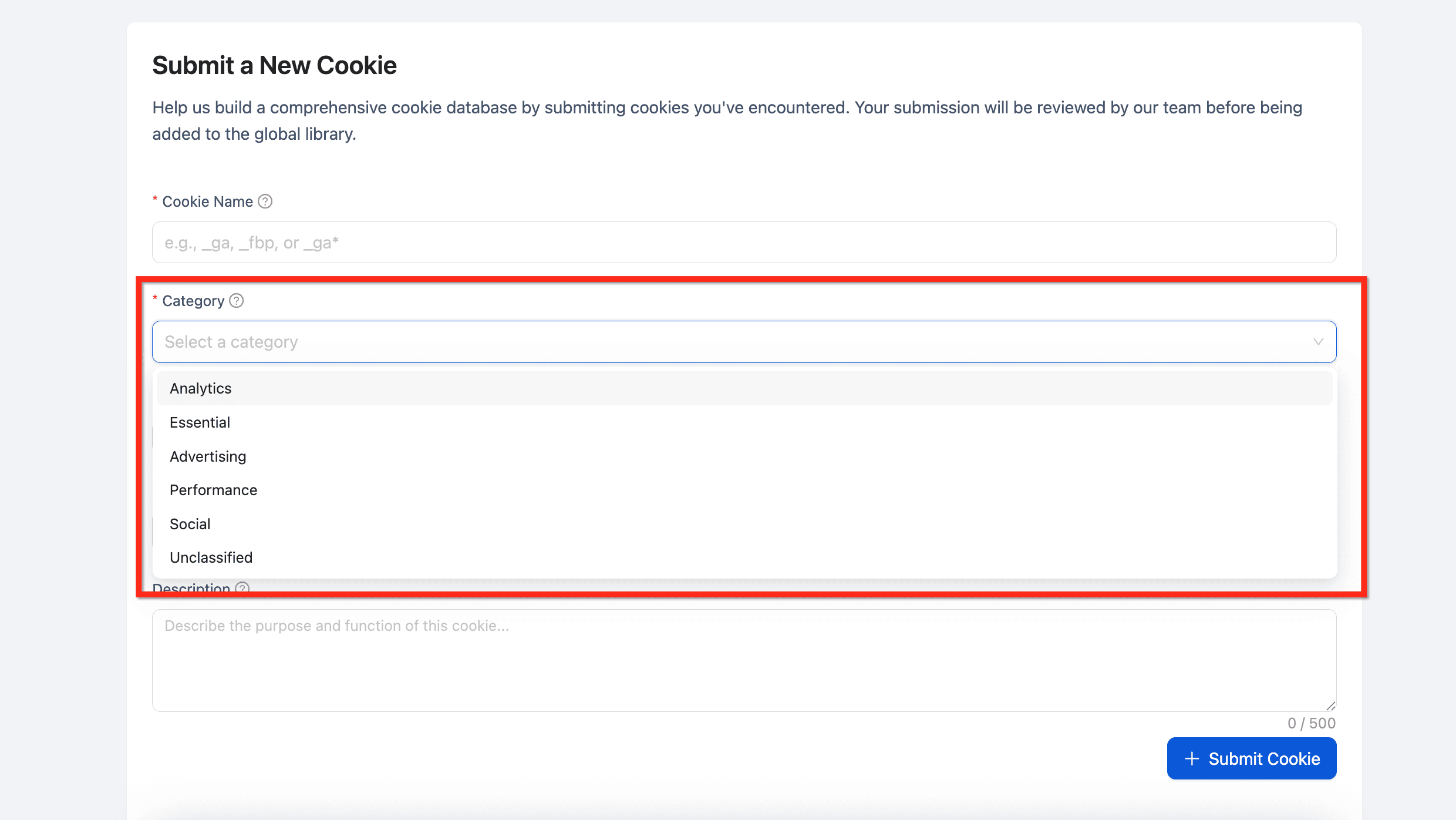
Step 3: Select a category
Choose the category that best describes the cookie's purpose from the dropdown.
⚠️ Important: Accurate categorization ensures proper consent handling and compliance.
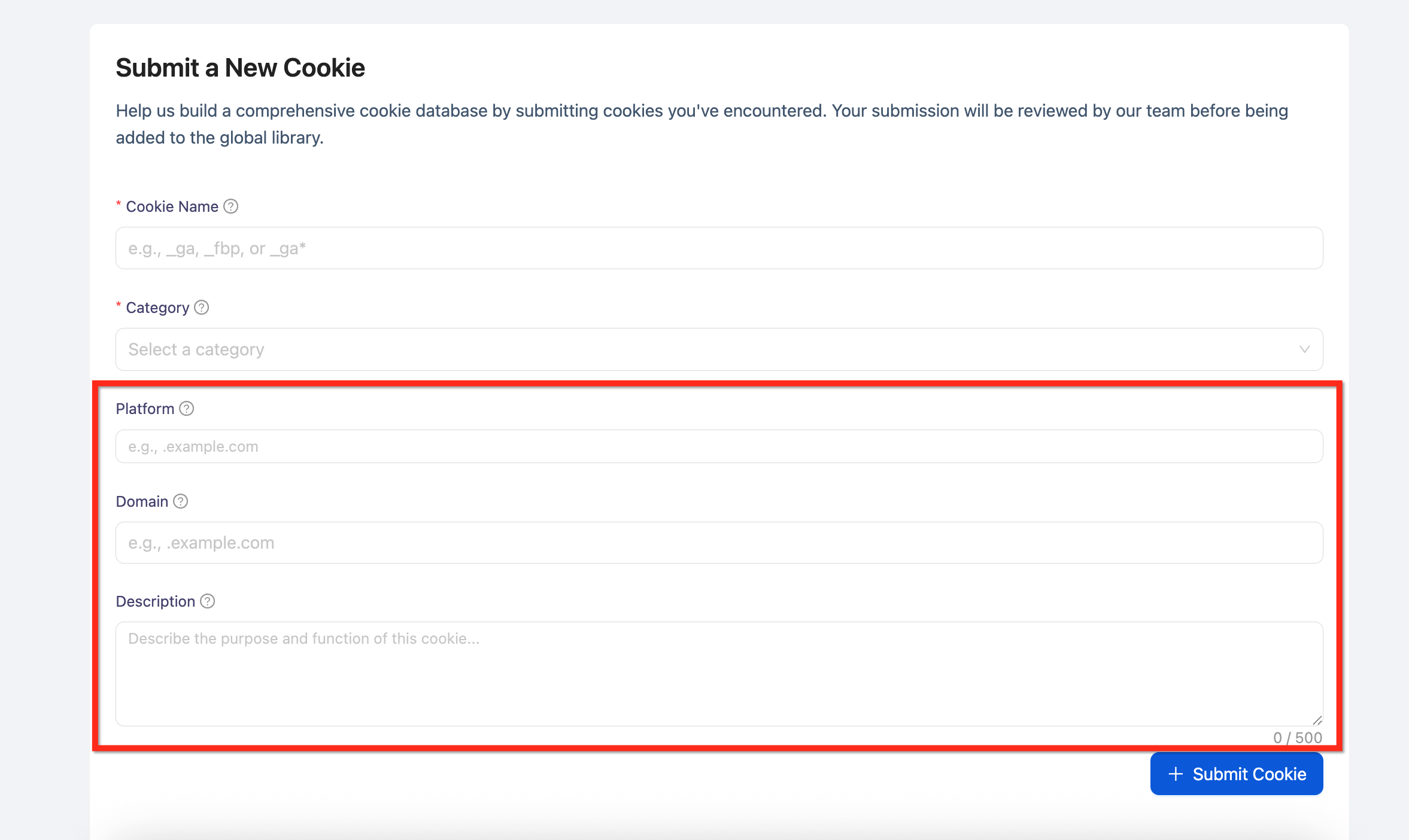
Step 4: Add optional details
Fill in the Platform (e.g., Google Analytics), Domain (e.g., .example.com), and Description fields to provide context.
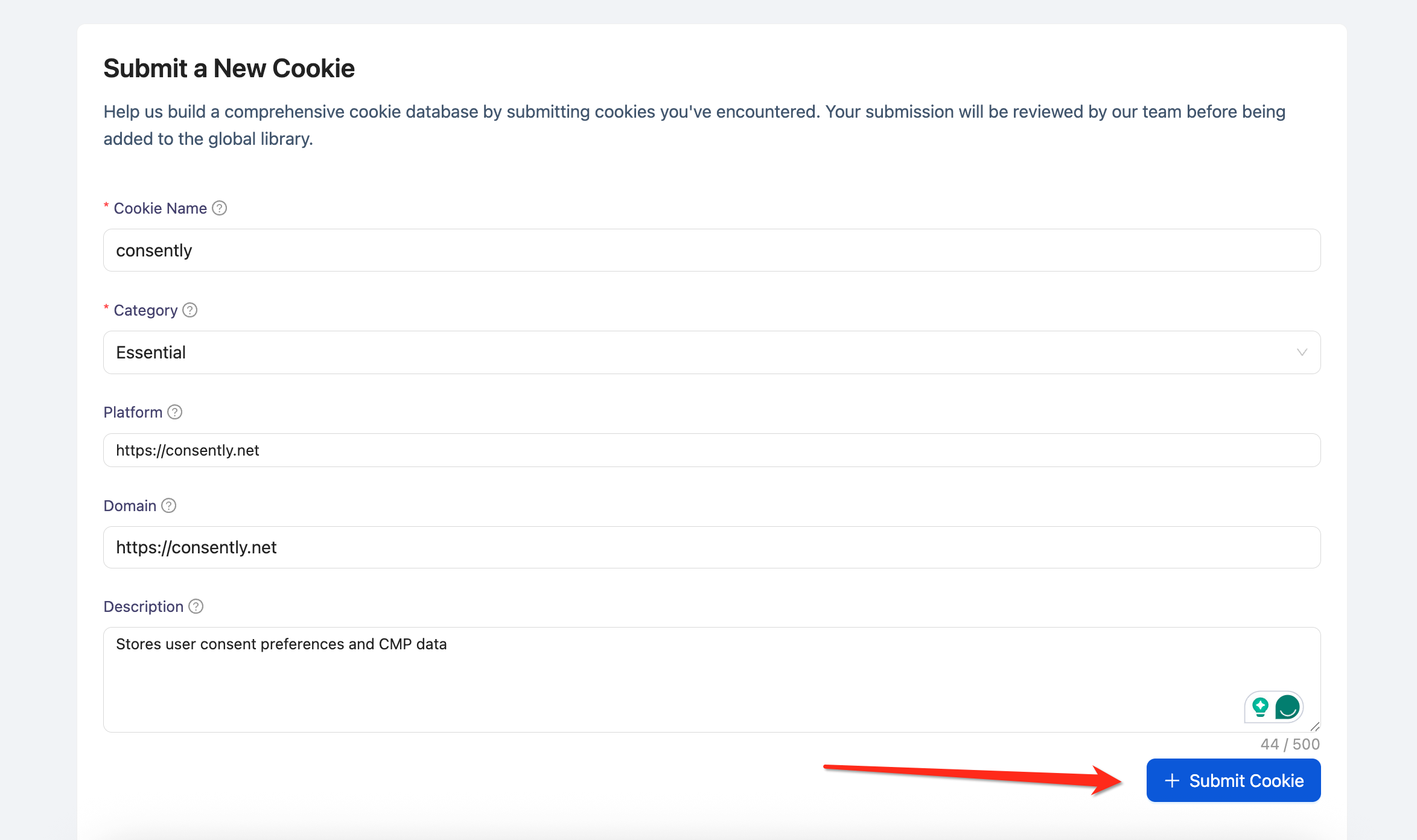
Step 5: Submit for review
Click Submit Cookie. Your submission will be reviewed by the Consently team before being added to the global library.
Done!
You'll see a confirmation message, and the cookie will appear in your My Submissions tab.
✅ Success indicator: "Cookie submitted successfully! It will be reviewed by our team."
How to Manage Your Submissions
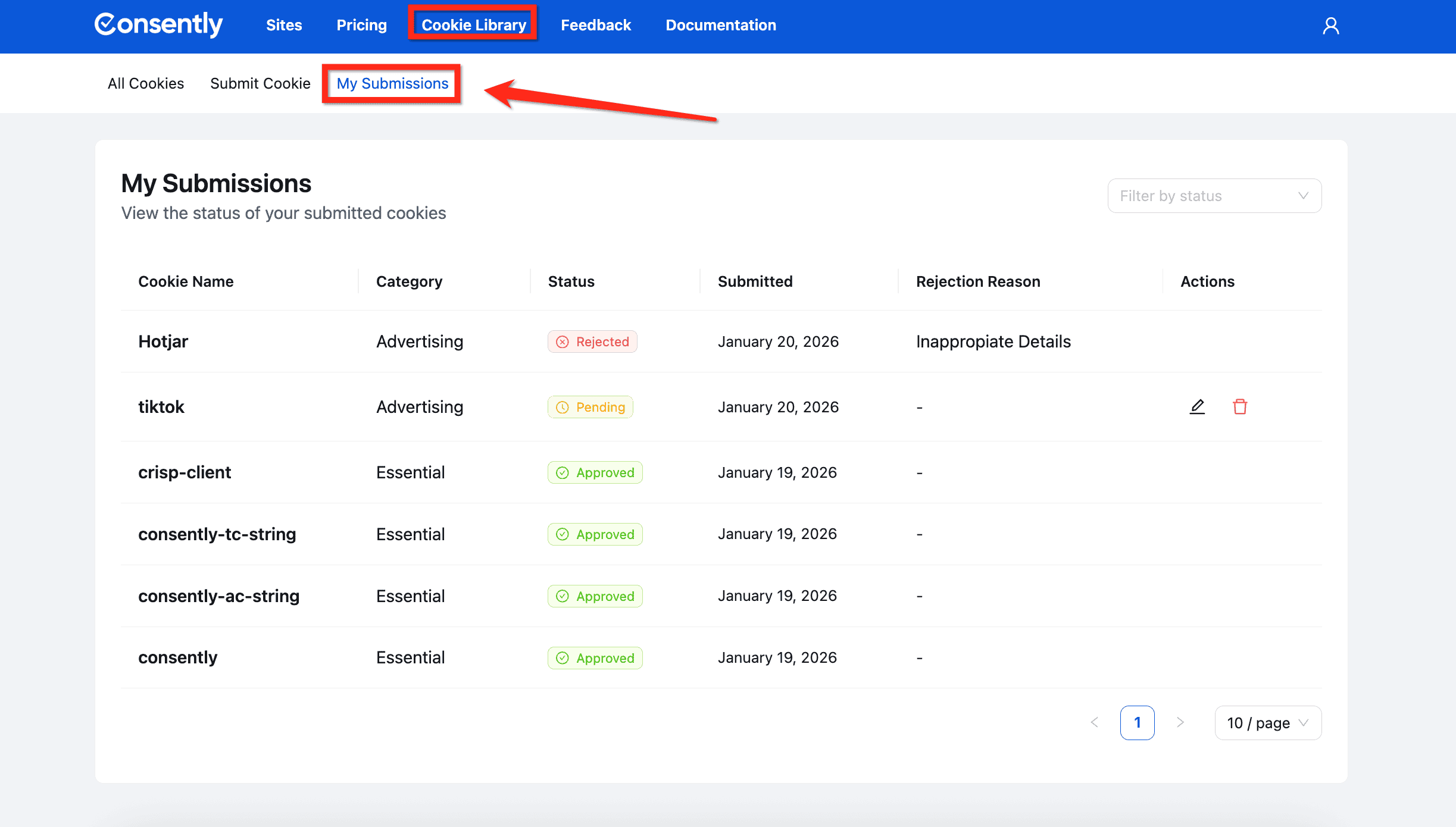
Step 1: View your submissions
Click the My Submissions tab to see all cookies you've submitted.
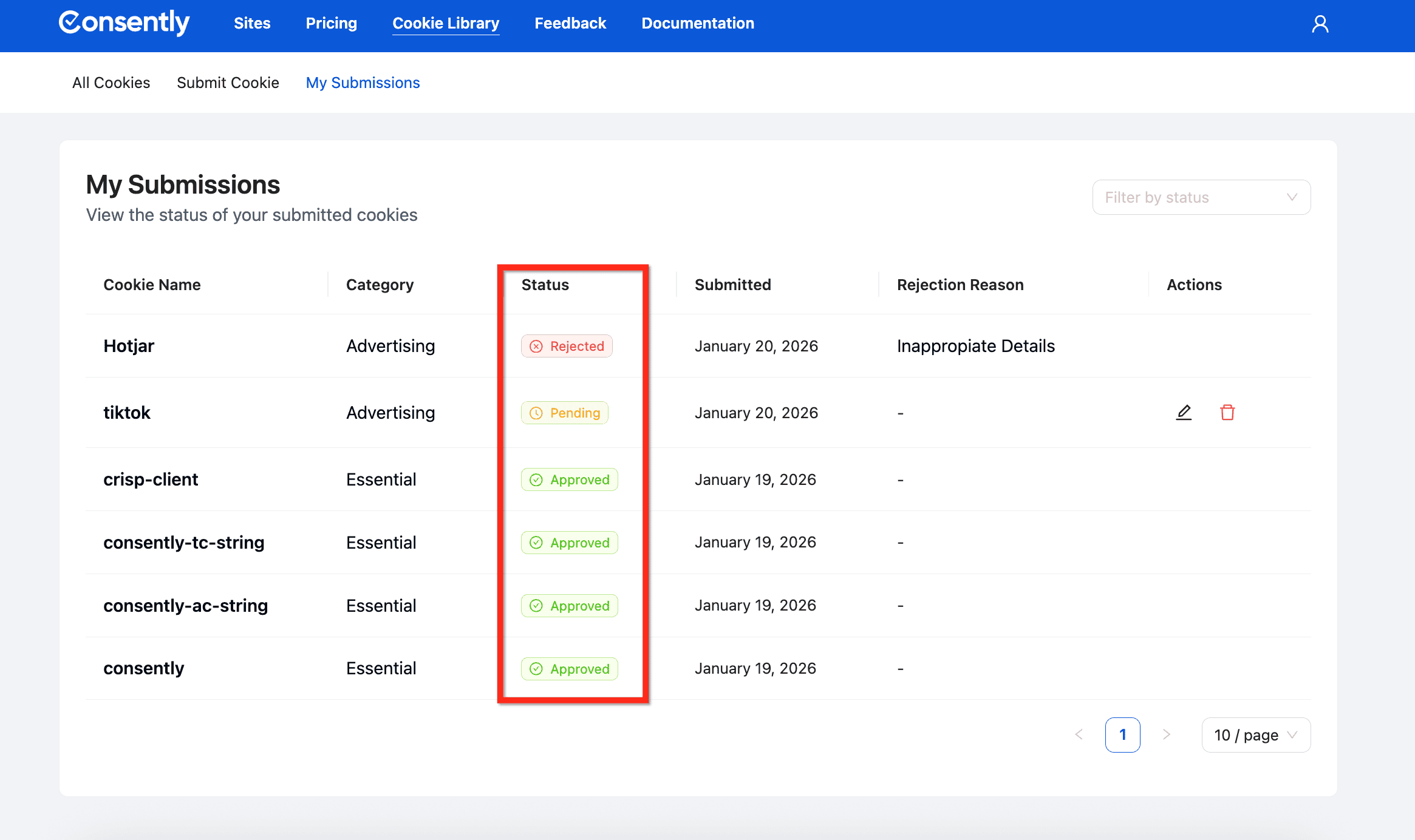
Step 2: Check submission status
Each submission shows its status: Pending (under review), Approved (added to library), or Rejected (see rejection reason).
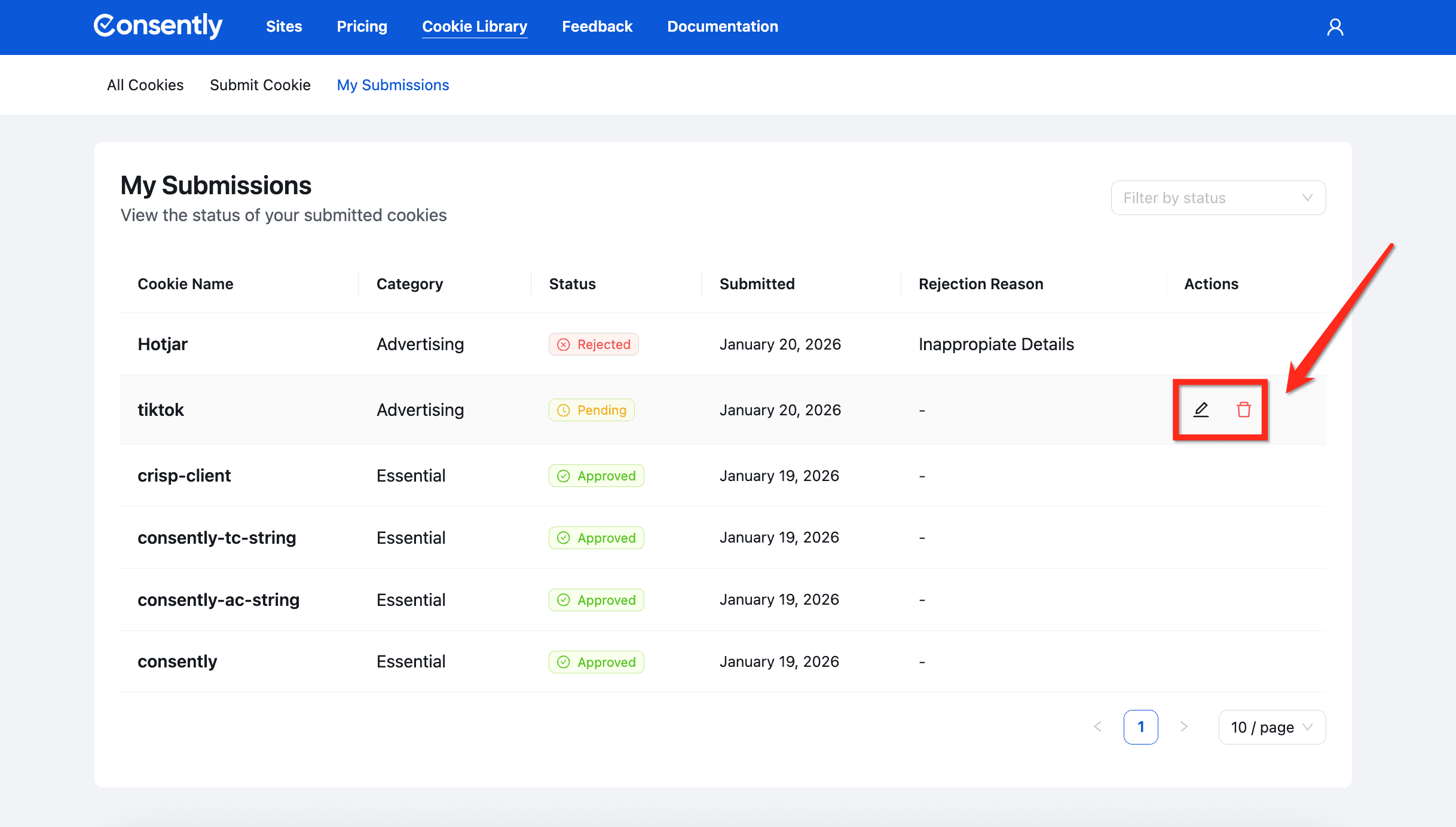
Step 3: Edit or delete submissions
Click the Edit icon to update a pending submission, or click Delete to remove it.
⚠️ Important: You can only edit or delete submissions that are still pending. Approved or Rejected cookies cannot be modified.
Done!
Your submissions are now organized and trackable.
What's Next
Now that you understand the Global Cookie Library, you should:
Troubleshooting
My submitted cookie is still pending
Why this happens: The Consently team manually reviews all submissions to ensure accuracy before adding them to the global library.
Solution: Allow 2-5 business days for review. Check your My Submissions tab for status updates.
The cookie I submitted was rejected
Solution: Check the Rejection Reason column in My Submissions to see why. Common reasons include duplicate entries, incorrect categorization, or insufficient description. You can resubmit with the necessary corrections.
Related Pages
Managing Cookies — Add cookies manually to your site's cookie list
Cookie Categories — Understand how cookie categorization works