

TL;DR: Dashboard → Sites → ⋮ Menu → Embed Script → Copy → Paste into your website's <head> section.Your consent banner activates immediately on your site.
Overview
Direct HTML installation adds the Consently script directly to your website's code. This method gives you full control over script placement and works with any website platform that allows HTML editing.
Before You Begin
Make sure you have:
Access to your website's HTML source code or file manager
Permission to edit your site's
<head>section
Time required: About 5 minutes
How to Install the Consently Script
Step 1: Access your embed script
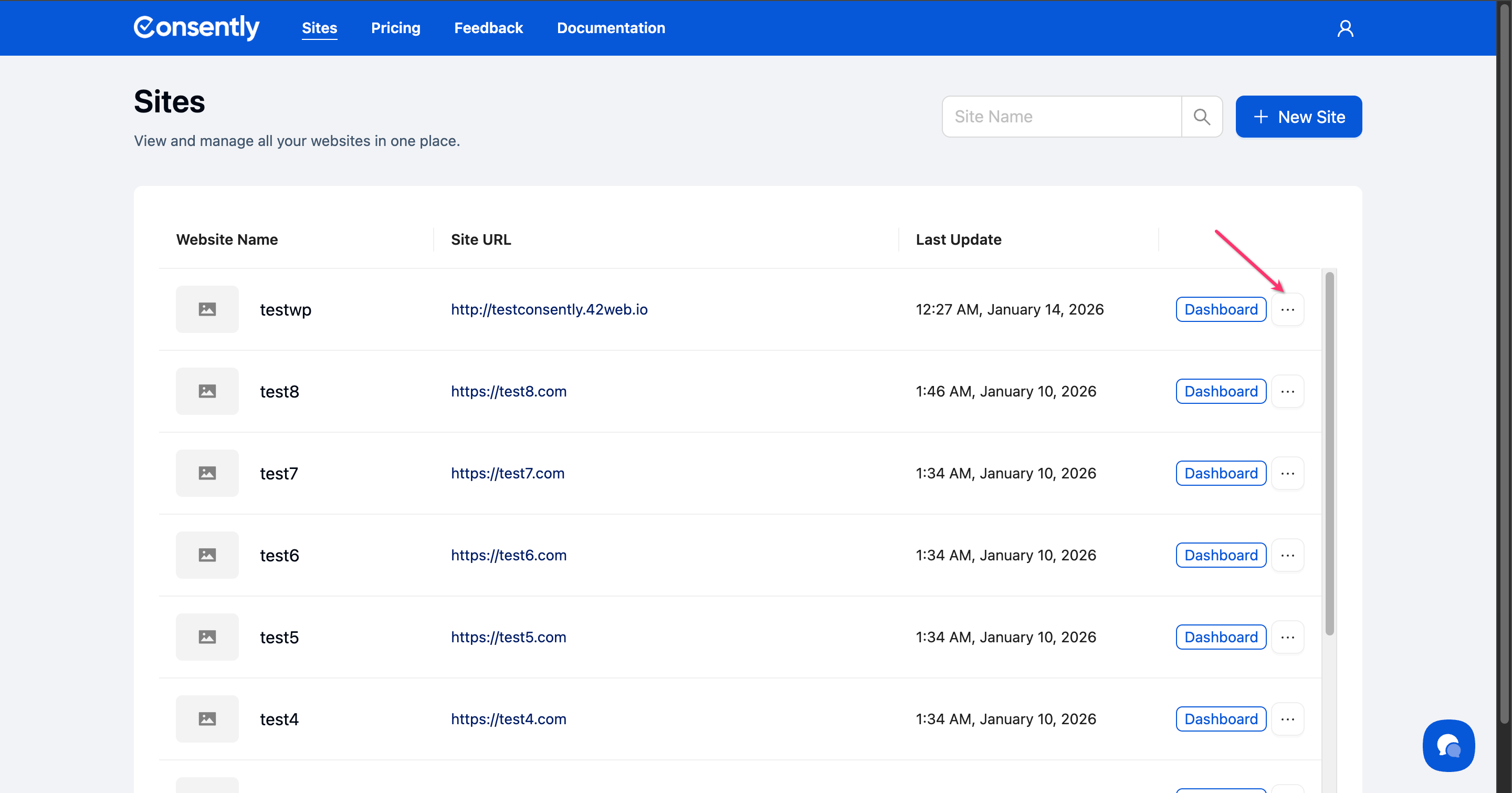
Navigate to Sites in the top navigation, find your website, and click the ⋮ (three-dot menu).
Step 2: Open the embed script modal
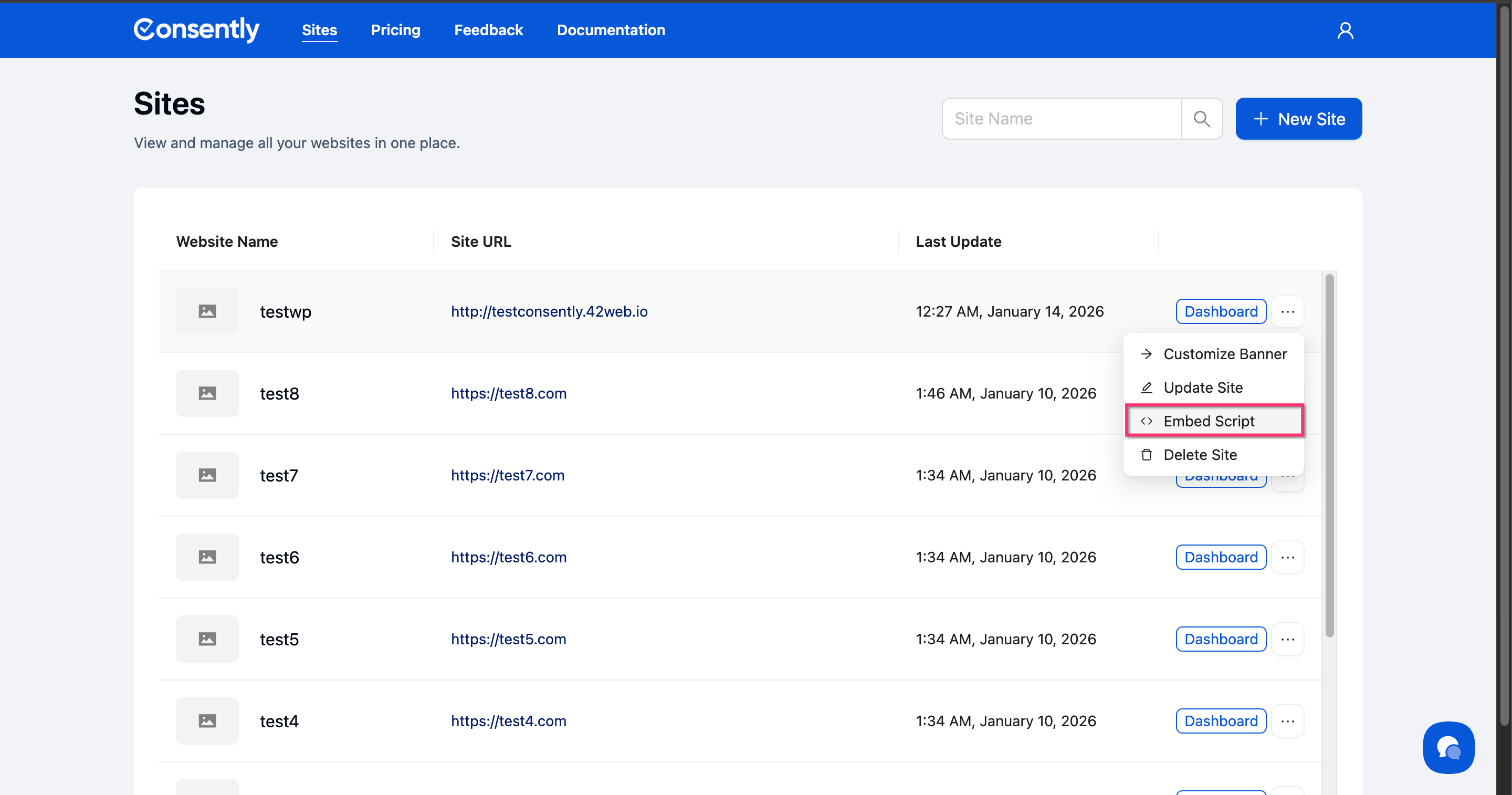
Click Embed Script from the dropdown menu
Step 3: Copy the script code
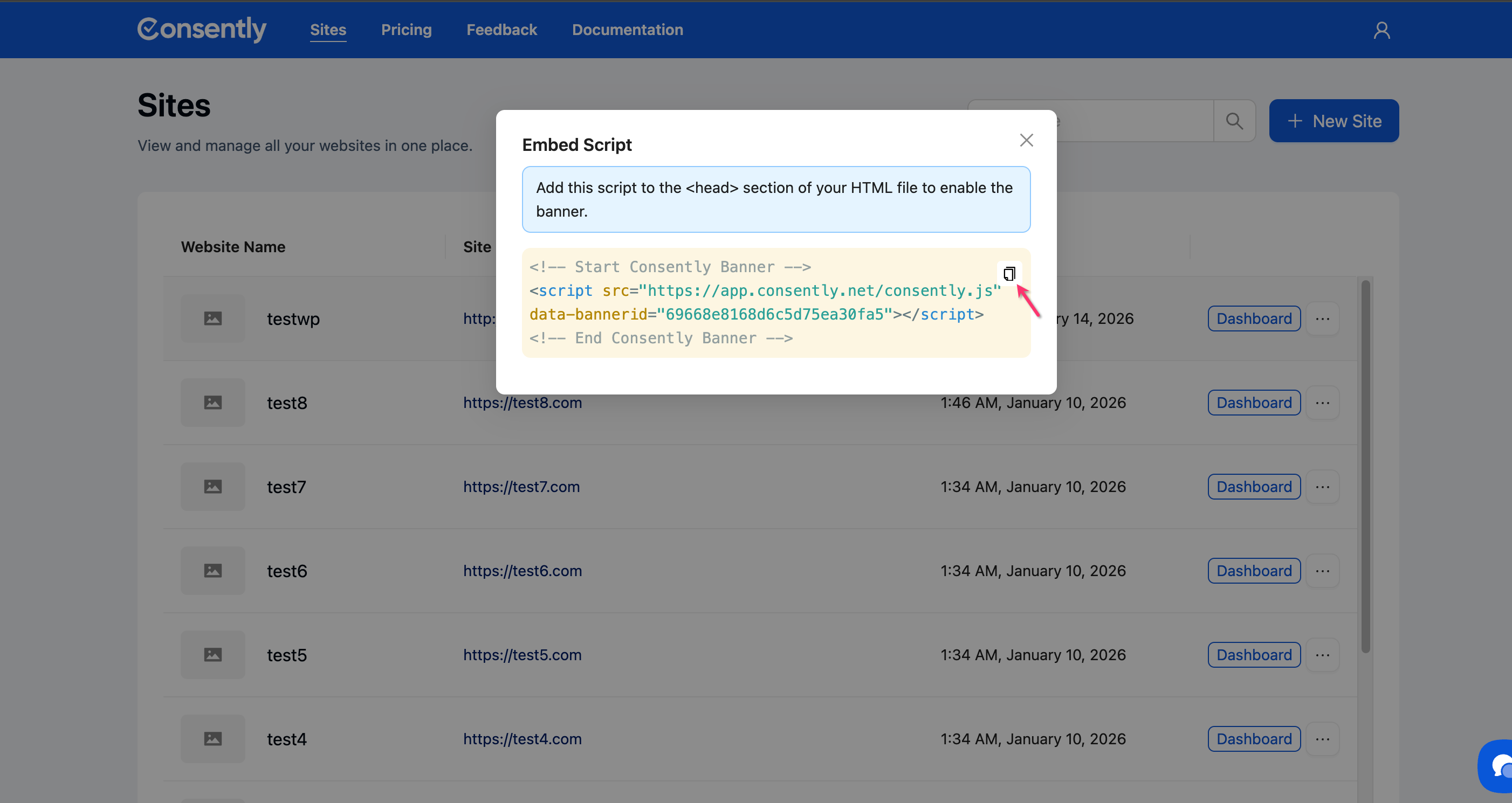
Click the Copy button (clipboard icon) in the top-right corner of the code block.
Step 4: Locate your website's HTML file
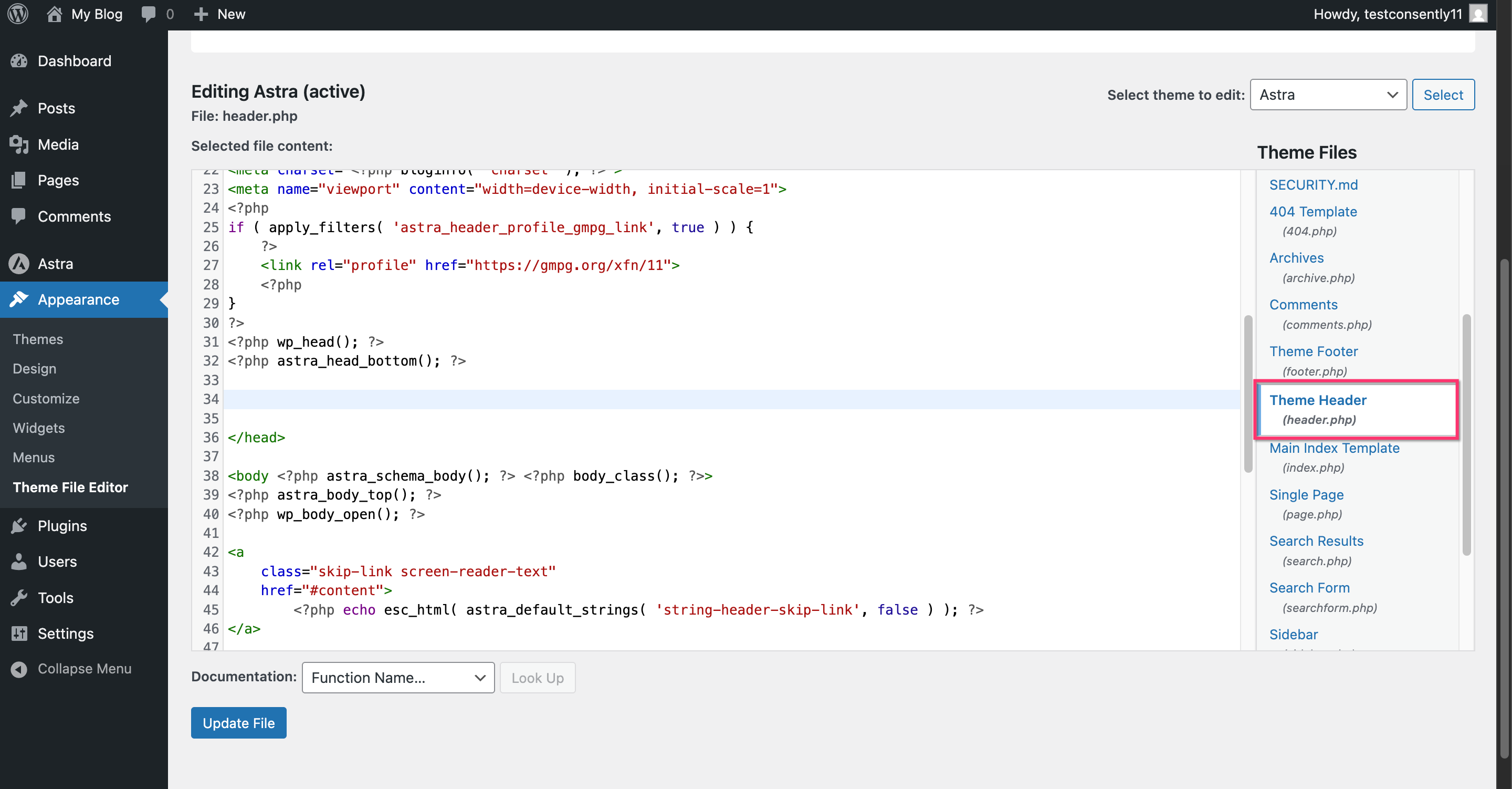
Open your website's main HTML file (typically index.html, header.php, or your site's template file) in a code editor or file manager. Here we are using WordPress as an example.
Step 5: Paste the script in the <head> section
Insert the copied script code inside the <head> tags of your HTML file, ideally near the top for faster loading.
<!-- Start Consently Banner -->
<script src="https://app.consently.net/consently.js" data-bannerid="YOUR_BANNER_ID"></script>
<!-- End Consently Banner -->

<!-- Other head elements -->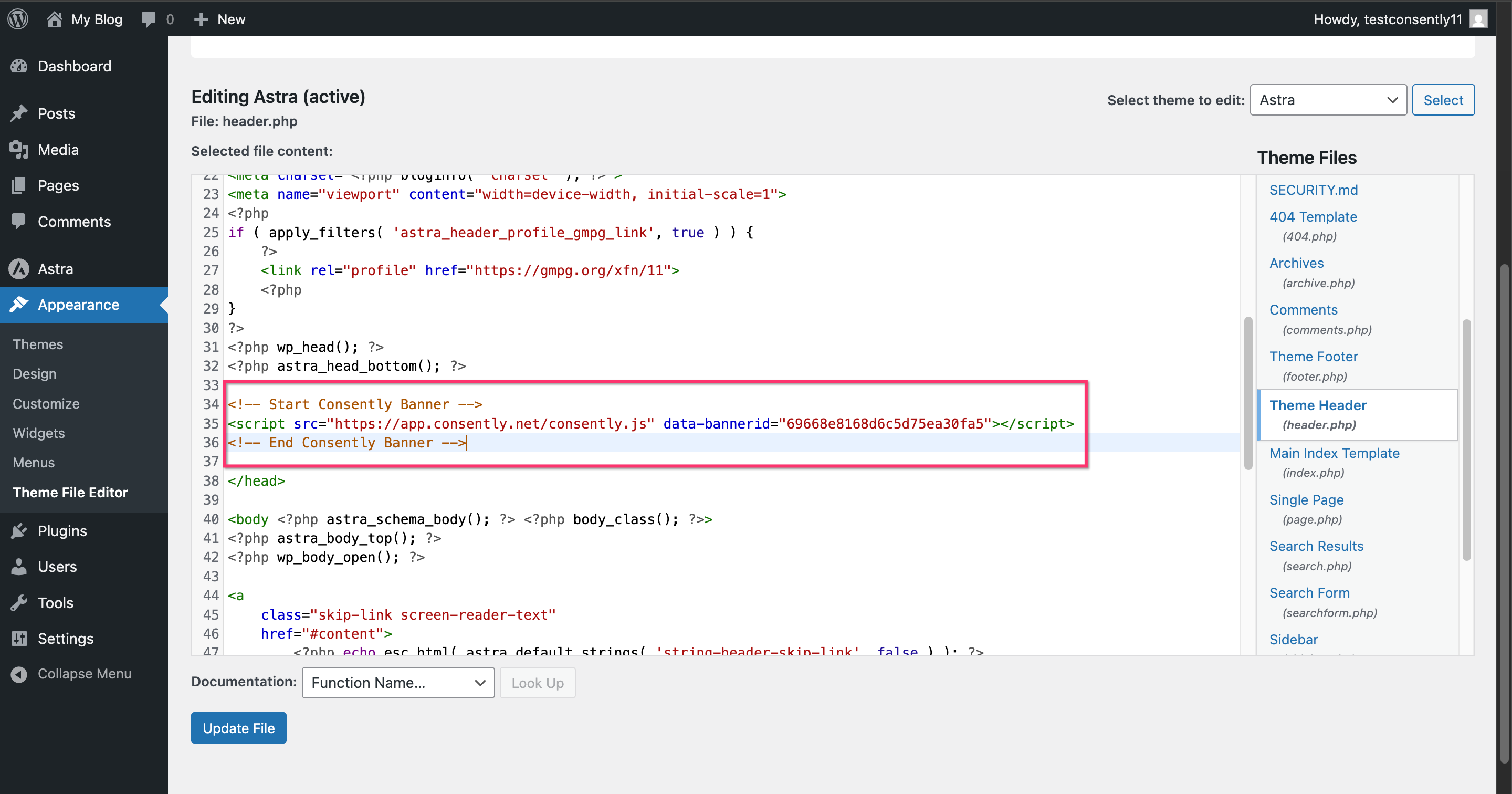
💡 Tip: Place the script before other third-party scripts to ensure cookies are blocked properly before they load.
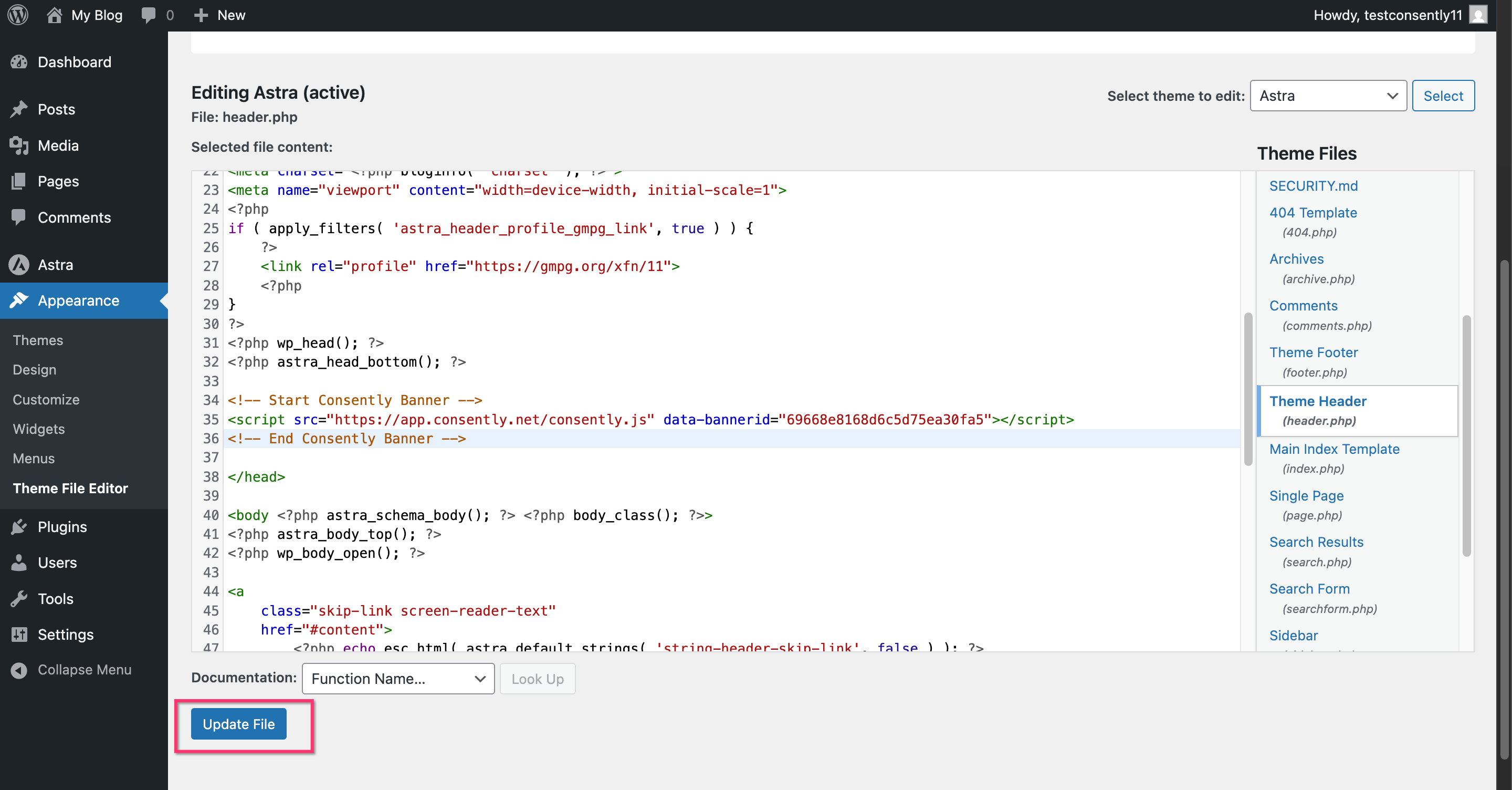
Step 6: Save and publish your changes
Save the HTML file and upload it to your web server if needed.
Done!
Your consent banner now appears on your website.
✅ Success indicator: Visit your website in a new private/incognito browser window—the consent banner should appear immediately.
Understanding the Script
The Consently script consists of three key parts:
Script source: https://app.consently.net/consently.js loads the banner functionality
Banner ID attribute: data-bannerid="YOUR_BANNER_ID" identifies your specific banner configuration
Asynchronous loading: The script loads without blocking other page content
The script automatically:
Detects cookies on your site
Displays the appropriate consent banner based on visitor's location
Manages consent preferences across page visits
Communicates with Google Consent Mode and IAB TCF if enabled
What's Next
Now that you've installed the script, you should:
Troubleshooting
Banner doesn't appear after installation
Why this happens: The script may be cached, blocked, or placed incorrectly.
Solution:
Clear your browser cache and refresh the page in a private/incognito window
Verify the script is inside the
<head>section, not<body>Check the browser console (F12) for any JavaScript errors
Confirm your banner is published in the Consently dashboard
Banner appears multiple times
Why this happens: The script is installed in multiple locations on your site.
Solution:
Search your HTML files for "consently.js" to find duplicate installations
Remove all instances except one in your main template file
Clear the cache and test again
Script won't copy to clipboard
Solution: If the Copy button doesn't work, manually select all text in the code block with Ctrl+A (or Cmd+A on Mac), then copy with Ctrl+C (or Cmd+C).
Related Pages
Google Tag Manager Installation — Alternative installation method using GTM