

TL;DR: Get your Banner ID from Sites → ⋮ Menu → Embed Script → Paste it and your target country codes into the snippet below → Add the snippet to your site's <head>. Your consent banner loads only for visitors from the countries you specify.
Overview
Country-based script loading conditionally loads your Consently banner only when a visitor's country matches your approved list. This is useful when your site serves a global audience, but you only need consent compliance in specific regions.
Before You Begin
Make sure you have:
Your Consently Banner ID — found in the Embed Script modal
Access to your website's
<head>HTML or CMS code injection panel
Time required: 5 minutes
How to Implement Country-Based Loading
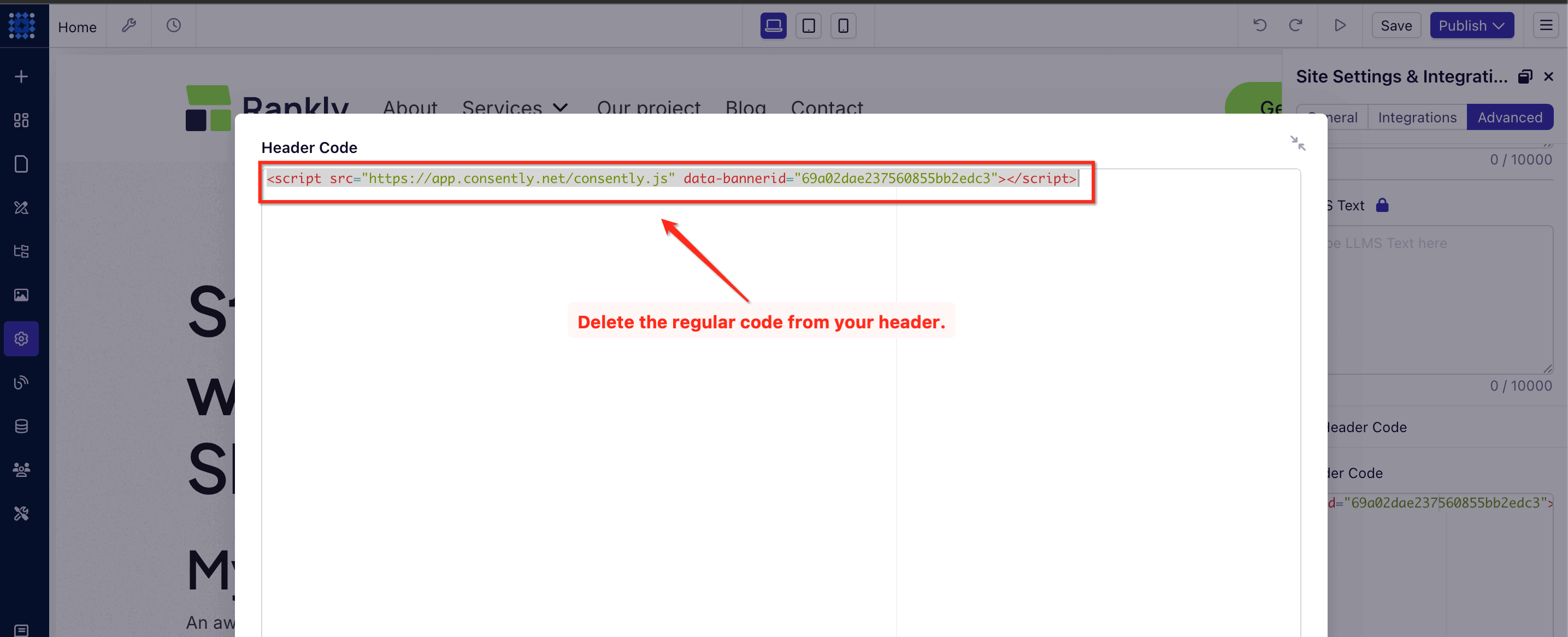
Step 1: Remove the regular Consently script
Find and delete the standard Consently embed script from your site's <head>. It looks like this:
<script src="https://app.consently.net/consently.js" data-bannerid="YOUR_BANNER_ID"></script>⚠️ Important: The regular script and the custom snippet must not exist on the same page at the same time. Having both will cause the banner to load for all visitors, bypassing country filtering entirely.
Step 2: Copy the custom snippet
Copy the script below into a text editor so you can customize it before adding it to your site:
<script>
(async function () {
  try {
    const allowed = ["US", "GB", "DE"]; // Replace with your target country codes
    const bannerId = "YOUR_BANNER_ID";  // Replace with your Banner ID
    const res = await fetch("https://ipapi.co/country/");
    if (!res.ok) return;
    const country = (await res.text()).trim();
    if (allowed.includes(country)) {
      const s = document.createElement("script");
      s.src = "https://app.consently.net/consently.js";
      s.async = true;
      s.dataset.bannerid = bannerId;
      document.head.appendChild(s);
    }
  } catch (e) {
    console.error(e);
  }
})();
</script>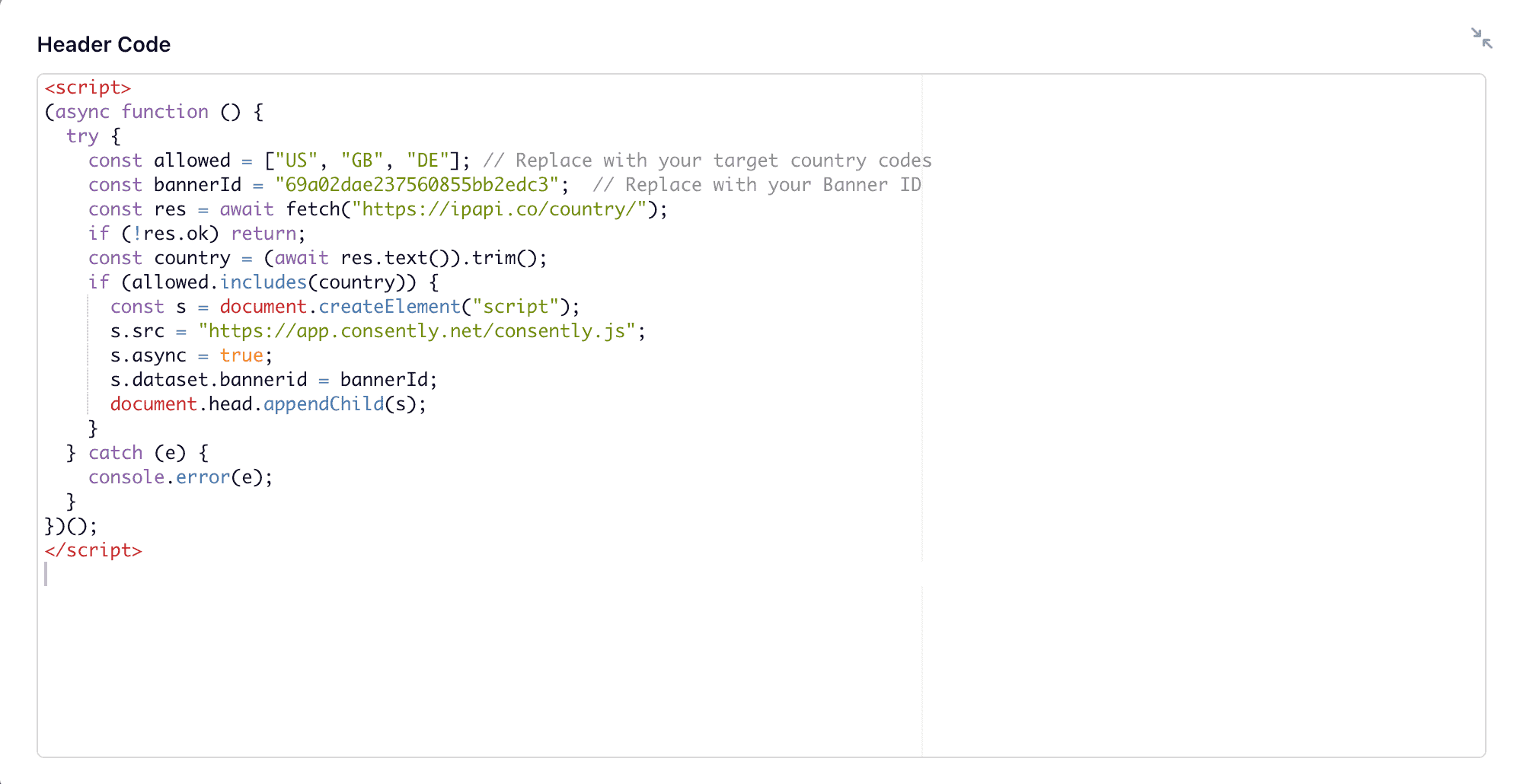
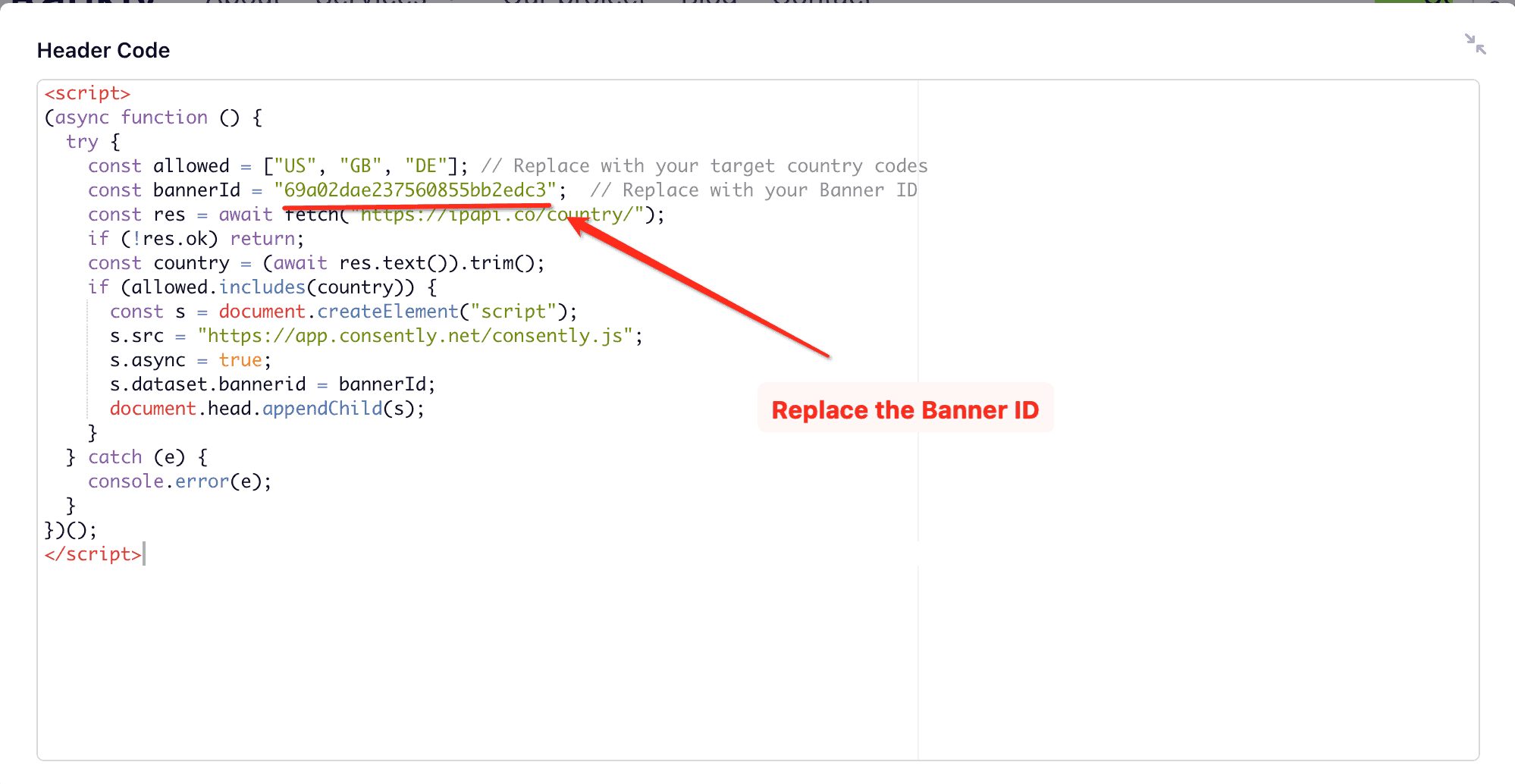
Step 3: Set your Banner ID
Replace YOUR_BANNER_ID in the bannerId variable with the actual Banner ID from your Consently dashboard. You can find it in the Embed Script modal.
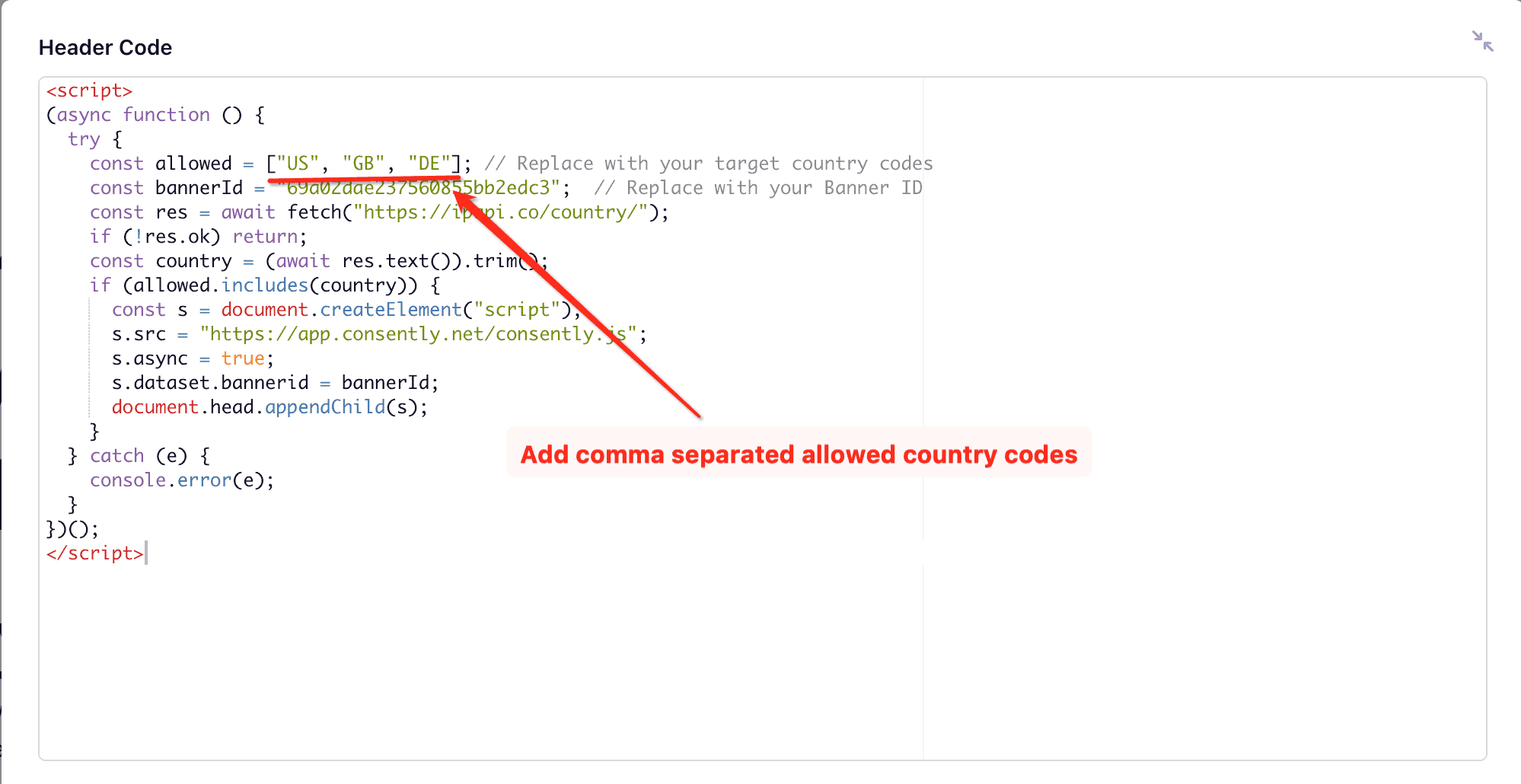
Step 4: Set your allowed countries
Replace the example codes in the allowed array with the ISO 3166-1 alpha-2 two-letter country codes for the regions you want to target.
Common codes:
Region | Code |
|---|---|
United States |
|
United Kingdom |
|
Germany |
|
France |
|
Malaysia |
|
Bangladesh |
|
Canada |
|
Australia |
|
💡 Tip: If you need GDPR compliance for EU visitors, add all relevant EU member state codes — or consider loading the banner worldwide and configuring your templates to show only to the appropriate regions. See GDPR Compliance and CCPA & US State Laws Compliance to understand which regions require consent.
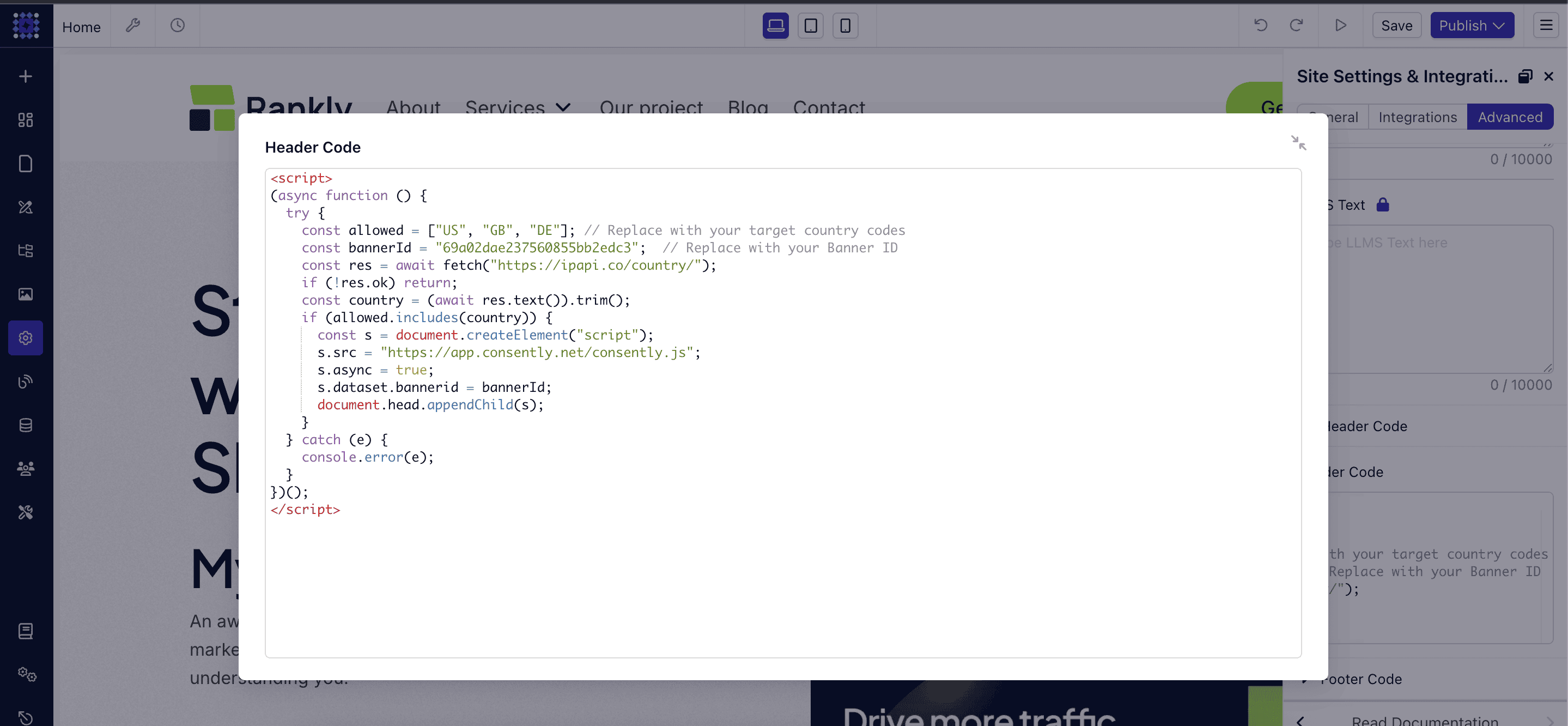
Step 5: Paste the snippet into your site's <head>
Add the completed snippet inside the <head> section of your HTML, in the same location where the regular script was removed.
Done!
The regular script has been replaced, and the banner now loads only for visitors whose IP address resolves to one of your allowed country codes.
✅ Success indicator: Visit your site using a VPN set to an allowed country — your consent banner should appear. Visiting from a non-allowed country should show no banner.
What's Next
Now that you've set up country-based loading, you should:
Troubleshooting
The banner is not appearing for any country
Why does this happen: The data-bannerid the value may be incorrect, or the snippet was not placed in the <head> section.
Solution:
Double-check that
YOUR_BANNER_IDwas replaced with your actual Banner ID — copy it again directly from the Embed Script modalConfirm the full snippet is inside
<head>and not<body>Clear your browser cache and reload the page
The banner appears for all visitors, ignoring country filtering
Why this happens: You may have another copy of the standard Consently embed script installed separately on the same page.
Solution:
Search your site's
<head>code for any existingapp.consently.net/consently.jsscript tagsRemove any duplicate standard embed scripts — the country-based snippet should be the only Consently script present
The banner is not appearing, even with a VPN set to an allowed country
Why this happens: Some VPN exit nodes use IP ranges not recognized by ipapi.co, or the ipapi.co The service may be temporarily unreachable.
Solution:
Test with a different VPN server in the same country
Open your browser console and check for any network errors on the
ipapi.co/country/requestIf
ipapi.cois blocked in your environment, consult your developer to substitute an alternative IP geolocation API
Related Pages
Direct HTML Installation — Standard full-page Consently script installation without country filtering
Google Tag Manager Installation — Alternative method for deploying scripts via GTM with built-in geographic triggers